


 Video Converter Ultimate
 Screen Recorder
 Riparazione video
 Download sicuro
Tutorial passo passo su come convertire GIF in JPG
La GIF è il formato di file più utilizzato per inviare emozioni esagerate, come nei meme. Contiene sia immagini animate che statiche, ma non tutte le piattaforme supportano il formato GIF. Ci sono situazioni in cui vuoi condividere un’immagine GIF perché è divertente, ma non riesci a inviarla perché il programma o il browser che usi non supporta questo formato. È davvero frustrante. Se vuoi inviare l’immagine senza problemi, è meglio convertire la tua GIF in altri formati come JPG. Poiché il formato JPG è molto diffuso, puoi usarlo su qualsiasi browser e programma. In questo articolo scoprirai vari metodi per convertire GIF in JPG con l’aiuto di convertitori di immagini. In questo modo, se non vuoi più incontrare lo stesso problema in futuro, leggi l’articolo e inizia a convertire le tue immagini.

Parte 1. GIF vs. JPG/JPEG
| Formato del file | GIF | JPG / JPEG |
| Estensione nome file | .gif | .jpg / .jpeg |
| Sviluppato da | Compuserve | Gruppo congiunto di esperti di fotografia |
| Tipo Mimo | immagine/gif | immagine/jpeg |
| Descrizione | GIF è il formato di file preferito di Internet per la sua capacità di animare le immagini. I file GIF utilizzano foto bitmap e consentono fino a 8 pixel/bit. Inoltre, consente 256 colori nello spazio colore RGB a 24 bit. Non tutte le foto GIF sono animate. | JPG formato, che è un formato di file popolare al giorno d'oggi. Il suo scopo è comprimere le immagini per ridurre i tempi di download e caricamento. Tutti i programmi possono accedere a questo formato. Ciò elimina la necessità di considerare come aprire questo file su vari programmi e browser. |
| Programmi / browser associati | Adobe Photoshop Corel Draw Corel Paint ShopPro Tela Google Chrome Internet Explorer Microsoft Edge | Dipingere Adobe Photoshop Programma foto IrfanView Visualizzatore di foto Internet Explorer Mozilla Firefox Google Chrome |
Parte 2. Metodi semplici per convertire GIF in JPG online
Come convertire GIF in JPG utilizzando FVC Free Image Converter
FVC Free Image Converter è il miglior convertitore di immagini online per convertire GIF in JPG. Puoi convertire rapidamente il tuo file GIF in JPG seguendo procedure molto semplici. Per questo motivo, lo strumento online è ottimo anche per i principianti. Puoi anche utilizzare l’opzione di conversione in blocco di FVC Free Image Converter. Questo strumento ti consente di convertire diverse foto in un’unica procedura. Inoltre, lo strumento non aggiunge alcun elemento fastidioso alle foto convertite e salvate. Così potrai visualizzare le immagini in modo pulito. Inoltre, durante il processo di conversione non appariranno annunci sullo schermo. In questo modo puoi convertire i file senza distrazioni. Inizia a seguire le semplici istruzioni riportate di seguito per convertire la tua GIF in un’immagine JPG.
Passaggio 1. Visita il sito principale di FVC Free Image Converter. Puoi usare qualsiasi browser dal tuo computer per accedere al convertitore online. Quindi fai clic sul formato JPG dall’opzione Convert to.
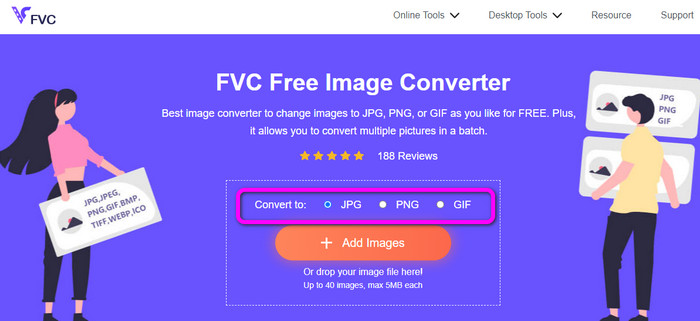
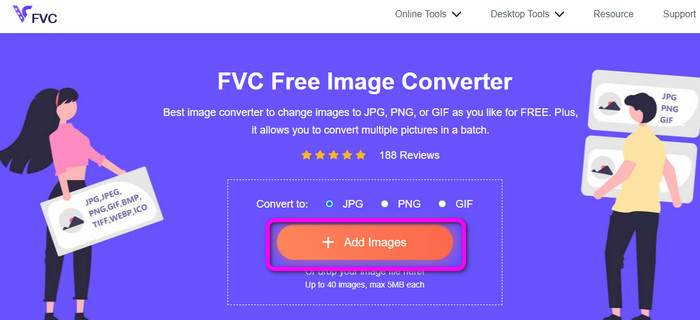
Passaggio 2. Fai clic sul pulsante Add Images. Quando si apre la cartella sullo schermo, seleziona e apri l’immagine GIF che vuoi convertire. Puoi anche aprire la cartella del computer e trascinare o rilasciare il file immagine nel riquadro. Puoi caricare fino a 40 immagini se vuoi convertire più file.
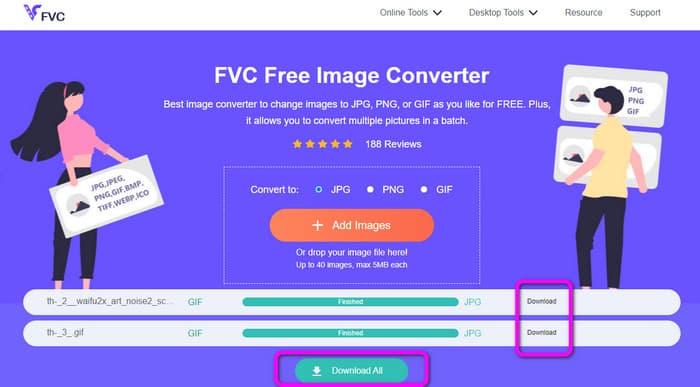
Passaggio 3. Lo strumento convertirà automaticamente le tue immagini dopo il caricamento. Quando il processo di conversione è terminato, fai clic sul pulsante Download All. Se invece vuoi salvare l’immagine manualmente, fai clic sul pulsante Download a lato. Puoi usare questo strumento anche per convertire WebP in GIF.
Come convertire GIF in JPG utilizzando la conversione online
Un altro strumento online utile per convertire GIF in JPG è Online Convert. Con l’aiuto di questo strumento online puoi convertire vari file, tra cui JPG, PNG, GIF, TIFF, BMP e altri. Il processo di conversione è rapido. Inoltre è facile da usare, il che rappresenta un vantaggio per gli utenti non professionisti. Online Convert offre anche la conversione in batch: puoi inserire più di un’immagine da convertire. Puoi anche affidarti a questo strumento per convertire video, audio, documenti e altro ancora. Il convertitore di immagini online è disponibile su quasi tutti i browser, come Firefox, Chrome, Explorer e altri. Tuttavia, puoi caricare solo tre immagini per volta durante la conversione in batch. Se vuoi caricare numerose immagini contemporaneamente, devi passare alla versione a pagamento.
Passaggio 1. Apri il browser e vai al sito di Online Convert. Fai clic sul pulsante Choose Files nella pagina web per caricare l’immagine GIF. Puoi anche trascinare il file nel riquadro verde.
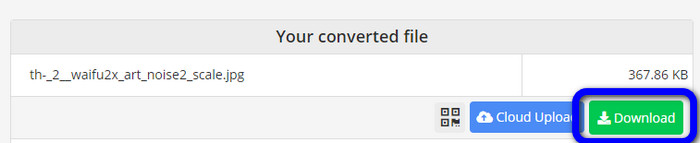
Passaggio 2. Dopo aver caricato l’immagine GIF, fai clic sul pulsante Start. Dopo il clic, inizierà il processo di conversione. Quindi fai clic sul pulsante Download per salvare l’immagine convertita sul computer.
Parte 3. Come convertire rapidamente GIF in JPG offline
Puoi anche usare Video Converter Ultimate per convertire GIF in JPG. Questo programma offline offre un eccellente metodo di conversione. Ha anche un’interfaccia intuitiva, adatta agli utenti non professionisti. Inoltre, Video Converter Ultimate offre una funzione di conversione in batch: significa che puoi convertire più immagini con un solo clic. Fornisce anche un processo di conversione rapido, così puoi convertire molti file in poco tempo. Supporta inoltre vari formati di immagine, tra cui JPG, PNG, BMP, GIF, TIFF e altri. Oltre alla conversione, puoi anche modificare la qualità delle foto dalle impostazioni di output, in modo da adattare la qualità dell’immagine alle tue esigenze. Infine, Video Converter Ultimate è disponibile sia per Windows che per Mac, risultando molto comodo.
Passaggio 1. Scarica Video Converter Ultimate sul tuo computer. Sono disponibili due pulsanti Download. Se utilizzi Windows, fai clic sulla versione per Windows. Se invece usi un Mac, scarica la versione per Mac. Avvia il programma dopo l’installazione.
Download gratuitoPer Windows 7 o versioni successiveDownload sicuro
Download gratuitoPer MacOS 10.7 o versioni successiveDownload sicuro
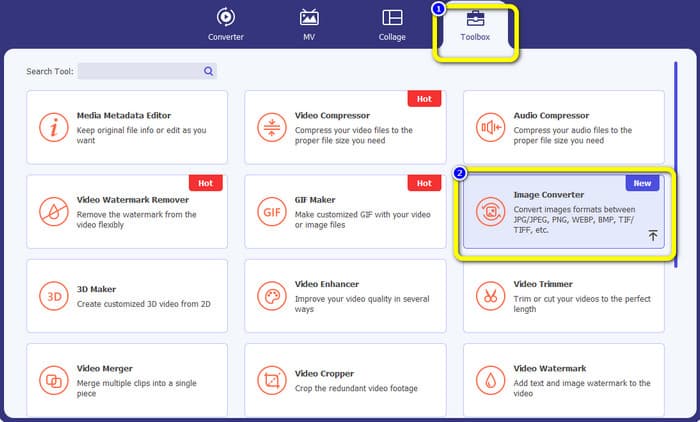
Passaggio 2. Nella parte superiore dell’interfaccia, fai clic sul pannello Toolbox. Quindi scegli lo strumento Image Converter. Apparirà un’altra interfaccia sullo schermo.
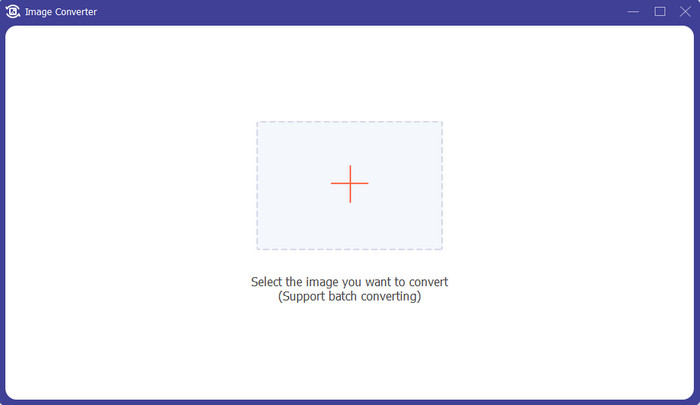
Passaggio 3. Fai clic sul segno Plus al centro dell’interfaccia. Quando si apre la cartella, scegli il file in formato GIF e aprilo. Puoi aggiungere altri file, poiché il programma offre la funzione di conversione in batch.
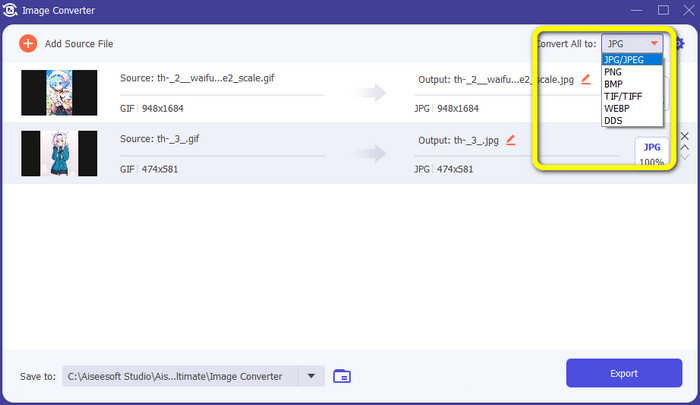
Passaggio 4. Vai alla parte destra dell’interfaccia e apri l’opzione dei formati. Seleziona JPG come formato di output.
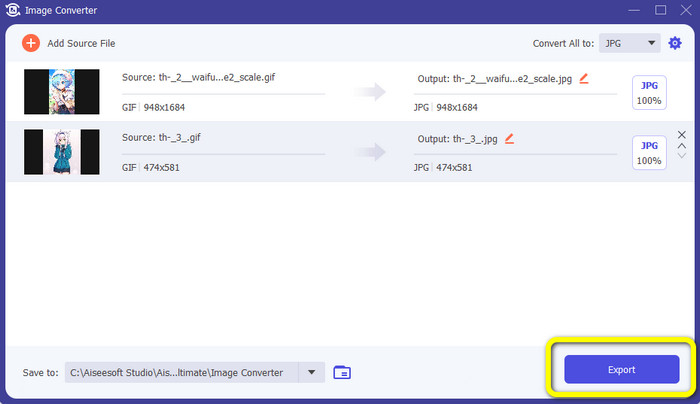
Passaggio 5. Dopo aver selezionato il formato JPG, fai clic sul pulsante Export. Al termine del processo, potrai aprire le immagini convertite nella cartella di destinazione.
Parte 4. Come convertire GIF in JPG su Android e iPhone
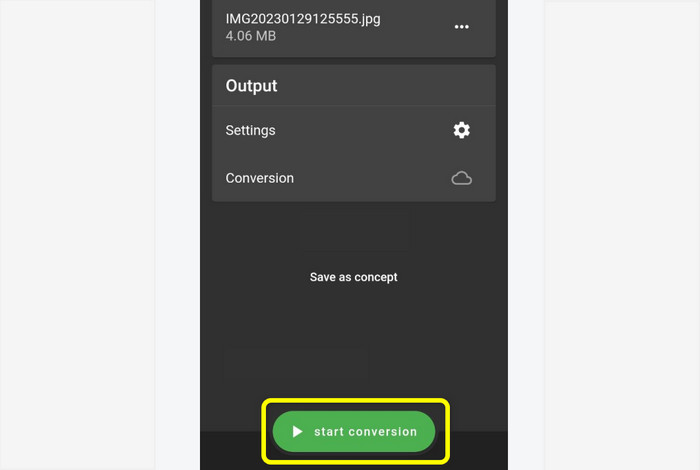
Se vuoi convertire GIF in JPG usando dispositivi iPhone e Android, puoi utilizzare File Converter. Questa applicazione offre un modo semplice per convertire vari file in JPG. Inoltre, File Converter è gratuita da scaricare ed è disponibile su Google Play Store e App Store. Tuttavia, il processo di installazione è piuttosto lento. Inoltre, alcune opzioni sono difficili da capire. Infine, l’app funziona al meglio solo con una connessione Internet attiva.
Passaggio 1. Vai su Google Play Store o App Store. Scarica File Converter e avvia l’app.
Passaggio 2. Nell’interfaccia, seleziona l’opzione Image Converter. Successivamente, imposta JPG come formato di output.
Passaggio 3. Fai clic sull’opzione File per inserire l’immagine GIF che vuoi convertire. Poi fai clic su Start Conversion. Al termine, puoi salvare l’immagine nella Galleria.
Parte 5. Domande frequenti sulla conversione di GIF in JPG
1. È possibile modificare un file GIF?
Assolutamente si. Se desideri modificare il tuo file immagine GIF, puoi utilizzare uno strumento offline come Video Converter Ultimate. Ha vari strumenti di modifica che puoi utilizzare come rotazione, ritaglio, aggiunta di filtri e altro.
2. Come faccio a salvare le foto dell'iPhone come JPG?
Per impostazione predefinita, quando scatti una foto con un iPhone, viene salvata automaticamente in formato HEIC. Tuttavia, la maggior parte dei dispositivi non riconosce questo formato di file. Puoi salvare le foto in altro formato intervenendo nelle impostazioni del tuo iPhone. Vai su Settings > Camera, quindi fai clic sull’opzione Format. Da qui seleziona Most Compatible per salvare la foto in formato JPG.
3. Come convertire GIF in JPG in Photoshop?
Avvia Photoshop sul computer. Poi vai al menu File e fai clic su Open per aggiungere il file GIF al programma. Successivamente puoi migliorare la tua foto utilizzando gli strumenti di modifica del programma. Per salvare la foto in formato JPG, vai su File > Save as. Poi apri l’elenco dei formati e seleziona il formato JPG.
Conclusione
Convertire le tue GIF in JPG è la scelta giusta se vuoi condividere foto su tutti i browser e programmi. Questo articolo ti propone quindi il modo più semplice per convertire i tuoi file immagine utilizzando FVC Free Image Converter.
-
 Scopri gli approcci più semplici per convertire rapidamente WebP in JPG
 Impariamo tutti modi efficaci per convertire facilmente le immagini Web in JPG. Questo articolo ti fornirà eccellenti convertitori di immagini che puoi utilizzare per convertire i file di immagine.
-
 Tecniche eccellenti per convertire istantaneamente GIF in M4V
 Questa guida ti fornisce le strategie più efficaci per convertire GIF in M4V. Inoltre, ti presenteremo i due migliori convertitori che puoi provare.
-
 Semplici istruzioni su come convertire GIF in MKV sul desktop
 Vieni a questo articolo se stai cercando i metodi più eccezionali per convertire i formati di file GIF in MKV utilizzando un eccezionale convertitore scaricabile.
