


 Video Converter Ultimate
 Screen Recorder
 Riparazione video
 Download sicuro
Modi professionali su come convertire le immagini in vettore
Il formato grafico migliore per loghi e disegni è la grafica vettoriale. Ciò è dovuto alle sue curve e linee ben definite. Inoltre, invece di usare i pixel, vengono utilizzate equazioni per costruirla. È possibile ridimensionare i vettori a qualsiasi dimensione senza perdere nitidezza. L’utente deve poter convertire le foto in vettori. La buona notizia è che puoi imparare tutto ciò che ti serve online, grazie all’abbondanza di strumenti e tutorial disponibili. Designer e marketer devono imparare a lavorare con il diffuso tipo di file noto come immagine vettoriale. Dopotutto, i cartelloni pubblicitari e altre forme di pubblicità privilegiano questo formato. Esistono numerose tecniche per trasformare le immagini in vettori. Se desideri il modo migliore per convertire immagini in vettori, allora hai un motivo per leggere questa guida.

Parte 1. Cos'è un vettore di immagine?
Un'immagine computerizzata con punti, linee e curve viene definita immagine vettoriale. Basato su equazioni matematiche, viene utilizzato per creare varie forme. Ogni equazione matematica ha qualità uniche come colore, spessore, curva e altro. Per questo motivo, un'immagine vettoriale può essere ingrandita e ridimensionata in alto o in basso senza perdere i dettagli dell'immagine. Ciò implica che le linee, le curve ei punti rimangano uniformi indipendentemente dalle dimensioni o dal grado di zoom dell'immagine. Non ci saranno mai bordi sfocati o frastagliati nell'opera d'arte. I loghi sono spesso file vettoriali. Inoltre, i colori sono divisi in forme distinte. Semplice come fare clic su un pulsante semplifica la modifica dei colori di questi elementi grafici.
Parte 2. Il modo migliore per vettorializzare un'immagine
Come vettorializzare un'immagine in Illustrator
Se vuoi vettorializzare le tue immagini, puoi usare Illustrator. Questo programma ti consente di vettorializzare un’immagine in modo perfetto. Dispone di tutti gli strumenti e le opzioni di cui hai bisogno. Inoltre, supporta quasi tutti i formati di immagine più comuni per aggiungere qualsiasi immagine. Puoi aggiungere JPG, BMP, PNG, EPS, TIFF e altri ancora. Tuttavia, devi acquistare il programma se vuoi usarlo quotidianamente. Illustrator può offrirti solo una versione di prova gratuita per pochi giorni. Inoltre, ha un processo di installazione complicato. Se sei un principiante, lo troverai difficile da usare. Devi chiedere assistenza a utenti esperti se vuoi vettorializzare le tue immagini con Illustrator. Inoltre, il programma ha opzioni complesse. È necessario studiare il programma prima di usarlo. Inoltre, quando si vettorializza un’immagine, sono previsti molti passaggi. Consulta la procedura seguente per imparare come vettorializzare un’immagine.
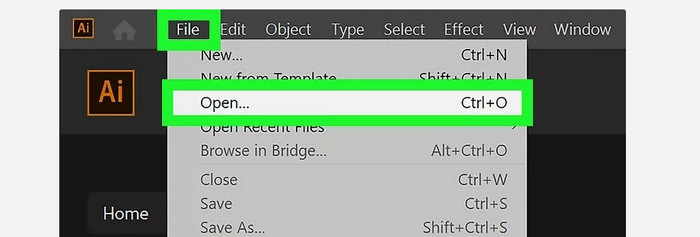
Passaggio 1. Scarica Illustrator sul tuo desktop. Puoi usare la versione di prova gratuita, se vuoi. Dopo il processo di installazione, avvia il programma. Vai al menu File > Apri per aggiungere l’immagine che vuoi vettorializzare.
Passaggio 2. Nella nuova finestra che compare, seleziona la casella Preview per visualizzare in tempo reale la tua immagine in formato vettoriale.
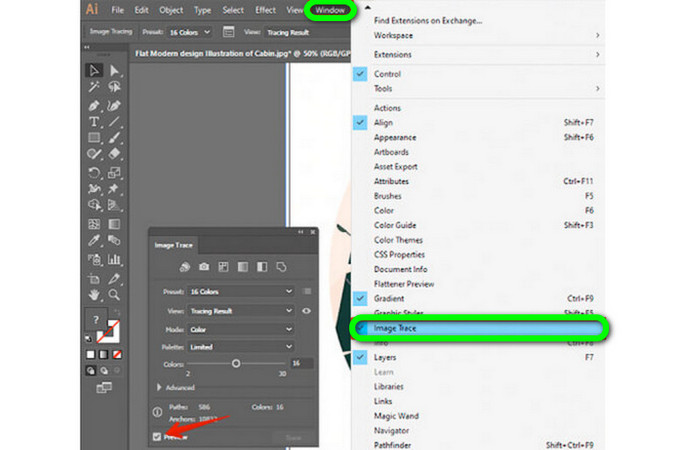
Passaggio 3. La selezione della modalità è il passo successivo per capire come vettorializzare in Illustrator. Individua l’opzione a discesa Mode nel pannello Image Trace, quindi scegli dal menu la modalità più adatta al tuo design. Le modalità possibili sono scala di grigi, bianco e nero o colore.

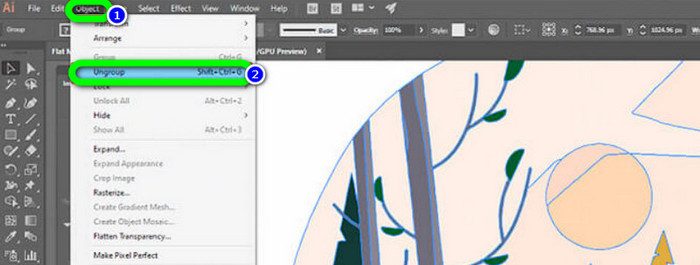
Passaggio 4. Successivamente, fai clic con il tasto destro del mouse sulla tua immagine. Scegli Ungroup dal menu a discesa nella scheda Object. Puoi anche usare le combinazioni di tasti Shift+Ctrl+G/Shift+Cmd+G se preferisci le scorciatoie per un accesso più rapido. A seguito di questa operazione, le tue forme colorate verranno suddivise in parti.
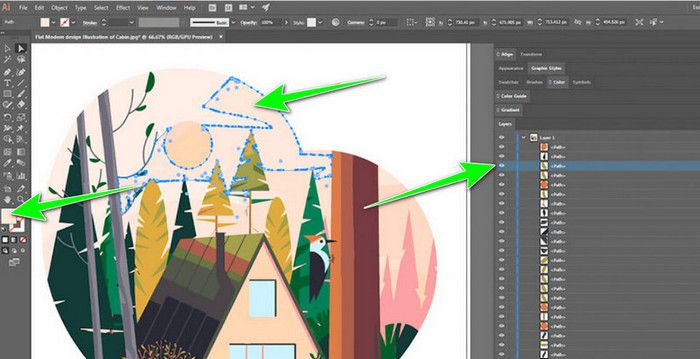
Passaggio 5. Una volta terminata la conversione, puoi modificare liberamente l’immagine. Fai clic su una forma e poi usa Select > Same > Fill Color per eliminare eventuali gruppi di colori che desideri rimuovere.
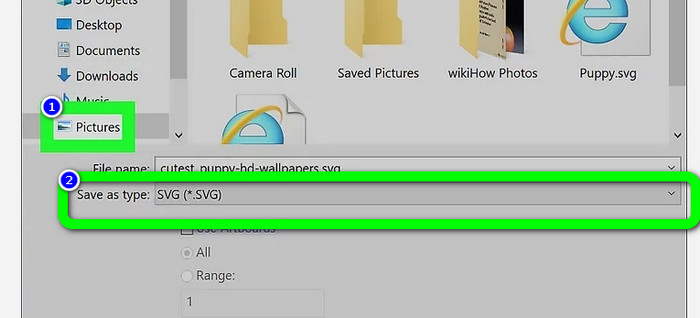
Passaggio 6. Infine, salva la tua immagine come file vettoriale. Vai all’opzione File > Save as. Quindi seleziona il formato di file SVG.
Come vettorializzare un'immagine in Photoshop
Adobe Photoshop è efficace nel vettorializzare un’immagine. Dispone di metodi efficienti che lo rendono semplice per tutti gli utenti. Inoltre, puoi vettorializzare un’immagine in pochi passaggi. In aggiunta, Photoshop è anche in grado di modificare le immagini. Se vuoi modificare le immagini prima di salvarle, puoi farlo. Tuttavia, Photoshop presenta alcuni svantaggi. Offre solo una prova gratuita di 7 giorni. Dopodiché, devi pagare un piano in abbonamento. Anche il processo di installazione richiede tempo.
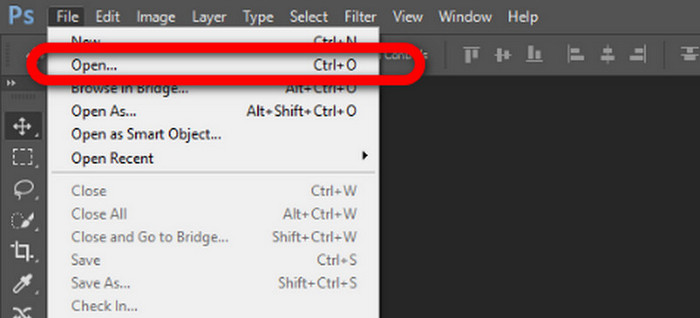
Passaggio 1. Avvia Adobe Photoshop sul tuo computer. Poi vai al menu File e seleziona l’opzione Open per aggiungere l’immagine che vuoi vettorializzare.
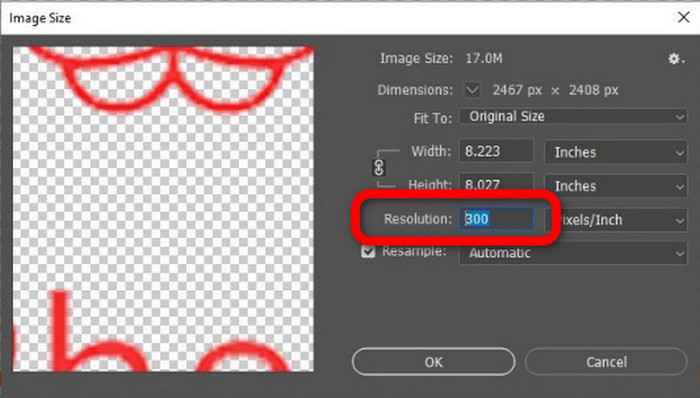
Passaggio 2. Premi Ctrl + Alt + I sulla tastiera per visualizzare la finestra Image Size e porta la risoluzione a 300.
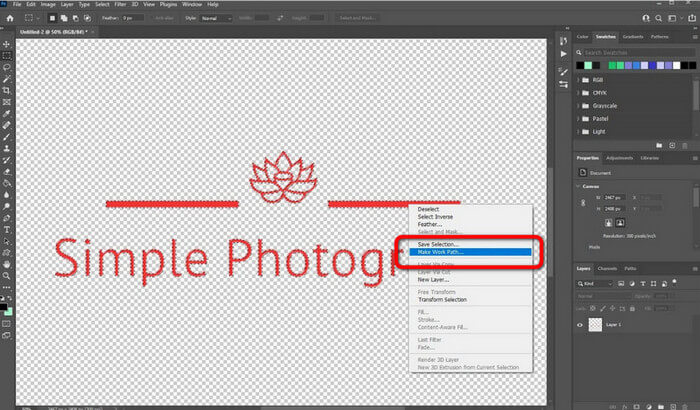
Passaggio 3. Sposta il cursore sopra la selezione, scegli lo strumento Marquee dal pannello degli strumenti e fai clic con il tasto destro. Quindi scegli l’opzione Make Work Path dal menu.
Passaggio 4. Poi premi Ctrl + A sulla tastiera per attivare lo strumento Direct Selection. Successivamente, fai clic con il tasto destro sull’immagine e seleziona l’opzione Create Vector Mask. In questo modo verrà creata una maschera vettoriale sul livello.
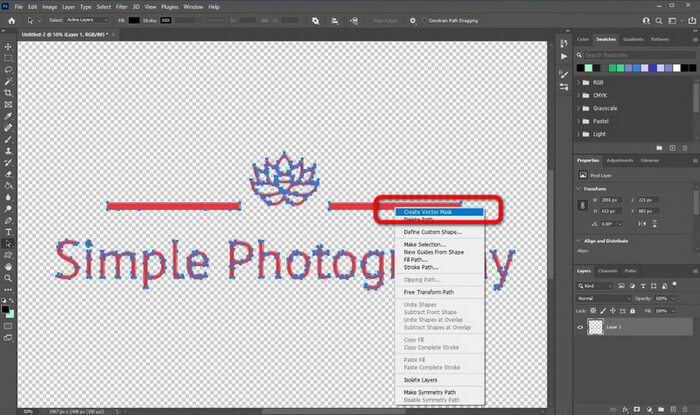
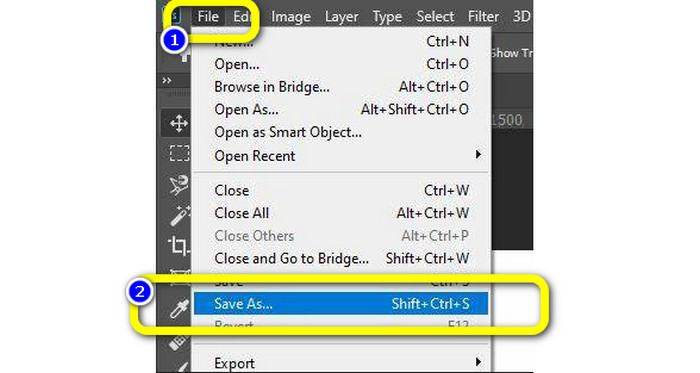
Passaggio 5. Per salvare l’immagine vettorializzata, vai al menu File e seleziona l’opzione Save as.
Parte 3. Come convertire immagini vettoriali
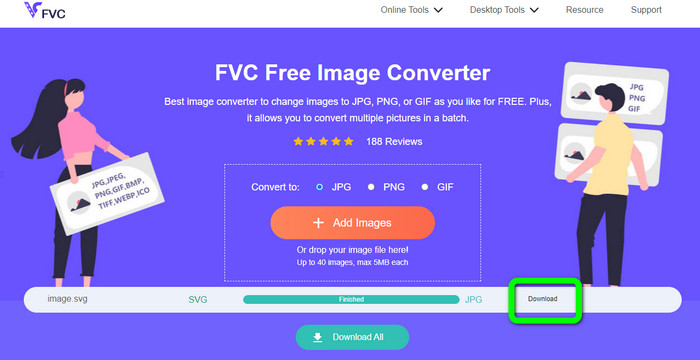
Un eccellente convertitore di immagini online è FVC Free Image Converter. Può convertire la grafica vettoriale in altri formati come JPG e PNG. L’interfaccia utente è eccellente. Puoi concentrarti sulla conversione dei file perché non contiene pubblicità distraenti. Inoltre, non è necessario installare questo convertitore. È completamente gestibile dal browser. Inoltre, la qualità dell’immagine dopo la conversione sarà la stessa del file originale. Offre un’interfaccia e istruzioni facili da seguire, l’ideale per gli utenti. Inoltre, è possibile convertire più file immagine. Questo convertitore di immagini è in grado di effettuare conversioni in blocco. Inoltre, puoi scaricare numerosi file convertiti con un solo clic. Accetta anche file di input in vari formati aggiuntivi, come PNG, BMP, TIFF e GIF. Uno degli aspetti positivi di questo strumento è l’assenza di pubblicità fastidiose. In questo modo puoi assicurarti che il prodotto finale sia piacevole da usare e da vedere. Usando FVC Free Image Converter, la tua privacy è protetta. Non salverà i tuoi dati dopo il salvataggio dell’immagine.
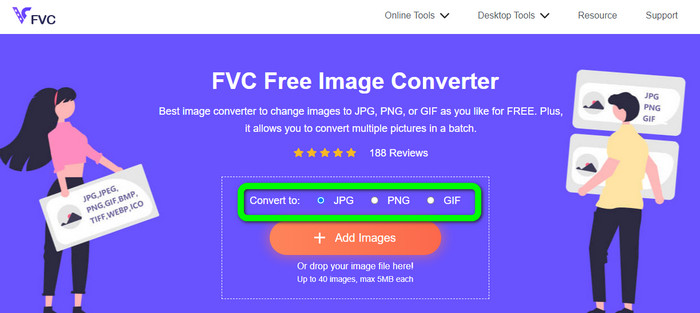
Passaggio 1. Vai al sito web di FVC Free Image Converter. Vai all’opzione di conversione e seleziona il formato di output desiderato.
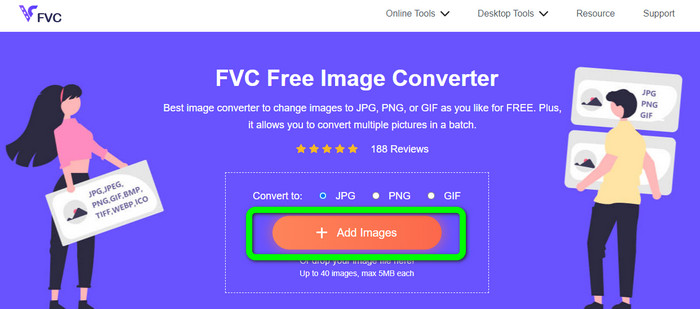
Passaggio 2. Fai clic sul pulsante Add Images per caricare l’immagine vettoriale. Puoi anche trascinare l’immagine nella casella.
Passaggio 3. Dopo aver caricato l’immagine vettoriale, lo strumento convertirà automaticamente l’immagine. Terminato il processo di conversione, fai clic sul pulsante Download.
Relativo a:
Metodi semplici per convertire le immagini in bianco e nero
I modi migliori per convertire immagini in link [Metodi completi]
Parte 4. Domande frequenti sulla conversione di immagini in vettoriale
1. Quali sono i diversi usi delle immagini vettoriali?
Ci sono molte ragioni per cui è necessario utilizzare i file vettoriali. Se hai intenzione di stampare immagini, è meglio inserire l'immagine in un file vettoriale. Oltre alla stampa, è perfetto anche per l'animazione. Gli utenti lo usano per immagini fotogramma per fotogramma che richiedono meno potenza di calcolo. Inoltre, alcuni designer utilizzano immagini vettoriali per cartelloni pubblicitari e pubblicità.
2. Quali sono i principali tipi di formati di immagini vettoriali?
I principali formati di immagini vettoriali sono Scalable Vector Graphics (SVG), Windows Metafile (WMF), Adobe Illustrator Artwork (AI), Encapsulated PostScript (APS) e Portable Document Format (PDF).
3. Ho sempre bisogno di un file vettoriale se devo fare un lavoro di progettazione?
Non sempre. Esistono modi per utilizzare diversi formati di file. Ma se hai bisogno o meno di file vettoriali dipende in ultima analisi dal tipo di lavoro che hai svolto. Alla fine, se hai svolto un lavoro di progettazione, discuti i formati dei file con il tuo progettista. In questo modo, puoi raccogliere o generare i file appropriati se non disponibili.
4. Come convertire qualsiasi immagine in una silhouette vettoriale in bianco e nero?
Per convertire l'immagine in bianco e nero, puoi usare Photoshop. Vai al menu File e seleziona l'opzione Apri per aggiungere l'immagine. Quindi, nell'interfaccia superiore, fai clic sul menu Immagine. Seleziona Regolazioni > Soglia. Quindi, verrà visualizzata la finestra Soglia. Quindi, fare clic su OK.
Conclusione
Le immagini vettoriali sono ottime quando vengono utilizzate per spot pubblicitari, cartelloni e altro ancora. Per questo motivo, l’articolo ti ha illustrato i metodi migliori su come vettorializzare un’immagine. Inoltre, hai imparato come convertire le immagini vettoriali in altri formati come JPG e PNG. Se vuoi vettorializzare un’immagine e convertire le immagini in altri formati, usa FVC Free Image Converter.
-
 Modi facili da capire per convertire PSD in PNG o JPG
 Questo post ti fornirà passaggi gestibili per convertire PSD in JPG o PNG. Ci sono vari convertitori che puoi usare per convertire i tuoi file. Leggi di più per scoprire.
-
 Modi testati per convertire TGA in PNG in modo semplice ma professionale
 Consulta queste guide per sapere come convertire TGA in PNG utilizzando i convertitori di immagini online. Fare clic sull'articolo per scoprire tutti i dettagli della conversione delle immagini.
-
 Tutorial impareggiabili per convertire le immagini in formato SVG
 Vuoi convertire le tue foto in formato file SVG? Quindi questo post ti fornirà eccellenti convertitori che puoi utilizzare online, offline e su dispositivi mobili.
