


 Video Converter Ultimate
 Screen Recorder
 Riparazione video
 Download sicuro
Migliora la qualità dell'immagine utilizzando questi metodi semplici e veloci
Hai un’immagine sfocata o di bassa qualità? La soluzione migliore che devi adottare è aumentare la qualità della tua immagine. Fortunatamente, esistono numerosi strumenti che possono aiutarti a migliorare la qualità delle tue foto. Tuttavia, non tutte le applicazioni o gli strumenti disponibili sul computer offrono le funzionalità migliori. Per questo abbiamo cercato i potenziatori di foto più popolari online, offline e su iPhone. Per imparare come migliorare la qualità di un’immagine, leggi questo articolo.

Parte 1. Come migliorare la qualità dell'immagine online
L'uso di un potenziatore di immagini online è più conveniente rispetto al download di un'applicazione software sul computer. Il vantaggio di utilizzare uno strumento online è che puoi accedervi liberamente sul tuo web. Questa parte ti mostrerà come aumentare la qualità della tua immagine usando il più straordinario potenziatore di foto online.
FVC Free Image Upscaler è un potenziatore di immagini online e gratuito molto apprezzato da molti utenti. Questa applicazione online può impostare l’ingrandimento a 2x, 4x, 6x e 8x. Inoltre supporta i formati di immagine più comuni, tra cui PNG, JPG, JPEG e BMP. Puoi accedervi da tutti i browser web, inclusi Google, Firefox e Safari. Inoltre, non devi preoccuparti per la sicurezza dei tuoi dati, perché questo strumento è sicuro da usare.
Inoltre, ha una potente tecnologia AI che riconosce automaticamente le parti sfocate dell'immagine. Inoltre, FVC Free Image Upscaler può correggere i pixel persi, le trame di colore e altri dettagli. Se vuoi usare questo eccellente upscaler di immagini, segui la semplice guida qui sotto.
Come migliorare la qualità dell'immagine online utilizzando FVC Free Image Upscaler:
Passaggio 1. Apri il browser e cerca FVC Free Image Upscaler nella barra di ricerca. Puoi andare direttamente alla pagina principale cliccando sul link fornito.
Passaggio 2. Quindi, fai clic sul pulsante Upload Photo nell’interfaccia principale per caricare l’immagine che desideri ingrandire. Attendi il caricamento dell’immagine, poi passa al passaggio successivo.
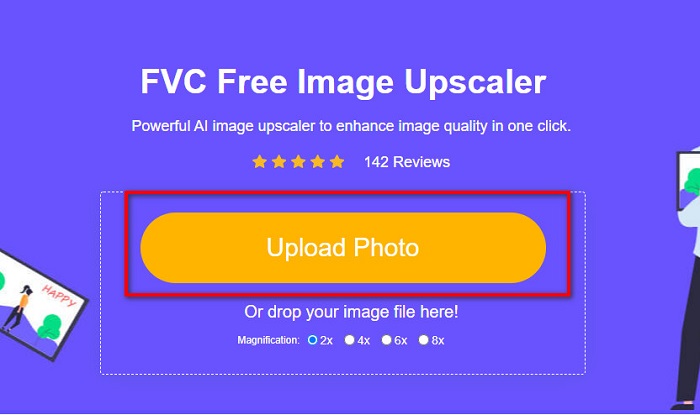
Passaggio 3. Quindi, scegli il Magnification che desideri per la tua immagine. Puoi scegliere tra 2x, 4x, 6x e 8x.
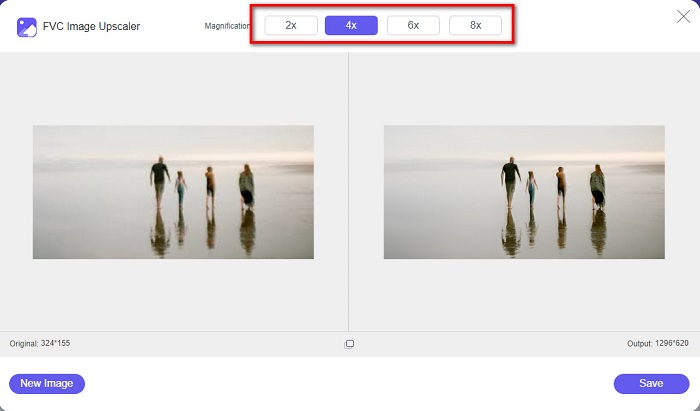
Passaggio 4. Puoi vedere l’anteprima della tua immagine e, se sei soddisfatto del risultato, fai clic sul pulsante Save per salvare l’immagine ingrandita sul tuo dispositivo.
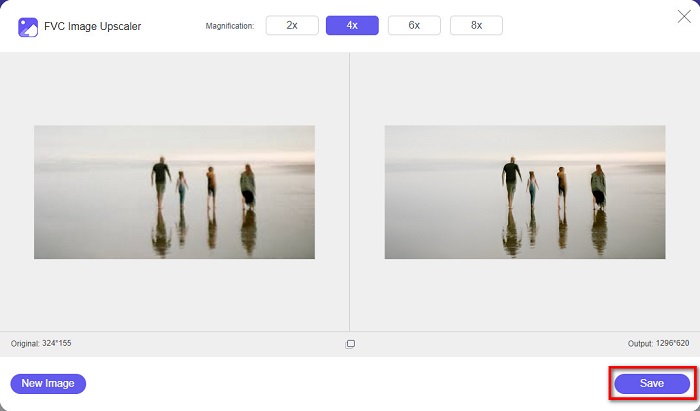
E questo è tutto! Ora puoi visualizzare la tua immagine sul tuo computer con una visualizzazione di alta qualità.
Parte 2. Come migliorare la qualità dell'immagine in Photoshop
Abbiamo quello che vuoi se ti piace utilizzare uno strumento professionale per aumentare la qualità della tua immagine. Questa parte ti insegnerà come migliorare la qualità delle foto utilizzando Adobe Photoshop.
Adobe Photoshop è un’app di editing professionale che puoi utilizzare per migliorare la qualità delle tue immagini. Adobe Photoshop dispone di numerosi strumenti di editing che puoi usare per modificare le foto. Inoltre, molti professionisti utilizzano questo strumento perché offre moltissime funzioni. Questa applicazione, inoltre, produce risultati di alta qualità che puoi condividere sui social media o sui siti web. Adobe Photoshop è una delle migliori creazioni di Adobe, che puoi scaricare su quasi tutte le piattaforme. Con questa applicazione di editing puoi progettare loghi, banner, brochure e altro ancora. Molti utenti però non sanno che può anche migliorare una foto. Tuttavia, molti trovano difficile usare questo strumento perché ha un’interfaccia non semplice da gestire ed è piuttosto costoso da scaricare.
Passaggi su come migliorare la qualità dell'immagine in Photoshop:
Passaggio 1. Per prima cosa, scarica Adobe Photoshop sul tuo computer. Segui la procedura di installazione, quindi apri l’applicazione.
Passaggio 2. Vai su File > Open nell’interfaccia principale e seleziona l’immagine che vuoi migliorare.
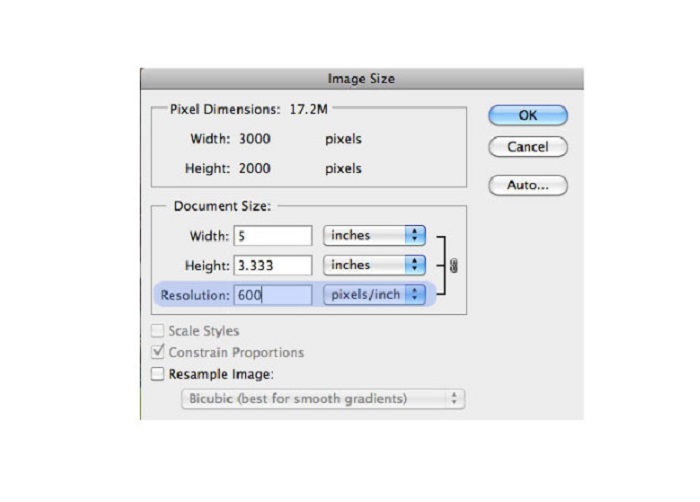
Passaggio 3. Poi vai su Image > Image Size. Si aprirà una finestra di dialogo in cui dovrai deselezionare la casella Resample Image in modo che venga modificata solo la risoluzione dell’immagine. Nel campo di risoluzione, digita la risoluzione che desideri per la tua foto.
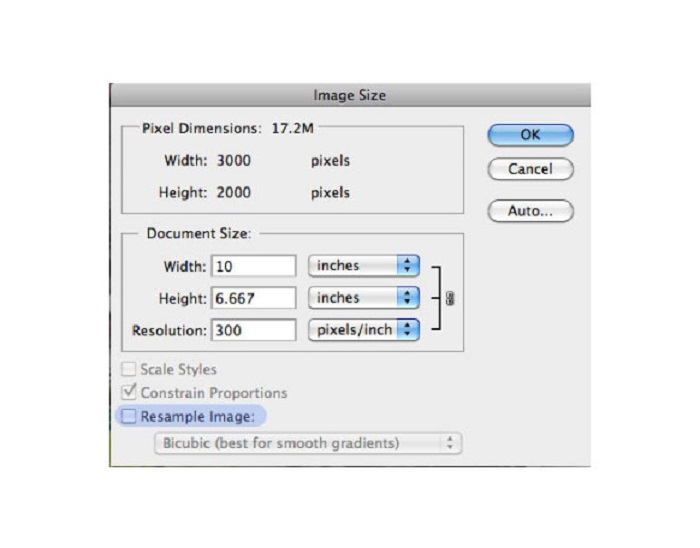
Passaggio 4. Una volta modificata la Resolution, anche la Width and Height della tua immagine cambieranno. Quindi fai clic sul pulsante OK per salvare le modifiche apportate all’immagine. In questo modo puoi convertire immagini a bassa risoluzione in alta.
Parte 3. Come migliorare la qualità di una foto su iPhone
Alcune app possono migliorare la tua immagine di bassa qualità se sei un utente iPhone. Sebbene su AppStore siano disponibili molte app di miglioramento delle foto, abbiamo scelto la più famosa tra queste. Leggi questa parte per scoprire come migliorare la qualità di una foto su un iPhone.
Remini è una delle migliori app che puoi utilizzare per migliorare una foto di bassa qualità. Questa straordinaria app ha un’interfaccia semplice, che la rende facile da usare. Inoltre utilizza la tecnologia AI che rileva automaticamente le parti sfocate della tua immagine. È anche un’app sicura, quindi i tuoi file sono al sicuro quando la utilizzi. Lo svantaggio di questa app è che devi guardare una pubblicità per visualizzare e scaricare il risultato, oppure acquistare la versione completa per scaricare i risultati senza annunci.
Come migliorare la qualità dell'immagine su iPhone utilizzando l'app Remini:
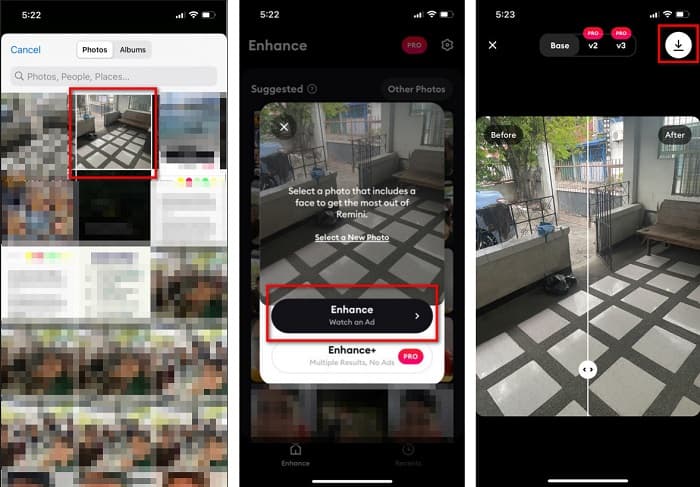
Passaggio 1. Scarica l’app Remini dall’App Store. Dopo averla scaricata, apri l’app sul tuo telefono.
Passaggio 2. Poi, nell’interfaccia principale dell’app, seleziona l’immagine che vuoi ingrandire.
Passaggio 3. Quindi tocca il pulsante Enhance per migliorare la qualità della tua immagine. Se hai acquistato la versione Pro dell’app, non dovrai guardare nessuna pubblicità. In caso contrario, ti verrà chiesto di guardare un annuncio per poter vedere e salvare il risultato.
Passaggio 4. Ora puoi visualizzare la tua immagine migliorata. Poi tocca l’icona Download nell’angolo in alto a destra dello schermo. Ed ecco fatto! Con questi semplici passaggi puoi migliorare la qualità della tua immagine.
Parte 4. Domande frequenti su come migliorare la qualità delle foto
Esiste un'app in grado di migliorare la qualità delle immagini su Android?
Lo strumento Migliora la qualità delle foto è una delle migliori app di miglioramento della qualità dell'immagine per migliorare la qualità dell'immagine. L'uso dell'immagine Effetti abbellimento darà alla tua immagine un aspetto professionale.
Come migliorare la qualità delle foto in Lightroom?
Adobe Lightroom è un altro prodotto Adobe che puoi usare per aumentare la risoluzione delle tue immagini. Leggi i semplici passaggi qui sotto per imparare come migliorare la qualità delle foto in Lightroom. 1. Scarica Adobe Lightroom sul tuo computer. 2. Poi apri la tua immagine in Lightroom. 3. Clicca su Choose Photo > Enhance. 4. Successivamente seleziona Super Resolution, quindi fai clic su Enhance. 5. Vedrai che Lightroom aumenterà la risoluzione della tua immagine e la salverà come file DNG.
Influirà sulla dimensione del file se aggiorni l'immagine?
La modifica della risoluzione di stampa non cambierà il numero di pixel dell'immagine e non influirà sulla dimensione dell'immagine.
Conclusione
È facile migliorare la qualità di un’immagine, soprattutto ora che hai una guida da seguire. Inoltre, molte app per computer o iPhone possono aiutarti a ingrandire le tue foto. Tuttavia, se vuoi usare un upscaler d’immagini gratuito che ingrandisce automaticamente le tue immagini sfocate, utilizza subito FVC Free Image Upscaler.
-
 5 modi su come rimuovere la filigrana B612 utilizzando i migliori strumenti
 Vuoi sapere come rimuovere le filigrane B612 dalle tue foto? Puoi rimuovere facilmente la filigrana B612 dalle tue immagini utilizzando questi strumenti eccezionali.
-
 Semplici passaggi su come rimuovere la filigrana del cursore WOW [Risolto]
 WOW Slider è un'app per creare una fantastica presentazione. Tuttavia, incorpora filigrane nel suo output. Leggi di seguito per sapere come rimuovere la filigrana di WOW Slider.
-
 Metodi semplici su come rimuovere la filigrana Shootproof
 Rimuovi la filigrana Shootproof seguendo questi semplici metodi. Usa questi fantastici dispositivi di rimozione della filigrana per rimuovere facilmente la filigrana Shootproof dalla tua immagine.
