


 Video Converter Ultimate
 Screen Recorder
 Riparazione video
 Download sicuro
Come rimuovere gratuitamente la filigrana del dispositivo di scorrimento WOW
WOW Slider è uno dei creatori di slideshow più popolari che puoi utilizzare per creare straordinarie presentazioni di immagini. Questa applicazione è gratuita da scaricare e non occupa molto spazio sul tuo dispositivo. Inoltre, ha un’interfaccia utente intuitiva, che rende semplice creare slideshow. A differenza di altre piattaforme di immagini, WOW Slider non utilizza Flash e non richiede alcun plug‑in. Tuttavia, WOW Slider applica una filigrana alla presentazione che crei. Per questo molti utenti cercano un metodo per rimuovere gratuitamente la filigrana di WOW Slider. Continua a leggere per scoprire come rimuovere gratuitamente la filigrana di WOW Slider.

Parte 1. Come rimuovere la filigrana del dispositivo di scorrimento WOW senza acquistare
Puoi rimuovere la filigrana utilizzando l'app se hai acquistato WOW Slider. In caso contrario, puoi utilizzare gli strumenti per rimuovere la filigrana di WOW Slider dalla presentazione. Pertanto, leggi questa parte in modo completo per imparare come rimuovere il dispositivo di scorrimento WOW senza acquistare.
Rimozione filigrana senza FVC
FVC Free Watermark Remover è tra i più popolari strumenti online per rimuovere filigrane, accessibile da tutti i browser web, come Google, Firefox e Safari. Questo strumento online è sicuro, gratuito e non richiede abbonamenti. Inoltre, è un’app adatta ai principianti perché ha un’interfaccia utente intuitiva. Supporta anche molti formati di immagine, tra cui PNG, JPG, JPEG, BMP, ecc. L’aspetto sorprendente di questo strumento è che puoi scegliere tra diversi strumenti di selezione per rimuovere la filigrana dalla tua immagine. Quindi, se vuoi usare questo rimuovi‑filigrana gratuito, segui i passaggi riportati di seguito.
Come rimuovere la filigrana di WOW Slider utilizzando FVC Free Watermark Remover:
Passaggio 1. Per prima cosa, apri il browser e cerca FVC Free Watermark Remover. Per un accesso rapido, fai clic sul link fornito.
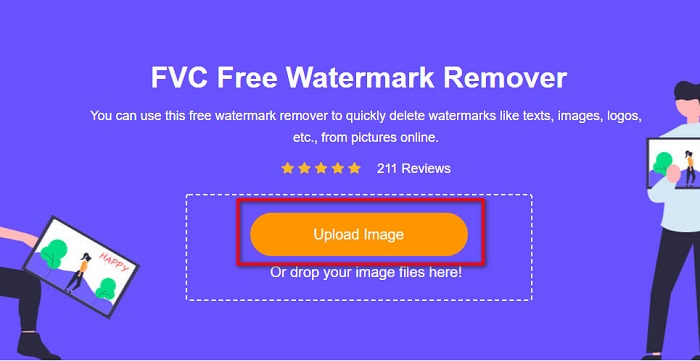
Passaggio 2. Quindi, fai clic sul pulsante Upload Image per caricare l’immagine di WOW Slider da cui vuoi rimuovere la filigrana.
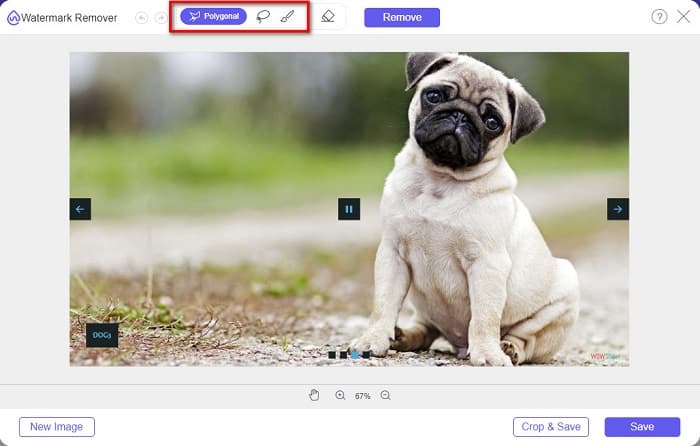
Passaggio 3. Dopo aver caricato l’immagine, seleziona lo strumento di selezione che desideri utilizzare per rimuovere la filigrana. Puoi scegliere tra Lazo, Poligonale o Pennello.
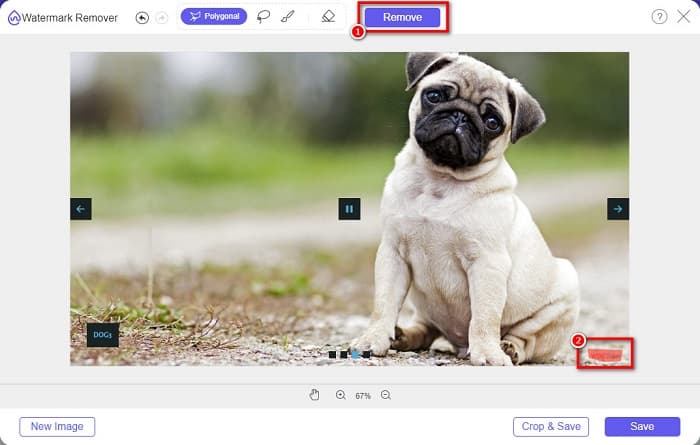
Passaggio 4. Poi traccia l’area in cui si trova la filigrana di WOW Slider. Quindi fai clic su Remove per cancellare la filigrana dalla tua immagine.
Passaggio 5. Infine, fai clic sul pulsante Save per salvare l’immagine sul tuo computer.
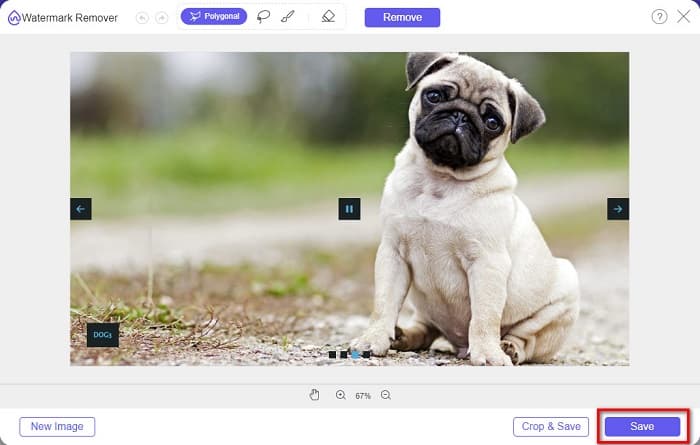
E questo è tutto! Ora puoi visualizzare l'immagine di WOW Slider senza la filigrana di WOW Slider.
Esperto di filigrane Bitwar
Bitwar Watermark Expert è un rimuovi‑filigrana che può eliminare la filigrana di WOW Slider dalla tua presentazione. Questo rimuovi‑filigrana offline ha un’interfaccia semplice, che lo rende uno strumento adatto ai principianti. Inoltre, ti permette di rimuovere o aggiungere filigrane alle tue immagini o ai tuoi video. Nella versione VIP puoi elaborare in blocco i video da cui vuoi rimuovere la filigrana. Puoi scaricare questo software sul tuo computer Windows. Tuttavia, devi acquistare l’app prima di accedere alle altre funzioni. Ciononostante, Bitwar Watermark Expert è un ottimo strumento per rimuovere le filigrane dalle presentazioni di WOW Slider.
Elimina la filigrana di WOW Slider sulla presentazione utilizzando Bitwar Watermark Expert:
Passaggio 1. Scarica Bitwar Watermark Expert sul tuo dispositivo, quindi aprilo dopo il download.
Passaggio 2. Nella schermata principale del software vedrai quattro opzioni. Fai clic su Photo Watermark Remover.
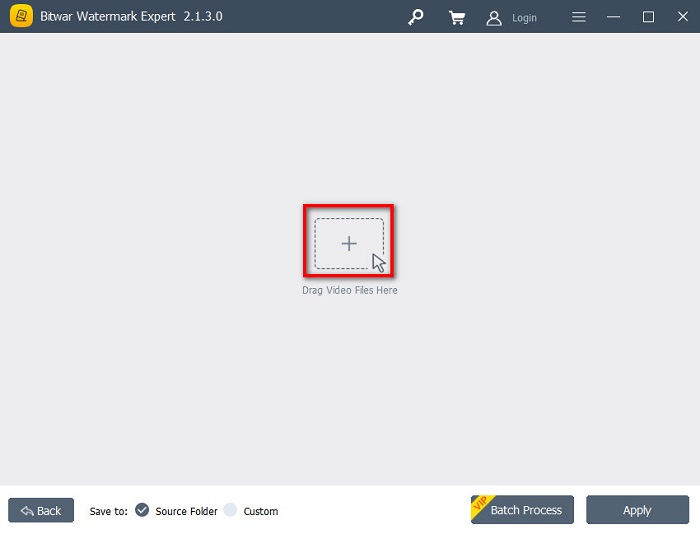
Passaggio 3. Poi fai clic sul pulsante con il segno + al centro dello schermo per caricare l’immagine di WOW Slider.
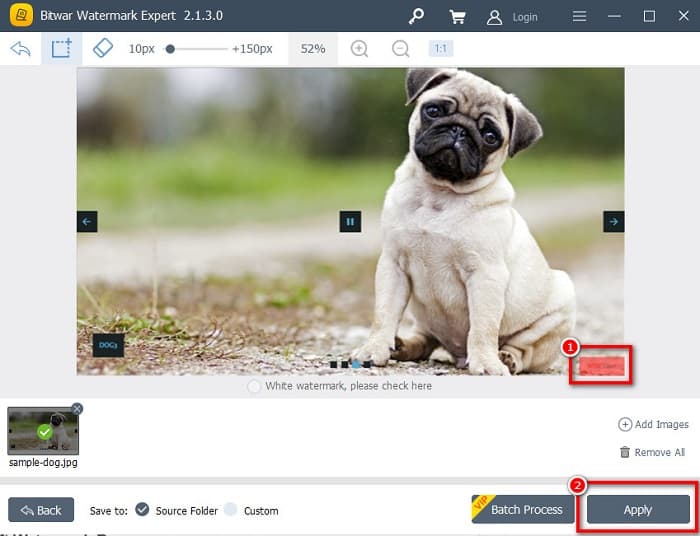
Passaggio 4. Quindi, seleziona uno strumento di selezione che vuoi usare per rimuovere la filigrana dalla tua immagine. Poi seleziona l’area della filigrana sull’immagine.
Passaggio 5. Infine, fai clic sul pulsante Apply per rimuovere la filigrana dalla tua presentazione WOW Slider. Seguendo questi passaggi, puoi anche rimuovere le filigrane da Placeit.
Rimozione filigrana Apowersoft
Un altro rimuovi‑filigrana offline che puoi usare è Apowersoft Watermark Remover. Questo strumento permette di rimuovere facilmente qualsiasi tipo di filigrana (logo, testo, immagine) dai tuoi video. Inoltre, puoi scaricarlo su quasi tutte le piattaforme, inclusi Windows e Mac. Ha anche una funzione che consente di rimuovere e aggiungere filigrane alle tue immagini. Dispone inoltre di tre strumenti di selezione delle filigrane per rimuovere la filigrana di WOW Slider dalla tua presentazione. Inoltre, è uno strumento intuitivo con un’interfaccia facile da usare. Lo svantaggio di questo strumento è che offre poche funzioni di modifica.
Come rimuovere il logo della filigrana di WOW Slider utilizzando Apowersoft Watermark Remover:
Passaggio 1. Sul tuo dispositivo, scarica Apowersoft Watermark Remover. Segui la procedura di installazione, quindi apri l’app.
Passaggio 2. Poi fai clic sull’opzione Rimuovi filigrana dall’immagine. Quindi trascina e rilascia la foto da cui vuoi rimuovere la filigrana.
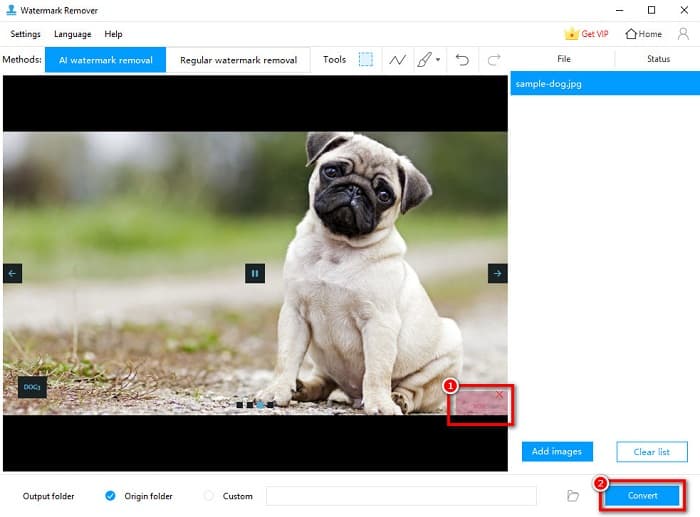
Passaggio 3. Vedrai gli strumenti per rimuovere la filigrana nel pannello Tools. Poi fai clic sullo strumento di selezione che vuoi usare. Quindi traccia o seleziona la filigrana sulla tua immagine.
Passaggio 4. Quando hai finito, fai clic sul pulsante Convert per salvare il risultato.
Parte 2. Come rimuovere la filigrana dal dispositivo di scorrimento WOW acquistando
Potresti voler leggere questa parte se stai cercando come rimuovere la filigrana da WOW Slider.
Usando WOW Slider, puoi creare incredibili presentazioni con una qualità sorprendente. Con la sua interfaccia software facile da usare, puoi produrre presentazioni di alta qualità da condividere con i tuoi amici. Inoltre, se vuoi creare un ricordo per il tuo migliore amico, creare una presentazione utilizzando WOW Slider è una buona idea.
La parte negativa della creazione di una presentazione con WOW Slider è che applica una filigrana al tuo risultato. Ma se acquisti l’app WOW Slider, non dovrai più rimuovere alcuna filigrana perché le tue presentazioni non avranno la filigrana di WOW Slider. Dunque, ti mostreremo come rimuovere la filigrana acquistando il programma.
Passaggio 1. Scarica WOW Slider sul tuo dispositivo e, subito dopo il download, effettua il pagamento e inserisci il tuo codice di licenza per registrarti.
Passaggio 2. Dopo la registrazione, disattiva la filigrana andando su Menu panel > Slider > Properties.
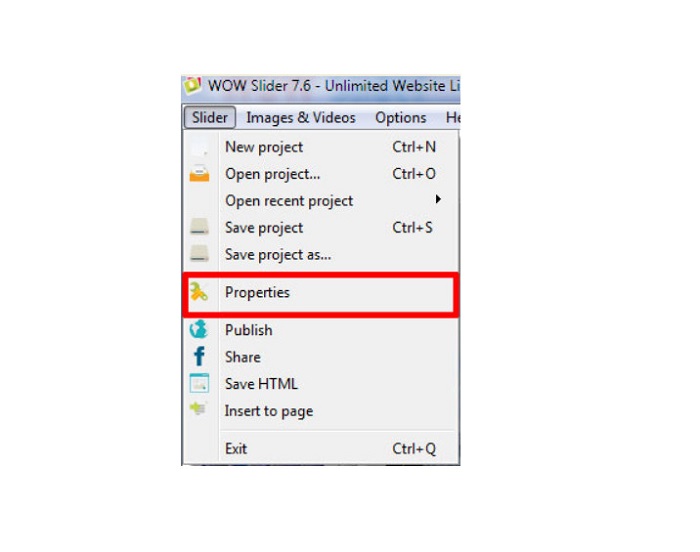
Passaggio 3. Verrà visualizzata una finestra delle proprietà, quindi fai clic su Design. opzione.
Passaggio 4. Nella scheda Design vedrai una casella di controllo chiamata Watermark. Deseleziona la casella per disattivare la filigrana nella tua presentazione.
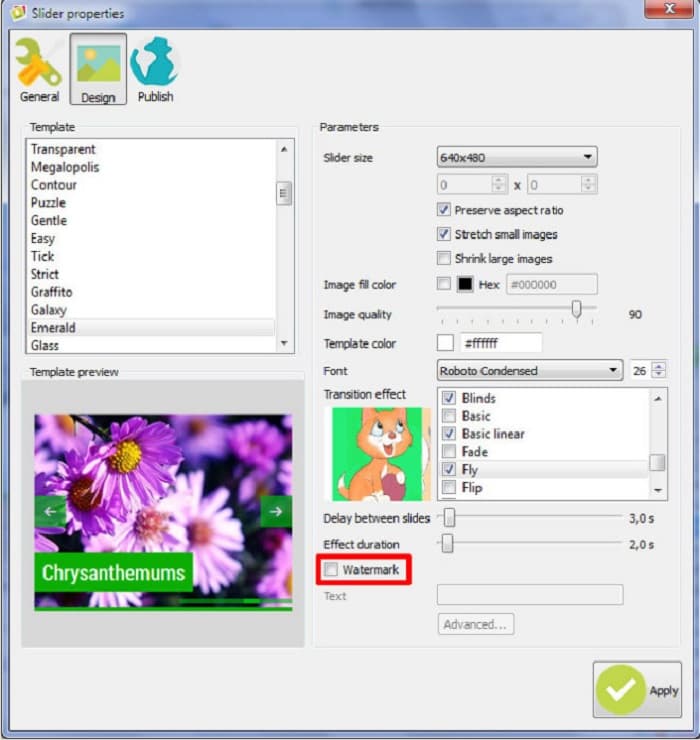
Passaggio 5. Puoi pubblicare la tua presentazione sul sito web senza la filigrana di WOW Slider.
Parte 3. Domande frequenti sulla rimozione della filigrana del dispositivo di scorrimento WOW
Perché WOW Slider inserisce filigrane nelle presentazioni prodotte?
WOW Slider incorpora la filigrana negli output della presentazione in modo che gli utenti siano incoraggiati alla versione senza filigrana. L'app non lascerà una filigrana sull'output se acquisti l'app.
Puoi rimuovere più filigrane dal tuo video?
Sì. I dispositivi di rimozione delle filigrane ti consentono di rimuovere due o più filigrane sul tuo video. Se desideri rimuovere più filigrane sul tuo video, usa FVC Video Converter Ultimate.
Qual è il miglior dispositivo di rimozione della filigrana online da utilizzare?
Esistono molti rimuovi‑filigrana online che puoi trovare su internet. Tuttavia, molti utenti consigliano FVC Free Watermark Remover perché è sicuro e gratuito.
Conclusione
Ora il tuo problema su come rimuovere la filigrana di WOW Slider è risolto! Utilizzando i rimuovi‑filigrana menzionati sopra, puoi rimuovere facilmente la filigrana di WOW Slider dalla tua presentazione. Ma se vuoi un’applicazione online gratuita e sicura da usare, scegli FVC Free Watermark Remover.
-
 Modi gratuiti per rimuovere la filigrana di VideoShop sui video [senza sforzo]
 Per rimuovere la filigrana di VideoShop, il tuo dispositivo avrà bisogno di un dispositivo di rimozione della filigrana. Per sapere cosa sono, leggi questo articolo.
-
 3 approcci per rimuovere la filigrana di Viva Video sui video [il modo più rapido]
 Avrai bisogno di un dispositivo di rimozione della filigrana dedicato per rimuovere la filigrana Viva Video sui video. Leggi questo articolo per saperne di più!
-
 Strumenti definitivi per rimuovere la filigrana dai video esportati da Renderforest
 Per rimuovere la filigrana da Renderforest avrai bisogno di un dispositivo di rimozione della filigrana sul tuo dispositivo, tutti gli strumenti che puoi utilizzare sono qui.
