


 Video Converter Ultimate
 Screen Recorder
 Riparazione video
 Download sicuro
Come ridimensionare un'immagine su iPhone utilizzando 3 modi efficaci [gratuito]
Non tutte le immagini dal web che salvi sul tuo iPhone si adattano come sfondo o schermata Home a causa del loro rapporto di aspetto e delle dimensioni. A volte, quando usi una foto con dimensioni non corrette come sfondo o schermata Home, diventa sfuocata e compaiono barre nere ai lati invece di riempire lo schermo. Fastidioso, vero? Per fortuna puoi scaricare un’app per ridimensionare le foto dall’App Store, usare Comandi Rapidi oppure sfruttare l’editor integrato delle immagini già a tua disposizione. Per ridimensionare rapidamente una foto sul tuo iPhone, puoi dedicare pochi minuti alla lettura di questo articolo per capire meglio come fare e risolvere il problema di dimensioni sul tuo dispositivo.

Parte 1. 3 modi efficaci su come ridimensionare un'immagine su iPhone [scaricabile e integrato]
Utilizzo della scorciatoia [integrata]
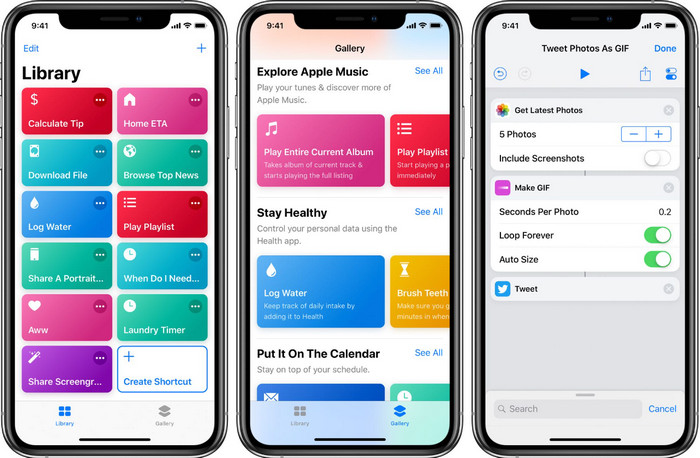
Comandi Rapidi permette agli utenti iOS di creare funzioni avanzate che puoi usare, ad esempio per ridimensionare le immagini presenti nei tuoi file locali. Tutte le versioni di iOS dalla 13 in su includono l’app preinstallata. Poiché l’applicazione è stata introdotta di recente, le versioni più vecchie non dispongono di un’app così avanzata. Tuttavia puoi scaricarla gratuitamente dall’App Store del tuo iPhone o iPad. Per insegnarti come ridimensionare un’immagine su iPhone usando questo strumento, puoi seguire i passaggi riportati di seguito.
Passaggio 1. Apri l’app sul tuo iPhone, quindi tocca il pulsante più in alto per aggiungere un comando rapido dedicato al ridimensionamento sul tuo dispositivo.
Passaggio 2. Tocca l’icona con le tre linee e i puntini, poi aggiungi il nome del comando rapido; per questo comando puoi usare il nome Resizing Photo. Attiva l’opzione Mostra nel foglio di condivisione così, ogni volta che vorrai condividere un’immagine, verrà ridimensionata automaticamente se scegli questo comando.
Passaggio 3. Deseleziona l’opzione Anything nel tipo del foglio di condivisione e imposta solo Immagini. Poi tocca Fine per salvare le impostazioni che hai creato.
Passaggio 4. Prima di usare questa funzione, devi premere l’icona più, scegliere Media, quindi premere Ridimensiona immagine. Imposta la lunghezza secondo le tue esigenze e premi Fine per salvarla. Ora, ogni volta che condividi un’immagine, avrai la possibilità di ridimensionarla automaticamente con questo comando rapido.
Utilizzo dell'app per foto [integrata]
Un’altra applicazione integrata che puoi usare liberamente su iPhone in qualsiasi versione è l’app Foto. Dopo anni in cui è stata l’editor e miglioratore di immagini di fiducia per ogni utente iPhone, sarebbe incompleto non menzionare questa app. Alcuni sanno già come usarla per il ridimensionamento, altri no. Quindi, per quegli utenti che non sanno come ridimensionare una foto su iPhone, questo tutorial può essere d’aiuto.
Passaggio 1. Apri l’app Foto e tocca la foto che desideri ridimensionare.
Passaggio 2. Dopo aver selezionato l’immagine che vuoi ridimensionare, tocca Modifica.
Passaggio 3. Tocca l’icona di ritaglio nell’angolo in alto a destra e poi tocca il pulsante a forma di quadrati.
Passaggio 4. Qui troverai diversi preset di proporzioni tra cui scegliere, quindi tocca Fine per salvare le modifiche.
Utilizzo della dimensione dell'immagine [scaricabile]
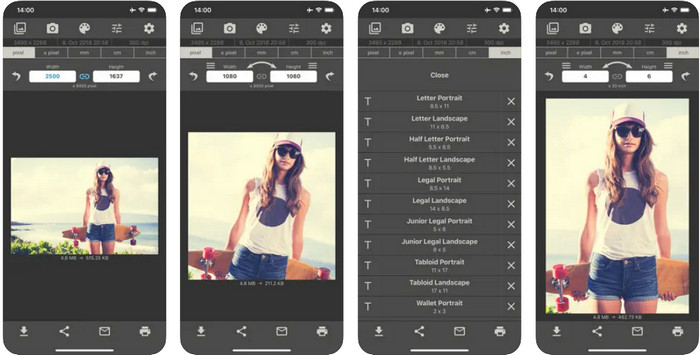
Image Size è un’app di terze parti affidabile che puoi scaricare su iOS per ridimensionare facilmente le foto da usare come sfondo su iPhone. A differenza dei due metodi che abbiamo presentato, per utilizzare questa app devi prima scaricarla dall’App Store. Non è un’app integrata in iOS, ma è disponibile per la maggior parte delle versioni iOS e può essere scaricata immediatamente. Dal momento che è gratuita da usare e scaricare, durante l’utilizzo compaiono diversi annunci pubblicitari. Se non ti danno fastidio, puoi procedere con i passaggi per usare questa app per ridimensionare le foto sul tuo iPhone.
Passaggio 1. Installa questa app per il ridimensionamento delle foto sul tuo dispositivo iOS, quindi aprila.
Passaggio 2. Tocca l’icona dell’immagine per caricare la foto che vuoi far ridimensionare dall’app.
Passaggio 3. Nella parte superiore vedrai che le misure sono applicate all’immagine; modificale in base all’altezza e alla larghezza che preferisci.
Passaggio 4. Tocca il pulsante download per salvare l’immagine che hai ridimensionato.
Parte 2. Il modo migliore per ridimensionare un'immagine online senza pubblicità o processo di installazione
Con FVC Free Image Upscaler, puoi cambiare facilmente le dimensioni di qualsiasi immagine in modo automatico con l’aiuto dell’IA. Non hai bisogno di una lunga esperienza nel ridimensionamento, perché con questa app è tutto fattibile. Milioni di utenti usano questa applicazione per ridimensionare, ingrandire, migliorare e aumentare la qualità delle loro immagini in un’unica operazione. Ciò che rende questo strumento ancora migliore è che puoi usarlo gratuitamente. Non è fantastico? Lo è davvero. Un editor tutto‑in‑uno è ciò che questa app ti offre. Per aiutarti a ridimensionare la tua foto, segui i passaggi indicati e usa questo strumento.
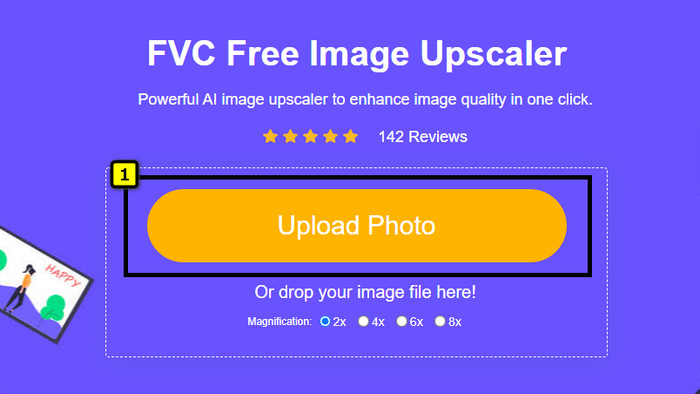
Passaggio 1. Puoi aprire questo strumento web cliccando su questo link; si aprirà una nuova scheda sullo schermo.
Passaggio 2. Per aggiungere l’immagine che vuoi ridimensionare, fai clic su Aggiungi immagine. Cerca l’immagine nella cartella dei file che verrà visualizzata sullo schermo e premi Apri per aggiungerla qui.
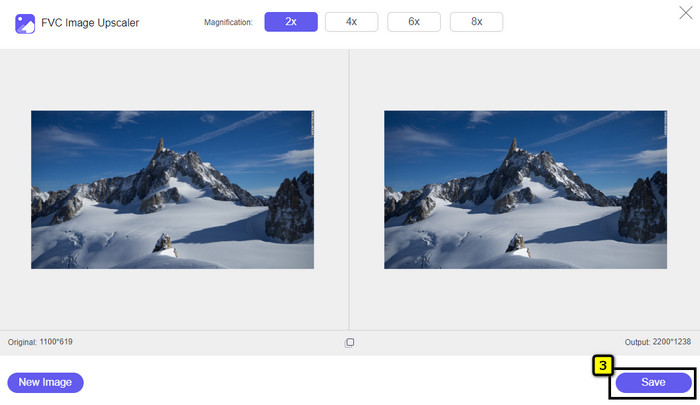
Passaggio 3. L’app caricherà l’immagine che hai importato e ti permetterà di selezionare l’ingrandimento che vuoi applicare. Ridimensionerà automaticamente la foto che hai caricato in una nuova dimensione.
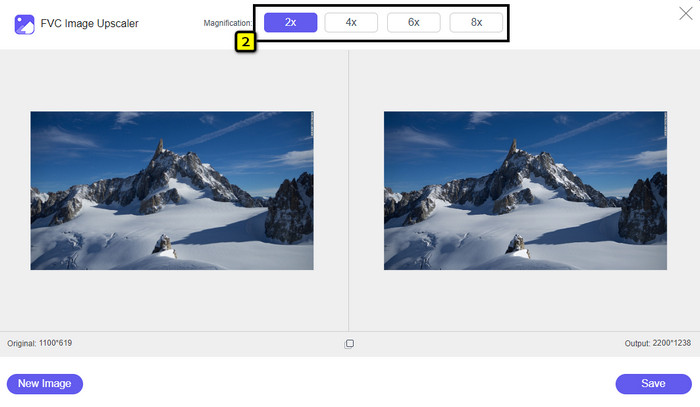
Passaggio 4. Quando hai finito di modificare l’immagine, premi Salva per scaricare la versione ridimensionata sull’unità locale.
Parte 3. Domande frequenti su come ridimensionare l'immagine su iPhone
Qual è la dimensione perfetta da utilizzare come sfondo su iPhone?
Per gli utenti di iPhone SE, 6, 6 plus, 7, 7 plus, 8, 8 plus, la dimensione standard dell'immagine da utilizzare come sfondo deve essere compresa tra 1136 x 640 e 1920 x 1080 px. È la lunghezza e l'altezza standard per l'immagine che desideri utilizzare come sfondo sui dispositivi iPhone. Ma per coloro che utilizzano iPhone XR, 11 e 13, ora puoi utilizzare 828 x 1792 o fino a 3073 x 1420 px come dimensione del display.
Qual è lo svantaggio di ritagliare invece di ridimensionare le immagini su iPhone?
Quando ritagli l'immagine, vedrai che ne ritaglierà le dimensioni. Sì, la dimensione dell'immagine cambierà, ma l'aspetto generale non è lo stesso del ridimensionamento. Durante il ridimensionamento, puoi modificare liberamente l'altezza e la lunghezza di un'immagine senza tagliare i bordi o altro. Quindi, se vuoi usare la foto come sfondo e adattarla, è meglio ridimensionarla piuttosto che ritagliarla sul tuo iPhone.
Perché ingrandire l'immagine è diventata sfocata dopo il ridimensionamento su iPhone?
Poiché queste applicazioni e i modi che includiamo in questo articolo non creano PPI, allungano l'immagine ridimensionata sul tuo iPhone. Quindi, se non ti piace riscontrare questo tipo di problema, devi utilizzare lo strumento online che includiamo qui per creare PPI quando ridimensioni l'immagine sul tuo iPhone.
Conclusione
Puoi fare affidamento sugli strumenti che abbiamo trovato su iPhone e che possono aiutarti facilmente a ridimensionare una foto sul tuo iPhone. Anche senza scaricare un’app, puoi usare le applicazioni integrate già presenti sul dispositivo. Se vuoi essere più specifico, puoi usare e scaricare le app che abbiamo menzionato. Ma se desideri ridimensionare la tua immagine senza comprometterne la qualità, utilizza lo strumento online che abbiamo indicato. Leggi la parte 2, perché lì abbiamo aggiunto un tutorial su come usarlo.
-
 5 dei migliori ridimensionatori GIF disponibili su tutte le piattaforme [2022]
 Vuoi conoscere i ridimensionatori GIF che puoi utilizzare? In tal caso, le informazioni fornite di seguito parleranno dei ridimensionatori che puoi utilizzare sulle tue GIF su tutte le piattaforme.
-
 Come ridimensionare l'immagine – Adobe Resize Image [Online e Offline]
 Se stai cercando Adobe ridimensiona l'immagine, allora abbiamo la soluzione per te. Visualizza attentamente questo post per scoprire come ridimensionare le immagini utilizzando Adobe sul tuo PC.
-
 Come ridimensionare la foto per Facebook [Passaggi facili e veloci]
 Se hai problemi a caricare un'immagine di grandi dimensioni su Facebook, abbiamo una soluzione per te. Completa questo articolo per scoprire come ridimensionare le foto per Facebook.
