


 Video Converter Ultimate
 Screen Recorder
 Riparazione video
Diversi modi per convertire RMVB in MOV per offline e online
A causa della grande quantità di formati di file video confusi disponibili su Internet, molti utenti hanno difficoltà a scegliere quale lettore multimediale usare per il singolo video che scaricano. Per quanto possa sembrare incredibile, riprodurre un video non è sempre facile quanto scaricarlo. Alcuni formati sono esclusivi del loro creatore, mentre altri possono essere riprodotti praticamente ovunque. Tuttavia, è essenziale sapere quali formati video cercare in base a quelli supportati dai lettori che si hanno a disposizione. Ma non dovremmo fermarci solo a questo. Sapere come convertire i formati di file che non si incontrano tutti i giorni è la soluzione migliore. Perciò, ti mettiamo a disposizione tutti i metodi possibili per convertire RMVB in MOV nel modo più comodo per te.
Parte 1. Una panoramica: RMVB e MOV
RMVB e MOV sono due diversi formati video di altre due società che li hanno sviluppati. Dovresti conoscere i file RMVB, abbreviazione di RealMedia Variable Bitrate, un'estensione del bitrate variabile sviluppata da RealNetworks per il formato contenitore digitale multimediale RealMedia. Alcune persone usano RMVB per il materiale multimediale salvato localmente. Poiché presentano dimensioni di file più piccole e bitrate inferiori, ma con una qualità più eccellente, i file RMVB sono diventati un formato popolare per i titoli di film anime e asiatici. Per questo formato viene utilizzata l'estensione di file '.rmvb'.
D'altra parte, MOV è un formato di file contenitore multimediale sviluppato da Apple salvato in QuickTime File Format (QTFF). Il formato contenitore può gestire vari formati multimediali per facilitare la trasmissione multimediale tra dispositivi, sistemi operativi e applicazioni. I file multimediali QTFF memorizzano file .mov. Tuttavia, possono anche salvare come file .qt.
| Estensione del file | RMVB | MOV |
| Tipo di file | File a velocità di trasmissione variabile RealMedia | Film QuickTime di Apple |
| Sviluppatore | Real Network | Mela |
| Vantaggi | RMVB è un formato per la memorizzazione e la condivisione di informazioni multimediali. Ed è particolarmente famoso per la distribuzione di contenuti asiatici, come episodi e film televisivi cinesi. | Un file MOV può includere molte tracce di dati, ciascuna contenente un flusso multimediale digitale o relativa a un flusso in un altro file. Di conseguenza, puoi semplicemente modificare i file senza dover rifare i dati in seguito. |
| Svantaggi | Non sono prevalenti, a causa della loro incompatibilità con altri lettori multimediali. | Ogni file MOV può includere uno qualsiasi dei diversi codec, rendendo difficile la riproduzione. |
| I programmi supportano il file | Convertitore video iOrgSoft del lettore multimediale VLC RealPlayer | Microsoft Windows Media Player Apple QuickTime Player VideoLAN VLC media player |
Parte 2. Metodo accessibile e migliore per convertire RMVB in MOV [Offline]
La conversione di un video da RMVB a MOV a volte è necessaria in un'ora e in un giorno imprevisti. L'intero processo richiede principalmente una connessione Internet che non è sempre disponibile in nessun luogo. Quindi, Video Converter Ultimate è la strada da percorrere se vuoi convertire il tuo video in un formato adatto alla situazione in cui ti trovi. Ti consente persino di convertire più video contemporaneamente, risparmiando il fastidio di processi ripetuti. Ti offre anche varie opzioni come la scelta di una determinata risoluzione, frame rate e bitrate per il tuo video. Assegna una risoluzione e Video Converter Ultimate te la darà.
Passaggio 1: Vai al sito web e vedrai un pulsante con la dicitura Free Download e For Mac OS. Cliccaci sopra per scaricare il file .exe. Devi installare il software e attendere che la procedura termini. Una volta conclusa, apri il file per proseguire con il processo di installazione.
Download gratuitoPer Windows 7 o versioni successiveDownload sicuro
Download gratuitoPer MacOS 10.7 o versioni successiveDownload sicuro
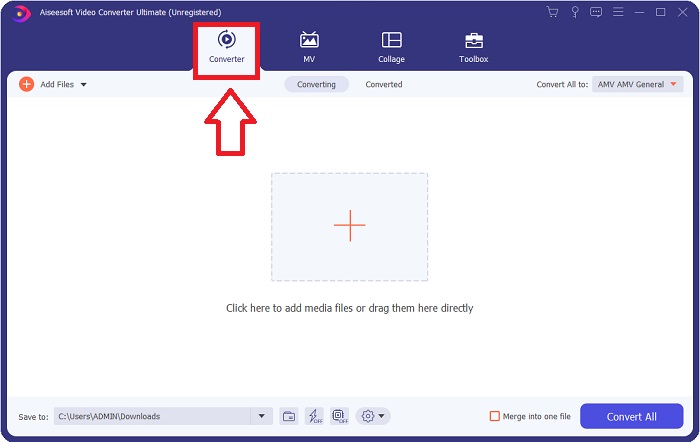
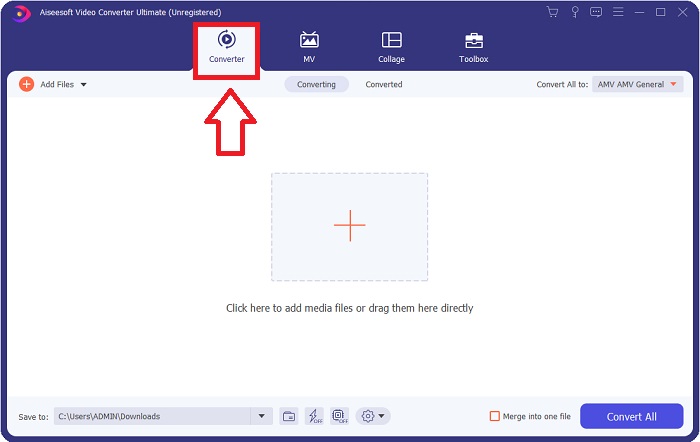
Passaggio 2: Dopo aver completato l’installazione, avvia il software e si aprirà una finestra. Ti mostrerà un’interfaccia con delle schede nella parte superiore. Inizialmente ti trovi nella scheda Converter e, se non fosse così, selezionala semplicemente.
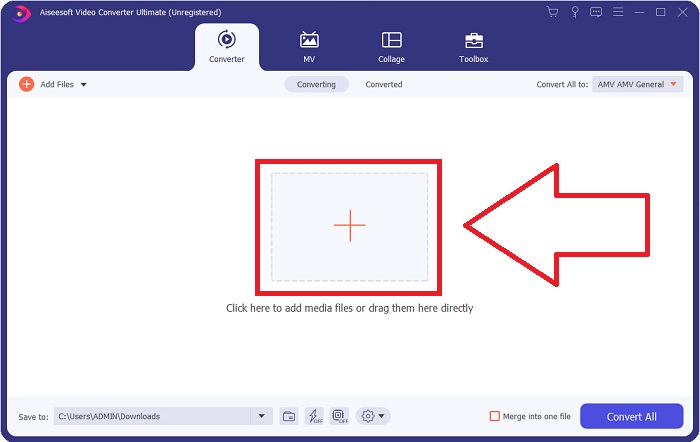
Passaggio 3: Nell’interfaccia vedrai un pulsante quadrato con un’icona a forma di + al centro. Cliccaci sopra per importare il file video che desideri convertire, oppure trascinalo direttamente senza alcuna difficoltà.
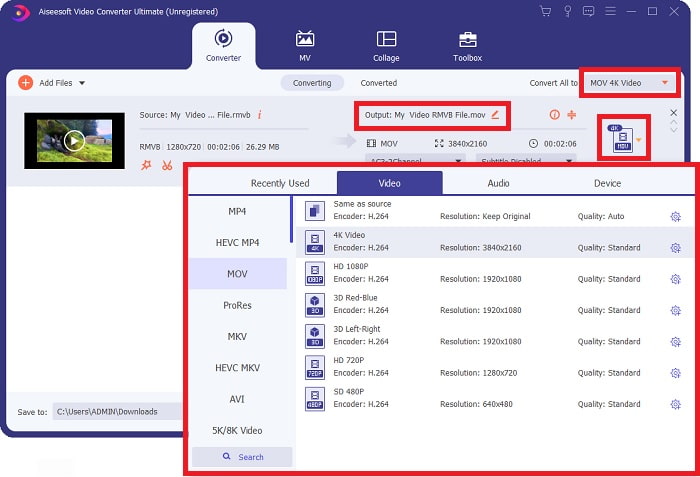
Passaggio 4: Apparirà una nuova interfaccia che mostra tutte le opzioni per modificare il tuo video. All’estrema destra potrai scegliere il formato che desideri per il video convertito. Clicca semplicemente sulla freccia a discesa e ti verranno mostrati tutti i formati disponibili.
In questo caso, scegli MOV. Inoltre, puoi cliccare sull’icona a forma di ingranaggio accanto alla risoluzione che hai selezionato per modificare impostazioni come il frame rate per il video e il sample rate per l’audio. Per mantenere le modifiche, clicca su Create New.
Passaggio 5: Se hai terminato tutti gli interventi che volevi apportare al tuo video, puoi avviare il processo di conversione cliccando sul pulsante Convert All nell’angolo in basso a destra della finestra.
Parte 3. Un altro metodo eccellente per convertire RMVB in MOV [Online]
Se scaricare e installare software sul tuo computer non fa per te e hai bisogno solo di una conversione una tantum per i tuoi filmati, ecco un’opzione completamente online che puoi provare. FVC Free Video Converter Online, uno strumento web che offre varie opzioni di impostazione per video e audio, facendoti risparmiare il tempo necessario per installare il software. Bastano solo tre semplici passaggi per portare a termine il lavoro:
Passaggio 1: Per iniziare, vai al sito web dove troverai un pulsante giallo al centro della pagina con la dicitura Add Files to Convert. Clicca sul pulsante per importare il file video che vuoi convertire.
Scarica la Versione Desktop per convertire i file in batch.
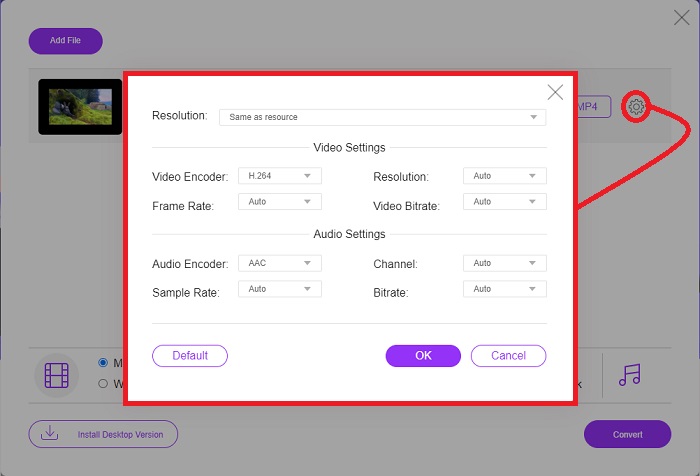
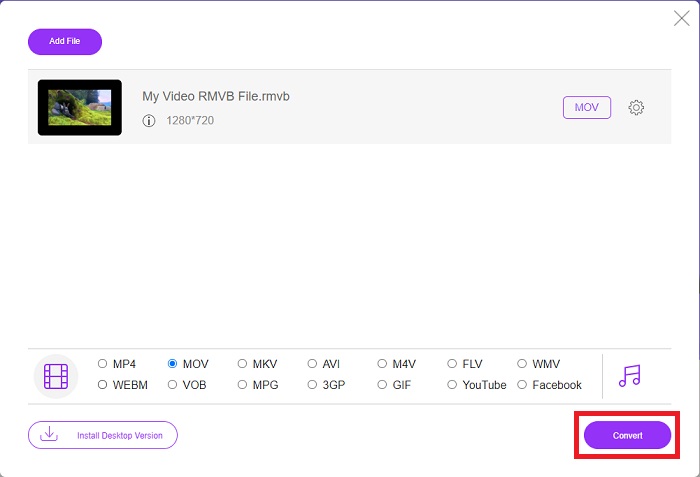
Passaggio 2: Si aprirà una finestra che mostrerà, in alto, il file video che hai importato e, in basso, tutti i formati disponibili. Poiché desideri convertire il tuo file RMVB in MOV, seleziona MOV. Per le opzioni aggiuntive, clicca sull’icona a forma di ingranaggio all’estrema destra per modificare le impostazioni video e audio relative alle opzioni avanzate. Per salvare le modifiche, clicca su OK.
Passaggio 3: Se tutte le modifiche apportate soddisfano le tue esigenze per il video, puoi iniziare la conversione cliccando sul pulsante Convert nell’angolo in basso a destra della finestra. Seleziona la cartella in cui desideri esportare il file completamente convertito e attendi il termine dell’operazione.
RMVB contro MOV
RMVB, una variazione più recente del formato standard Real Media (.RM), è un formato di file video Real Media compresso utilizzando un bitrate variabile. È un formato popolare per film e anime asiatici. I file RMVB sono di dimensioni inferiori e hanno bitrate inferiori ma una qualità migliore.
Il formato MOV può essere utilizzato per memorizzare un film, un programma TV, un breve video clip o un filmato amatoriale. In realtà viene salvato nel formato QuickTime File Format (QTFF), introdotto da Apple nel 1991. I file MOV vengono spesso utilizzati quando le persone vogliono salvare un video di alta qualità.
Parte 4. Domande frequenti sulla conversione da RMVB a MOV
Che cos'è esattamente un file RMVB?
Qualsiasi file RMVB è un file video Real Media compresso utilizzando un bitrate variabile ottimale per il contenuto del video. È una versione più recente del formato di file Real Media (.RM) di base che offre una migliore compressione.
Cosa può riprodurre file RMVB?
Poiché diverse applicazioni utilizzano file con estensione RMVB per motivi differenti, avrai bisogno di un software compatibile con lo specifico file che stai tentando di aprire. RealNetworks RealPlayer (Windows), VLC media player (multipiattaforma) e GRETSCH GOM Player (Windows) sono tutti lettori multimediali gratuiti che possono riprodurre file RMVB.
Sono possibili errori con i file .rmvb?
Se non disponi di Real Media Player o di qualsiasi altro strumento di apertura file adatto, potresti avere problemi ad aprire i file .rmvb se il file viene danneggiato a causa di settori difettosi sul disco rigido o di un download errato. Se si verificano problemi nel registro di sistema di Windows, in cui sono archiviate le informazioni sull'associazione dei file per il file .rmvb, potrebbe verificarsi un terzo errore.
Conclusione
Scegliere se mantenere un software o semplicemente utilizzare uno strumento online per convertire un video non significa preoccuparsi se utilizzare FVC. Sia il software che la sua versione online offrono le migliori opzioni per le tue esigenze di conversione. Tuttavia, ti consigliamo vivamente di scaricare Video Converter Ultimate per la casella degli strumenti aggiuntiva che ti fornisce quando cerchi ulteriori modifiche per il tuo video oltre alla sola conversione. Non sai mai quando hai bisogno di un software adatto ai principianti, quindi è meglio averlo sempre vicino al tuo computer.
-
 Guida su come convertire RMVB in MP4 su Windows / Mac (3 modi gratuiti)
 Vuoi convertire RMVB in MP4 per una facile riproduzione sul tuo computer o telefono cellulare? In questa guida troverai semplici modi per convertire i tuoi file RMVB in MP4.
-
 Le 4 migliori app di conversione da RMVB a FLV gratuite su desktop o online
 Questo articolo ti dirà il miglior software di conversione da RMVB a FLV e le app Web in grado di convertire i file RMVB (RealMedia Variable Bitrate) in video FLV.
-
 Come convertire MP4 in MOV su Mac / PC / Online
 Come convertire un MP4 in MOV su Mac? Esiste un modo gratuito per convertire MP4 in MOV senza perdita di qualità? Questo post condivide 4 semplici modi per aiutarti a convertire i video da MP4 a MOV su Mac, PC Windows e online.

