


 Video Converter Ultimate
 Screen Recorder
 Riparazione video
 Download sicuro
Come convertire MP3 in suoneria su iPhone senza sforzo
Trovi che le suonerie predefinite del tuo iPhone non siano proprio tra le tue preferite e vorresti che una delle tue tracce MP3 potesse diventare invece la tua suoneria? E se ti dicessimo che è possibile convertire un MP3 in suoneria su iPhone?
In questo articolo, scopri 3 modi diversi per trasformare i tuoi file musicali MP3 sul tuo iPhone in una suoneria. Convertirli è un po' complicato, ma con lo strumento e il metodo giusti, rendiamolo il più semplice e comodo possibile per te. Cosa aspetti? Tuffiamoci!

Parte 1. Convertire MP3 in suoneria per iPhone su Mac/Windows
Uno dei modi più semplici e veloci per convertire MP3 in suoneria su iPhone è usare il FVC consigliato Video Converter Ultimate sul tuo computer Windows o macOS. Questo strumento di conversione tutto‑in‑uno supporta fino a 300 formati diversi, incluso il formato M4R, il che lo rende un tool affidabile per trasformare i file musicali MP3 in suonerie per iPhone. Inoltre, questo convertitore è fino a 120 volte più veloce rispetto ad altri strumenti di conversione, rendendo il processo rapido e senza complicazioni.
Ecco come usare il FVC consigliato Video Converter Ultimate per convertire il tuo MP3 in una suoneria:
Passaggio 1. Per prima cosa, scarica e installa lo strumento sul tuo computer, sia Windows che Mac.
Passaggio 2. Avvia il programma e, una volta nella schermata principale, fai clic sul pulsante Add Files. In questo modo potrai importare il file MP3 che desideri convertire in suoneria per iPhone.
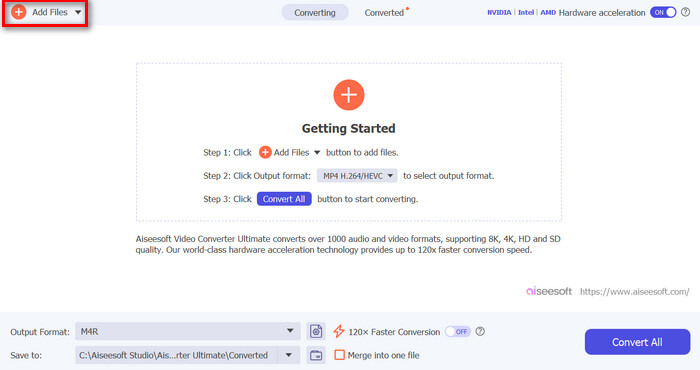
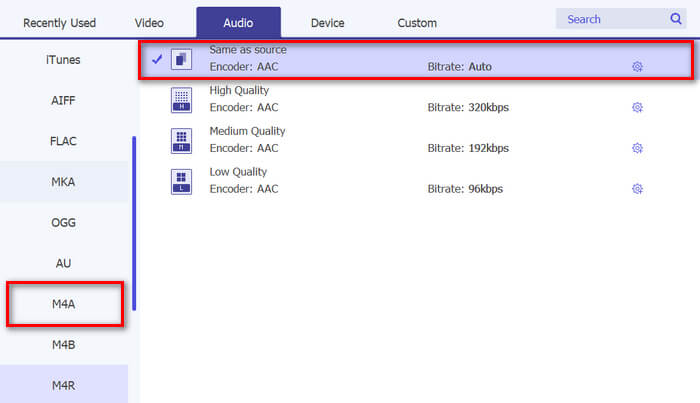
Passaggio 3. Ora vai su Output format e, dall’elenco dei vari formati audio, scegli M4R. M4R è il formato file delle suonerie per iPhone.
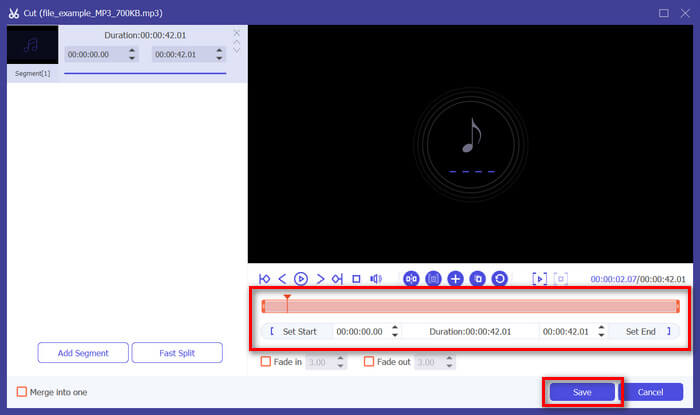
Passaggio 4. Successivamente, assicurati che il tuo file MP3 duri solo 30 secondi. Se supera questa durata, fai clic sul pulsante Cut e regola la lunghezza del file spostando la barra sulla timeline oppure impostando manualmente l’orario di fine a 30 secondi.
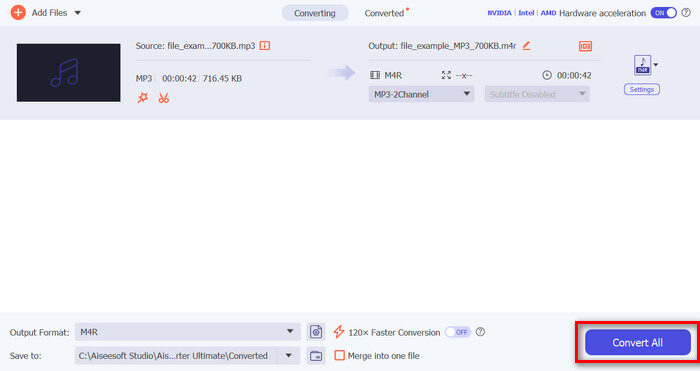
Passaggio 5. Ora fai clic sul pulsante Convert All per iniziare a convertire i tuoi file MP3 in suonerie per iPhone. I file convertiti vengono salvati direttamente in una cartella sul tuo computer.
È veloce, vero? È davvero incredibile come questo strumento Video Converter Ultimate scelto da FVC renda la conversione di MP3 in una suoneria per iPhone facile e veloce. Quindi, se stai cercando uno strumento di conversione che ti faccia risparmiare tempo, prova questo strumento ora.
Parte 2. Convertire MP3 in suoneria su iPhone
Se preferisci un metodo diretto senza usare un computer, GarageBand offre una soluzione comoda per convertire MP3 in suonerie direttamente sul tuo iPhone. Questo strumento è una potente app per la creazione di musica preinstallata sulla maggior parte degli iPhone. Questo strumento non è solo intuitivo, ma fornisce anche varie funzionalità per personalizzare efficacemente i tuoi file audio.
Ecco come usare GarageBand per convertire il tuo MP3 in una suoneria:
Passaggio 1. Per prima cosa, avvia l’app GarageBand sul tuo iPhone. Se non hai ancora installato l’app, vai sull’App Store e installala.
Passaggio 2. Tocca l’icona Project e poi l’icona Loop vicino all’angolo in alto a destra.
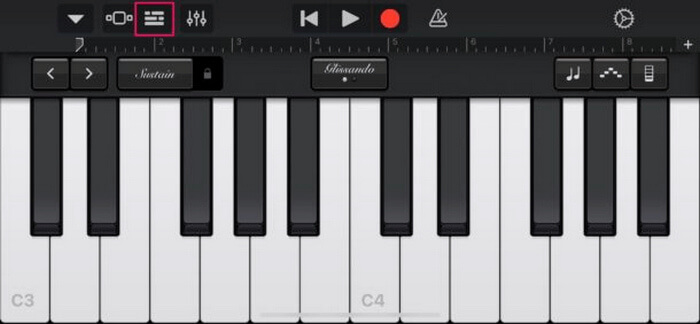
Passaggio 3. Ora tocca Music o Files per scegliere il file MP3 e tienilo premuto a lungo per importarlo in GarageBand.
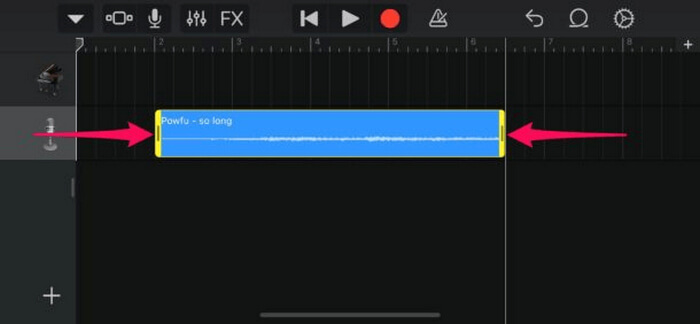
Passaggio 4. Dopodiché, tocca la traccia e trascina entrambe le estremità per tagliare l’audio. Assicurati che la suoneria duri meno di 30 secondi.
Passaggio 5. Vedrai una Freccia rivolta verso il basso nell’angolo in alto a sinistra. Tocca la freccia e poi scegli My Songs per salvare la clip.
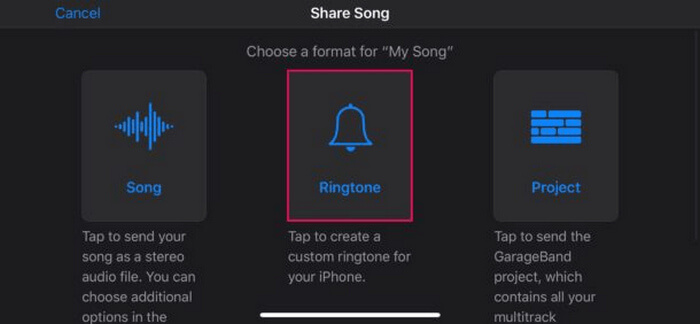
Passaggio 6. Trova la clip che hai creato, tienila premuta a lungo, tocca Share e scegli l’opzione Ringtone. Non dimenticare di dare un nome alla suoneria e tocca Export.
Passaggio 7. Per usare il file MP3 convertito come suoneria sul tuo iPhone, tocca Use Sound As per impostarlo come suoneria predefinita dei messaggi o per un contatto specifico. In alternativa, vai su Impostazioni, Suoni e feedback aptico e Suoneria per cambiare la suoneria sul tuo iPhone.
Se preferisci convertire i file MP3 direttamente in suonerie sul tuo iPhone, questo metodo è perfetto per te. Tuttavia, i nuovi utenti avranno bisogno di un po' di tempo per imparare, poiché contiene funzioni complesse che potrebbero sopraffarli all'inizio.
Parte 3. Converti MP3 in suoneria per iPhone [online e gratuito]
Se preferisci un metodo gratuito e online per convertire MP3 in suoneria per iPhone, il FVC Free Audio Converter è la scelta giusta per te. Con questo strumento puoi convertire facilmente qualsiasi formato di file audio, in particolare da MP3 a M4R, poiché supporta i formati audio MP3, AAC, AC3, WMA, WAV, AIFF, FLAC, MKA, M4A, M4B e M4R. Inoltre, questo strumento è perfetto per chi ha bisogno di un convertitore audio sempre a portata di mano, grazie alla sua interfaccia molto intuitiva e semplice.
Ecco come usare il FVC Free Audio Converter per trasformare il tuo MP3 in una suoneria:
Passaggio 1. Fai clic sul pulsante Add Files per importare i file MP3 che vuoi convertire in suoneria.
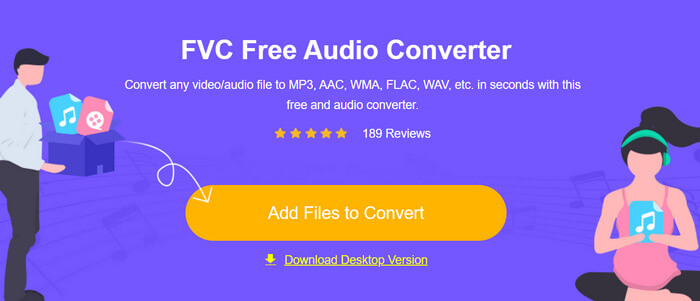
Passaggio 2. Scegli M4R come formato audio di output.
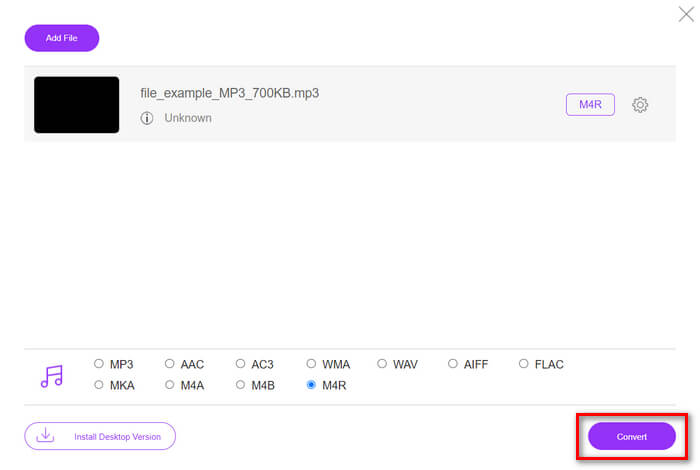
Passaggio 3. Infine, per avviare la conversione del tuo file MP3 in suoneria, fai clic sul pulsante Convert. Il file convertito verrà salvato direttamente sul tuo computer.
Se stai cercando un metodo alternativo, gratuito e online per convertire una suoneria da MP3 a M4R su iPhone, FVC Free Audio Converter è una soluzione perfetta. La sua interfaccia intuitiva semplifica il processo di conversione e supporta una grande varietà di formati audio, garantendo la compatibilità con diversi tipi di file.
Parte 4. Come trasferire le suonerie convertite su iPhone da un computer
Ora che hai finalmente convertito i tuoi file MP3 in suonerie sul tuo computer, il modo più veloce per trasferirli sul tuo iPhone è utilizzare iTunes.
Ecco come trasferire le suonerie convertite su iPhone usando iTunes:
Passaggio 1. Apri iTunes sul tuo computer e collega l’iPhone con un cavo USB.
Passaggio 2. Trascina il file della suoneria convertita nella libreria di iTunes. Assicurati che compaia nella sezione Tones.
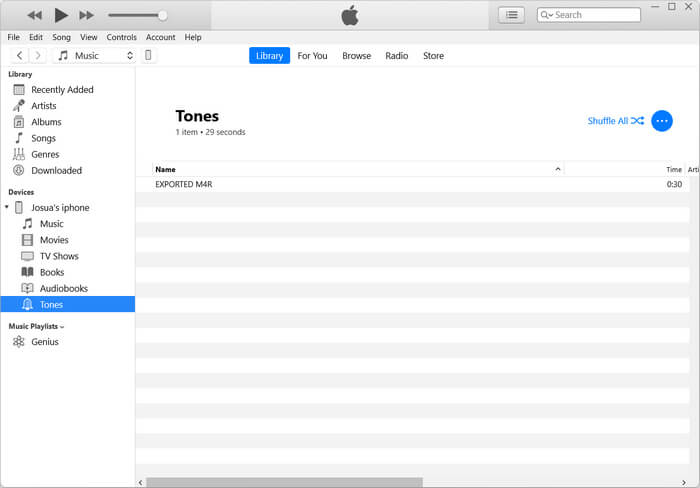
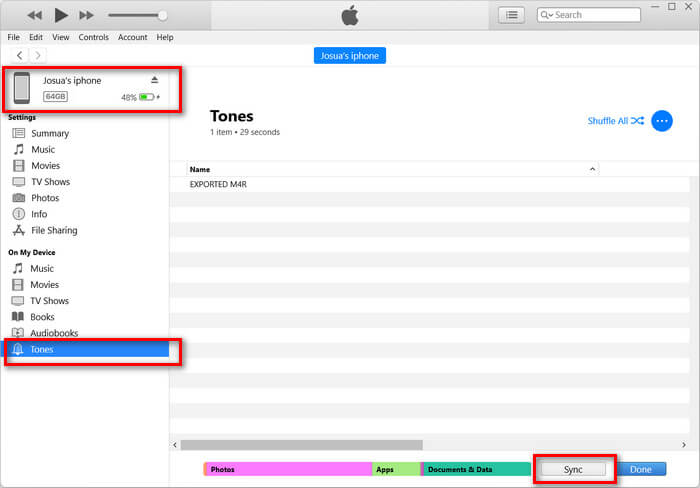
Passaggio 3. Seleziona l’icona del tuo iPhone in iTunes, vai alla scheda Tones e spunta Sync Tones. Poi scegli il file della suoneria che hai importato e fai clic su Apply per sincronizzare.
Passaggio 4. Ora, sul tuo iPhone, vai su Impostazioni, scegli Suoni e feedback aptico, tocca Suoneria e seleziona la tua nuova suoneria.
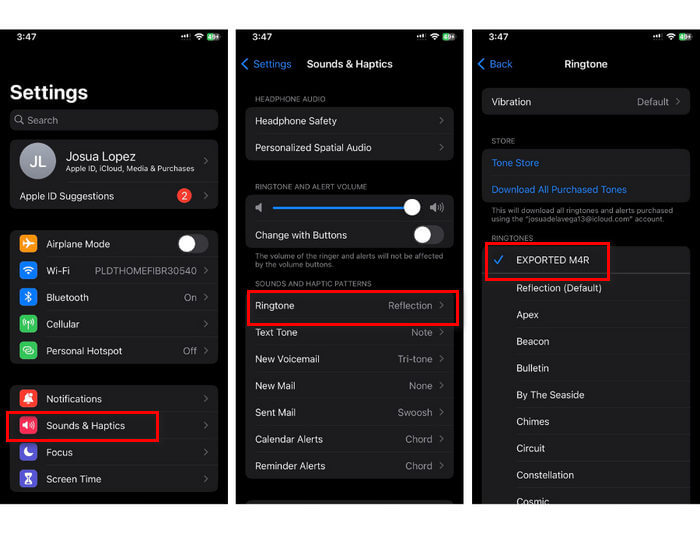
Ecco fatto. Ora puoi facilmente trasferire e usare l'MP3 convertito in suoneria sul tuo iPhone, dando al tuo dispositivo un tocco personale con i tuoi suoni preferiti.
Parte 5. Domande frequenti sulla conversione di MP3 in suoneria
Qual è il miglior sito di suonerie gratuite?
Molti siti web offrono suonerie gratuite, ma alcuni tra i più popolari e affidabili includono Zedge, Mobile9 e Tones7. Questi siti forniscono un'ampia varietà di suonerie che puoi scaricare e usare sul tuo telefono.
In che formato è possibile convertire un MP3 in una suoneria per iPhone?
Il formato della suoneria per iPhone è M4R. Quando si converte un file MP3 da usare come suoneria su un iPhone, deve essere salvato nel formato M4R.
Come aggiungere un MP3 alla suoneria dell'iPhone?
Per aggiungere MP3 alla suoneria del tuo iPhone, devi prima convertire il file MP3 in M4R usando uno strumento di conversione come Video Converter Ultimate scelto da FVC. Dopo aver convertito il file MP3, usa iTunes per trasferirlo sul tuo iPhone e utilizzarlo come nuova suoneria.
Conclusione
Ora puoi usare i tuoi file MP3 preferiti e creare una suoneria per il tuo iPhone. Ti basta scegliere lo strumento di conversione che meglio si adatta alle tue esigenze. Ognuno di essi offre un modo semplice e diretto per convertire MP3 in suoneria su iPhone. Allora, cosa aspetti? Inizia subito a creare la tua suoneria personalizzata e rendi il tuo iPhone davvero unico!
-
 MOV VS MP4 - Quale scegli?
 MOV VS MP4, qual è il migliore? Questo post spiega la differenza tra MP4 e MOV, in modo da poter ottenere la scelta migliore da utilizzare per i tuoi file video.
-
 FLAC vs. MP3: quale formato di file audio regna sovrano
 Questo post metterà a confronto le principali differenze tra FLAC e MP3. Ciò include la qualità del suono, la dimensione del file, la compatibilità e altro ancora.
-
 Come convertire MP3 in M4A per una migliore qualità del suono
 Migliora la qualità dei tuoi file musicali convertendo MP3 in M4A con i nostri suggerimenti e trucchi degli esperti. La nostra guida offre istruzioni dettagliate e software consigliato.
