


 Video Converter Ultimate
 Screen Recorder
 Riparazione video
 Download sicuro
Da MOV a MP3 - 4 metodi migliori per estrarre file MP3 da MOV con facilità
Se vuoi estrarre il file della musica di sottofondo da un video, come convertire MOV in MP3 con la qualità originale? MOV è un formato video utilizzato di frequente per la maggior parte dei dispositivi, puoi saperne di più sui 4 modi più efficienti per estrarre facilmente i file MP3 da MOV. Scegli ora il metodo desiderato in base alle tue esigenze.

Parte 1: 5 metodi migliori per convertire MOV in MP3 con facilità
Metodo 1: come convertire MOV in MP3 online
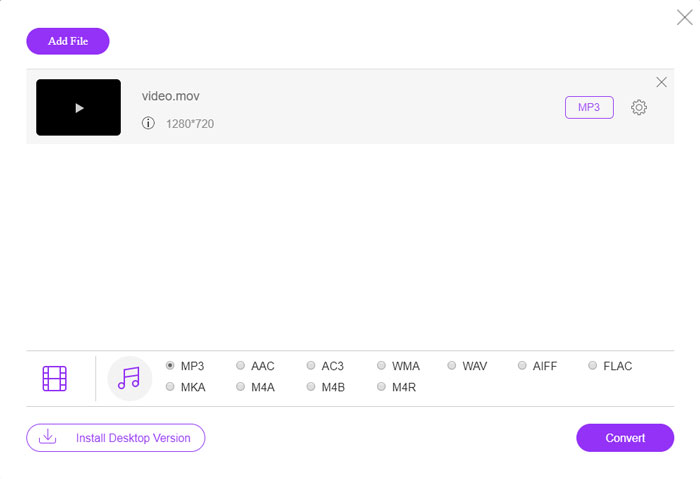
FVC Free Online Video Converter è un versatile convertitore online da MOV a MP3 che ti consente di convertire la maggior parte dei file video/audio, modificare le impostazioni audio e video e perfino effettuare conversioni stabili e sicure senza filigrana né limiti di dimensione.
Passaggio 1. Vai al convertitore video online con qualsiasi browser web e fai clic sul pulsante Add Files to Convert per caricare i file MOV che desideri convertire. È necessario installare in precedenza il programma PKG.

Passaggio 2. Una volta importato il file MOV, puoi scegliere MP3 dal menu Audio all’interno dell’interfaccia utente. Inoltre, puoi anche modificare le impostazioni, come frequenza di campionamento, canali audio e altro ancora.

Passaggio 3. Successivamente, puoi fare clic sul pulsante Convert per convertire MOV in MP3. Serviranno pochi secondi per ottenere il video desiderato. Quindi potrai scaricare il file MP3 sul tuo computer o condividerlo sui social media.
Metodo 2: come trasformare MOV in MP3 su Windows
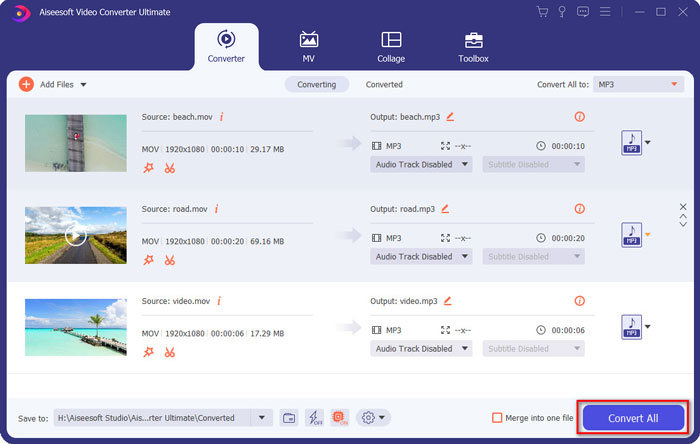
Quando vuoi trasformare MOV in MP3 con la qualità originale su Windows e Mac, FVC Video Converter Ultimate è il convertitore da MOV a MP3 desiderato per transcodificare la maggior parte dei formati video, modificare le impostazioni audio / video, modificare i file di output o persino applicare più filtri video con facilità.
- 1. Converti MOV in MP3, WAV, WMA e altri ancora con la qualità originale.
- 2. Modifica il codec video, la frequenza di campionamento, il bitrate audio e altre impostazioni audio.
- 3. Fornire funzionalità di editing video, come clip, ritaglio, unisci MOV e applica i filtri.
- 4. Accelerazione hardware avanzata per convertire file video con una velocità elevata di 70x.
Passaggio 1. Scarica e installa il convertitore da MOV a MP3, quindi avvia il programma sul tuo computer. Fai clic sull’opzione Add Files per caricare i file MP4 oppure trascina direttamente il video nel programma.
Download gratuitoPer Windows 7 o versioni successiveDownload sicuro
Download gratuitoPer MacOS 10.7 o versioni successiveDownload sicuro

Passaggio 2. Una volta importato il video MP4, puoi aprire il menu Audio e selezionare MP3 come formato di output. Dopodiché puoi regolare le impostazioni del profilo, come bitrate, frequenza di campionamento e altro.

Passaggio 3. Seleziona una cartella di destinazione per i file convertiti. Quindi fai clic sul pulsante Convert All nell’interfaccia principale per iniziare a convertire MOV in MP3 sul tuo computer in base alle tue esigenze.
Metodo 3: come convertire MOV in MP3 su Android
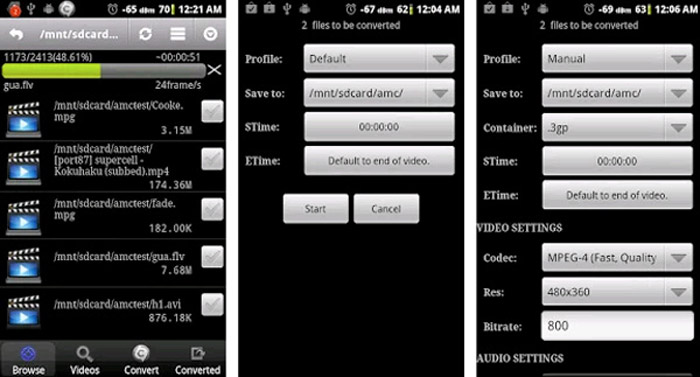
Se hai alcuni file MOV sui tuoi dispositivi Android, non è necessario trasferire i video sul computer, Video Converter Android è una semplice app di conversione da MOV a MP3 consigliata che trasforma il video MOV in un audio desiderato in pochi clic.
Passaggio 1. Dopo aver installato il convertitore MP3, apri l’app per sfogliare e aggiungere i file MOV dalla Galleria del tuo dispositivo Android. Quindi tocca l’icona Refresh in alto.
Passaggio 2. Poi puoi scegliere STime ed ETime per tagliare la musica di sottofondo dal file MOV e regolare la frequenza di campionamento e altre impostazioni prima della conversione.
Passaggio 3. Successivamente, vai alla scheda Convert e seleziona MP3 come formato di output dall’elenco dei codec. Fai clic sul pulsante Start per avviare il processo di conversione da MOV a MP3.
Metodo 4: come convertire MOV in MP3 su iOS
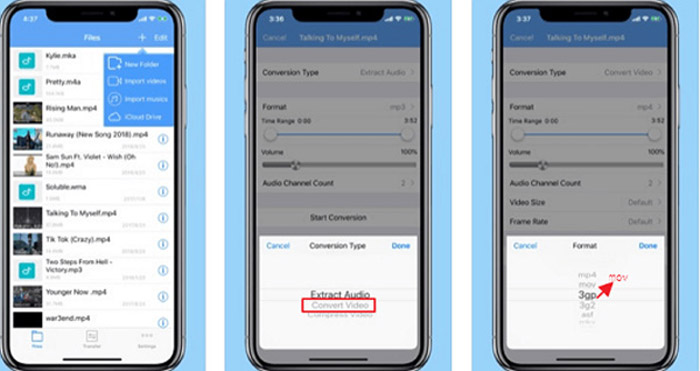
Media Converter è un'app di conversione da MOV a MP3 per iPhone e iPad. Ha un lettore multimediale integrato che ti consente di riprodurre la maggior parte dei formati video e audio. Inoltre, puoi anche comprimere facilmente il file audio con zip e RAR.
Passaggio 1. Se hai già installato il convertitore da MOV a MP3, avvia il programma sul tuo dispositivo iOS. Una volta caricati i file MOV, tocca l’opzione Extract Audio.
Passaggio 2. Scegli MOV come formato di input e il file MP3 come formato di output. Poi puoi modificare le impostazioni audio, come la frequenza di campionamento e altri parametri, in base alle tue esigenze.
Passaggio 3. Successivamente, fai clic sul pulsante Convert per iniziare a convertire MOV in MP3. Quando ottieni il file desiderato, puoi esportare il file MP3 convertito sul tuo dispositivo tramite Foto.
Parte 2: domande frequenti sulla conversione di MOV in MP3 su Win / Mac
1. Esiste un metodo versatile per convertire MOV in MP3 per tutti i dispositivi?
VLC Media Player è più di un lettore multimediale. Puoi anche convertire MOV in MP3 sui tuoi computer e smartphone. Inoltre, puoi anche modificare le diverse impostazioni e modificare i video con alcune funzionalità di modifica di base. Ma devi usare un convertitore video professionale per ottenere un output soddisfatto.
2. Qual è il miglior formato di output, MP3 o WAV per la conversione di MOV?
Quando converti MOV in MP3, puoi utilizzare il formato audio per la maggior parte dei dispositivi. Per estrarre i file audio dal computer o da un altro lettore multimediale compatibile, è possibile scegliere l'audio WAV come formato di output in base alle proprie esigenze.
3. Come scegliere un convertitore online da MOV a MP3 desiderato?
Se hai solo bisogno di scegliere un convertitore online da MOV a MP3, dovresti prestare particolare attenzione alla limitazione delle dimensioni, alla filigrana, alla registrazione dell'account e altro prima della conversione. FVC Free Online Video Converter è versatile che estrae i file audio senza alcuna limitazione.
Conclusione
Per estrarre l'MP3 dal video MOV, puoi saperne di più sui 4 migliori convertitori da MOV a MP3 dall'articolo. Sia che tu abbia bisogno di transcodificare il video in MP3 su un computer, o modificare facilmente i file MOV sul tuo dispositivo iOS / Android, puoi scegliere la soluzione desiderata in base alle tue esigenze dall'articolo.
-
 Come convertire i tuoi file musicali OGG in MP3 su desktop e online
 Come convertire i tuoi file OGG in formato MP3 per l'ascolto su computer o dispositivo mobile? Qui condividiamo 5 modi più semplici per farlo su desktop o online.
-
 Come convertire un MP4 in MP3 su Windows / Mac / iPhone / Android / Online
 Se desideri estrarre l'audio MP3 da un video MP4, puoi controllare questo articolo e ottenere 8 soluzioni. Esistono modi online e offline per convertire facilmente MP4 in MP3 sul tuo telefono o computer.
-
 Come comprimere file MOV su Windows, Mac, iPhone e Android
 Questo articolo mostra come comprimere i video QuickTime MOV sul tuo telefono o computer in dettaglio. Se il tuo video MOV è troppo grande per essere inviato, condiviso o salvato, puoi ottenere 4 soluzioni praticabili qui.
