


 Video Converter Ultimate
 Screen Recorder
 Riparazione video
Modi più convenienti su come convertire MP3 in M4R per dispositivi Apple
Hai mai pensato di trasformare la tua musica preferita nella suoneria del tuo iPhone? Ti sei chiesto se sia possibile? Certamente sì. Devi solo convertire il file per farlo. Perché è necessario prima convertirlo? Per poterlo impostare come suoneria. Principalmente perché, per impostare un determinato file come suoneria, deve essere in formato M4R. Detto questo, devi trovare il miglior convertitore da MP3 a M4R per iTunes che faccia al caso tuo. Questo articolo propone diversi metodi per convertire il tuo file MP3 e, soprattutto, per effettuare la conversione in batch da MP3 a M4R leggendo i contenuti qui sotto.

Parte 1. Il modo più fattibile per convertire MP3 in M4R
Video Converter Ultimate è di gran lunga lo strumento più convincente che puoi utilizzare per convertire MP3 in M4R. Non solo un singolo file, ma può anche eseguire la conversione batch da MP3 a MP4 È un convertitore in grado di produrre video HD e audio senza perdita di dati. In effetti, è l'ideale e consigliato per convertire il file senza perdere la sua qualità originale. La velocità è 30 volte più veloce del normale convertitore in circolazione. Inoltre, se stai convertendo una playlist per salvarla sul telefono, sicuramente questo strumento può fare il lavoro per te. Senza sforzo e senza sudore. Nel frattempo, ecco alcune delle altre funzionalità di cui puoi usufruire oltre alla conversione dell'audio. Inoltre, di seguito è stata scritta una guida passo passo come riferimento se si decide di utilizzarla.
◆ Modifica metadati.
◆ Accelerazione GPU ad alta velocità.
◆ Supporto tecnico in tempo reale.
◆ La compressione video è supportata.
Passaggio 1. Per utilizzarlo, scarica l’app facendo clic sul pulsante di download qui sotto. Una volta scaricata l’app sul tuo Windows o Mac, avviala.
Download gratuitoPer Windows 7 o versioni successiveDownload sicuro
Download gratuitoPer MacOS 10.7 o versioni successiveDownload sicuro
Passaggio 2. Dall’interfaccia principale dello strumento vedrai due opzioni per caricare il file. Puoi fare clic sull’icona con il Segno Più al centro oppure sul pulsante Add Files in alto a sinistra. Scegli il file desiderato e caricalo.
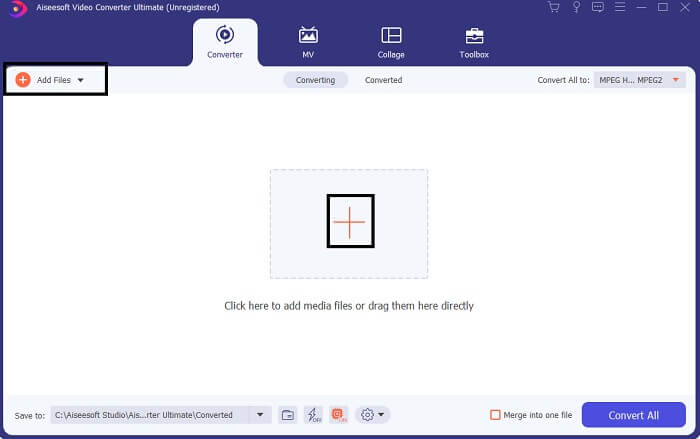
Passaggio 3. Per ottenere il formato di output desiderato, cambia il formato facendo clic sul menu a discesa situato nella parte in alto a destra dell’interfaccia.
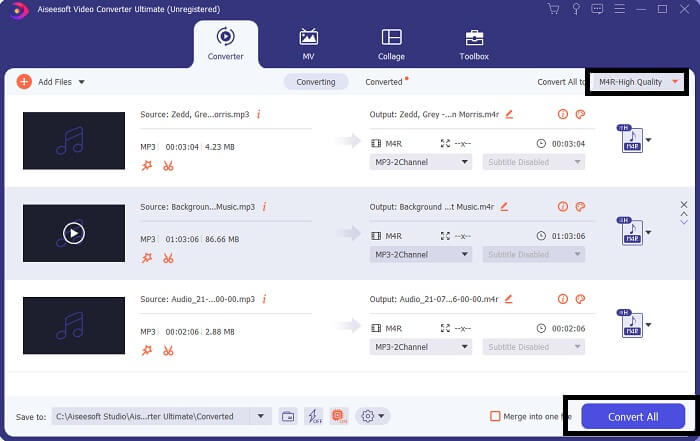
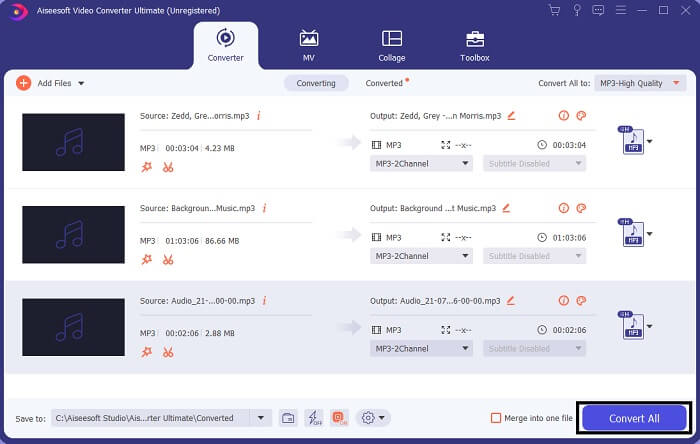
Passaggio 4. Infine fai clic sul pulsante Convert All nell’angolo in basso a destra dell’interfaccia principale. Poi attendi che il file venga convertito.
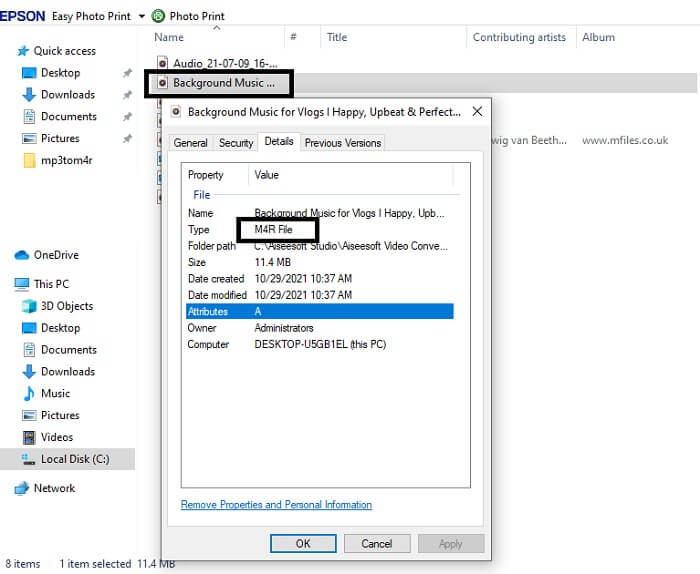
Passaggio 5. Infine, apri la cartella in cui è stato salvato l’audio di output e trasferiscilo sul tuo iPhone. Puoi usare a tale scopo uno strumento o un’app di trasferimento. Puoi trovare suggerimenti su Internet: ti basta fare una ricerca e seguire la procedura per impostarlo come suoneria del tuo iPhone.
Parte 2. Alcuni dei migliori strumenti per convertire MP3 in M4R online
Convertitore audio online gratuito FVC
Uno strumento premium per la conversione è valido, ma niente batte uno strumento pratico. Considerando le tue esigenze, FVC ha creato una versione gratuita dello strumento. FVC Free Audio Converter è il tuo strumento di accesso gratuito in qualsiasi momento e ovunque. Ti serve solo una connessione Internet funzionante e un browser compatibile. Questo convertitore da MP3 a M4R per suonerie iPhone è in grado di produrre audio di alta qualità senza perdita. L’output è soddisfacente e non devi spendere nulla. E non è tutto: sapevi che può anche effettuare conversioni in batch? Sì, puoi farlo! Inoltre, ecco alcune funzioni degne di nota che otterrai usandolo. D’altra parte, è anche disponibile una guida scritta per tua comodità.
◆ Il file convertito ha una qualità simile all'originale.
◆ 100% gratuito e sicuro da usare.
◆ Nessun limite di dimensioni al momento della conversione.
◆ La conversione batch è supportata.
Passaggio 1. Per accedere allo strumento, visita il sito ufficiale di FVC Free Audio Converter.
Passaggio 2. Da lì, fai clic su Add Files to Convert. Se è la prima volta che lo usi, devi concedere l’accesso facendo clic su Open FVC Launcher. Quindi apparirà una finestra sullo schermo che ti permetterà di individuare il file che vuoi convertire.
Scarica la Versione Desktop per convertire i file in batch.
Passaggio 3. Dopo aver caricato il file, vedrai aprirsi un’altra finestra. Nella parte inferiore, modifica il formato del file di output selezionando M4R.
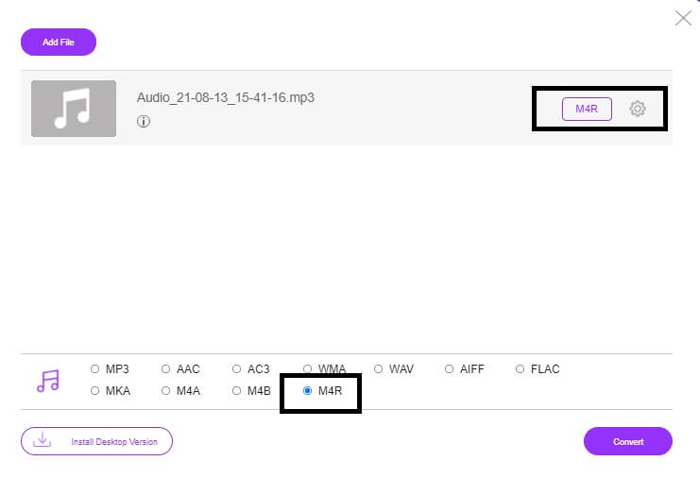
Passaggio 4. Poi fai clic sul pulsante Convert per avviare la conversione.
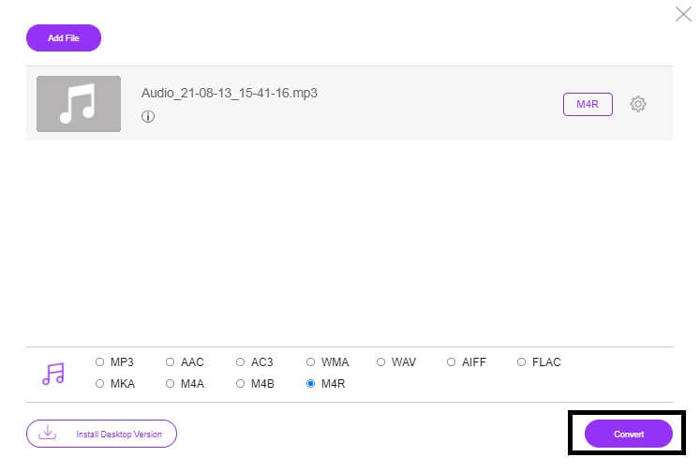
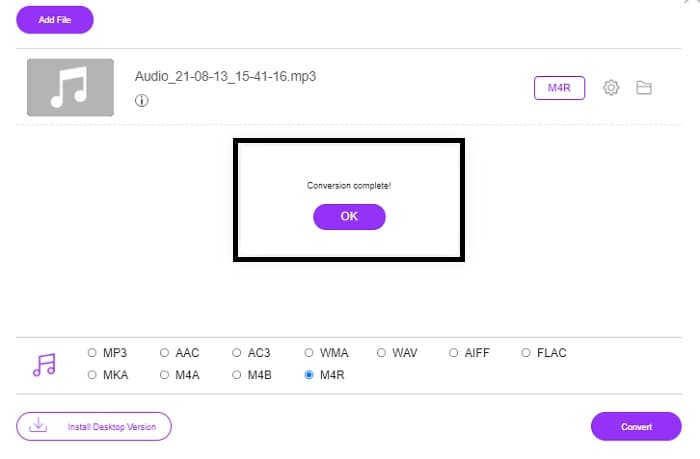
Passaggio 5. Infine, seleziona la cartella in cui vuoi salvare il file e questo verrà salvato automaticamente. Poi trasferiscilo sul tuo iPhone. Ricorda che puoi effettuare conversioni in batch, quindi non limitarti.
Correlato:
M4ROonline di File Converter
Semplice ma affidabile: così gli utenti descrivono questo strumento online. Per impostazione predefinita, è stato creato specificamente per convertire MP3 in M4R. Come suggerisce il nome, è esattamente ciò per cui è stato progettato. Funziona con diversi browser, quindi non è necessario scaricarlo o acquistarlo. Se visiti il sito, noterai la semplicità dell’interfaccia. È molto intuitivo: ti basta cliccare sul pulsante Browse per iniziare il processo di caricamento e conversione. Se vuoi provarlo, è consigliabile visitare il sito ufficiale e farne esperienza direttamente. Per questo motivo, è una buona alternativa. Puoi anche seguire i passaggi qui sotto per conoscere la procedura d’uso dello strumento.
Passaggio 1. La prima cosa da fare è andare sulla pagina ufficiale di M4R Online e poi cliccare su Browse.
Passaggio 2. Scegli il file dalla tua cartella e fai clic sul pulsante Upload File.
Passaggio 3. Una volta visualizzato il messaggio di completamento, fai clic sul file per scaricarlo.
Online-convert.com
Questo è uno strumento che offre servizi già da diverso tempo. Possiamo dire che molti utenti lo hanno trovato molto utile per le loro esigenze di conversione. Altrimenti non sarebbe ancora attivo a tutt’oggi se non fosse realmente efficace. Visitando la home page del sito vedrai tutti gli strumenti disponibili: convertitore audio, convertitore video, convertitore di immagini, convertitore di documenti, convertitore di ebook, tutti raccolti nella stessa pagina iniziale. Raggrupparli rende più facile per l’utente trovare gli strumenti necessari. Merita quindi di essere aggiunto a questo elenco di convertitori da MP3 a M4R per iTunes. Di seguito, invece, trovi le istruzioni su come usare lo strumento, a titolo di riferimento.
Passaggio 1. Visita il sito ufficiale dello strumento e scegli Audio Converter.
Passaggio 2. Fai clic sul menu a tendina, scegli il formato di output e poi clicca su GO.
Passaggio 3. Verrà quindi visualizzata una nuova finestra. Da lì fai clic sul pulsante Choose Files e carica il file. Per avviare il processo di conversione fai clic su Start Conversion. Una volta pronto, il file verrà scaricato automaticamente sul tuo PC.
MP3 contro M4R
Il formato MP3 è stato rilasciato nel 1993 dal Moving Picture Experts Group (MPEG). Era lo standard per la memorizzazione della musica in quanto poteva comprimere l'audio a una dimensione molto più piccola rispetto ad altri formati non compressi. È ancora ampiamente utilizzato al giorno d'oggi, soprattutto per la distribuzione di audio online.
Un file M4R viene utilizzato per salvare una suoneria iPhone personalizzata creata con Apple iTunes. Normalmente, puoi vedere questo formato quando trasferisci una suoneria dal computer a un dispositivo iOS. I file M4R creati con iTunes di solito includono la protezione del copyright.
Parte 3. Domande frequenti sulla conversione di MP3 in M4R
Cos'è M4R?
È un'estensione di file creata appositamente da Apple e utilizzata esclusivamente come suoneria per iPhone e altri dispositivi Apple. Questo è buono come M4A e MP4 quando si tratta di qualità.
Esiste un convertitore da MP3 a M4R oltre a iTunes?
Sicuramente, ci sono. Puoi scegliere tra gli strumenti sopra o prendere in considerazione l'utilizzo di Windows Media Player mediante il ripping. Se non vuoi seguire tutti i processi, puoi semplicemente utilizzare gli strumenti gratuiti disponibili online. Convertono direttamente l'audio nel formato desiderato invece di passare attraverso il lungo processo di ripping.
Perché devo convertire il mio file da MP3 a M4R per usarlo come suoneria?
È un dovere. Per essere considerato un file per essere una suoneria, il file deve essere per impostazione predefinita in formato M4R per essere riprodotto come suoneria.
Conclusione
Con tutto ciò, sicuramente puoi fare affidamento sugli strumenti sopra elencati. Devi solo accedere a quale strumento può esserti utile a seconda delle tue esigenze. Se sei uno studente e un normale cittadino che vuole convertire e vuoi convertire MP3 in M4R su Mac gratuitamente o su qualsiasi dispositivo tu stia utilizzando, puoi fare riferimento agli strumenti gratuiti. Per un uso professionale, si consiglia di utilizzare Video Converter Ultimate. Puoi sempre tornare a questa pagina se vuoi saperne di più su altri strumenti per convertire.
-
 [Gratuito e online] 3 metodi per convertire MP3 in MP4 con immagini
 Come convertire MP3 in MP4 in alta qualità? Questo post mostra 3 metodi efficienti e gratuiti per cambiare MP3 in MP4 con immagini su Windows e Mac.
-
 Scopri come convertire un MP3 in un formato WAV
 Vuoi sapere come convertire MP3 in WAV? Determina quale degli strumenti produce la migliore conversione di qualità che puoi ottenere.
-
 Linee guida su come convertire M4A in WAV [PC e Mac]
 Scopri di più su come convertire M4A in WAV con passaggi dettagliati e diversi strumenti tra cui puoi scegliere.

