


 Video Converter Ultimate
 Screen Recorder
 Riparazione video
 Download sicuro
Converti 3GP in MP4 con convertitori efficienti e intuitivi
La necessità di convertire i formati di file è cresciuta in modo significativo. Una conversione particolare che riveste un'importanza immensa è la conversione di file 3GP in formato MP4. Sebbene i file 3GP fossero popolari in passato, spesso pongono problemi di compatibilità su dispositivi e piattaforme moderni. Al contrario, il formato MP4 offre compatibilità universale, riproduzione di alta qualità e supporto più ampio su vari dispositivi e piattaforme.
Per soddisfare l’esigenza di convertire in modo fluido i file 3GP in MP4, abbiamo esaminato e selezionato con cura un elenco di potenti strumenti di conversione. Questi strumenti offrono soluzioni efficienti e affidabili per trasformare senza sforzo i tuoi video 3GP nel formato MP4, ampiamente compatibile. Unisciti a noi nell’esplorare questi strumenti di conversione tra i più apprezzati e scopri come possono migliorare la tua esperienza video garantendo una qualità di riproduzione ottimale e la compatibilità su numerose piattaforme e dispositivi.

Parte 1. I migliori convertitori da 3GP a MP4
1. Convertitore video definitivo
Video Converter Ultimate è un eccellente programma per convertire video in 3GP, MP4 e altri formati audio. Questo software dispone di una funzione di conversione in batch che ti permette di convertire più file audio contemporaneamente. Inoltre, l’applicazione consente agli utenti di ottimizzare la qualità dell’output modificando parametri come frame rate, bitrate e risoluzione. Leggi la breve guida qui sotto che abbiamo preparato se vuoi imparare a convertire 3GP in MP4.
Funzioni principali
◆ Il software FVC Video Converter Ultimate è progettato per generare video di output e file audio di qualità superiore, concentrandosi sulla conservazione della qualità originale dei file convertiti nella massima misura possibile.
◆ L'interfaccia dell'applicazione è progettata per essere facile da usare e intuitiva, facilitando la navigazione sia per gli utenti inesperti che per quelli avanzati.
◆ FVC Video Converter Ultimate è uno strumento software che mostra alta velocità ed efficacia, facilitando la rapida conversione di vari formati di file.
Passaggio 1. Scarica l’app per convertire 3GP in MP4
Per prima cosa, fai clic sull’opzione Download gratuito corrispondente qui sotto per iniziare a scaricare il programma sul tuo dispositivo. Successivamente, segui le istruzioni visualizzate sullo schermo per attivare il software. Una volta completata l’installazione, puoi richiedere assistenza sull’interfaccia utente.
Download gratuitoPer Windows 7 o versioni successiveDownload sicuro
Download gratuitoPer MacOS 10.7 o versioni successiveDownload sicuro
Passaggio 2. Carica i file video 3GP
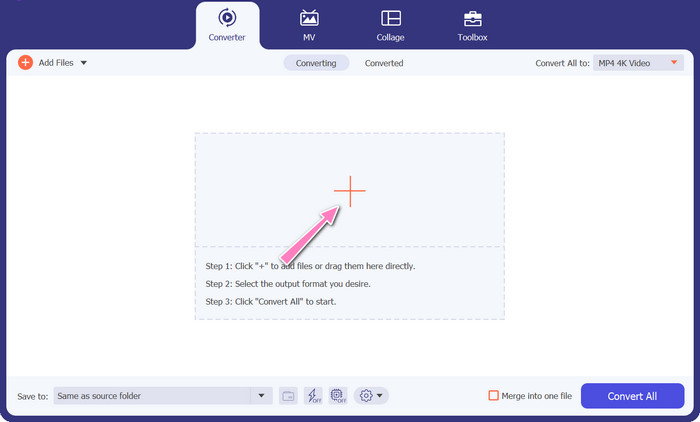
Il secondo passaggio consiste nell’importare il file video che desideri modificare facendo clic sull’icona Aggiungi nella schermata principale. Subito dopo verrà caricato un’anteprima del file importato. Se desideri convertire più file contemporaneamente, ti basta caricare l’intera cartella. Scegli la directory che contiene tutti i tuoi file audio.
Passaggio 3. Seleziona il formato di output
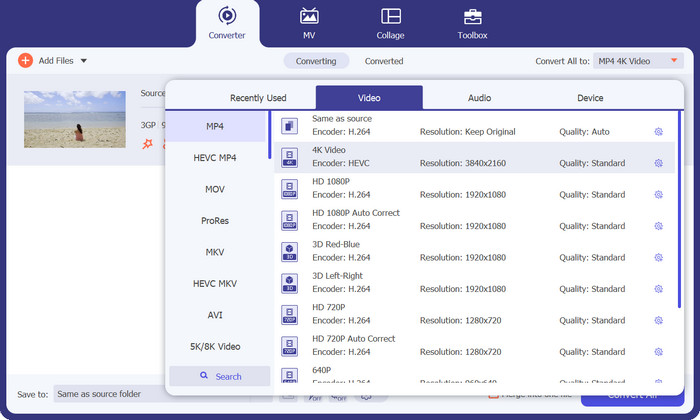
In terzo luogo, fai clic sul pulsante Converti tutto in nella parte superiore dell’interfaccia del programma per selezionare un nuovo formato per il file finale. Seleziona MP4 dal menu a discesa Output video. Puoi controllare la qualità del file di output modificandone la frequenza di campionamento e il bitrate.
Passaggio 4. Avvia il processo di conversione
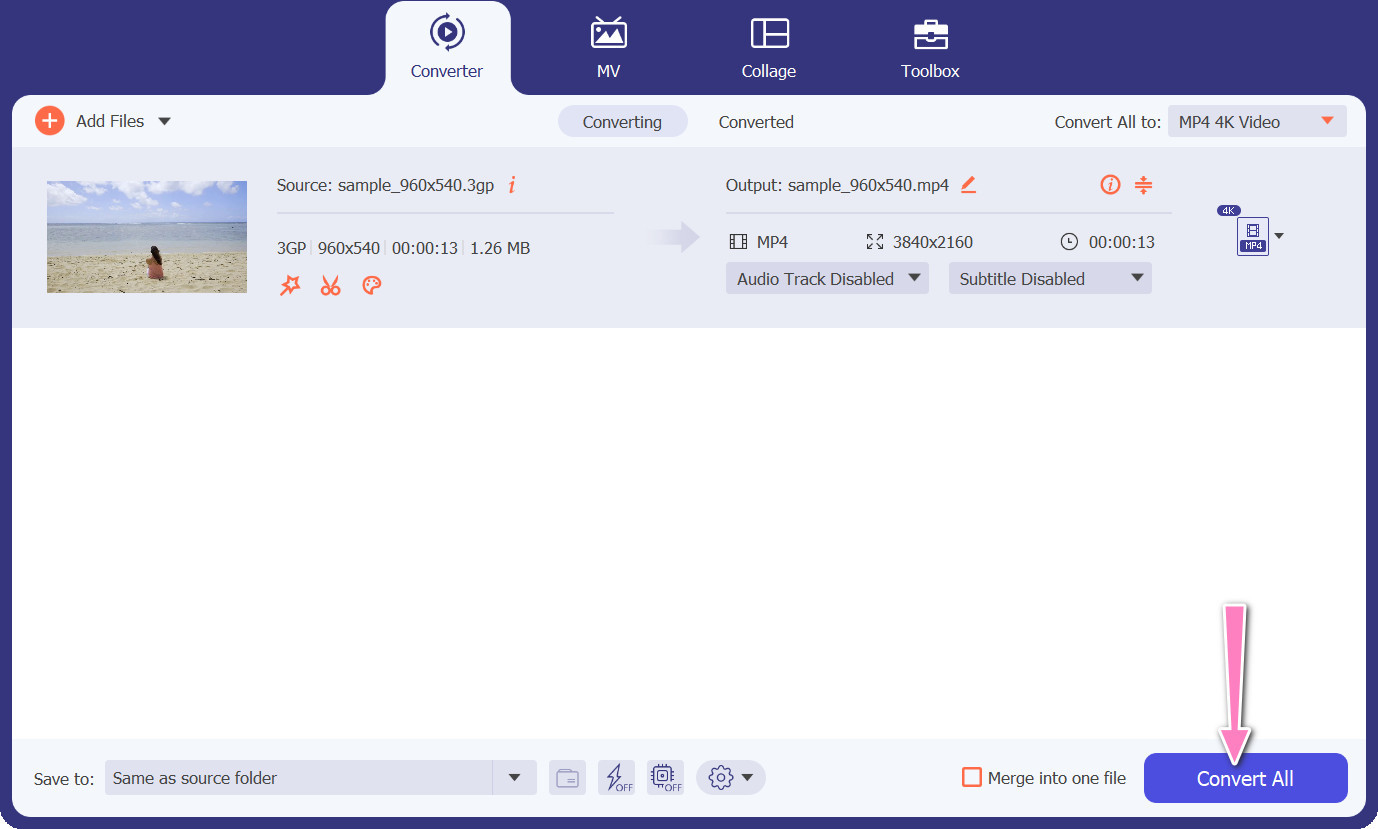
In quarto luogo, avvia la conversione premendo il pulsante Converti tutto situato in basso. Si aprirà quindi la cartella di destinazione, così potrai verificare il file convertito.
2. Convertitore MP4 online gratuito
L’utilizzo di Free MP4 Converter Online rappresenta una valida alternativa all’installazione di un programma desktop, offrendo quindi una soluzione pratica. Questo convertitore online da 3GP a MP4 funziona con grande efficienza, garantendo la protezione e la riservatezza dei dati personali durante il processo di conversione. Inoltre, la funzione di conversione in blocco del software può essere utilizzata in modo analogo a quella di un programma desktop.
Funzioni principali
◆ Free MP4 Converter Online ti consente di personalizzare le impostazioni di output in base alle tue preferenze. È possibile regolare parametri come codec video, risoluzione, bitrate e frame rate per ottenere la qualità e la dimensione del file desiderate.
◆ Free MP4 Converter Online supporta la conversione batch, consentendo di caricare e convertire più file 3GP in MP4 contemporaneamente. Ciò consente di risparmiare tempo e fatica quando si ha a che fare con più file.
◆ Free MP4 Converter Online valorizza la privacy degli utenti e adotta misure per proteggere i file caricati. Spesso forniscono opzioni per eliminare i file dopo la conversione o archiviarli in modo sicuro per un periodo limitato.
Passaggio 1. Come primo passo, vai alla pagina principale di Free MP4 Converter Online facendo clic sul link fornito. Vai quindi all’opzione Add Files to Convert presente sull’interfaccia principale e carica il tuo file audio.

Passaggio 2. Una volta avviato il processo, il documento iniziale verrà mostrato sull’interfaccia. Seleziona il formato di output preferito espandendo il menu a discesa dallo stesso pannello.
Passaggio 3. Procedi selezionando il pulsante Convert per trasformare 3GP in MP4. Per convertire altri file, è necessario ripetere dall’inizio le istruzioni sopra descritte.

3. Qualsiasi convertitore video
Il programma desktop ampiamente utilizzato Any Video Converter ha una controparte gratuita basata sul web. È possibile convertire 3GP in MP4 e ha un sacco di impostazioni sofisticate ed elaborazione batch. L'editing video e la masterizzazione di DVD sono solo due degli extra disponibili nell'edizione software.
Funzioni principali
◆ Any Video Converter consente di personalizzare la risoluzione video, il bitrate, il frame rate e la qualità audio. Ottimizza il video in uscita secondo le tue specifiche.
◆ Any Video Converter consente di tagliare, ritagliare, unire e aggiungere effetti ai video. Sottotitoli e filigrane personalizzano i video.
◆ Any Video Converter supporta l'importazione e l'incorporamento di sottotitoli nei tuoi video. Puoi aggiungere file di sottotitoli esterni o inserire manualmente i sottotitoli per rendere i tuoi video più accessibili o multilingue.
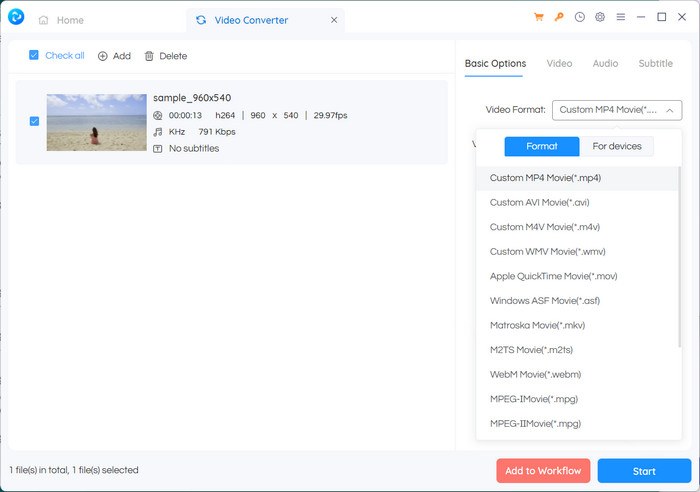
Passaggio 1. Per prima cosa, installa Any Video Converter. Scarica Any Video Converter dal suo sito web e installalo sul computer seguendo le istruzioni visualizzate. Avvia Any Video Converter.
Passaggio 2. Fai clic sul pulsante Add Video(s) all’interno del software. Sfoglia e seleziona i file 3GP che vuoi convertire in MP4. Quindi fai clic su Apri per aggiungere i file selezionati alla coda di conversione.
Passaggio 3. Nella sezione Profile, seleziona MP4 come formato di output desiderato. Potresti avere a disposizione diverse opzioni MP4 tra cui scegliere in base alle tue preferenze ed esigenze. Seleziona quella che meglio si adatta alle tue necessità.
Passaggio 4. Spunta il pulsante Start per avviare il processo di conversione.
Ulteriori letture:
Unire file 3GP – Come combinare diverse clip video dal tuo smartphone
Come convertire 3GP in MOV con diversi metodi [2023]
Parte 2. Domande frequenti sui convertitori da 3GP a MP4
Quali sono le differenze tra 3GP e MP4?
MP4 supporta più dispositivi e piattaforme rispetto a 3GP. Codec: MP4 supporta più codec audio e video per una maggiore flessibilità e qualità di codifica. Caratteristiche: 3GP non supporta sottotitoli, capitoli o tracce audio multiple, mentre MP4 lo fa. A causa di algoritmi di compressione più efficienti, i file MP4 sono più piccoli dei file 3GP ma hanno una qualità equivalente o superiore.
Ci sono vantaggi specifici nell'usare MP4 su 3GP per lo streaming online?
La migliore qualità video di MP4, le tecniche di compressione avanzate e la più ampia compatibilità lo rendono la scelta preferita per le piattaforme di streaming online, offrendo una migliore esperienza visiva agli utenti.
Posso convertire video MP4 in formato 3GP se necessario?
Sì, sono disponibili convertitori video che consentono di convertire i video MP4 in formato 3GP, se necessario, sebbene ciò possa comportare un downgrade della qualità e capacità multimediali limitate.
Conclusione
Sebbene in passato il formato 3GP fosse molto diffuso, soprattutto sui dispositivi mobili, oggi offre un supporto più limitato per le funzioni avanzate e può risultare meno compatibile con le piattaforme moderne. MP4, invece, supporta una gamma più ampia di codec video, codec audio, sottotitoli e funzioni avanzate come capitoli, menu e tracce audio multiple. Fortunatamente, hai a disposizione molte opzioni per scegliere il miglior convertitore da 3GP a MP4 in base alle tue esigenze. In generale, se puoi scegliere tra 3GP e MP4 per i file video, si consiglia di optare per MP4 grazie alla qualità superiore, alla migliore compatibilità e alla più ampia gamma di funzioni e potenzialità.
-
 Come comprimere i video 3GP in dimensioni inferiori con un processo batch
 Per eseguire il backup dei video 3GP sul tuo smartphone, ecco i 2 modi più frequentemente utilizzati per comprimere i file 3GP a dimensioni molto ridotte con un processo batch dall'articolo.
-
 Soluzioni degne di nota per convertire 3GP in MKV senza perdite
 Guarda i tutorial passo-passo su come convertire 3GP in MKV senza perdere qualità. Se vuoi convertire i file, preparati a incontrare questi metodi stupefacenti.
-
 3 migliori lettori 3GP gratuiti per computer e dispositivi mobili che dovresti conoscere
 Quando vuoi riprodurre facilmente il tuo film 3GP senza l'installazione o la conversione del codec video, puoi saperne di più sui 3 migliori lettori 3GP su Windows, Mac, Android e iPhone in questo articolo.
