


 Video Converter Ultimate
 Screen Recorder
 Riparazione video
 Download sicuro
Come convertire M4V in MP4
È facile aprire i file M4V in iTunes e QuickTime Player. Tuttavia, quando si tratta di iMovie, Final Cut Pro, telefoni Android, Windows Media Player, VLC, ecc., I file M4V diventano incompatibili.
Per risolvere il problema, devi convertire M4V in MP4, il formato più diffuso accettato dalla maggior parte dei lettori e degli editor.
Questo è ciò di cui parleremo in questo post, 6 modi per convertire M4V in MP4 con i convertitori.
[
Parte 1. Che cos'è M4V?
M4V, simile a MP4, è il contenitore video sviluppato da Apple per codificare i file video nel suo iTunes Store. Un file M4V protetto da FairPlay può essere riprodotto su un computer autorizzato utilizzando iTunes tramite iTunes e QuickTime. Le produzioni M4V non autorizzate non potranno essere riprodotte.
Al contrario, i file M4V possono essere aperti con molti lettori come VLC, Media Player Classic, MPlayer, ecc.
Parte 2. Come cambiare M4V in MP4
Per riprodurre file M4V su alcuni lettori video in grado di riconoscerlo, il modo più semplice è cambiare l'estensione da .m4v a .mp4.
Fai semplicemente clic con il tasto destro sul nome del file video M4V e fai clic su Rinomina, quindi modifica direttamente l’estensione.
Dopodiché, prova il lettore a riprodurre direttamente il file MP4.
Sicuramente, se il lettore video non riconosce l'estensione di MP4, sono necessari passaggi aggiuntivi per convertire M4V in MP4 nella parte successiva.
Parte 3. 4 modi per convertire M4V in MP4
Per quei file M4V, dovresti trovare il convertitore M4V per trasformare M4V in MP4 per la riproduzione su VLC, Zoom Player, RealPlayer, ecc.
Converti M4V in MP4 online con Desktop Freeware
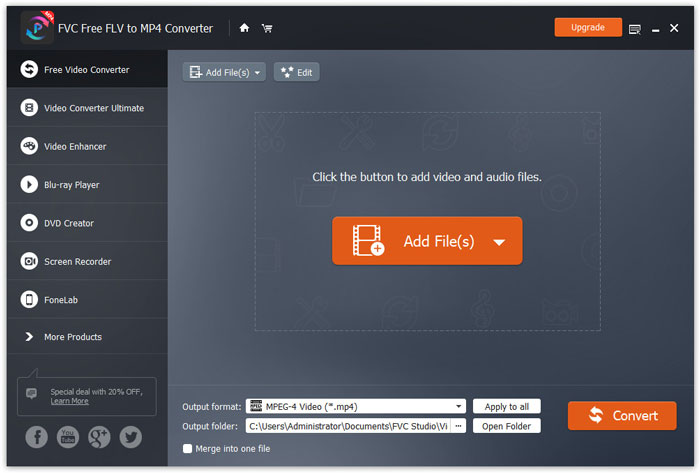
FVC FLV to MP4 Converter è un convertitore facile da usare che ti permette di convertire rapidamente M4V, FLV, MOV o altri formati comuni in MP4. È totalmente gratuito e supporta la conversione in batch per farti risparmiare tempo.
Passaggio 1: Scarica gratuitamente il software sul tuo computer. Dopo l’installazione, aprilo e fai clic sul pulsante Add File(s) per aggiungere i file M4V al programma.
Download gratuitoPer Windows 7 o versioni successiveDownload sicuro
Download gratuitoPer macOS 10.7 o versioni successiveDownload sicuro
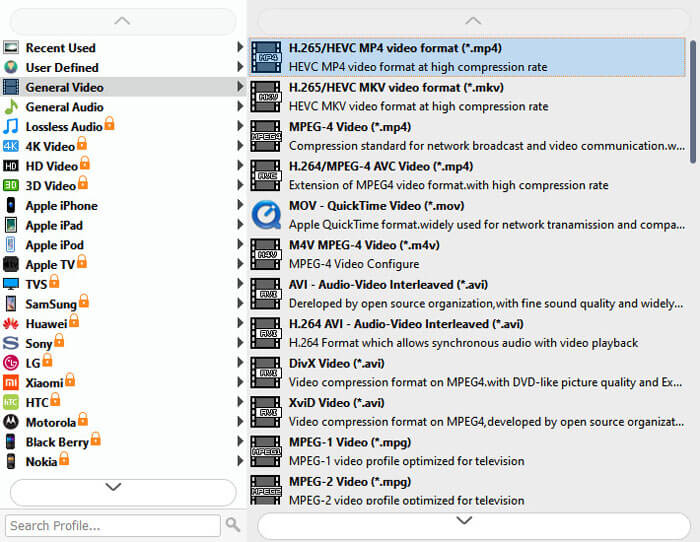
Passaggio 2: Vai al campo del formato di Output e scegli il formato MP4 dalla scheda General Video.
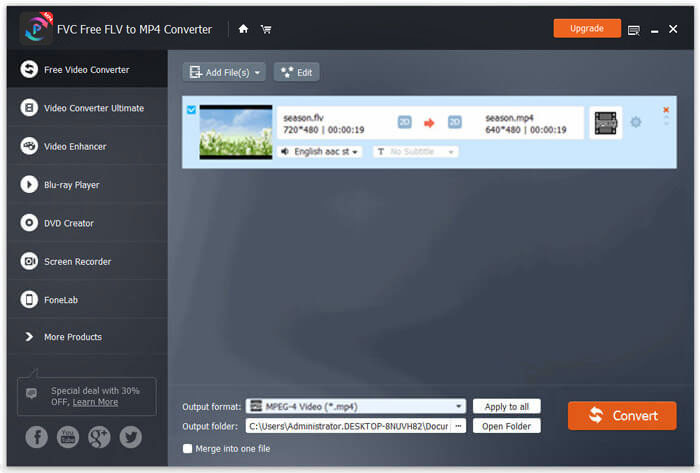
Passaggio 3: Infine, fai clic su Open Folder per scegliere la destinazione in cui salvare il file convertito, quindi fai clic sul pulsante Convert per avviare la conversione da M4V a MP4.
Converti gratuitamente M4V in MP4 online
Il modo più semplice per convertire M4V in MP4 è utilizzare il convertitore online gratuito.
Free Online Video Converter è il software online gratuito per convertire M4V in MP4. Può transcodificare in batch i file M4V non protetti in video MP4. Inoltre, ti consente di regolare il codec video e audio di output e selezionare la risoluzione adatta al tuo dispositivo. In soli 3 passaggi puoi completare l’intero processo su computer Windows e Mac.
Passaggio 1. Vai a questo convertitore M4V in MP4 online gratuito e fai clic sul pulsante Add Files to Convert per scaricare il launcher del convertitore sul tuo computer.
Scarica la Versione Desktop per convertire i file in batch.
Passaggio 2. Nella finestra di origine aperta automaticamente dopo la corretta installazione del launcher, devi selezionare i file M4V presenti sul tuo computer.
Passaggio 3. Seleziona la casella di controllo di MP4 e fai clic su Convert per scegliere la posizione in cui archiviare i file MP4 convertiti; inizierà quindi a convertire M4V in MP4.
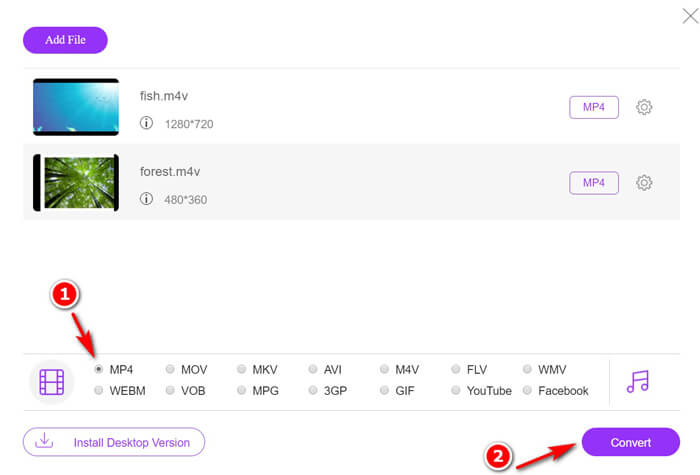
Durante il processo di conversione, i file MP4 convertiti verranno scaricati automaticamente sul tuo computer.
Transcodifica gratuita da M4V a MP4 tramite VLC
VLC è un popolare lettore multimediale per riprodurre direttamente i file M4V. Inoltre, può essere il convertitore da M4V a MP4 per cambiare i file M4V non protetti in MP4 sul tuo computer.
Passaggio 1. Scarica VLC sul tuo computer. È compatibile con Windows, Mac e Linux e puoi scaricare la versione adatta al tuo computer.
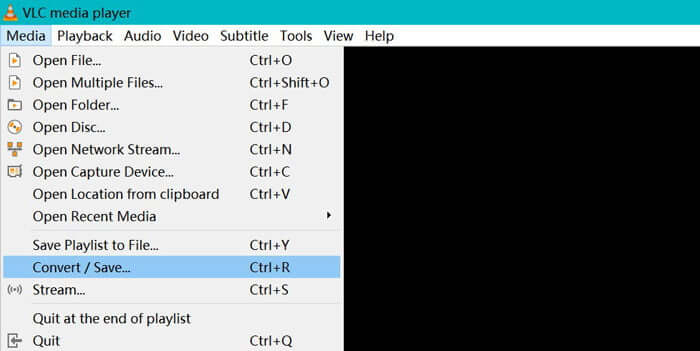
Fai clic su Media nel menu in alto e seleziona l’opzione Convert / Save….
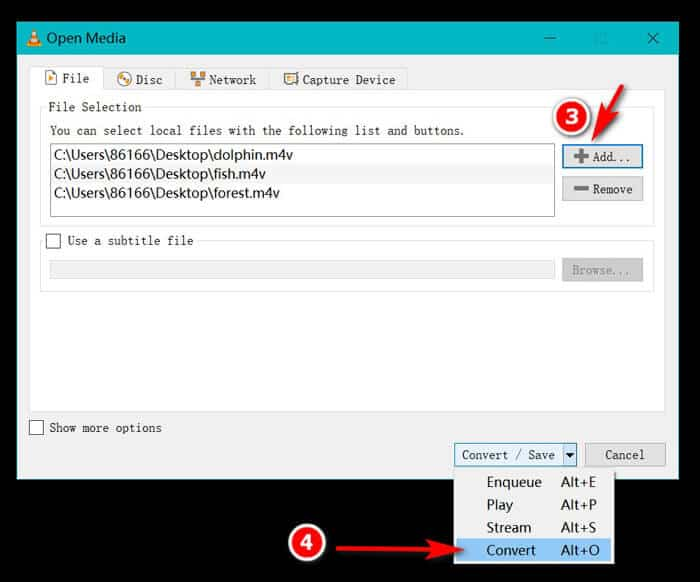
Passaggio 2. Fai clic sul pulsante Add per importare i file M4V dal disco rigido del tuo computer.
Successivamente, seleziona Convert dal menu a discesa dell’opzione Convert / Save in basso.
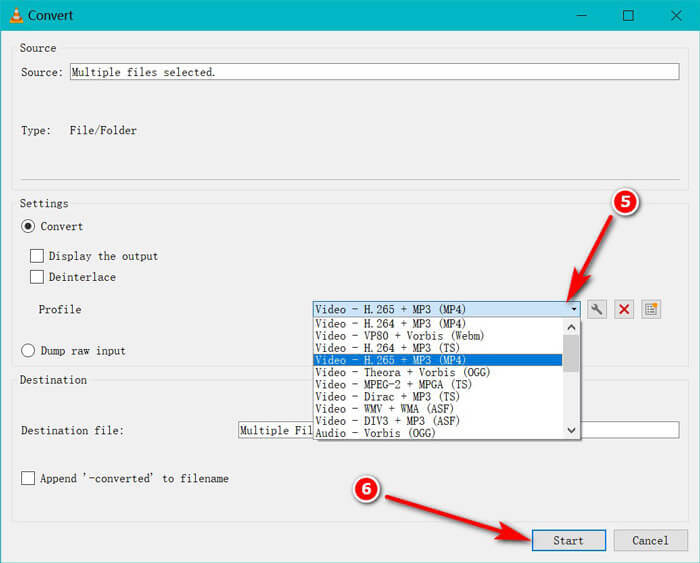
Passaggio 3. Seleziona MP4 come formato di output dall’elenco a discesa di Profile. Fai clic su Start per convertire immediatamente M4V in MP4 con VLC.
Puoi controllare la barra di avanzamento in VLC per vedere se le conversioni da M4V a MP4 sono state completate.
Converti gratuitamente M4V in MP4 con HandBrake
Un altro convertitore gratuito da M4V a MP4 per computer Mac, Windows e Linux è HandBrake.
HandBrake è il convertitore DVD, Blu-ray e video open source. Può convertire quasi tutti i video in MKKV e MP4.
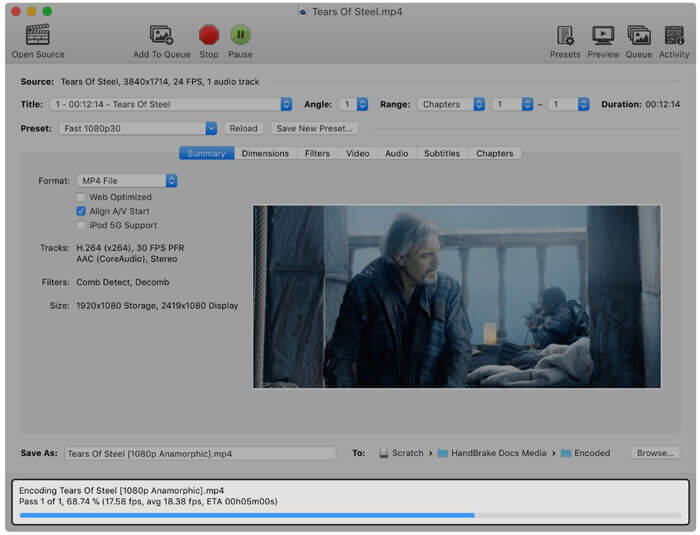
Passaggio 1. Scarica il software HandBrake sul tuo computer. Per impostazione predefinita, la finestra di dialogo Open Source si apre all’avvio del software e ti permette di selezionare i video M4V che vuoi aprire.
Passaggio 2. Successivamente, fai clic sulla scheda Summary e scegli MP4 dal menu a discesa Format come formato di output. Filtri, codec video e altri parametri del file sono opzionali e puoi modificarli a tuo piacimento.
Passaggio 3. Imposta la destinazione in cui salvare i file MP4 convertiti nella sezione Destination e fai clic sul pulsante Start nella barra degli strumenti per iniziare a convertire M4V in MP4.
Potresti notare che a volte i file convertiti avranno l'estensione di .m4v su computer Mac. Perché HandBrake salva MP4 come M4V?
Parte 4. Come convertire M4V in MP4
I suddetti convertitori da M4V a MP4 possono risolvere la conversione M4V. Inoltre, puoi utilizzare il modo di registrazione per salvare i file M4V in video MP4 o altri formati di file popolari.
Esistono molti registratori dello schermo online in grado di registrare ciò che viene riprodotto sul tuo computer ed esportare video MP4.
Qui prendiamo FVC Free Screen Recorder come esempio per mostrarti come registrare video M4V ed esportarli in MP4.
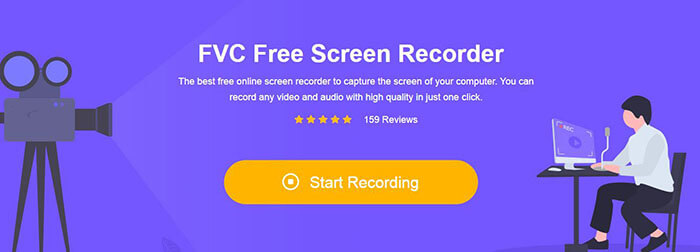
Passaggio 1. Visita https://www.free-videoconverter.net/free-screen-recorder/ nel tuo browser, fai clic su Start Recording e si aprirà il launcher che dovrai installare.
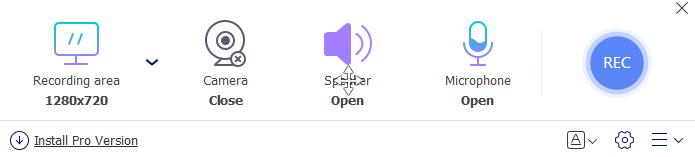
Passaggio 2. Dopo la corretta installazione, vedrai l’interfaccia principale. Qui devi selezionare l’area di registrazione, abilitare System Sound e disabilitare Microphone per registrare solo l’audio dei video di iTunes.
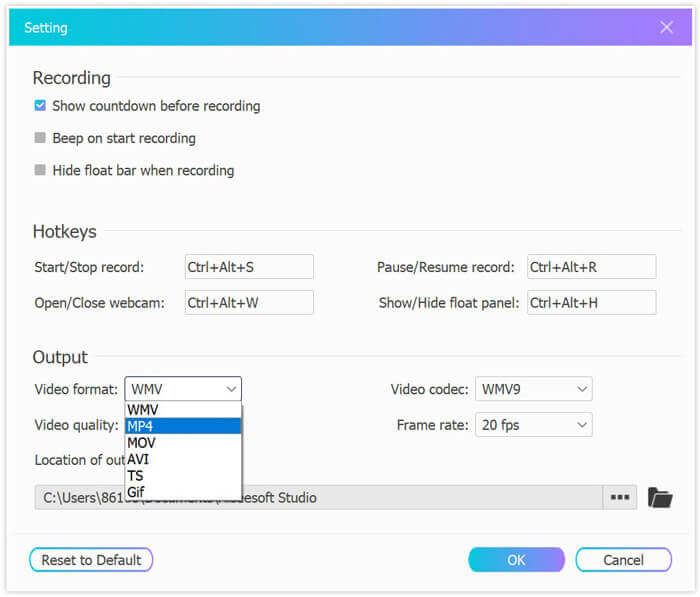
Fai clic su Settings per impostare i tasti di scelta rapida per la registrazione, selezionare MP4 come formato di output, regolare la qualità video, il codec video, il frame rate, ecc., e impostare la destinazione in cui salvare il video MP4 registrato.
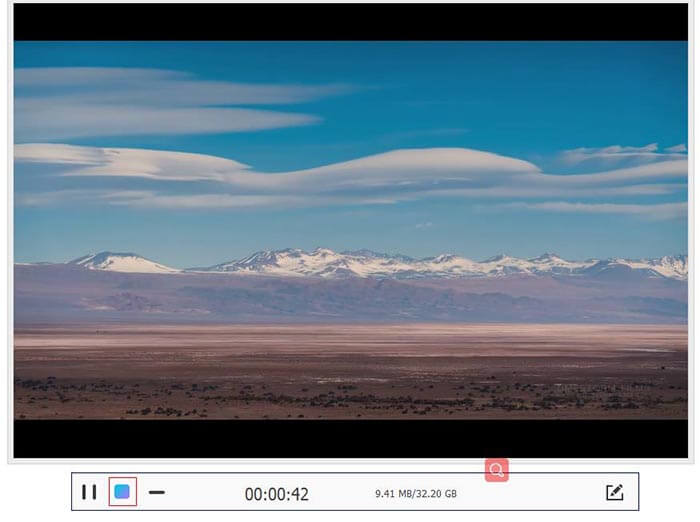
Passaggio 3. Quando tutte le impostazioni sono a posto, riproduci i video di iTunes tramite QuickTime o iTunes e fai semplicemente clic sul pulsante REC per iniziare a registrare i video di iTunes. Il pulsante di stop interromperà la registrazione video e salverà il video M4V come file MP4.
M4V contro MP4
L'M4V è sviluppato da Apple, che utilizza anche MPEG 4. I file M4V vengono spesso utilizzati per archiviare i video scaricati dall'Apple iTunes Store, come video musicali, episodi TV, ecc. Potresti trovare alcuni file M4V protetti da copia poiché utilizza Protezione del copyright di FairPlay DRM di Apple.
Rilasciato dal Moving Picture Experts Group (MPEG) nel 2001, il formato MP4 può aiutarti a salvare video, audio, sottotitoli e dati di immagine in tracce separate. È l'abbreviazione di MPEG-4 Part 14. Inoltre, è uno dei formati più popolari utilizzati per lo streaming e la condivisione di video.
Parte 5. Domande frequenti sulla conversione da M4V a MP4
Con cosa è compatibile M4V?
I file M4V protetti da DRM sono compatibili solo con iTunes e QuickTime. Per i file M4V non protetti, è possibile riprodurli su Media Player Classic, K-Multimedia Player, RealPlayer, Zoom Player, VLC media player, MPlayer, DivX Plus Player, Nero Showtime, il lettore video Web da utilizzare su Palm Pre e smartphone Palm Pixi e telefoni Android. I video M4V prodotti da HandBrake possono essere riprodotti su PlayStation 3 con pieno supporto surround Dolby Digital 5.1.
C'è una differenza tra M4V e MP4?
La differenza principale tra M4V e MP4 è che i file M4V possono essere opzionati dalla protezione dalla copia DRM, mentre MP4 non è crittografato.
Puoi caricare M4V su YouTube?
Sì. YouTube ti consente di caricare i file M4V non protetti da DRM, mentre i file M4V protetti da DRM non sono accettati da esso.
Perché HandBrake salva MP4 come M4V?
Per impostazione predefinita, quando esegui l'output di file MP4 codificati con AC3 e sottotitolati con SRT o marcatori di capitolo abilitati, l'estensione di .mp4 verrà modificata in .m4v.
Conclusione
I file M4V sono protetti da DRM e puoi riprodurli solo tramite iTunes o QuickTime Player tramite l'autorizzazione dell'account iTunes. Inoltre, il file M4V non è così popolare come MP4. La conversione di M4V in MP4 è l'idea intelligente di aprire i file M4V su qualsiasi lettore o editor. Questo post condivide 6 modi per convertire M4V in MP4. Puoi cambiarlo direttamente online con la conversione video online gratuita. Inoltre, puoi scaricare il software desktop per trasformare M4V in MP4 su Windows, Mac e Linux.
Qual è la tua soluzione preferita?
Fammi sapere lasciando i tuoi commenti qui sotto.
-
 Come convertire M2TS in MOV su Windows / Mac (online / offline)
 Hai bisogno di convertire M2TS in MOV per riprodurre file video su un numero di lettori e piattaforme? Questo articolo ti aiuterà a trovare il miglior metodo online / offline per convertire M2TS in MOV su Windows / Mac.
-
 Come convertire i tuoi file video MP4 in immagini GIF animate senza perdita di qualità
 Cerchi il modo migliore per convertire i tuoi video MP4 in GIF animate? Ecco una guida dettagliata per farlo in Photoshop, Windows Movie Maker, convertitore video online e altro ancora.
-
 Come convertire i tuoi file video FLV in MP4 senza pagare un centesimo
 Questa guida condivide quattro metodi gratuiti per convertire i tuoi file video FLV in formato MP4 su Windows 10/8/7 / XP e Mac OS X, così puoi goderti i video su qualsiasi dispositivo.

