


 Video Converter Ultimate
 Screen Recorder
 Riparazione video
 Download sicuro
Come convertire MKV in MP4 su Windows / Mac
Quando riproduci un film, scopri che non può essere aperto perché alcuni programmi non supportano il formato MKV. Allora potresti chiederti perché sta succedendo e come risolverlo.
Il motivo per cui non puoi riprodurre MKV può essere causato dalla mancanza di determinati codec sul tuo dispositivo. Per questo motivo, anche se al giorno d'oggi puoi vedere MKV ovunque, alcuni dispositivi o programmi non supportano ancora il formato MKV. Quindi, è necessario convertirlo in un formato più comune, come MP4, un formato molto più utilizzabile che può essere caricato correttamente su quasi tutti i dispositivi.
Oggi ti presenteremo 2 convertitori gratuiti che ti aiutano a convertire file MKV in MP4.

Parte 1. Come cambiare MKV in MP4 online e gratuitamente
Se non sopporti l'installazione di molti software sul tuo computer proprio come me, ti suggerisco di provare un convertitore online basato sul web.
Ci sono molti convertitori video online gratuiti sul mercato, ma ad essere onesti, la maggior parte di questi cosiddetti convertitori "gratuiti" ha una miriade di limiti. Devi pagarli per ottenere un piano migliore. Solo in questo modo puoi convertire rapidamente file di grandi dimensioni in batch senza filigrana.
Quindi, esiste un convertitore video veramente gratuito, veloce e potente? La risposta è si.
FVC Free Online Video Converter, un efficiente convertitore video da MKV a MP4 che è in grado di aiutarti a convertire i video senza alcun limite. Supporta la conversione di quasi tutti i formati video più diffusi in formati popolari come MP4, MOV, WMV, AVI e FLV in pochi secondi. Supporta anche la conversione in batch, il che significa che puoi convertire una serie di video mantenendone allo stesso tempo la qualità originale.
Poiché FVC Free Online Video Converter è uno strumento basato sul web, puoi usarlo facilmente sia su Windows che su Mac, purché tu disponga di una connessione stabile e di un browser. Per quanto riguarda l’utilizzo, puoi padroneggiare questo convertitore da MKV a MP4 in pochi passaggi.
Passaggio 1. Vai al sito web di FVC Free Online Video Converter nel tuo browser. Quindi fai clic sul pulsante Add Files to Convert. Se non hai ancora scaricato FVC Launcher sul tuo computer, ti verrà richiesto di scaricare prima il launcher. Segui semplicemente le istruzioni e installa il launcher.
Scarica la Versione Desktop per convertire i file in batch.

Passaggio 2. Dopo l’installazione, la finestra Open File si aprirà automaticamente. Ora scegli il file MKV che vuoi convertire. A proposito, se desideri convertire diversi video MKV tutti in una volta, seleziona tutti i file MKV di cui hai bisogno.
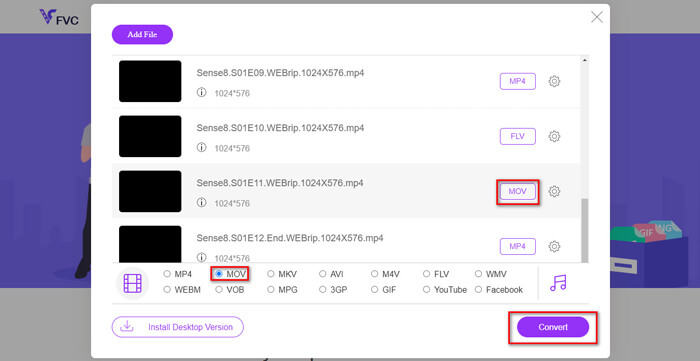
Passaggio 3. Quindi fai clic su Open e vedrai un elenco dei file selezionati. Scegli il formato di output MP4 sotto tale elenco.
Puoi anche selezionare formati diversi per file differenti, facendo clic sul formato accanto all’icona Setting e modificando il formato di output qui sotto. Ma puoi anche saltare questo passaggio e fare clic direttamente sul pulsante Convert. Dopodiché, scegli una cartella di destinazione in cui salvare i video convertiti.
Parte 2. Come convertire MKV in MP4 con VLC Media Player
Probabilmente conosci VLC come lettore multimediale, disponibile per la maggior parte dei sistemi operativi desktop. In realtà, però, è anche un convertitore video “nascosto”. Ti permette di convertire file MKV in formato MP4. Se hai già VLC sul tuo computer, puoi provarlo.
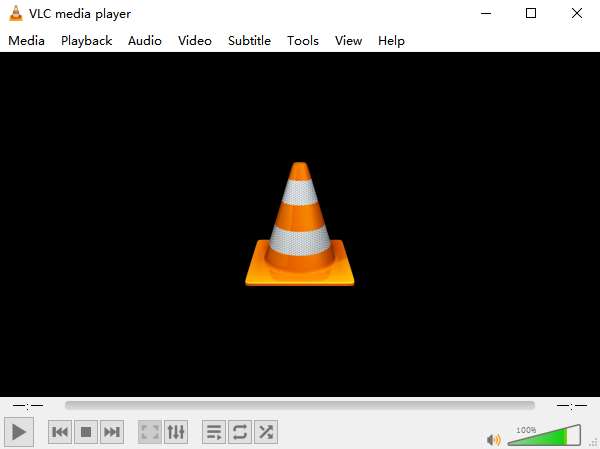
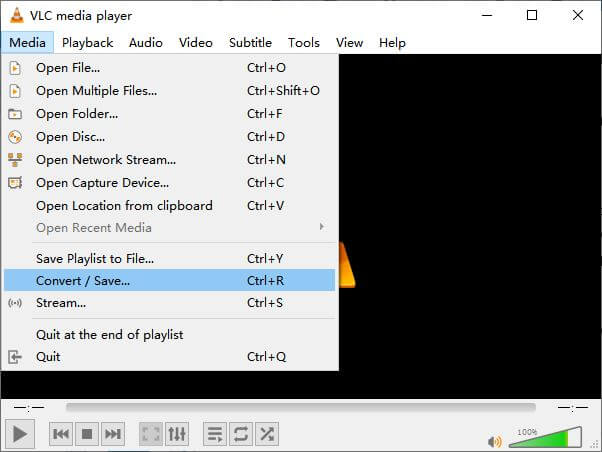
Passaggio 1. Avvia innanzitutto VLC Media Player sul tuo computer. Fai clic sul menu Media. Trova Convert / Save nell’elenco a discesa.
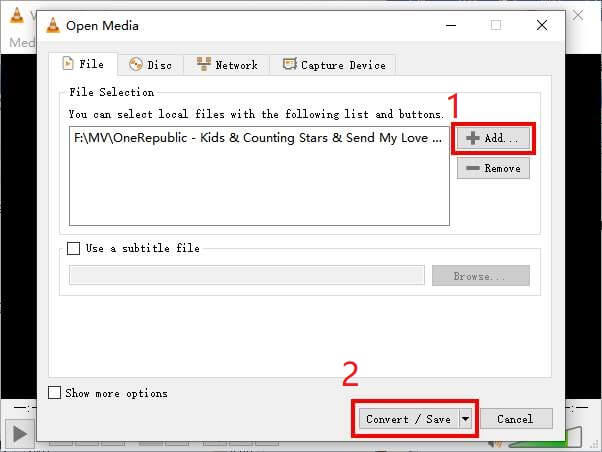
Passaggio 2. Fai clic su + Add e trova il video MKV che vuoi convertire. Quindi fai clic sul pulsante Convert / Save in basso.
Passaggio 3. Scegli il formato MP4 nella finestra Convert.
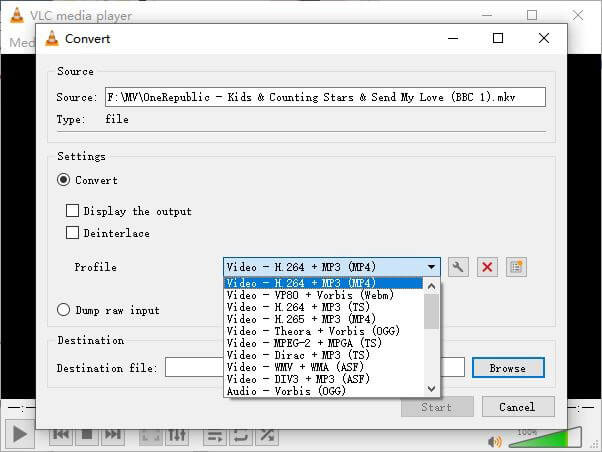
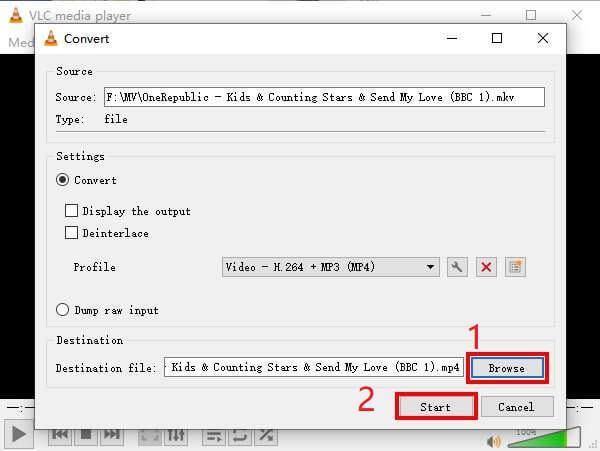
Passaggio 4. Fai clic sul pulsante Browse per confermare la destinazione di salvataggio. Infine Start la conversione e attendi di ottenere il tuo video MP4.
MKV contro MP4
Il formato contenitore multimediale Matroska, rilasciato nel 2002, è un formato open source che può includere numerose tracce video, audio, immagini e sottotitoli. Quindi, puoi usarlo per archiviare facilmente brevi video clip, programmi TV e film. È abbastanza popolare per i sottotitoli dei fan degli anime.
Rilasciato dal Moving Picture Experts Group (MPEG) nel 2001, il formato MP4 può aiutarti a salvare video, audio, sottotitoli e dati di immagine in tracce separate. È l'abbreviazione di MPEG-4 Part 14. Inoltre, è uno dei formati più popolari utilizzati per lo streaming e la condivisione di video.
Parte 3. Domande frequenti sulla conversione da MKV a MP4
1. Può ffmpeg convertire MKV in MP4?
Sì, puoi convertire MKV in MP4 con ffmpeg. Tuttavia potrebbe essere un po' complesso capire come funziona, anche se il passaggio più efficace è in realtà solo una sequenza di caratteri: ffmpeg -i my_movie.mkv -vcodec copy -acodec copy my_movie.mp4
2. HandBrake può esportare MP4 da MKV?
Se vuoi semplicemente ottenere un file MP4 dopo la conversione, HandBrake può effettivamente aiutarti. Tuttavia, non può convertire i tuoi file in altri formati, come WMV, MOV, FLV. HandBrake supporta la maggior parte dei file multimediali comuni, ma solo come fonti di input supportate. Per i formati di output, le tue opzioni sono MP4(.M4V) e MKV.
3. La conversione da MKV a MP4 perde qualità?
La maggior parte dei convertitori video perde qualità quando converti file MKV in MP4, forse 1% o 5%. Durante la ricodifica dei file MKV in MP4, è difficile evitare completamente la perdita di dati. Ma puoi aumentare la risoluzione delle immagini per rendere la qualità dei video MP4 esportati vicino al video originale.
Conclusione
Ci sono innumerevoli convertitori video tra cui scegliere. È difficile trovare da soli un convertitore gratuito ed efficiente. Questo post ti ha introdotto 2 metodi per convertire MKV in MP4. Uno è VLC Media Player e l'altro è FVC Free Online Video Converter.
Se vuoi solo un file MP4, VLC è sufficiente. Tuttavia, VLC supporta solo un numero finito di formati. Quindi, se vuoi un convertitore più professionale, FVC Free Online Video Converter sembra essere una scelta migliore.
Spero che tu trovi utile questo post. E non esitare a dirci la tua opinione.
-
 Come convertire i tuoi file video MP4 in immagini GIF animate senza perdita di qualità
 Cerchi il modo migliore per convertire i tuoi video MP4 in GIF animate? Ecco una guida dettagliata per farlo in Photoshop, Windows Movie Maker, convertitore video online e altro ancora.
-
 Come convertire MOV in MP4 senza perdere la qualità
 Vuoi convertire i file MOV (Apple QuickTime Movie) in MP4? Questo post condivide 4 metodi gratuiti per convertire i tuoi file video MOV in formato MP4 su Windows 10/8/7 / XP e Mac OS X.
-
 4 semplici modi per convertire WMV in MP4 su Mac e Windows
 Come convertire i file WMV in MP4? Ecco i 4 semplici modi per convertire WMV in MP4 su Mac e Windows con semplici passaggi.

