


 Video Converter Ultimate
 Screen Recorder
 Riparazione video
 Download sicuro
I 4 migliori modi per convertire gratuitamente MP4 in MOV
MP4 è uno dei formati video più popolari, ampiamente supportato dalla maggior parte dei lettori, editor e dispositivi. Ma in alcuni casi è comunque necessario convertire MP4 in MOV. Sai come cambiare MP4 in MOV?

Quando cerchi su Google come convertire MP4 in MOV, puoi vedere che molti convertitori video ti permettono di effettuare la conversione, inclusi alcuni strumenti di conversione online gratuiti. In questo post ti mostreremo 4 modi gratuiti per convertire MP4 in MOV con facilità.
Parte 1. Come convertire gratuitamente MP4 in MOV su Mac/PC senza perdita di qualità
Anche se sul mercato sono disponibili numerosi software per convertire da MP4 a MOV, molti di essi comportano una perdita di qualità dell’immagine e dell’audio durante la conversione. Se vuoi convertire MP4 in MOV senza perdita di qualità, dovresti scegliere Free Video Converter.
Free Video Converter è appositamente progettato per gestire tutti i tipi di conversioni video e audio. Supporta ampiamente quasi tutti i formati video/audio inclusi MP4, MOV, MKV, FLV, AVI, WMV, MP3, AAC, FLAC e altri. Ti consente di convertire gratuitamente MP4 in MOV su Mac o PC Windows mantenendo la qualità originale.
Download gratuitoPer Windows 7 o versioni successiveDownload sicuro
Download gratuitoPer MacOS 10.7 o versioni successiveDownload sicuro
Passo 1. Fai doppio clic sul pulsante di download qui sopra e poi segui le istruzioni per installare ed eseguire questo convertitore MP4 in MOV gratuito sul tuo Mac/PC. Assicurati di scaricare la versione corretta in base al tuo sistema.
Passo 2. Una volta entrato nella finestra principale, puoi fare clic su Aggiungi file per importare i file MP4 che vuoi convertire. Questo convertitore MP4 in MOV gratuito è dotato della funzione di conversione in batch che ti permette di convertire uno o più file MP4 alla volta.
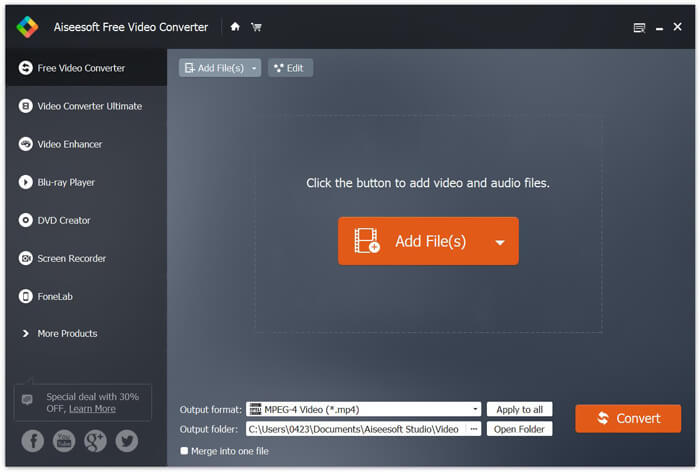
Passo 3. Fai clic su Formato di output e scegli MOV come formato di destinazione dall’elenco a discesa. Ora puoi semplicemente fare clic sul pulsante Converti per avviare la conversione da MP4 a MOV.
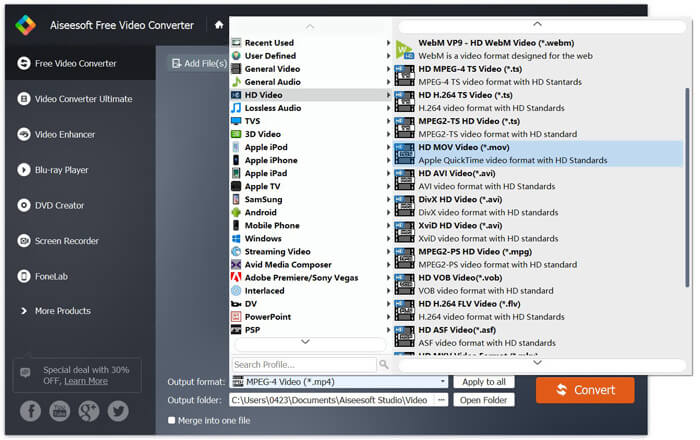
Solo pochi secondi dopo, l'MP4 originale verrà convertito in formato MOV. Oltre a MOV, puoi anche convertire MP4 in MKV, FLV, AVI, ecc. Con alta qualità. Questo convertitore video gratuito offre anche alcune funzioni di modifica di base. Prima della conversione finale da MP4 a MOV, puoi usarli per modificare i tuoi video MP4.
Parte 2. Come cambiare MP4 in MOV gratis con il convertitore video online
Come accennato in precedenza, ci sono molti convertitori video online gratuiti offerti sul mercato che possono aiutarti a trasformare MP4 in MOV. Qui in questo post, introdurremo 2 metodi su come cambiare MP4 in MOV online.
1. Convertitore video online gratuito FVC
Se vuoi convertire MP4 in MOV online e gratis, FVC Free Online Video Converter è la scelta migliore. Con 3 semplici passaggi puoi completare la conversione e ottenere in pochi secondi il file convertito senza perdita di qualità.
Passo 1. Fai clic sul link qui sopra e vai su FVC Free Online Video Converter. Quindi fai clic su Add Files to Convert al centro del banner. Poi scarica e installa FVC launcher sul tuo computer.
Scarica la Versione Desktop per convertire i file in batch.

Passo 2. Dopo aver selezionato e caricato il video che vuoi convertire, devi scegliere MOV come formato di output per il file video convertito.
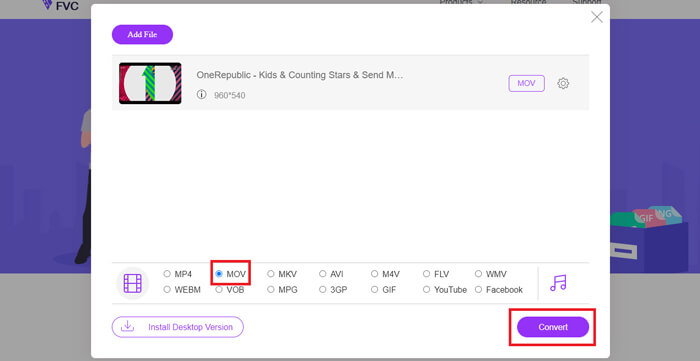
Passo 3. Fai clic su Convert. Puoi scegliere di salvare il file convertito sul desktop. Dopodiché, ti basterà attendere qualche istante per ottenere il tuo video MOV.
2. CloudConvert
CloudConvert è uno strumento di conversione video online molto popolare e facile da usare. Ha la capacità di convertire oltre 200 formati, inclusi audio, video, documenti, ebook, archivi, immagini, fogli di calcolo o formati di presentazione. Inoltre, questo affidabile convertitore online proteggerà i tuoi dati e la tua privacy.
Passo 1. Apri il browser e vai sul sito ufficiale di CloudConvert. È progettato con un’interfaccia essenziale che può offrirti un’esperienza di conversione confortevole.
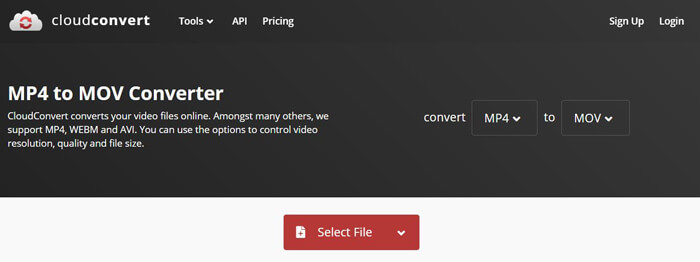
Passo 2. Fai clic sul pulsante Select File per caricare il file MP4 che vuoi convertire. Qui puoi aggiungere file dal computer, URL, Google Drive, OneDrive o Dropbox. In questa fase puoi aggiungere altri file da convertire.
Una cosa di cui dovresti preoccuparti è che questo convertitore gratuito da MP4 a MOV ti consente solo di convertire un video di meno di 1 GB. Devi acquistare un pacchetto per convertire file più grandi.
Passo 3. Fai clic sul pulsante Convert per iniziare il caricamento e la conversione del tuo file MP4. Quindi puoi fare clic sul pulsante Download per salvare il video MOV convertito sul computer.

Utilizzando CloudConvert per convertire MP4 in MOV online, è necessario dedicare più tempo al processo di caricamento, conversione e download dei video, soprattutto quando si converte un file di grandi dimensioni.
Parte 3. Come convertire MP4 in MOV con VLC Media Player
VLC Media Player è un lettore multimediale gratuito e open source molto diffuso. Non è solo un lettore multimediale: VLC può funzionare anche come strumento di conversione video per aiutarti a eseguire varie conversioni. Se VLC è installato sul tuo computer, puoi utilizzarlo per convertire il tuo file MP4 in un video MOV.
Passo 1. Apri VLC Media Player sul tuo computer. Se non hai VLC, puoi andare sul sito ufficiale per scaricarlo gratuitamente.
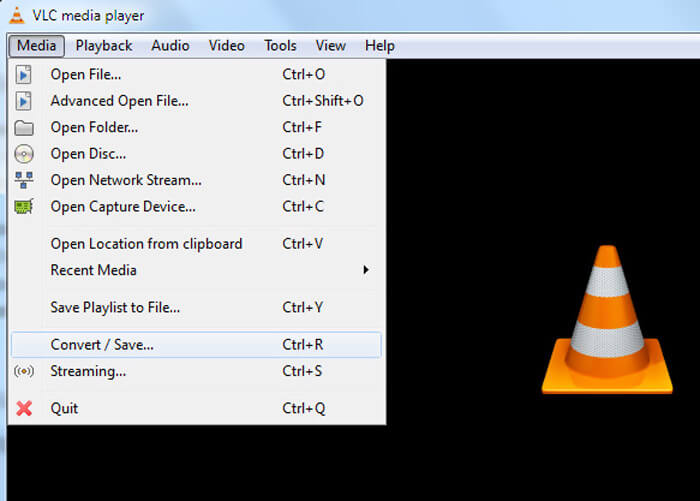
Passo 2. Fai clic sul pulsante Media nella barra dei menu e quindi scegli l’opzione Converti/Salva dall’elenco a discesa.
Passo 3. Si aprirà una nuova finestra Open Media. Qui puoi fare clic su File > Aggiungi per importare il file MP4 che vuoi convertire.
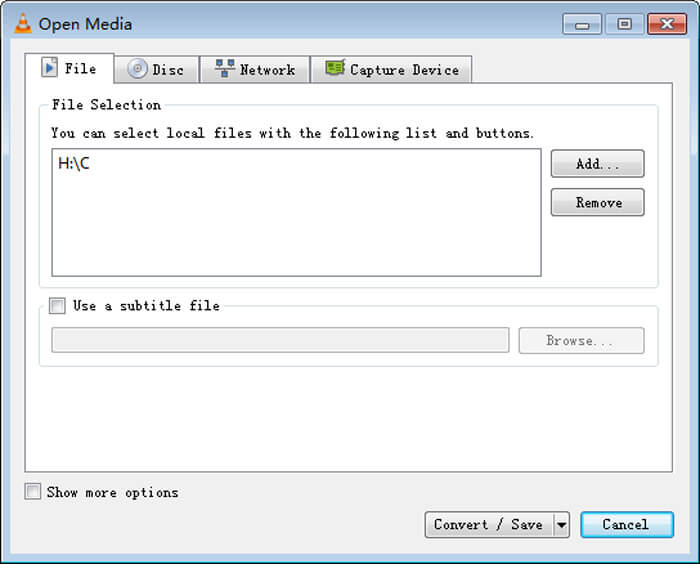
Passo 4. Fai clic sul pulsante Converti/Salva in basso per confermare l’operazione. Verrai quindi reindirizzato a una finestra Convert in cui potrai selezionare la cartella di destinazione e il formato di output per il video convertito.
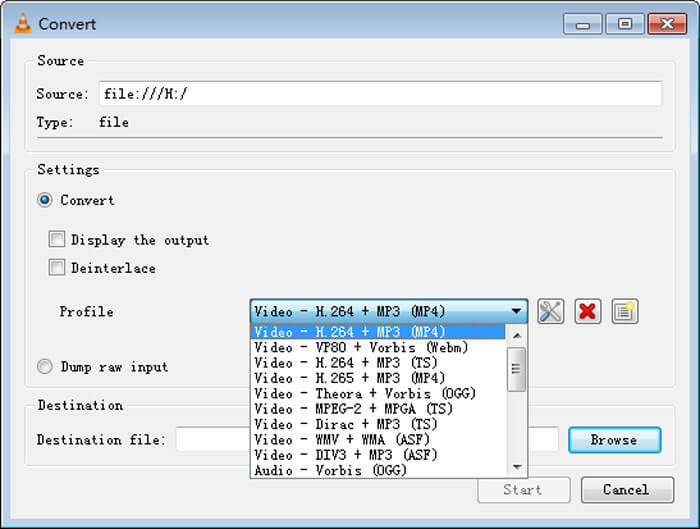
Passo 5. Scegli MOV come formato di output dall’elenco a discesa Profilo. Quindi fai clic su Avvia per effettuare la conversione video da MP4 a MOV con VLC.
MP4 contro MOV
Rilasciato dal Moving Picture Experts Group (MPEG) nel 2001, il formato MP4 può aiutarti a salvare video, audio, sottotitoli e dati di immagine in tracce separate. È l'abbreviazione di MPEG-4 Part 14. Inoltre, è uno dei formati più popolari utilizzati per lo streaming e la condivisione di video.
Il formato MOV può essere utilizzato per memorizzare un film, un programma TV, un breve video clip o un filmato amatoriale. In realtà viene salvato nel formato QuickTime File Format (QTFF), introdotto da Apple nel 1991. I file MOV vengono spesso utilizzati quando le persone vogliono salvare un video di alta qualità.
Parte 4. Domande frequenti sulla conversione di MP4 in MOV
Domanda 1. QuickTime può convertire MP4 in MOV?
Quando hai bisogno di convertire MP4 in MOV su Mac, puoi provare QuickTime. Puoi aprire video MP4 con QuickTime Player. Quindi fare clic sul pulsante Esporta e scegliere il formato MOV. Puoi rinominare il file, selezionare la posizione e la risoluzione video. Quindi puoi fare clic sul pulsante Esporta per convertire gratuitamente MP4 in MOV su Mac.
Domanda 2. Quale è meglio, MOV o MP4?
MP4 è uno dei formati di archiviazione multimediale più popolari. È un file contenitore digitale, solo un involucro che racchiude il video, non il video in sé. Analogamente a MP4, anche MOV è un file contenitore digitale. MOV è codificato con il codec MPEG-4.La principale differenza tra MOV e MP4 è che MOV è usato soprattutto negli ambienti Mac. MOV è stato progettato appositamente per QuickTime. MP4 è uno standard internazionale supportato dalla maggior parte dei lettori multimediali e dei sistemi. In generale, il video MOV è spesso di qualità superiore e di dimensioni maggiori. Il file MP4 è in genere più compresso e di dimensioni più ridotte. Quindi non si può semplicemente dire che MOV sia migliore di MP4 o che MP4 sia il migliore.
Domanda 3. La conversione di MOV in MP4 perde qualità?
Quando vuoi convertire MOV in MP4 o cambiare MP4 in MOV, dovresti scegliere un convertitore video professionale. Nella maggior parte dei casi, non vedrai alcuna perdita di qualità dopo la conversione.
Domanda 4. Esiste un convertitore gratuito da MP4 a MOV?
Ci sono molti convertitori video gratuiti offerti su Internet che possono aiutarti a convertire MP4 in MOV. Oltre al CloudConvert consigliato, puoi anche fare affidamento su FFmpeg, HandBrake, ZAMZAR, Convert Files e altro per realizzare la versione di conversione.
-
 Come convertire i tuoi file video MP4 in immagini GIF animate senza perdita di qualità
 Cerchi il modo migliore per convertire i tuoi video MP4 in GIF animate? Ecco una guida dettagliata per farlo in Photoshop, Windows Movie Maker, convertitore video online e altro ancora.
-
 MOV VS MP4 - Qual è il migliore
 MOV VS MP4, qual è il migliore? Questo post spiega la differenza tra MP4 e MOV, in modo da poter ottenere la scelta migliore da utilizzare per i tuoi file video.
-
 Come convertire MOV in MP4 senza perdere la qualità
 Vuoi convertire i file MOV (Apple QuickTime Movie) in MP4? Questo post condivide 4 metodi gratuiti per convertire i tuoi file video MOV in formato MP4 su Windows 10/8/7 / XP e Mac OS X.

