


 Video Converter Ultimate
 Screen Recorder
 Riparazione video
 Download sicuro
Come convertire un MP4 in MP3 su Windows / Mac / iPhone / Android / Online
Se desideri conservare solo la traccia audio di un video MP4, puoi convertire MP4 in formato MP3. MP3 è un formato audio digitale supportato da quasi tutti i dispositivi, lettori ed editor. Indipendentemente dal fatto che tu converta un video MP4 in audio MP3 per la riproduzione offline o ulteriori modifiche, puoi estrarre la colonna sonora e salvarla come formato MP3. Ecco 8 modi praticabili per convertire MP4 in MP3 senza perdere qualità. Basta leggere e seguire.

Parte 1: Come convertire gratuitamente MP4 in MP3 online
Un convertitore online da MP4 a MP3 è una scelta pratica e gratuita. Puoi trasformare i file MP4 in formato MP3 per estrarre l’audio senza usare programmi di terze parti. Tuttavia, la maggior parte dei convertitori online da MP4 a MP3 impone limiti alla dimensione massima dei file. Se vuoi convertire in blocco file MP4 in MP3 online, usare FVC Free Online Video Converter può essere la tua prima scelta.
• 100% gratuito per convertire online MP4 in MP3.
• Supporto per la conversione in batch.
• Regola codificatore audio, canale, frequenza di campionamento e bitrate.
• Interfaccia intuitiva e pulita.
Passaggio 1: Fai clic su Add Files to Convert sul sito ufficiale. La prima volta che utilizzi il convertitore audio online, devi scaricare il suo launcher. Occuperà solo pochi KB.
Passaggio 2: Seleziona il video MP4 che vuoi convertire in MP3. Fai clic su Open per confermare.
Passaggio 3: Fai clic sull’icona Audio nell’angolo in basso a destra. Imposta MP3 come formato audio di output.
Passaggio 4: Per regolare la qualità audio e la dimensione del file, puoi fare clic sull’icona a ingranaggio Settings. Qui puoi modificare frequenza di campionamento, canale, bitrate ed encoder audio. Poi fai clic su OK per salvare le modifiche.
Passaggio 5: Fai clic su Convert per convertire online da MP4 a MP3. Puoi convertire in batch file MP4 in MP3 superiori a 100 MB o anche più grandi gratuitamente.
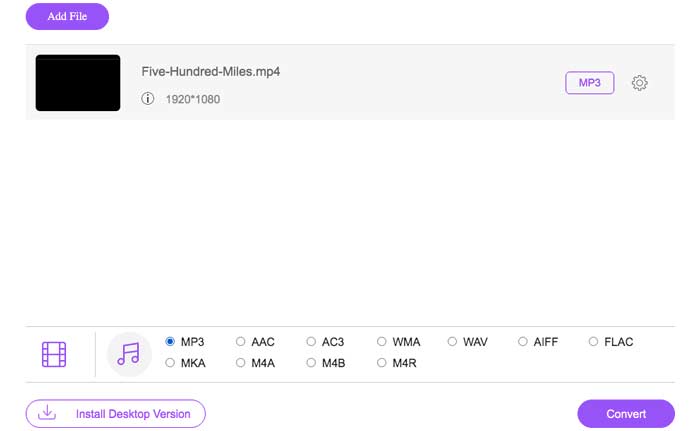
Questo convertitore MP4 online gratuito può anche trasformare MP4 in altri formati come M2TS, MTS, MOV, MKV, WMV, TS, GIF, ecc.
Parte 2: come convertire un MP4 in MP3 su Windows con Windows Media Player
Se vuoi convertire un MP4 in MP3 senza scaricarlo, puoi usare Windows Media Player. È un programma preinstallato che può aiutarti a trasformare gratuitamente MP4 in MP3 su Windows. Pertanto, puoi convertire MP4 in MP3 con Windows Media Player su Windows 10 / 8.1 / 7.
Passaggio 1: Avvia Windows Media Player. Fai clic su File in alto. Seleziona Open per aggiungere un file MP4.
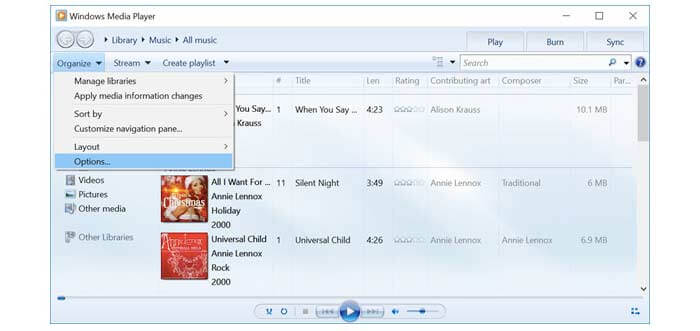
Passaggio 2: Fai clic su Organize e seleziona Options dal relativo elenco.
Passaggio 3: Nella finestra Options, seleziona Rip Music.
Passaggio 4: Seleziona MP3 dall’elenco Format sotto Rip settings.
Passaggio 5: Fai clic su Apply e OK per convertire MP4 in MP3 con Windows Media Player.
Parte 3: come convertire un MP4 in MP3 su Mac con iTunes
iTunes è preinstallato su tutti i computer Mac. Puoi usare iTunes per cambiare gratuitamente MP4 in MP3 su Mac. Basta creare un preset della versione MP3. Successivamente, puoi trasformare MP4 in MP3 utilizzando direttamente iTunes.
Passaggio 1: Aggiorna iTunes all’ultima versione. Scegli Preferences dal menu Edit.
Passaggio 2: Nella sezione General, fai clic su Import Settings.
Passaggio 3: Apri il menu a tendina accanto a Import Using. Seleziona MP3 Encoder. Poi fai clic su OK per confermare.
Passaggio 4: Aggiungi un video MP4 alla tua libreria iTunes.
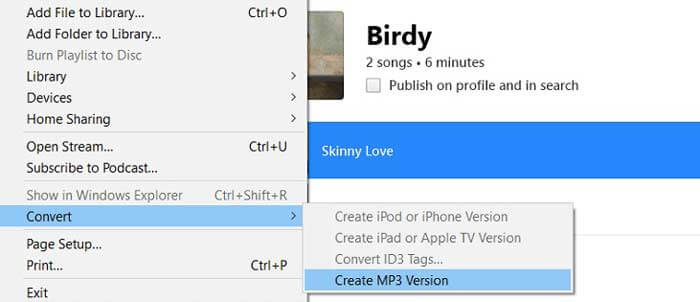
Passaggio 5: Fai clic su File in alto. Seleziona Convert e poi scegli Create MP3 Version. Ora puoi convertire MP4 in MP3 con iTunes su Mac.
Parte 4: come convertire un MP4 in MP3 su iPhone con Media Converter
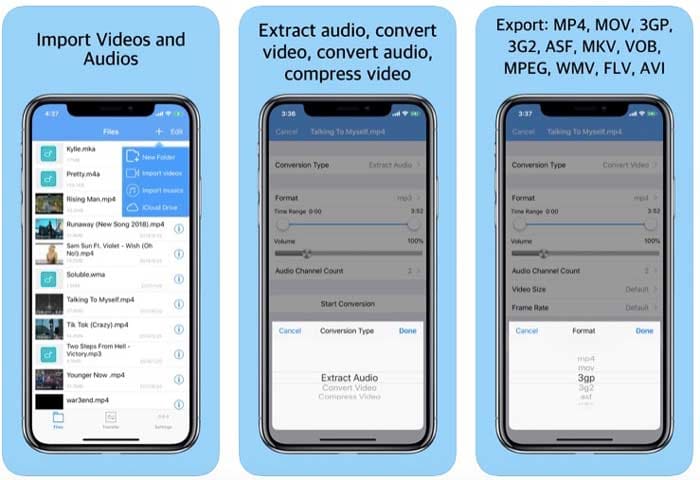
Se vuoi creare un file MP3 da un MP4 su iPhone, puoi usare l'app Media Converter. L’applicazione consente agli utenti di estrarre l’audio da MP4 in formato MP3. Inoltre, puoi convertire i video MP4 anche in altri formati video e audio.
Passaggio 1: Scarica gratuitamente, installa e avvia Media Player su iPhone.
Passaggio 2: Tocca + nell’angolo in alto a destra. Scegli Import videos per aggiungere il tuo video MP4.
Passaggio 3: Tocca l’icona Information. Seleziona Extract Audio da Conversion Type. Imposta MP3 come formato di output.
Passaggio 4: Scegli Convert per convertire MP4 in MP3 su iPad e iPhone.
Parte 5: come convertire un MP4 in MP3 su Android con il convertitore da video a MP3
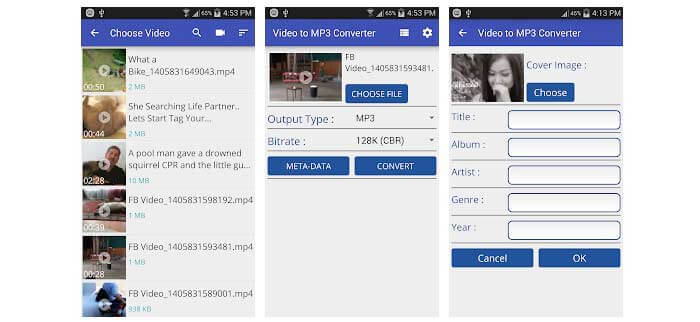
Per quanto riguarda gli utenti Android, puoi convertire i video MP4 scaricati in MP3 con l'app Video to MP3 Converter. Proprio come mostra il nome, l'applicazione può estrarre l'audio MP3 dal video. Quindi, puoi convertire MP4 in audio MP3 su Android qui.
Passaggio 1: Apri Video to MP3 Converter.
Passaggio 2: Sfoglia e scegli il video MP4 da cui vuoi estrarre l’audio.
Passaggio 3: Seleziona MP3 nell’elenco Output Type. Poi regola il bitrate audio.
Passaggio 4: Scegli Convert per convertire il video MP4 in MP3 su Android.
Parte 6: come convertire un MP4 in MP3 con VLC Media Player
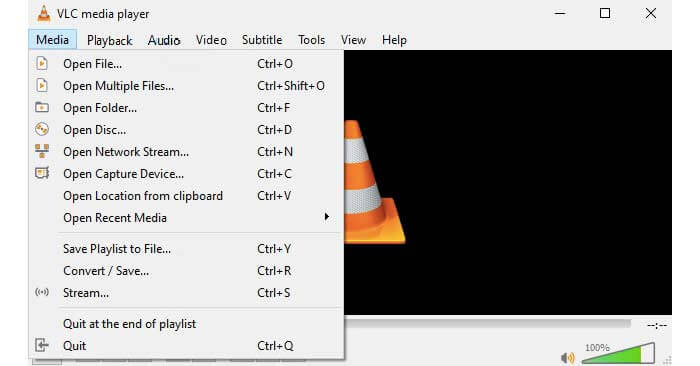
VLC è un lettore e convertitore multimediale gratuito e open source su multipiattaforma. Puoi convertire MP4 in MP3 usando VLC sul tuo telefono o computer. VLC può essere il tuo convertitore gratuito da MP4 a MP3 per modificare i formati video e audio.
Passaggio 1: Avvia VLC Media Player. Scegli Convert/Save dal menu a tendina Media.
Passaggio 2: Fai clic su Add per aggiungere un video MP4. Poi fai clic su Convert/Save in basso.
Passaggio 3: Trova Profile sotto Settings. Seleziona Audio- MP3 per la conversione da MP4 a MP3.
Passaggio 4: Fai clic su Start per iniziare a convertire MP4 in MP3 tramite VLC Media Player.
Parte 7: come convertire un MP4 in MP3 con HandBrake
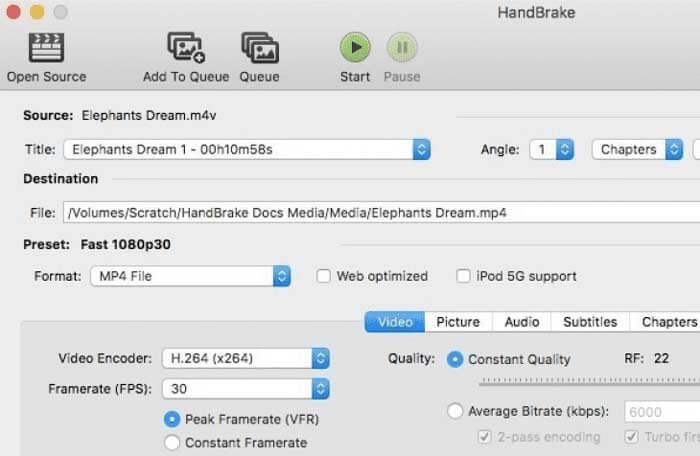
HandBrake è un convertitore video gratuito e open source che può convertire da MP4 a MP3 su Windows e Mac. Puoi anche regolare le impostazioni di uscita audio prima di convertire un MP4 in audio MP3.
Passaggio 1: Apri HandBrake. Fai clic su Source e scegli Open File per aggiungere il video MP4 in HandBrake.
Passaggio 2: Nella sezione Output Settings, seleziona MP3 dall’elenco Container.
Passaggio 3: Specifica le impostazioni del profilo e i filtri.
Passaggio 4: Fai clic su Start in alto per usare HandBrake e convertire MP4 in formato MP3.
Parte 8: Come convertire un MP4 in MP3 con FFmpeg
FFmpeg può essere anche il tuo software di conversione gratuito da MP4 a MP3. Basta inserire la seguente riga di comando in FFmpeg. Successivamente, puoi estrarre MP3 da MP4 su multipiattaforma utilizzando FFmpeg.
Passaggio 1: Scarica gratuitamente, installa e avvia FFmpeg.
Passaggio 2: Copia e incolla ffmpeg -i filename.mp4 filename.mp3.
Passaggio 3: Premi Enter sulla tastiera.
Passaggio 4: Usa FFmpeg per convertire i video MP4 in audio MP3.
Parte 9: domande frequenti da MP4 a MP3
Puoi convertire MP4 in MP3 con Audacity?
Sì. Devi prima scaricare Audacity e FFmpeg. Successivamente, puoi estrarre l'audio da MP4 con Audacity.
È possibile convertire MP4 in MP3 tramite collegamento?
Sì. Alcuni convertitori online consentono agli utenti di convertire i video MP4 online in MP3. Puoi usare Convertio, Ytmp3.cc e altro ancora. Tuttavia, la percentuale di successo della conversione da MP4 a MP3 da URL non è elevata.
Come modificare l'estensione del file da .mp4 a .mp3?
Puoi anche creare un MP3 da un MP4 cambiando l’estensione del file. Fai semplicemente clic con il tasto destro su un file MP4. Scegli Rename e evidenzia .mp4. Puoi sostituire .mp4 con .mp3 per convertire un MP4 in MP3.
Tutto sommato, puoi convertire MP4 in MP3 sul tuo telefono o computer con i metodi sopra. Indipendentemente dal fatto che tu voglia estrarre audio MP3 da video MP4 in blocco o individualmente, puoi scegliere tra i convertitori video online e offline sopra. Nella maggior parte dei casi, la conversione da MP4 a MP3 può essere completata in pochi minuti. Se converti un file MP4 in MP3 per più di 2 ore, dovresti provare un nuovo strumento. Basta sostituire questo estrattore audio non funzionante con qualsiasi altro strumento sopra menzionato.
-
 Come convertire MOV in MP4 senza perdere la qualità
 Vuoi convertire i file MOV (Apple QuickTime Movie) in MP4? Questo post condivide 4 metodi gratuiti per convertire i tuoi file video MOV in formato MP4 su Windows 10/8/7 / XP e Mac OS X.
-
 2 semplici modi per convertire gratuitamente MTS in MP3
 Hai la necessità di estrarre l'audio MP3 dal file MTS ma non sai come fare? Qual è il miglior convertitore da MTS a MP3? Questo post condivide 2 semplici modi per aiutarti a convertire MTS / M2TS in MP3 con alta qualità audio.
-
 Come convertire i tuoi video FLV in file audio MP3 sul desktop e online
 Come convertire un FLV in un file MP3? Tutto quello che devi fare è leggere attentamente questo articolo, trovare il tuo metodo preferito e seguire la nostra guida passo passo per ottenere ciò che desideri.
