


 Video Converter Ultimate
 Screen Recorder
 Riparazione video
 Download sicuro
3 metodi per riprodurre video MKV in Windows Media Player con il codec giusto
MKV, acronimo di Matroska Multimedia Container, è un formato di file contenitore gratuito e aperto che contiene una serie di tracce video, audio, immagini e sottotitoli in un unico file. I file MKV sono comunemente usati per archiviare video clip, film e programmi TV. Alcuni utenti di Windows 8/7 si lamentano di non poter riprodurre il video MKV nel lettore video predefinito - Windows Media Player.
La verità è che Windows Media Player non supporta la suddivisione (apertura) dei contenitori MKV. Bene, se vuoi ancora riprodurre video MKV in Windows Media Player, dovresti installare il codec MKV corretto per Windows Media Player. In questo articolo, ti diremo dove trovare il codec MKV per Windows Media Player e altri modi per riprodurre video MKV in Windows Media Player.

Parte 1. Dove scaricare il codec MKV per Windows Media Player
Se vuoi riprodurre video MKV in Windows Media Player, devi installare il codec corrispondente. Qui ci sono 3 popolari pacchetti di codec per Windows Media Player. Puoi scaricare e installare il codec MKV per Windows Media Player.
1. Media Player Codec Pack
Media Player Codec Pack è un versatile pacchetto di codec per Windows Media Player. Viene utilizzato per contenere file video e audio moderni. È compatibile con Microsoft Windows 10, 8.1, 8, 7, Vista, XP, 2000, 2008, 2003. Puoi scaricare Media Player Codec Pack e ottenere i codec come MKV, XviD, VOB, EVO, HEVC, M2TS, IVF, BDMV, MP4, MOV, WEBM, FLV, ecc. per Windows Media Player 12, 11 o 10.
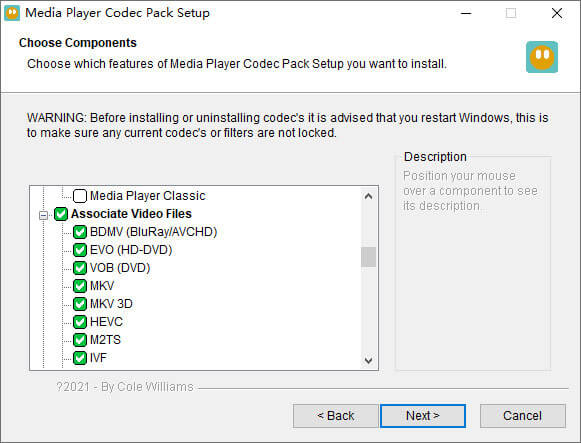
2. CCCP (Combined Community Codec Pack)
Combinato Community Codec Pack è un pacchetto di riproduzione per Windows. Fornisce un set completo di codec in grado di riprodurre qualsiasi tipo di file video come MKV, MP4, MOV, VOB, ecc. in Windows Media Player. È compatibile con Windows 10/8/7, WindowsVista, Windows XP, Windows 2000. Puoi scaricare facilmente questa app gratuitamente dal sito Web ufficiale.
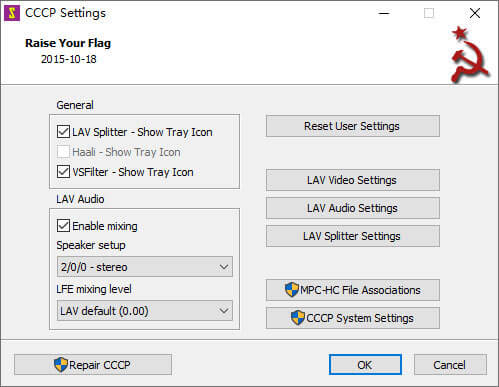
3. ffdshow
Ffdshow è un pacchetto di riproduzione avanzato per codec Windows che supporta la maggior parte dei formati audio e video. Puoi installare il codec giusto per h.264, MPEG-4, H.263, VP3, Theora, SVQ3, MP3, AC3, DTS, AAC e altro. Fornisce inoltre filtri per ridimensionare, deinterlacciare e visualizzare i sottotitoli, ecc. È possibile scaricare ffdshow e installare il codec MKV corretto per Windows Media Player.
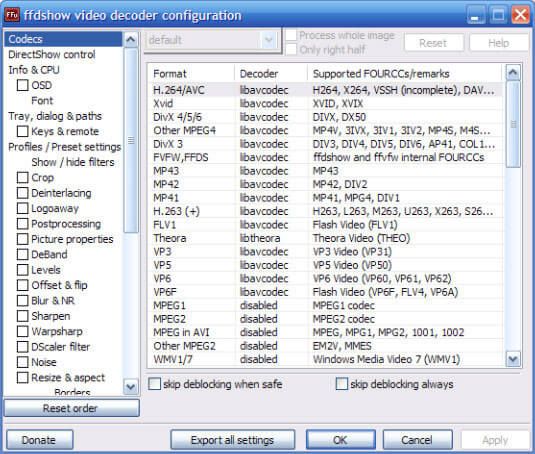
Parte 2. Converti MKV per la riproduzione in Windows Media Player
Anche se i video MKV non sono supportati da Windows Media Player, puoi convertire il video MKV in formati supportati da Windows Media Player. Come sappiamo, Windows Media Player 12 ha il supporto integrato per la maggior parte dei formati video e audio come MPEG, WMV, AVCHD, WMA, AAC, 3GP, ecc. Con Video Converter Ultimate, puoi convertire il video MKV in qualsiasi formato video/audio, inclusi MP4, AVI, MOV, WMV, MKV, MPEG, MP3, FLAC, ecc.
Download gratuitoPer Windows 7 o versioni successiveDownload sicuro
Download gratuitoPer MacOS 10.7 o versioni successiveDownload sicuro
Passaggio 1. Fai clic sul pulsante Download per scaricare Video Converter Ultimate sul tuo computer. Avvia questo convertitore MKV e fai clic sul pulsante Aggiungi file per aggiungere i video MKV nel programma.
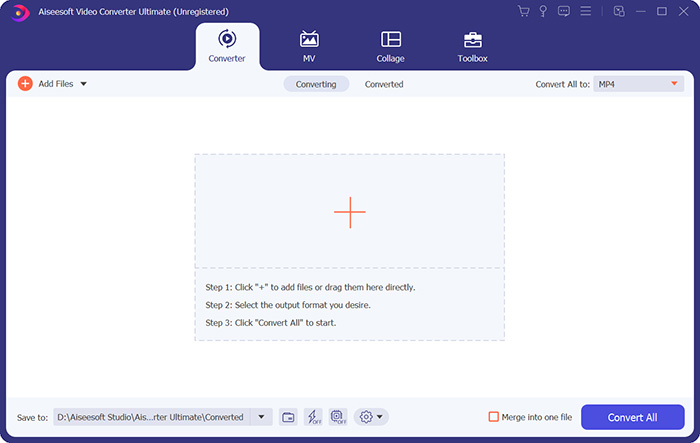
Passaggio 2. Fai clic sulla freccia a discesa accanto a Converti tutto in e seleziona MP4 o altri formati dalla scheda Video.

Passaggio 3. Quindi puoi andare all’area Salva in nella parte inferiore per selezionare un percorso per il video MKV convertito. Infine, fai clic sul pulsante Converti tutto per iniziare a convertire MKV in MP4 sul tuo computer.
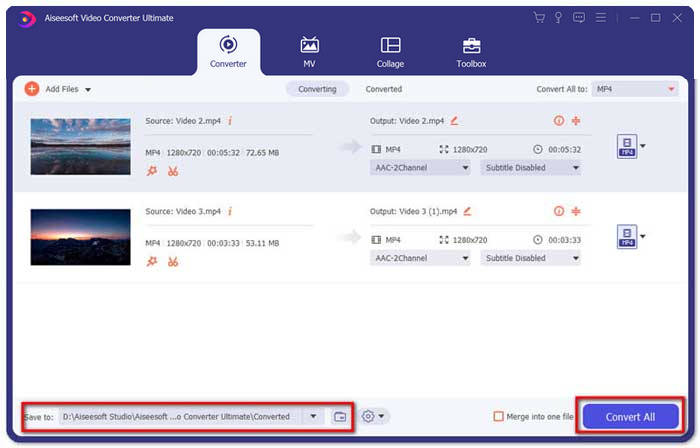
Al termine della conversione, puoi riprodurre il video MKV convertito in Windows Media Player. Se desideri perfezionare ulteriormente il tuo video MKV prima della conversione, puoi fare clic sull'icona Modifica nell'interfaccia principale per ruotare, ritagliare, filigranare il video MKV, aggiungere sottotitoli e applicare altri filtri.
Parte 3. Riproduci MKV con l'alternativa a Windows Media Player
E se Windows Media Player non funziona anche se hai ottenuto un file MKV convertito? Qualsiasi fattore può ostacolare la riproduzione MKV su Windows Media Player. Se non vuoi installare un determinato codec per Windows Media Player, puoi provare invece un altro lettore video MKV. FVC Free Video Player è un lettore video MKV online che ti aiuta a riprodurre qualsiasi file multimediale in tutti i formati come MKV, MP4, FLV, MOV, AVI, 3GP, MP3, AAC, ecc. Basato sulla tecnologia HTML 5, questo lettore video MKV supporta tutta la riproduzione MKV in modo fluido nel tuo browser. Non è necessario alcun download di pacchetti aggiuntivi, acquisto o registrazione.
Passaggio 1. Vai alla pagina web ufficiale di FVC Free Video Player. Fai clic sul pulsante Play Now per scaricare e installare il launcher sul tuo computer.

Passaggio 2. Puoi fare clic sul pulsante Apri file nell’interfaccia principale per aggiungere il video MKV nell’alternativa a Windows Media Player.

Passaggio 3. Una volta importato il video MVK, verrà riprodotto automaticamente sul tuo computer. Durante la riproduzione, puoi andare alla scheda Controllo per avviare, interrompere, mandare avanti o indietro la riproduzione del video MKV.

Da non perdere: Come riprodurre DVD su Windows Media Player?
Parte 4. Domande frequenti sul codec MKV per Windows Media Player
Quale lettore multimediale può riprodurre il codec MKV?
Esistono molti lettori che supportano il codec MKV, inclusi VLC Media Player, Media Player Classic, KMPlayer, MX Player, MKPlayer, Zoom Player, 5K Player, GOM Player, ecc.
I file MKV sono più piccoli di MP4?
Il file MKV di solito ha una dimensione di file grande rispetto a MP4, perché la traccia audio multipla, le tracce dei sottotitoli e altre funzionalità. Sebbene il file MP4 sia di piccole dimensioni, mantiene l'alta qualità come MKV. Questo perché i due formati contenitore MKV e MP4 possono incapsulare lo stesso video e audio.
VLC Media Player riproduce file MKV?
Sì. VLC Media Player è in grado di riconoscere e riprodurre quasi tutti i formati video e audio, incluso MKV. Se i file MKV non vengono riprodotti in VLC Media Player, puoi installare il codec MKV o provare invece altri lettori MKV come FVC Free Video Player.
Conclusione
I file MKV possono supportare una qualità senza perdita di dati e contenere immagini, video e audio illimitati. È fastidioso che MKV non possa essere riprodotto in Windows Media Player 12, il lettore multimediale predefinito per Windows. Puoi provare a installare il codec MKV per una riproduzione fluida o convertire il MKV in altri formati video. Se sei stanco di Windows Media Player, puoi provare altri lettori video MKV come FVC Free Video Player. Spero che il tuo problema sia stato perfettamente risolto.
-
 VLC Player non riproduce MKV, come risolverlo
 Il lettore VLC supporta i file MKV? Perché VLC non riproduce MKV? Questo post condivide 4 suggerimenti utili per risolvere il problema con il lettore VLC che non riproduce i file MKV.
-
 Come riprodurre file MKV su iPad 2021
 Come riprodurre file MKV su iPad 2? Posso convertire MKV in MP4 per riprodurli su iPad Pro/Air/2? Questo post condivide 2 semplici modi per riprodurre MKV su iPad.
-
 Windows Media Player non riproduce MP4? 5 modi efficienti per risolverlo
 Impossibile riprodurre MP4 in Windows Media Player? Scopri di più sui motivi e sulle soluzioni definitive per riprodurre MP4 in Windows Media Player su computer Windows 10.
