


 Video Converter Ultimate
 Screen Recorder
 Riparazione video
 Download sicuro
I 3 migliori modi per riprodurre MP4 su Chromebook
Il Chromebook non riproduce più i video MP4? Di recente, molti utenti si sono lamentati del problema del video che non viene riprodotto sul Chromebook. Stai affrontando la stessa situazione?
Chromebook è un computer portatile prodotto da Google. Esegue Chrome OS e supporta molti tipi di file e servizi di archiviazione cloud. È in grado di salvare video in Google Drive e nello spazio di archiviazione cloud di Google per la visione. Sai come riprodurre MP4 su Chromebook?

Chromebook ha un lettore video integrato per riprodurre i file multimediali. Tuttavia, alcuni file MP4 non riescono comunque a essere riprodotti. Tenendo conto di ciò, questo post desidera condividere 3 metodi efficaci per aiutarti a riprodurre file MP4 su Chromebook.
Parte 1. Come riprodurre MP4 su Chromebook con Google Drive
Quando il lettore video Chrome OS nativo non è in grado di leggere il codec del contenitore MP4, non può riprodurre MP4 sul Chromebook. In tal caso, puoi scegliere di riprodurre file MP4 tramite Google Drive. Chromebook ti consente di archiviare video MP4 in Google Drive, Dropbox e altri servizi di archiviazione cloud. Puoi aprire video MP4 con Google Drive su Chromebook.
Quando vuoi riprodurre MP4 su Chromebook, devi prima caricare i file MP4 su Google Drive. Quindi puoi individuare MP4 in Google Drive e riprodurlo.
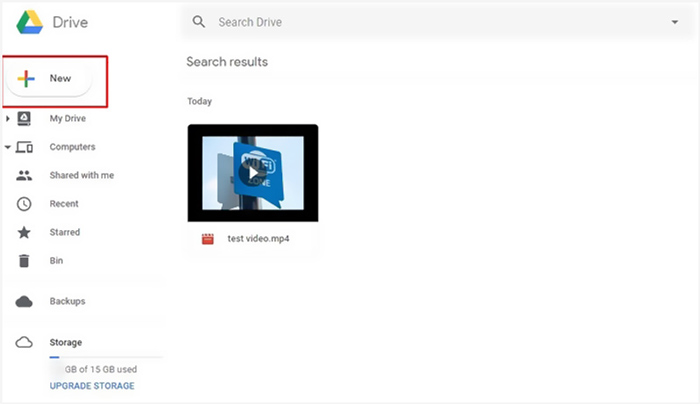
Tieni presente che, per riprodurre file MP4 su Chromebook tramite Google Drive, è necessaria una buona connessione di rete.
Parte 2. Installa VLC per Chrome OS per riprodurre MP4 su Chromebook
Oltre al metodo sopra, puoi anche scaricare un lettore multimediale di terze parti per riprodurre gli MP4 sul tuo Chromebook. Poiché Chromebook esegue Chrome OS, potresti non avere molte buone opzioni di player. Fortunatamente, il popolare VLC Media Player offre una versione per Chrome OS che ti permette di goderti tutti i tipi di file video e audio su Chromebook. Puoi fare affidamento su di esso per riprodurre MP4 su Chromebook con facilità.
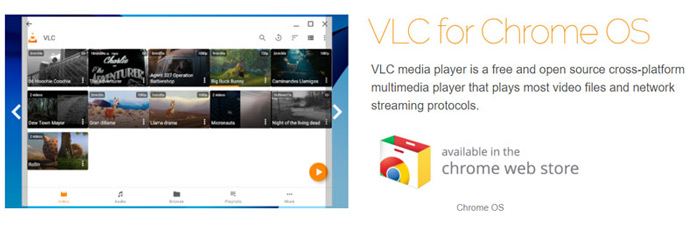
Apri il Chrome Web Store sul tuo Chromebook e cerca VLC. Quando trovi VLC for Chrome OS, segui le istruzioni per installarlo. Poi potrai riprodurre i file MP4 su Chromebook con VLC. Supporta in modo ottimale la maggior parte dei file multimediali, dei flussi di rete e dei DVD. Oltre agli MP4, VLC per Chrome OS può anche riprodurre MOV, MKV, AVI, OGG, TS, M2TS, AAC, MP3, FLAC e altri ancora.
Parte 3. Converti il formato video per la riproduzione MP4 su Chromebook
MP4 è un contenitore di file per codec video e audio. Chromebook supporta solo video MP4 codificati con codec di compressione H.264 o MPEG-4. Quindi, quando vuoi riprodurre MP4 su Chromebook, devi transcodificare MP4 in un formato supportato da Chromebook. Oltre a MP4, Chromebook supporta anche video in 3GP, WebM, MOV e AVI con codec specifici.
Per convertire MP4 in un formato supportato da Chromebook, puoi affidarti al convertitore professionale da video a Chromebook, Video Converter Ultimate. Dispone di una categoria specifica per Chromebook che ti consente di convertire direttamente MP4 in un formato supportato da Chromebook. Ancora più importante, può convertire i video senza perdita di qualità.
- • Converti video MP4 in file supportati da Chromebook senza perdere qualità.
- • Converti video 8K/5K/4K, 1080p/720p HD e SD in oltre 500 formati come MOV, MP4, AVI, FLV, MP3 e altri.
- • Potenti funzioni di modifica, aggiunta di filtri e vari effetti e miglioramento della qualità.
- • Supporta l'accelerazione hardware senza precedenti e l'ottimizzazione del processore multicore.
Passaggio 1. Per prima cosa, devi installare gratuitamente questo convertitore da MP4 a Chromebook sul tuo computer. È compatibile sia con PC Windows 10/8/7 che con Mac.
Download gratuitoPer Windows 7 o versioni successiveDownload sicuro
Download gratuitoPer MacOS 10.7 o versioni successiveDownload sicuro
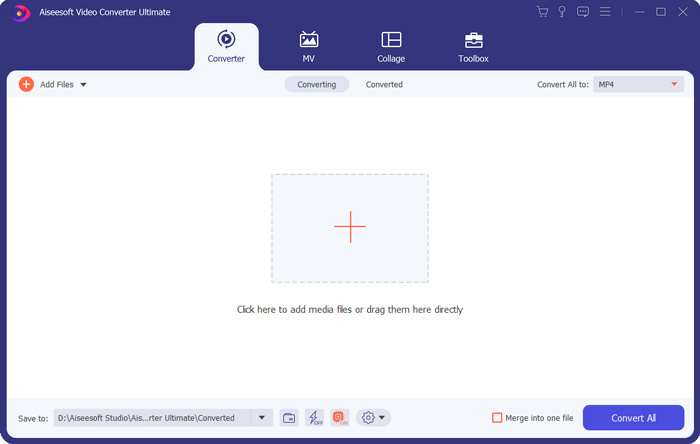
Passaggio 2. Avvialo e assicurati di usare la funzione Converter. Quindi fai clic sul grande pulsante + o su Add Files per importare il tuo file MP4. Puoi aggiungere e convertire uno o più video alla volta.
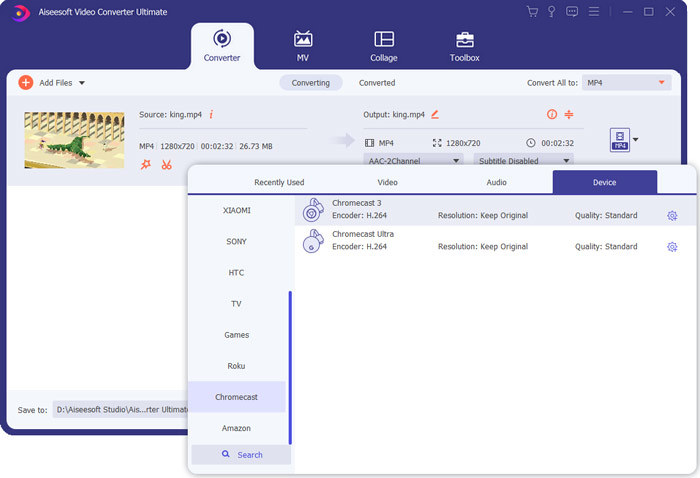
Passaggio 3. Fai clic sull’icona del formato sul lato destro del video importato. Seleziona un formato di output adatto dall’elenco a discesa. Qui puoi fare clic sulla scheda Device per individuare un formato supportato da Chromebook.
Passaggio 4. Prima della conversione finale, puoi usare diverse funzioni di editing per modificare il video, migliorarne la qualità e personalizzare gli effetti di output. Dopo tutte queste operazioni, puoi semplicemente fare clic sul pulsante Convert All per iniziare a convertire MP4 per Chromebook.
In pochi clic, puoi convertire facilmente i video in un file supportato da Chromebook. Quindi puoi trasferirlo sul Chromebook per la riproduzione.
Parte 4. Domande frequenti sulla riproduzione di MP4 su Chromebook
Domanda 1. Quali formati video vengono riprodotti sul Chromebook?
I Chromebook possono supportare molti tipi di file, dispositivi esterni e sistemi di archiviazione cloud. Per i formati video, può riprodurre MP4, MOV, M4V, MKV, OGG, 3GP, OGM, WebM, WAV, AVI e altro.
Domanda 2. Perché non posso utilizzare Google Play su Chromebook?
Sei autorizzato a utilizzare Google Play su Chromebook. Ma devi prima abilitare questa funzione. Puoi andare su Impostazioni sul Chromebook, scegliere la sezione Google Play Store e quindi attivare la funzione. Successivamente, puoi utilizzare normalmente Google Play su Chromebook.
Domanda 3. Come abilitare Flash Player in Chrome?
Quando desideri utilizzare Flash Player su Google Chrome, puoi fare clic sull'icona del lucchetto sul lato sinistro della barra degli indirizzi. Fare clic sulla casella Flash e quindi scegliere il pulsante Consenti. Fare clic su Ricarica per salvare la modifica. In questo modo, puoi utilizzare Flash Player in Chrome.
Conclusione
Non riesci a riprodurre MP4 su Chromebook? Dopo aver letto questo post, puoi ottenere 3 suggerimenti utili per risolvere il problema. Per ulteriori domande su come riprodurre MP4 su Chromebook, puoi lasciarci un messaggio.
-
 Tutorial per aprire e convertire file ARF con WebEx ARF Player
 Di seguito sono riportati i passaggi dettagliati per utilizzare WebEx ARF Player. Puoi riprodurre e convertire file WebEx ARF su computer Windows e Mac con facilità. Inoltre, puoi migliorare l'esperienza di riproduzione anche con un 3-rd player ARF.
-
 Ottieni il tuo miglior lettore MP4 per riprodurre file MP4 con alta qualità visiva
 Leggi e ottieni il tuo miglior lettore MP4 dai consigli degli ultimi 10 software per lettori video MP4. Puoi riprodurre file video MP4 su Windows e Mac senza problemi senza ritardi.
-
 AVI VS MP4 – Differenze e somiglianze tra i formati AVI e MP4 - FVC
 Qual è un formato video migliore, AVI o MP4? Se vuoi ottenere il confronto dettagliato, puoi controllare questo articolo AVI VS MP4. Puoi conoscere le differenze e le somiglianze tra AVI e MP4 sotto molti aspetti.
