


 Video Converter Ultimate
 Screen Recorder
 Riparazione video
 Download sicuro
Come risolvere il problema dell'audio su iPhone che non funziona [3 semplici modi]
Hai provato innumerevoli metodi per far tornare l’audio nei video del tuo iPhone, ma il suono continua a non funzionare? Non è che non esista un modo per risolvere il problema dell’audio nei video su iPhone; semplicemente, finora hai provato a risolverlo nel modo sbagliato. In questo articolo vedremo i 3 modi più semplici per risolvere il problema di iPhone senza audio nei video. Sappiamo bene che questo problema è davvero fastidioso e frustrante. Se non vedi l’ora di sistemare l’audio dei video sul tuo iPhone, leggi questo articolo, capisci perché l’audio non viene riprodotto nei tuoi video e risolvi di conseguenza.

Parte 1. Perché il mio iPhone non ha audio nei video
Perché il mio iPhone non ha audio nei video è davvero una domanda e un problema affrontato da molti. Bene, ci sono vari motivi per cui ciò accade, ma capisci davvero perché di solito accade? Di seguito sono riportati i motivi per cui l'iPhone non ha audio durante la riproduzione dei video:
Il video dell'iPhone non ha audio nelle foto
Photos è un'applicazione di gestione e modifica foto ampiamente nota realizzata da Apple. È il luogo in cui gli utenti possono archiviare le proprie foto e video, visualizzarli e modificarli e altro ancora! Sebbene Photos sia una piattaforma affidabile per la visualizzazione e la riproduzione di video, in alcuni casi la riproduzione di video su questa applicazione non ha audio. Di seguito sono riportate alcune delle cause per cui i video di iPhone non hanno audio in Photos:
• Il volume potrebbe essere disattivato o troppo basso. Assicurati che il volume dell’iPhone sia alzato e che l’interruttore della suoneria non sia impostato su silenzioso.
• Il file video potrebbe essere danneggiato, causando il malfunzionamento della traccia audio o impedendone del tutto la riproduzione.
• Potrebbe esserci un problema software o un bug nell’app Foto che impedisce la riproduzione del suono.
• L’app Foto potrebbe avere difficoltà a leggere il codec audio del video, soprattutto se il formato non è pienamente supportato.
• L’iPhone potrebbe essere collegato a un dispositivo Bluetooth, come cuffie o altoparlante non in uso, facendo sì che il suono venga reindirizzato altrove.
Il video dell'iPhone non ha audio nel rullino fotografico
Quando registri direttamente sul tuo iPhone, puoi visualizzare in anteprima il tuo video riproducendolo dal rullino fotografico. Tuttavia, alcuni utenti iPhone non sentono alcun suono quando riproducono i loro video dal rullino fotografico, il che li infastidisce e li lascia perplessi sul perché i loro video non abbiano l'audio. Di seguito sono riportati alcuni dei motivi per cui l'audio su iPhone non funziona quando viene riprodotto nel rullino fotografico:
• Il microfono potrebbe essere stato coperto o non funzionante durante la registrazione, con il risultato che non è stato acquisito alcun audio.
• Se il tuo iPhone è in modalità Non disturbare, potrebbe impedire la riproduzione dei suoni quando i video vengono visualizzati in anteprima nel Rullino.
• L’iPhone potrebbe essere in modalità silenziosa, il che può far sì che il video venga riprodotto senza audio.
iPhone non ha audio durante la riproduzione di video su IG
La riproduzione di video su Instagram a volte può rappresentare un problema. Alcuni riscontrano l'impossibilità di riprodurre il video; ci sono alcuni casi in cui solo l'audio non viene riprodotto quando i video vengono riprodotti su IG. Ora, per capire meglio perché ciò accade, di seguito sono riportati i motivi per cui iPhone non ha audio durante la riproduzione di video su IG:
• Instagram potrebbe aver disattivato l’audio del video per impostazione predefinita, richiedendo all’utente di toccare l’icona dell’altoparlante per attivare il suono.
• Il volume all’interno dell’app Instagram potrebbe essere abbassato o disattivato, separatamente dal volume di sistema dell’iPhone.
• Potrebbe esserci un glitch temporaneo o un bug nell’app Instagram che richiede il riavvio o l’aggiornamento dell’app.
• Una connessione di rete scarsa o instabile potrebbe far caricare il video in modo errato, causando l’assenza di audio.
• L’iPhone potrebbe essere impostato in modalità silenziosa o vibrazione, il che può influire sull’uscita audio all’interno dell’app Instagram.
Parte 2. Soluzioni per risolvere il problema "Nessun suono su iPhone che non funziona"
Ora che hai capito alcuni dei motivi per cui il tuo iPhone non ha l'audio nei video, è il momento di imparare come risolvere questo problema.
Metodo 1: utilizzo della riparazione video FVC
Quando il tuo iPhone non ha audio nei video perché stai riproducendo un file video danneggiato, la soluzione ideale è usare lo strumento FVC Video Repair. Sappiamo tutti che quando un video è corrotto non si compromette solo la riproduzione delle immagini, ma anche l’audio, dando luogo a problemi come l’assenza di suono. La corruzione di un file video può alterare la sincronizzazione tra le tracce audio e video o addirittura rimuovere o danneggiare completamente la traccia audio, provocando una riproduzione silenziosa. Per questo, FVC Video Repair è progettato per affrontare questi problemi, ripristinando sia l’integrità visiva del video sia l’audio associato, garantendo un’esperienza di riproduzione fluida e con il suono correttamente ripristinato.
Passaggio 1. Per prima cosa, vai sul sito ufficiale. Poi scarica lo strumento e installalo sul tuo dispositivo.
Download gratuitoPer Windows 7 o versioni successiveDownload sicuro
Download gratuitoPer MacOS 10.7 o versioni successiveDownload sicuro
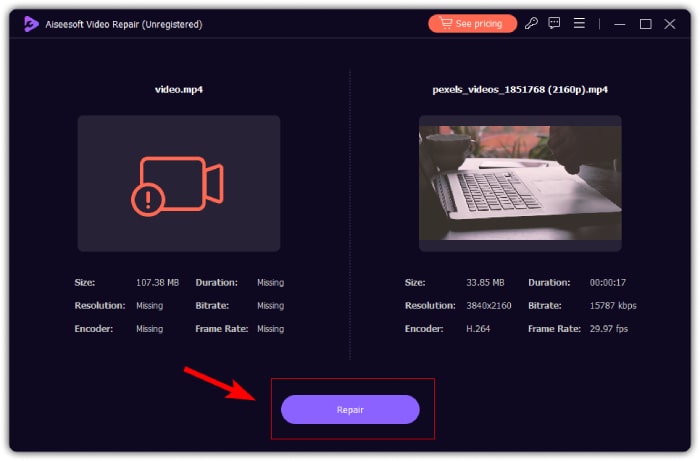
Passaggio 2. Quindi, aggiungi il video danneggiato facendo clic sul pulsante Rosso Più, nello stesso modo in cui hai fatto clic sul pulsante Blu Più per aggiungere il video di esempio. Dopodiché, fai clic sul pulsante Repair per iniziare a riparare il problema audio.
Passaggio 3. Infine, fai clic sul pulsante Preview per visualizzare l’anteprima del video riparato e verificare se l’audio è stato ripristinato. Quando il processo di riparazione è andato a buon fine, puoi salvarlo facendo clic sul pulsante Save.
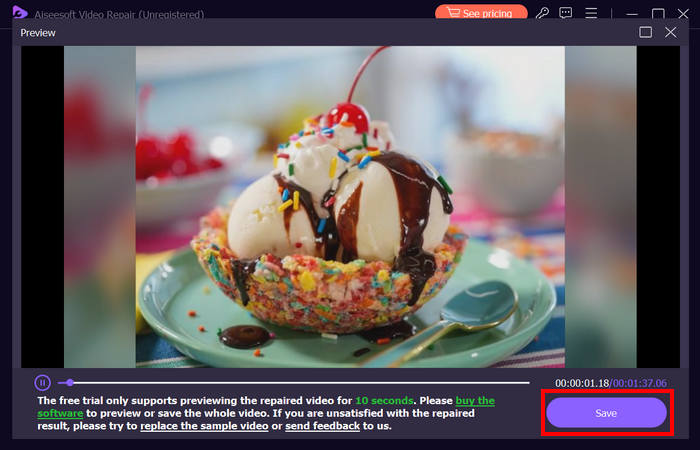
FVC Video Repair può davvero risolvere facilmente il problema dell'assenza di audio nei video dell'iPhone. Con il suo ultimo algoritmo AI e il suo rilevamento automatico di informazioni vitali e la loro correzione diretta, può ripristinare efficacemente l'audio del video sul tuo iPhone.
Metodo 2: Utilizzo di FVC Picked Video Converter Ultimate
Se invece il tuo problema è dovuto a una traccia audio mancante, cioè quando la componente audio del tuo video è andata persa, è danneggiata o non è stata codificata correttamente, puoi usare il Video Converter Ultimate selezionato da FVC. Questo strumento può aiutarti a correggere la traccia audio mancante convertendo il video in un formato compatibile. Per risolvere il problema dell’iPhone che non riproduce il suono a causa di una traccia audio mancante, segui i passaggi qui sotto:
Passaggio 1. Se non hai lo strumento installato sul computer, scaricalo e installalo prima sul tuo computer.
Download gratuitoPer Windows 7 o versioni successiveDownload sicuro
Download gratuitoPer MacOS 10.7 o versioni successiveDownload sicuro
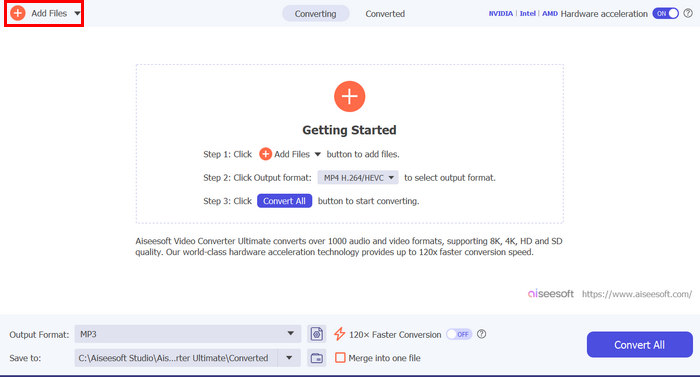
Passaggio 2. Poi aggiungi il video di cui sull’iPhone non viene riprodotto l’audio, facendo clic sul pulsante Add Files.
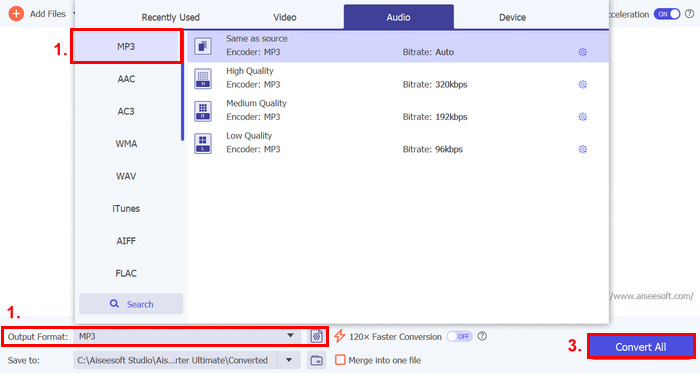
Passaggio 3. Ora fai clic su Output Format, scegli MP3 e seleziona dal menu il formato audio che desideri per il tuo video. Infine, fai clic sul pulsante Convert All per salvare il file.
Questo strumento completo FVC scelto Video Converter Ultimate è davvero uno strumento di riferimento per qualsiasi problema relativo a video e audio. Indipendentemente dal problema, che si tratti di un file corrotto, di un codec non corretto o di un formato non supportato, questo strumento può davvero aiutare.
Metodo 3: Riavvio dell'iPhone
Se il tuo iPhone ha qualche problema di sistema che influisce sull'audio durante la riproduzione di video, puoi semplicemente riavviare il tuo iPhone. In questo modo, puoi aggiornare il sistema operativo del dispositivo, che può eliminare glitch o bug temporanei che potrebbero causare il problema audio. Ecco come puoi semplicemente riavviare il tuo iPhone per risolvere il problema di assenza di audio nei video:
Per iPhone X e modelli successivi
Passaggio 1. Per riavviare il tuo iPhone, tieni premuto il tasto laterale e uno dei tasti del volume finché non compare sullo schermo il cursore di spegnimento.
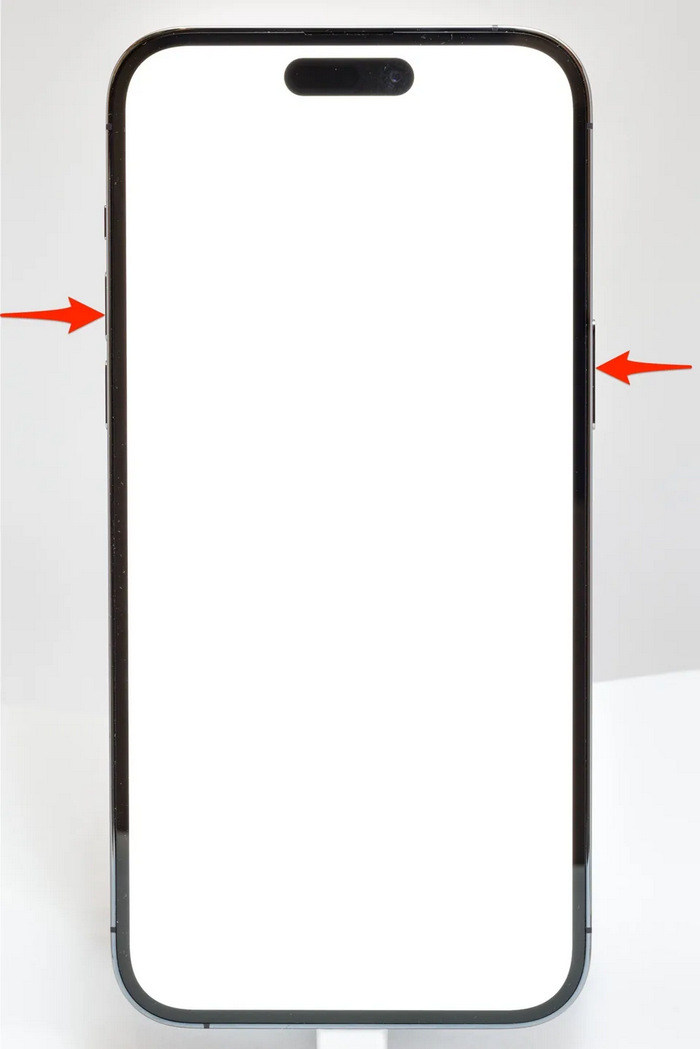
Passaggio 2. Fai scorrere il cursore per spegnere l’iPhone.
Passaggio 3. Ora, per riaccenderlo, premi il tasto laterale.
Per iPhone 6, 7, 8 e SE
Passaggio 1. Per prima cosa, devi premere e tenere premuto il tasto laterale.
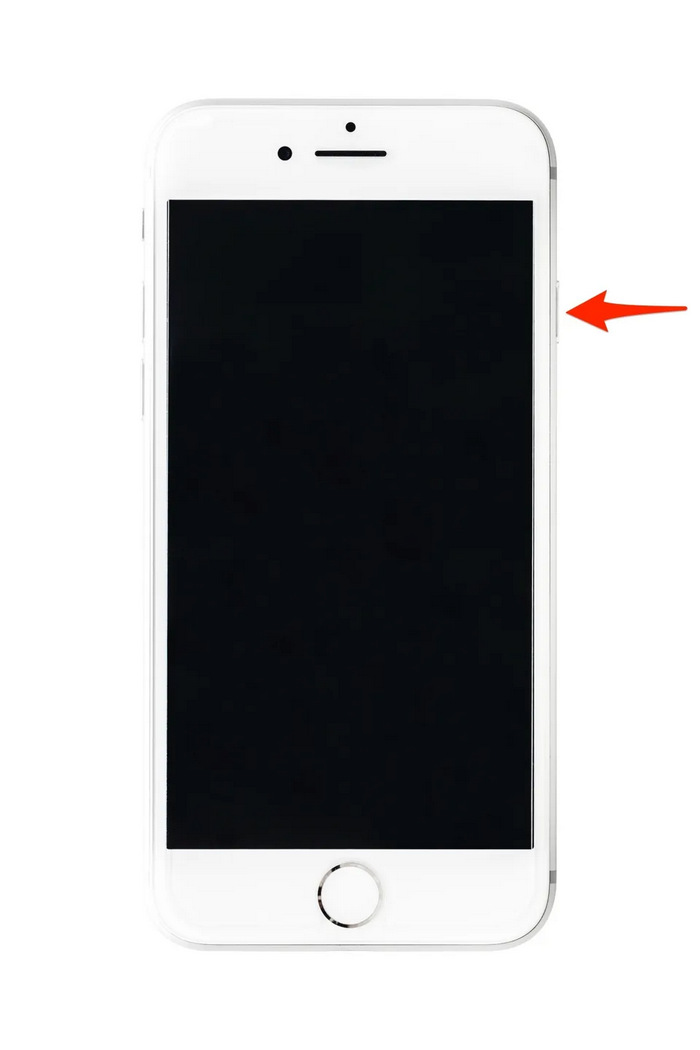
Passaggio 2. Attendi che compaia il cursore di spegnimento e scorri il cursore per spegnere il dispositivo.
Passaggio 3. Ora, per riaccenderlo, premi il tasto laterale.
Questi metodi sono semplici da eseguire e non richiedono l'uso di alcuno strumento di terze parti. Tuttavia, questa è una soluzione molto basilare e comune, e non garantisce una riparazione completa per questo problema di iPhone senza audio sul video.
Parte 3. Domande frequenti su Stellar Repair per video
Quali iPhone supportano l'audio Dolby Vision o DTS?
Gli iPhone della serie iPhone 12 e successivi supportano Dolby Vision, che migliora la qualità video con colori e contrasto migliori. Tuttavia, gli iPhone non supportano direttamente l'audio DTS, poiché utilizzano altre tecnologie audio come Dolby Atmos.
È possibile riprodurre FLAC auan dio su iPhone?
Sì, puoi riprodurre l'audio FLAC sul tuo iPhone, ma avrai bisogno di un'app di terze parti come VLC o di un lettore audio specializzato, poiché l'app Musica integrata nell'iPhone non supporta nativamente il formato FLAC.
I video riproducono l'audio in modalità silenziosa su iPhone?
No, i video non riproducono l'audio se il tuo iPhone è in modalità silenziosa. Per sentire l'audio, dovrai disattivare la modalità silenziosa spostando l'interruttore sul lato del tuo iPhone.
Conclusione
Le cause del problema iPhone senza audio nei video sono diverse, e così anche le soluzioni per risolverlo. Ora che sai come intervenire, non lasciarti scoraggiare se dovesse ricapitare in futuro. Per adesso, se hai lo stesso problema, puoi provare uno qualsiasi dei metodi illustrati in questo articolo.
-
 I migliori metodi 2 per convertire gratuitamente i video FLV in iPhone
 Questa guida concreta condivide due semplici modi per aiutarti a imparare a convertire i file FLV in video iPhone o molti altri formati senza pagare un centesimo.
-
 [Risolto] Come risolvere i video che non vengono riprodotti su iPhone con passaggi dettagliati
 I video locali nella galleria non possono essere riprodotti sul tuo iPhone tramite il lettore video predefinito? Succede sempre che i video di YouTube online non vengano riprodotti su iPhone? Ecco 5 soluzioni per aiutarti in questo articolo.
-
 Guida concreta per caricare i tuoi video FLV su YouTube
 Carica FLV su YouTube ma non è riuscito? Puoi risolvere questo problema da solo e convertire FLV in codec supportati da YouTube seguendo la nostra guida passo passo.
