


 Video Converter Ultimate
 Screen Recorder
 Riparazione video
I 4 migliori registratori FLV adatti per computer Chrome, Windows e Mac
Ti sei mai chiesto cosa fa girare sul web i video che vedi? La maggior parte dei siti Web HTML 5 utilizza il formato WebM per riprodurre i video. Oltre a WebM, viene utilizzato anche FLV. Soprattutto quei siti gratuiti di film e programmi TV gratuiti. Come fai a sapere se si tratta di un file FLV? Di solito, se il video non viene riprodotto, vedrai un messaggio di errore che dice installa Adobe Flash Player. Al giorno d'oggi, molti video sono incorporati nei file FLV. Ma quando registri il video usando il tuo registratore integrato o un altro registratore, la possibilità che la qualità del video venga alterata è alta.
Quindi, sarà meglio usare un registratore che possa produrre anche file FLV oppure che possa garantire una qualità migliore indipendentemente dal formato del file. Se ti preoccupa che la qualità del video venga alterata, scopri i registratori FLV che non richiedono alcuna registrazione per essere utilizzati.

Parte 1. La scelta migliore per l'utente - FVC Screen Recorder
Tra i registratori FLV che si trovano online, FVC Screen Recorder è uno dei migliori in assoluto, o per dirlo in modo semplice, è davvero il numero uno. A volte le esigenze degli utenti sono più alte di ciò che il prodotto può offrire e non tutti possono essere la scelta ideale. Molti clienti sono alla ricerca del prodotto migliore da usare. FVC Screen Recorder supera più di un migliaio di registratori premium, soprattutto se confrontato con il tuo registratore attuale. Grazie alle sue prestazioni di registrazione fluide, puoi ottenere il massimo dal video che desideri registrare. Inoltre, puoi modificare il bit rate e il frame rate del video, ottenendo una qualità d’immagine superiore. Per questo motivo è fondamentale che tu tenga d’occhio questa recensione del miglior registratore FLV. Nel frattempo, ecco una guida semplice da seguire per usare lo strumento.
Passaggio 1. Usa i pulsanti di download qui sotto per ottenere l’app. Installala e segui le istruzioni fino all’avvio dell’applicazione.
Download gratuitoPer Windows 7 o versioni successiveDownload sicuro
Download gratuitoPer macOS 10.7 o versioni successiveDownload sicuro
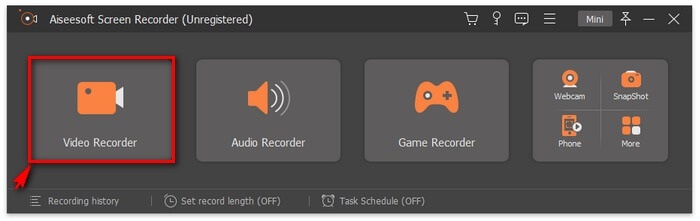
Passaggio 2. Scegli tra le schede. Poiché vogliamo registrare un video, fai clic su Video Recorder. Subito dopo apparirà un riquadro tratteggiato insieme alla barra degli strumenti flottante.
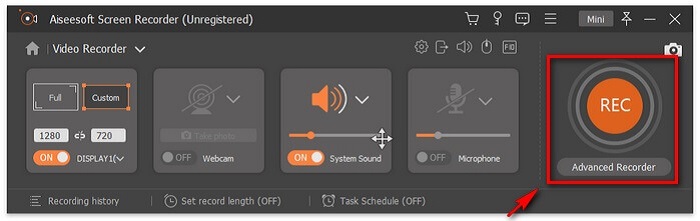
Passaggio 3. Regola il riquadro tratteggiato per impostare il rapporto d’aspetto dello schermo, quindi fai clic sul pulsante REC per iniziare la registrazione.
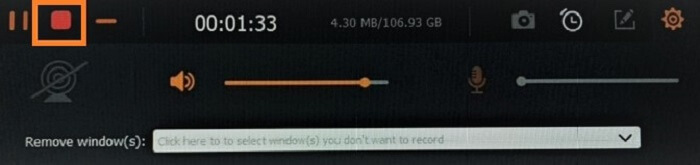
Passaggio 4. Per interrompere la registrazione, fai clic sul pulsante rosso a Quadrato dalla barra flottante. Da lì si aprirà una nuova finestra. Qui potrai scegliere se salvare o registrare di nuovo se non sei soddisfatto del risultato.
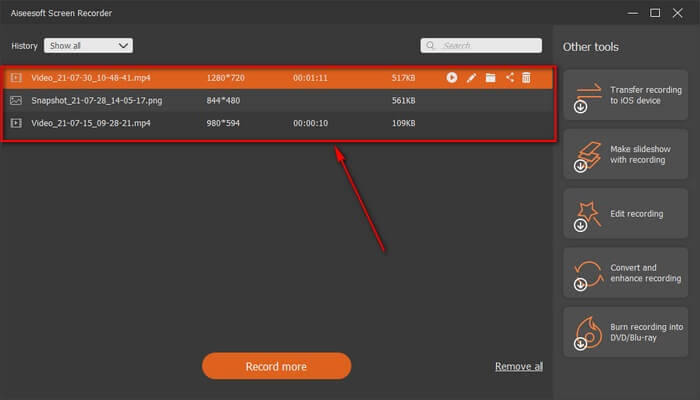
Passaggio 5. Supponiamo che tu abbia salvato il file: nella finestra successiva potrai scegliere la posizione in cui verrà salvato. Seleziona la cartella e fai clic su Next.
Parte 2. Altro videoregistratore FLV gratuito
Registratore FLV per tutti i browser - Registratore dello schermo gratuito FVC
È risaputo che FVC Free Screen Recorder è leggero ma allo stesso tempo dotato di funzioni potenti. Quindi, se sei un principiante che vuole registrare per divertimento puoi usarlo, oppure se sei un professionista che desidera registrare una riunione di lavoro. In ogni caso, funziona. La caratteristica migliore offerta da questo registratore è che puoi catturare qualsiasi parte dello schermo senza essere infastidito dalla barra degli strumenti flottante: registra automaticamente solo lo schermo. Scatta tutte le schermate che vuoi, senza interruzioni, grazie alla funzione di blocco sullo schermo (Lock-in screen). Senza ulteriori premesse, passiamo subito a come usare questo registratore FLV. Devi seguire i passaggi riportati di seguito.
Passaggio 1. Visita il sito ufficiale di FVC Free Screen Recorder e avvia l’app.
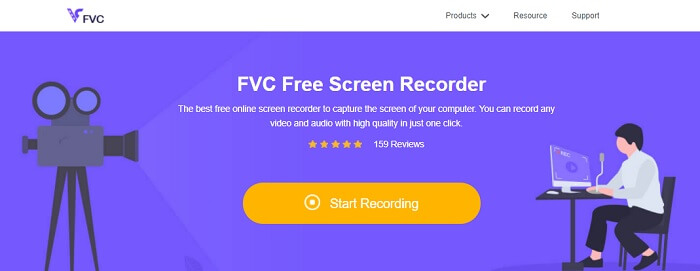
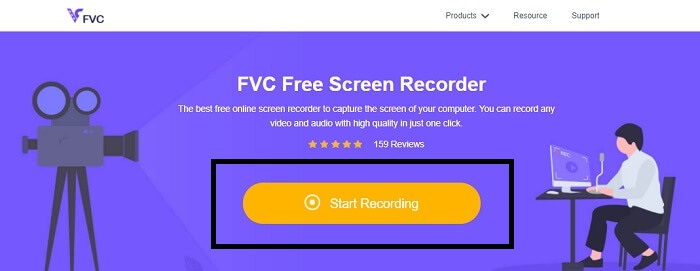
Passaggio 2. Avvia lo strumento facendo clic su Start Recording e procedi al passaggio successivo.
Passaggio 3. Nella barra degli strumenti, fai clic sul pulsante a forma di ingranaggio per modificare le impostazioni in base alle tue esigenze. Una volta nel menu delle preferenze, trova la voce Output e cambia il formato video come desideri. Fai clic su OK quando è tutto impostato.
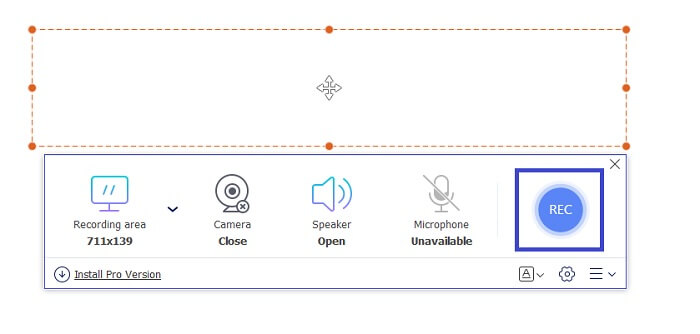
Passaggio 4. Nella barra degli strumenti flottante puoi ora regolare il rapporto del frame dello schermo. Inoltre, aggiungi la reazione del tuo volto attivando la Webcam. System Sound viene utilizzato per aggiungere il suono naturale del programma. Infine, aggiungi la tua voce attivando il Microfono. Per iniziare la registrazione FLV fai clic sul pulsante REC per avviare.
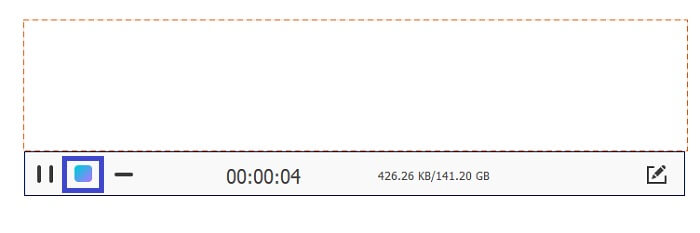
Passaggio 5. Per terminare la registrazione FLV, fai clic sul pulsante a cubo per fermare. Successivamente, fai clic su Salva e Avanti (Save and Next). Tutte le registrazioni effettuate si trovano nella History list.
Registratore FLV per Chrome - SCREEN.IO
Se non desideri scaricare file aggiuntivi nell'unità, puoi utilizzare questo registratore Chrome integrato. Questo registratore FLV per Chrome aiuta un sacco di persone in tutto il Web. Quindi, se sei un fan del risparmio di spazio sul tuo spazio di archiviazione, devi provare questo SCREEN.IO. Sebbene lo strumento non fornisca funzioni speciali simili a un altro registratore. Ma la capacità di registrazione è molto standard. Se confrontiamo un registratore Chrome e un registratore desktop, il desktop è il modo efficiente per eseguire la registrazione perché non ti dispiacerà se la connessione Internet è stata interrotta.
Registratore FLV per Windows - Lettore multimediale VLC
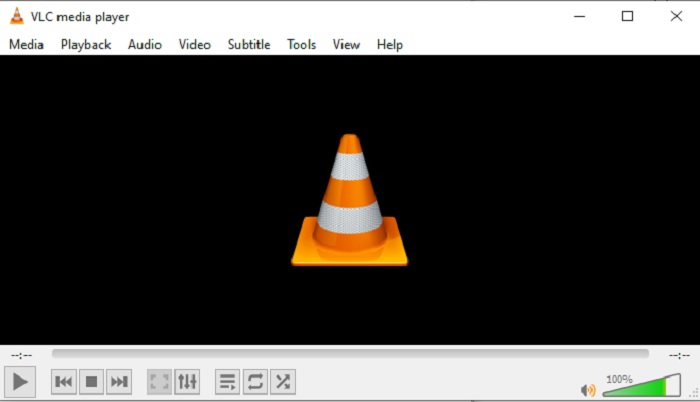
VLC Media Player non è noto solo come il miglior lettore multimediale in circolazione. Dispone anche di diverse funzioni come registrazione, conversione e altro ancora. Sebbene sia il miglior lettore multimediale, tutte queste funzioni aggiuntive non sono necessariamente le migliori. E in alcuni casi, alcuni formati video o audio non sono riproducibili perché i relativi codec sono proprietari. Per questo, puoi utilizzare invece l'alternativa a VLC Media Player, che supporta anche file con codec proprietari.
Registratore FLV per Mac - OBS Studio
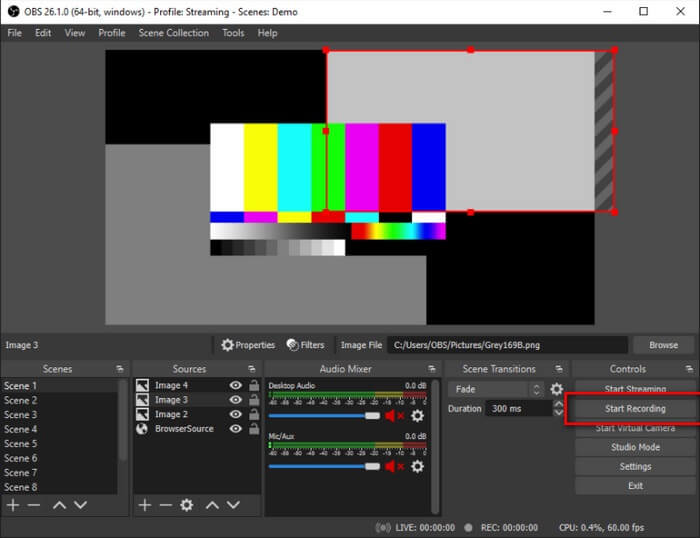
Forse pensi che ci siamo dimenticati degli utenti Mac. Questo registratore FLV per Mac è uno dei più potenti dell’elenco perché permette anche lo streaming. Nonostante le sue funzioni avanzate, lo strumento può risultare un po’ intimidatorio, soprattutto se sei alle prime armi con le registrazioni, perché quando lo apri l’interfaccia mostra davvero molte opzioni.
Parte 3. Domande frequenti sul videoregistratore FLV
File FLV, è sicuro scaricarlo sul mio PC?
In realtà, non è il file di cui stiamo parlando quando si tratta di sicurezza. I file FLV sono incorporati nei siti di condivisione video, quindi la tua domanda dovrebbe essere, come posso identificare se il video che sto scaricando da un sito non ha malware? Usa una protezione per il tuo PC. Ci sono tonnellate di difensori software e scanner che puoi trovare online. Ma il file stesso è sicuro. A meno che non inseriscano malware, è sicuro.
Quale programma può aprire i file FLV?
Esistono molti lettori multimediali, ma quello che ti consiglio è VLC Player. Questo lettore è versatile e può riprodurre quasi tutti i formati di file, sia non compressi che compressi. Fai clic qui per scoprire altri popolari lettori FLV.
Quali sono i vantaggi dei file FLV?
Il primo grande vantaggio di FLV è la sua capacità di produrre video di alta qualità in piccole dimensioni. Per natura, il file è flessibile. Come mai? Puoi facilmente convertire questo file in un formato diverso anche utilizzando convertitori online.
Parte 4. Grafico di confronto
| Caratteristiche | Registratore dello schermo FVC | Registratore dello schermo gratuito FVC | VLC Media Player | Studio OBS |
| Screen Recorder |  | | | |
| Registratore audio | | | | |
| Supporta FLV | | | | |
| Lettore multimediale |  | | | |
| Bit rate e frame rate regolabili | | | | |
Conclusione
Tutti gli strumenti elencati sono utili per registrare video FLV e produrre la migliore qualità video possibile. Inoltre, se non sei sicuro di quale strumento utilizzare, puoi fare riferimento alla tabella di confronto scritta. Ma tra i registratori FLV elencati. FVC Screen Recorder ha un vantaggio maggiore grazie alla sua funzione di blocco della finestra.
-
 Il registratore OGG più utile del 2021 [gratuito e online]
 Questo articolo parla dei migliori strumenti di registrazione OGG che ti aiutano a eseguire la registrazione audio OGG. Per aggiungere informazioni più dettagliate per l'utente continua a leggerlo.
-
 I 5 migliori software di registrazione M4B per PC e Mac [gratuito ea pagamento]
 La registrazione M4B è compressa con perdita di dati per il file audiolibro MPEG-4. In alcuni aspetti M4A e M4B sono quasi comuni ma presentano differenze. Per sapere di cosa si tratta leggi l'articolo.
-
 I 5 migliori strumenti di registrazione AMR disponibili per tutti i sistemi operativi
 Vuoi sapere cos'è un formato AMR e qual è il miglior registratore AMR che dovresti scegliere che fornirà una registrazione straordinaria.
