


 Video Converter Ultimate
 Screen Recorder
 Riparazione video
Scopri come registrare su Minecraft con i migliori strumenti di registrazione dello schermo
Tutti coloro che amano giocare al computer conoscono Minecraft. Grazie alla sua enorme popolarità, influenza già moltissimi streamer a trasmettere questo gioco. E la maggior parte di loro realizza delle clip epiche che li rendono famosi. Come il boat clutch di Dream: molti di noi ci hanno provato tantissime volte, ma hanno fallito. Dopo averci provato così spesso, finalmente ci riesci, ma non c’è nessuno a vedere il tuo clutch. Il modo migliore per condividere il tuo personale boat clutch in stile Dream è quindi registrarlo. Perciò, qui ti presentiamo i diversi strumenti che puoi usare per imparare come registrare su Minecraft. Continuando a leggere questo articolo scoprirai i migliori software di registrazione che puoi trovare sul web.

Parte 1. Come registrare Minecraft utilizzando uno strumento online
Registratore dello schermo gratuito FVC
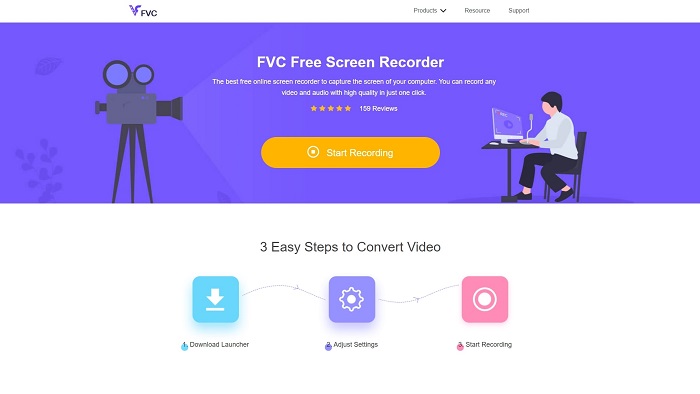
Vuoi imparare come registrare un video di Minecraft online? Allora prova a leggere e usare questo strumento. FVC Screen Recorder non ha costi nascosti. Inoltre, l’interfaccia dello strumento web è priva di pubblicità fastidiose o invadenti. Inoltre, qui puoi registrare senza limiti. Anche se lo strumento sembra già pronto per la registrazione dello schermo, la versione online non ha una modalità di registrazione per i giochi. Tuttavia puoi comunque usare questo strumento se hai una connessione internet disponibile. Quindi, per sapere come usare questo strumento è fondamentale seguire i passaggi indicati qui sotto.
Passaggio 1. Per accedere allo strumento, fai prima clic su questo link.
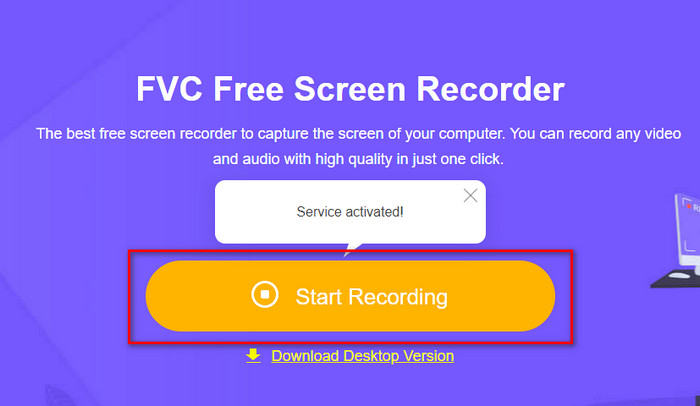
Passaggio 2. Premi Start Recording, quindi scarica il launcher se è la prima volta che lo usi e installalo. Clicca di nuovo su Start Recording per avviare questa volta lo strumento.
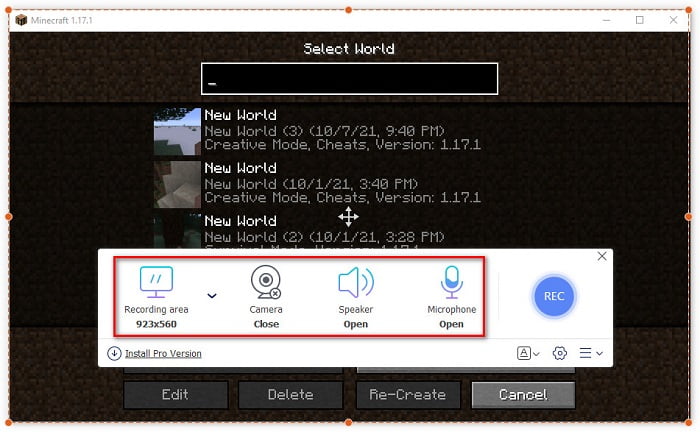
Passaggio 3. Regola il rapporto d’aspetto del tuo schermo, poi attiva la Camera per aggiungere la tua reazione, lo Speaker per aggiungere l’audio generato dal gioco e il Microphone per aggiungere la tua voce.
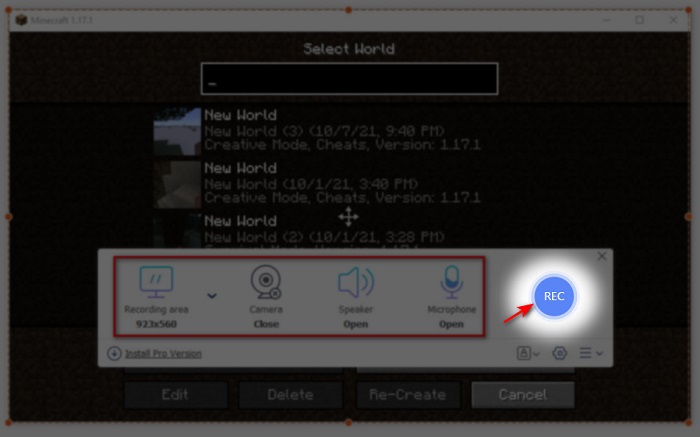
Passaggio 4. Poi fai clic sul pulsante REC per avviare la registrazione.
Passaggio 5. Per terminare la registrazione, fai clic sul pulsante a quadrato e clicca sul primo file nella Recording List per rivedere il clutch prima di inviarlo o caricarlo.
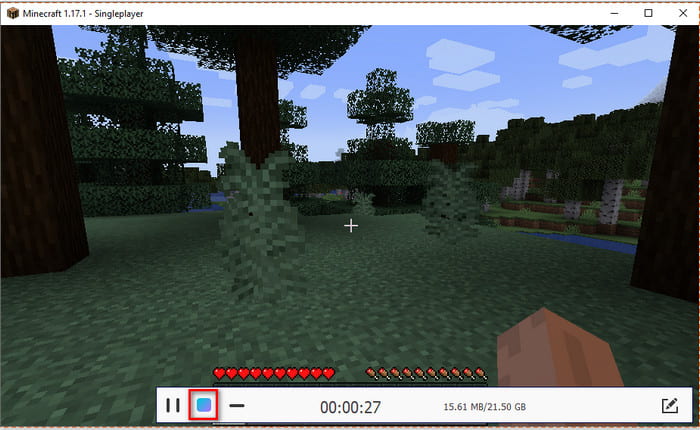
Parte 2. Come registrare Minecraft con i 2 dei migliori strumenti offline per registratori
1°. Registratore schermo FVC
Vuoi catturare ogni momento delle tue acrobazie su Minecraft? Allora FVC Screen Recorder è la soluzione migliore per te. Questo strumento è molto più valido rispetto alla sua versione online e ad OBS, se parliamo di prestazioni complessive e di interfaccia intuitiva. Il programma supporta la modalità Game Recorder che puoi usare per registrare le partite nel modo più rapido possibile. Inoltre, puoi impostare e modificare i tasti di scelta rapida per comandare lo strumento e semplificarne l’accesso. Puoi effettuare registrazioni ininterrotte anche se durano fino a 24/7. Quindi, per sapere come registrare Minecraft su Windows 10 o Mac, segui attentamente i passaggi qui sotto.
Passaggio 1. Scarica e poi installa il software sul tuo disco. Esegui una rapida configurazione del programma e fai clic su Fine per salvare le impostazioni.
Download gratuitoPer Windows 7 o versioni successiveDownload sicuro
Download gratuitoPer macOS 10.7 o versioni successiveDownload sicuro
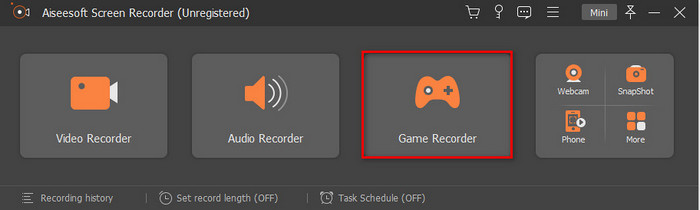
Passaggio 2. Clicca su Game Recorder e consenti al programma di essere eseguito come amministratore, quindi premi OK. Clicca di nuovo su Game Recorder per procedere.
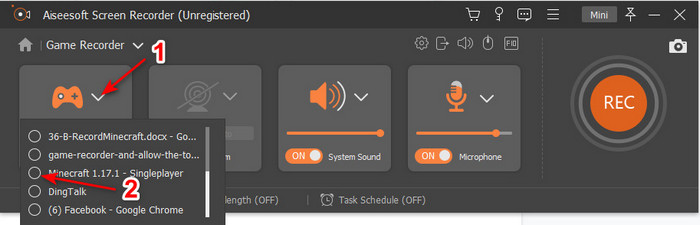
Passaggio 3. Avvia prima Minecraft e attendi che sia completamente caricato. Premi Select Game e seleziona Minecraft.
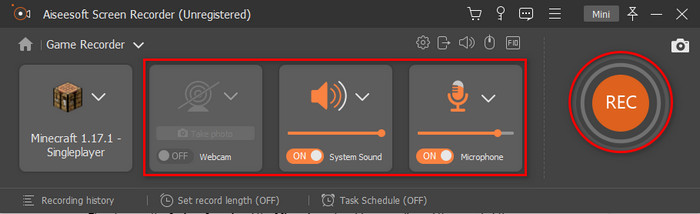
Passaggio 4. Prima di iniziare la registrazione, attiva la Webcam per aggiungere la tua reazione durante la registrazione. Poi attiva il System Sound e il Microphone per aggiungere il tuo audio e il suono del gioco. Fai clic sul pulsante REC per avviare la registrazione e il gioco verrà automaticamente mostrato sul tuo schermo. Ora puoi eseguire le acrobazie epiche che vuoi catturare.
Passaggio 5. Se vuoi terminare la registrazione fai clic sul pulsante a cubo per fermare. Seleziona Save e poi Next per procedere al salvataggio del video. La schermata History verrà mostrata e potrai cliccare sul primo file per rivedere le acrobazie epiche che hai realizzato e condividerle in seguito.
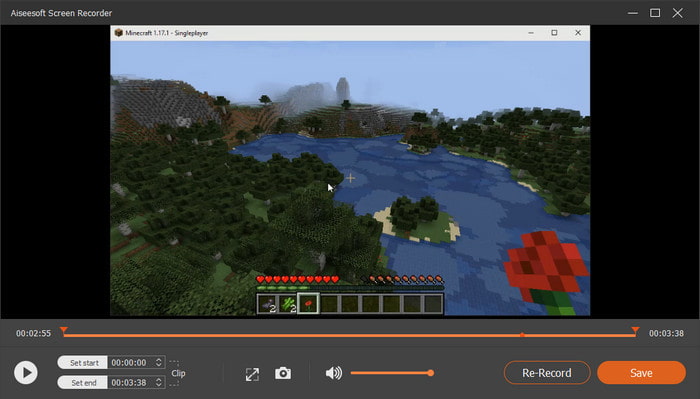
2°. OB
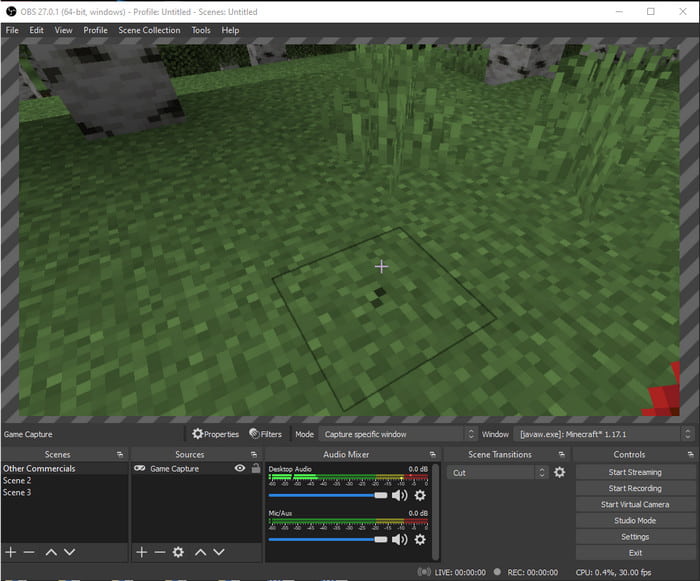
OBS è noto per essere uno degli strumenti più complicati utilizzati da molti utenti. Tuttavia offre sempre un’ottima qualità, anche se è difficile da usare. Quindi, se vuoi imparare come registrare Minecraft con OBS assicurati di avere molto tempo libero. Perché questo strumento è molto più complicato di quanto sembri; se non hai idea di come fare, allora segui i passaggi qui sotto.
Passaggio 1. Scarica prima OBS sul tuo disco.
Passaggio 2. Poi apri prima Minecraft, vai nel pannello Source e clicca su Game Capture. Cambia la modalità in Capture Specific Window, poi fai clic sul pulsante drop-down delle finestre e scegli il file con il nome Minecraft. Quindi clicca su OK per procedere.
Passaggio 3. Clicca su Start Recording per iniziare la registrazione. E per terminarla, clicca su Stop Recording e la registrazione dello schermo verrà automaticamente salvata nella tua memoria.
Parte 3. Domande frequenti sulla registrazione di Minecraft
Quali sono i giochi popolari su PC in questo momento?
Ci sono molti giochi popolari su PC, ma questi sono i primi 5 giochi che sono sempre in cima a ogni recensione. Il primo è Minecraft pubblicato da Mojang nel 2011, il prossimo nell'elenco è League of Legend o noto come LOL creato dai Riot Games nel 2009, Counter Strike Global sviluppato da Valve Corporation nel 2012, Grand Theft Auto Five pubblicato da Rockstar Games e sviluppato da Rockstar North nel 2013, e infine è il Valorant creato dai Riot Games nel 2020.
Bandicam è lo strumento migliore per registrare?
Molte persone hanno opinioni diverse su Bandicam, ma vediamo e capiamo se questo strumento merita di essere usato. Per saperne di più su Bandicam clicca su questo link per andare al nuovo articolo dedicato a Bandicam.
Come caricare un video di file di grandi dimensioni su YouTube?
Dato che YouTube è ben noto come piattaforma di condivisione video, molti utenti cercano di caricare i propri contenuti. Tuttavia, quando carichiamo un video di grandi dimensioni, l’upload richiede molto tempo. Perciò, il modo migliore per pubblicarlo facilmente è comprimere il video senza perderne la qualità. Scopri come comprimere il file video e pubblicarlo su YouTube facilmente.
Conclusione
Per concludere questa spiegazione, ora per te è più semplice capire come registrare Minecraft su PC. Forse a questo punto hai già scelto il tuo registratore dello schermo, ma in aggiunta FVC Screen Recorder è la scelta giusta. Perché puoi usarlo e gestirlo facilmente anche se sei un principiante. Imparare a usare questo screen recorder senza rivali non è affatto difficile. Quindi, prima di iniziare a registrare il tuo Dream boat clutch assicurati di aver già scaricato questo software.
Download gratuitoPer Windows 7 o versioni successiveDownload sicuro
Download gratuitoPer macOS 10.7 o versioni successiveDownload sicuro
-
 Miglior registratore schermo XviD per principianti nel 2021 [online e offline]
 XviD è noto per la compressione di file video. È un software open source che esegue il formato ISO MPEG-4. Riprendi a leggere e ad approfondire i dettagli.
-
 [Go-To-Guide] Registra Blu-ray su OBS Studio e strumenti alternativi
 Scopri come registrare Blu-ray su OBS Studio e altri sostituti con questi utili semplici passaggi e suggerimenti. Continua a leggere e tuffati nei dettagli.
-
 Processo per copiare e registrare DVD con VLC per digitalizzare il formato riproducibile
 VLC supporta numerosi formati di file compressi audio-video, inclusa la registrazione in DVD. Continua a girare la palla per ulteriori discussioni e dettagli fino alla fine.
