


 Video Converter Ultimate
 Screen Recorder
 Riparazione video
 Download sicuro
Come eseguire lo screenshot di Google Maps: pianifica, esegui lo screenshot ed esplora
Google Maps si distingue come un faro di eccellenza nella navigazione. Che tu stia pianificando il tuo prossimo viaggio in auto, esplorando un nuovo sentiero escursionistico o semplicemente muovendoti nella giungla urbana, Google Maps è diventato uno strumento indispensabile per viaggiatori ed esploratori. Ma cosa succede quando trovi il percorso perfetto o ti imbatti in un angolo nascosto? Catturare questi momenti è essenziale, ed è qui che entra in gioco il saper fare uno screenshot di Google Maps. In questo articolo ti mostreremo 3 modi per pianificare efficacemente il tuo viaggio, ottenere gli screenshot fondamentali tramite strumenti software e dispositivi mobili e partire per un’avventura di esplorazione senza intoppi. Cosa stai aspettando? Salta a bordo e continua a leggere per sbloccare tutto il potenziale di Google Maps e della cattura dello schermo insieme.

Parte 1. Come acquisire screenshot di Google Maps su Windows/Mac con Screen Recorder
Come si fa uno screenshot di Google Maps? Per catturare uno screenshot di Google Maps puoi usare un software come FVC picked Screen Recorder. Questo strumento è facile da usare e ti permette di catturare immagini di qualsiasi cosa sia visualizzata sullo schermo. È disponibile gratuitamente sia per computer Mac che Windows, quindi è un’ottima scelta per catturare schermate di Google Maps e altre attività.
Passaggio 1. Installa questo strumento per screenshot di Google Maps visitando il sito ufficiale e scaricando il software, se non lo hai già fatto.
Download gratuitoPer Windows 7 o versioni successiveDownload sicuro
Download gratuitoPer macOS 10.7 o versioni successiveDownload sicuro
Passaggio 2. Apri il software sul tuo computer, quindi seleziona Snapshot nell’interfaccia principale per catturare l’immagine di Google Maps che desideri.
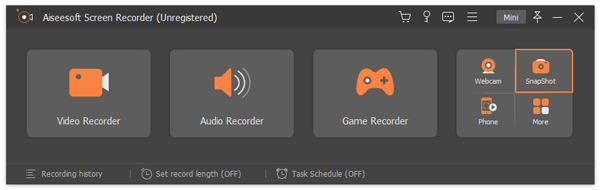
Passaggio 3. Per selezionare l’area che vuoi catturare, sposta il mouse sull’area interessata e fai clic con il tasto sinistro.
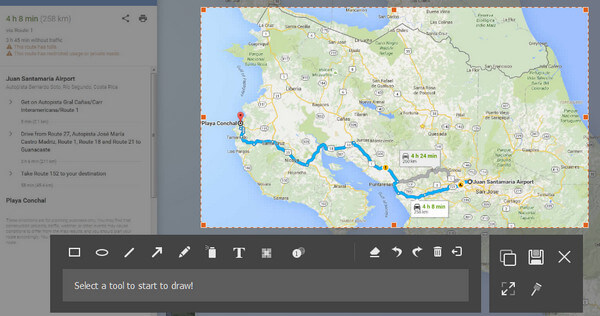
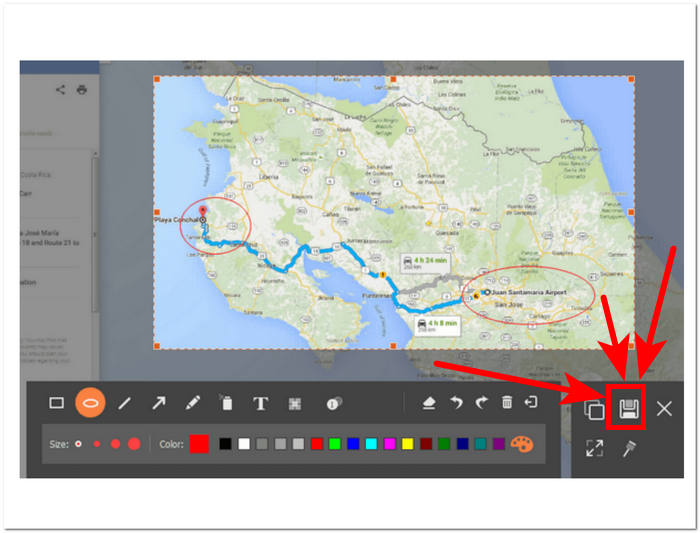
Passaggio 4. Puoi modificare lo screenshot aggiungendo/disegnando forme e testo per evidenziare o mettere in risalto le posizioni e, una volta soddisfatto del risultato, fai clic sul pulsante Save nell’angolo in basso a destra dello strumento.
Questo strumento di screenshot è un software altamente versatile per acquisire screenshot. Non solo consente agli utenti di acquisire screenshot, ma anche di registrare schermate, audio e giochi. È uno strumento utile che può essere massimizzato per varie attività di acquisizione dello schermo oltre alla semplice acquisizione di screenshot di Google Maps.
Parte 2. Come eseguire lo screenshot di Google Maps con lo strumento di cattura e le scorciatoie
Per acquisire uno screenshot di Google Maps, puoi utilizzare lo strumento di cattura e le scorciatoie predefiniti del tuo computer. Ciò ti consente di acquisire facilmente contenuti sullo schermo senza dover utilizzare alcun software aggiuntivo. Tuttavia, è importante notare che questo metodo non fornisce alcuna funzionalità di modifica, quindi non potrai aggiungere evidenziazioni o annotazioni al tuo screenshot e, in questo caso, a Google Maps.
finestre
Passaggio 1. Apri Google Maps dal browser sul tuo computer e trova la posizione o il percorso che vuoi catturare.
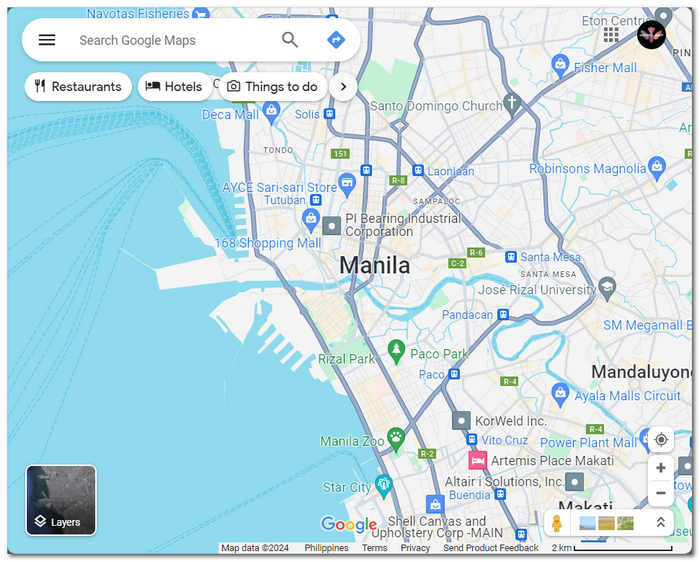
Passaggio 2. Apri lo Strumento di cattura (Snipping Tool) cercandolo nel menu Start oppure premendo contemporaneamente i tasti Tasto logo Windows + Shift + S sulla tastiera.
Passaggio 3. Scegli una delle quattro modalità disponibili: Modalità rettangolare, Modalità a mano libera, Modalità finestra o Modalità schermo intero.
Se vuoi fare uno screenshot a scorrimento su Windows, dai un’occhiata qui.
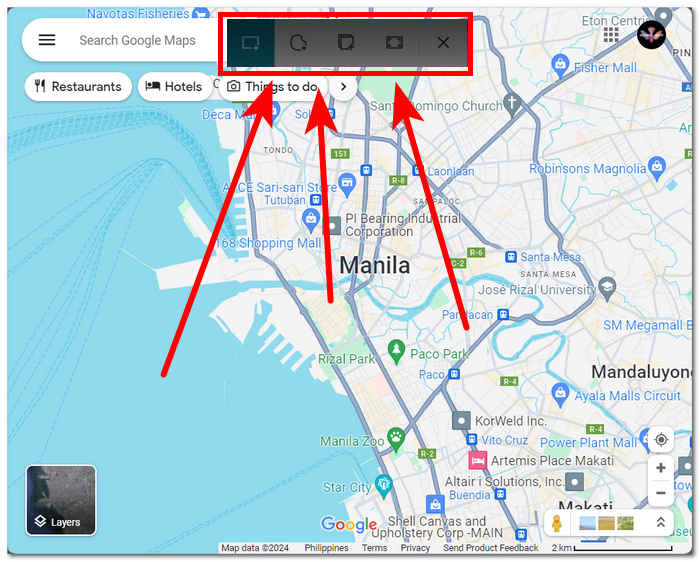
Passaggio 4. Una volta catturato lo screenshot, puoi salvarlo oppure incollarlo in qualsiasi email o app di messaggistica premendo Ctrl + V.
Mac
Passaggio 1. Apri Google Maps in Safari e vai alla mappa desiderata.
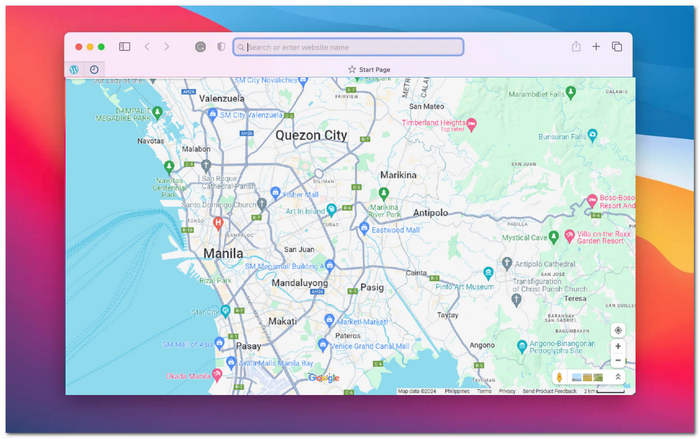
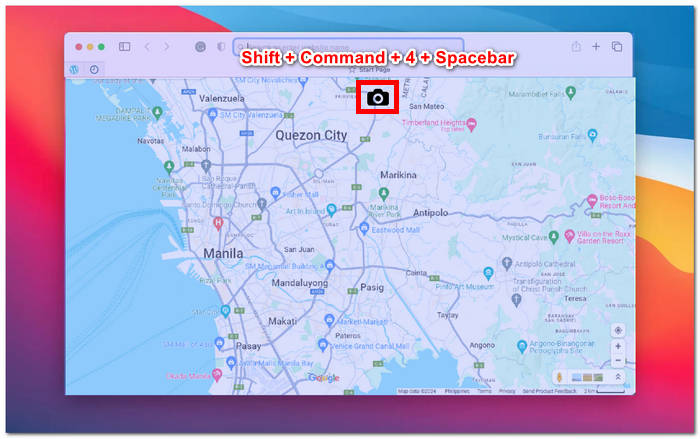
Passaggio 2. Tieni premuti contemporaneamente i tasti Shift + Command + 4 + Barra spaziatrice. Il cursore si trasformerà automaticamente in un’icona a forma di fotocamera.
Passaggio 3. Fai clic sulla finestra di Safari per catturare la mappa di Google desiderata.
Passaggio 4. Quando compare la miniatura dello screenshot sullo schermo, cliccaci sopra per modificare e salvare l’immagine nella memoria locale. È semplicissimo!
Per fare uno screenshot a scorrimento su Mac di Google Maps, guarda qui.
Quando acquisisci screenshot di Google Maps, potresti aver utilizzato gli strumenti di cattura predefiniti forniti dal tuo computer, che possono farti risparmiare tempo ed evitare la necessità di scaricare software o utilizzare strumenti di terze parti. Tuttavia, questi strumenti di cattura predefiniti non dispongono di funzionalità di modifica. Se desideri modificare il tuo screenshot, dovrai scaricare software aggiuntivo a tale scopo o, meglio, scaricare strumenti software che offrono sia l'acquisizione di screenshot che la modifica in un'unica attività come Screen Recorder consigliato da FVC.
Parte 3. Come acquisire screenshot di Google Maps su iPhone/Android
Catturare uno screenshot di Google Map su un dispositivo Android o iPhone è un modo pratico per salvare una visualizzazione della mappa o indicazioni stradali per riferimento futuro. Per fare ciò, è necessario seguire alcuni semplici passaggi riportati in questo articolo. Che tu utilizzi un Android o un iPhone, fare uno screenshot di Google Maps è un gioco da ragazzi con la giusta guida.
Android
Passaggio 1. Sul tuo dispositivo Android apri l’app Google Map.
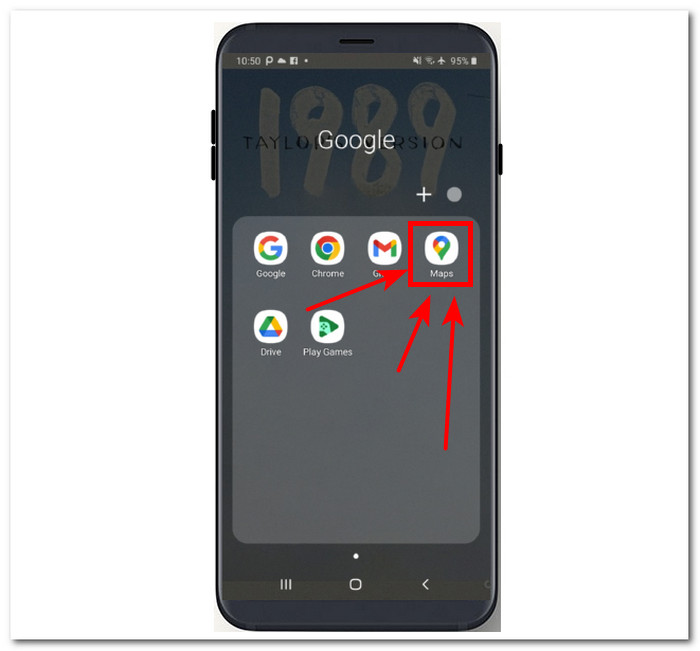
Passaggio 2. Vai alla posizione sulla mappa che vuoi catturare.
Passaggio 3. Per catturare lo schermo, premi i tasti Volume Giù e Accensione.
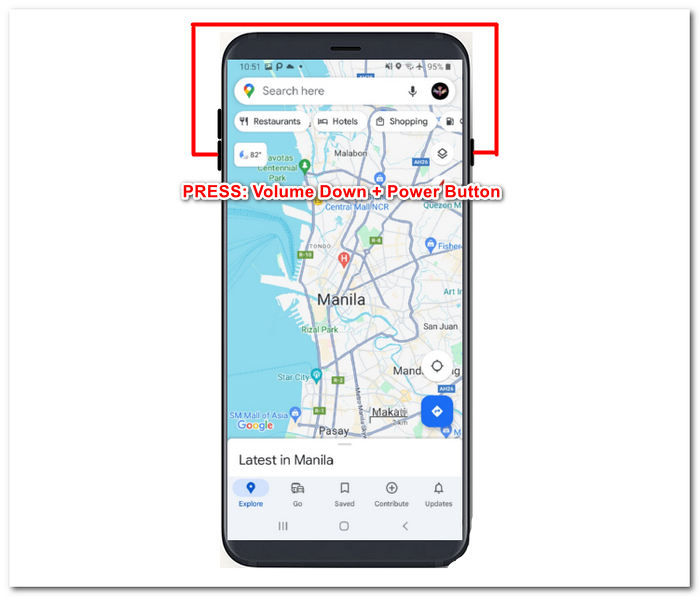
Passaggio 4. Lo screenshot di Google Map verrà salvato automaticamente nella galleria del tuo dispositivo, dove potrai visualizzarlo e condividerlo secondo le tue esigenze.
i phone
Passaggio 1. Sul tuo iPhone, apri l’app Google Map.
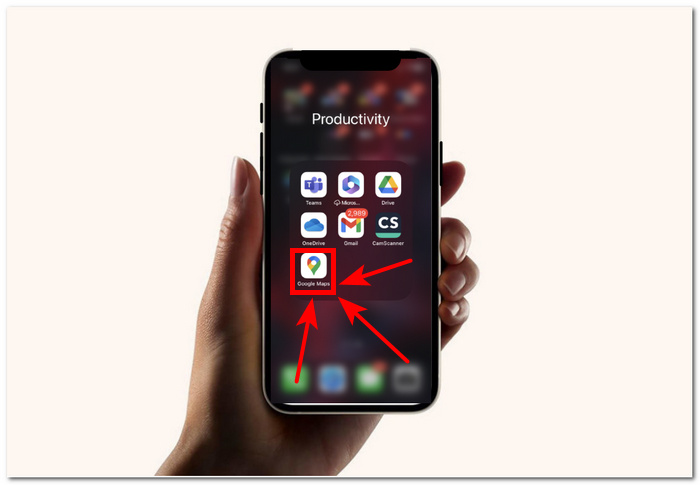
Passaggio 2. Vai alla posizione che vuoi catturare.
Passaggio 3. Premi contemporaneamente il tasto Volume Su + il tasto Accensione per fare uno screenshot.
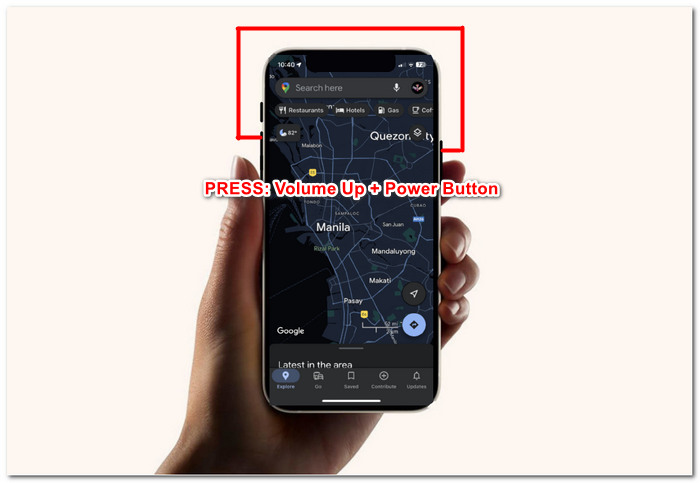
Passaggio 4. Lo screenshot viene salvato automaticamente come JPG nell’app Foto o Galleria.
Per catturare uno screenshot di Google Maps, il metodo più rapido e diretto è utilizzare il tuo dispositivo mobile. Questo approccio ti consente di acquisire rapidamente uno screenshot, il che è vantaggioso, soprattutto per gli utenti che sono sempre sui propri dispositivi mobili e preferiscono questo metodo rispetto all'utilizzo di un computer.
Parte 4. Domande frequenti su come eseguire lo screenshot di Google Maps
Posso effettuare uno screenshot di Google Maps sul mio computer?
Sì, esistono diversi modi per acquisire screenshot di Google Maps sul tuo computer. Puoi utilizzare gli strumenti di screenshot predefiniti disponibili sul tuo dispositivo o optare per software di terze parti. Questi metodi sono facili da usare e su cui si può fare affidamento per acquisire rapidamente l'immagine della mappa desiderata sul computer.
È legale fare screenshot su Google Maps?
Quando si acquisiscono screenshot di Google Maps per uso personale, generalmente è legale. Tuttavia, è importante notare che l'utilizzo di questi screenshot per scopi commerciali o la loro distribuzione senza autorizzazione potrebbe violare i termini di servizio di Google o le leggi sul copyright.
Posso catturare un'area specifica di Google Maps?
Sì, molti strumenti di screenshot offrono un'opzione per catturare una particolare regione dello schermo, il che può essere molto utile quando devi catturare un'area specifica, come su Google Maps. Questa funzione ti consente di acquisire uno screenshot solo della parte dello schermo che desideri catturare anziché dell'intero schermo, facilitando la concentrazione sui dettagli importanti.
Esistono limitazioni o restrizioni durante lo screenshot di Google Maps?
Sebbene in genere sia possibile acquisire Google Maps per uso personale, tieni presente i termini di servizio di Google. Evita di utilizzare screenshot per scopi commerciali senza la dovuta autorizzazione e rispetta eventuali restrizioni sul copyright o sull'utilizzo.
Posso acquisire immagini di Street View da Google Maps?
Google Maps non dispone di un'opzione diretta per acquisire immagini Street View. Ma per ottenere uno screenshot di alta qualità di Google Maps, puoi utilizzare un software di registrazione dello schermo per registrare la vista stradale mentre la navighi.
Conclusione
Fare screenshot a Google Maps è un ottimo modo per viaggiatori, avventurieri e utenti comuni di esplorare il mondo senza bisogno di avere accesso a Internet. È diventata una conoscenza di base quando si tratta di navigazione ed esplorazione, offrendo mappe dettagliate, indicazioni stradali e aggiornamenti sul traffico in tempo reale. Esistono vari metodi per catturare screenshot in HD di Google Maps, sia che tu stia utilizzando un computer sia un dispositivo mobile. Puoi usare software specializzati come FVC picked Screen Recorder oppure gli strumenti e le scorciatoie integrate su dispositivi Windows, Mac, Android e iPhone. Questo rende catturare la vista perfetta della mappa più semplice che mai.
-
 Come acquisire schermate scorrevoli su Firefox senza sforzo
 Impara a scorrere gli screenshot su Firefox per acquisire istantaneamente intere pagine Web. Segui il nostro semplice tutorial passo passo per imparare come utilizzare questa funzione.
-
 Guida passo passo agli screenshot in VLC Media Player
 Impara i semplici passaggi per acquisire screenshot VLC senza sforzo. Segui la nostra guida per acquisire istantanee facili e veloci tramite i tasti di scelta rapida e le impostazioni del menu.
-
 Come eseguire screenshot in Windows Media Player in modo efficiente
 Scopri i metodi più semplici per acquisire screenshot in Windows Media Player senza sforzo. Migliora la tua esperienza di acquisizione dello schermo con la nostra guida completa.
