


 Video Converter Ultimate
 Screen Recorder
 Riparazione video
 Download sicuro
Come importare file HEIC in Lightroom su Windows e Mac in modo efficace
Supponiamo che tu voglia migliorare un’immagine HEIC o organizzarla. In tal caso, puoi importare HEIC in Lightroom e occuparti con facilità di tutta la sistemazione e dell’editing. Puoi caricare il file qui senza dover scaricare un codec aggiuntivo per visualizzare o modificare i file HEIC con questo software. Quindi, se ti serve una guida che ti insegni come importare i file HEIC in questo programma, puoi leggere e seguire le procedure per Windows e Mac che abbiamo incluso in questo articolo.
Senza ulteriori indugi, leggiamo i seguenti dettagli per sapere come farlo e se Lightroom non è riuscito a importare HEIC, c'è un modo per aggiungerlo anche qui. Ma prima di ogni altra cosa, devi scaricare il software sul tuo Windows o Mac prima di leggere i seguenti dettagli.

Parte 1. Come importare HEIC in Lightroom su Windows 10/11 o aggiornato
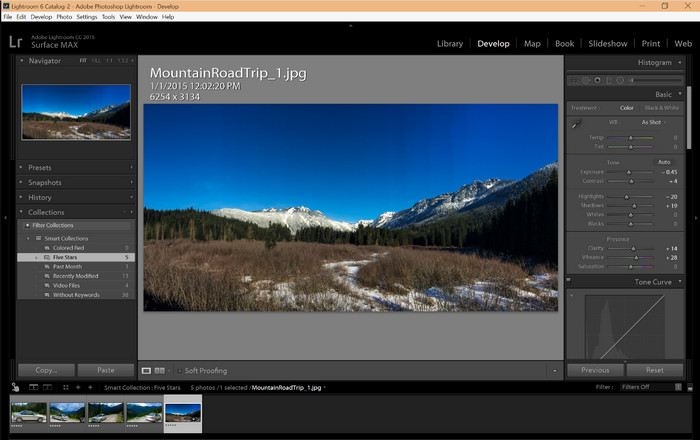
Lightroom supporta una versione aggiornata di Windows; questa parte è per te se scarichi il software sul tuo sistema operativo Windows. Non dovresti preoccuparti perché Lightroom può aprire file HEIC senza sforzo seguendo il tutorial qui sotto.
Passaggio 1. Scarica il software su Windows 10/11, quindi installalo e aprilo per procedere.
Passaggio 2. Quando il software è già in esecuzione sul tuo sistema, fai clic sul pulsante +, premi Browse e seleziona il file HEIC che vuoi importare qui.
Passaggio 3. Dopo averli selezionati, potrai visualizzare i file HEIC usando Lightroom su Windows 10/11.
Parte 2. Come aprire HEIC Photo in Lightroom sul tuo Mac 10.13 o versioni successive
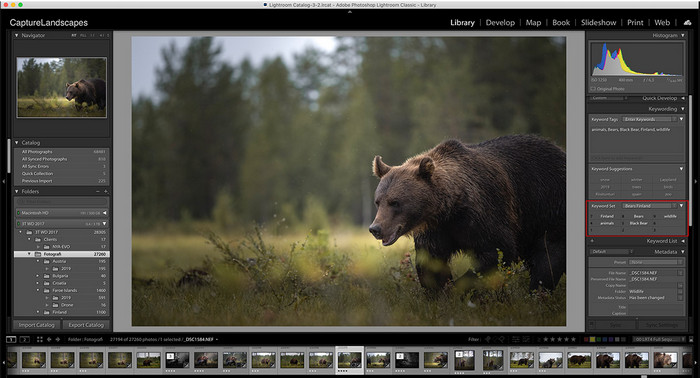
Anche senza Lightroom, puoi visualizzare facilmente il file HEIC, soprattutto se la versione del tuo Mac è High Sierra 10.13 o successiva in Anteprima. Sebbene Anteprima supporti le funzionalità di modifica, non è sufficiente utilizzarla per modifiche complicate, come ciò che Lightroom può fornirti. Inoltre, non dovrai preoccuparti perché Lightroom supporta i file HEIC per modificarli o organizzarli sul tuo Mac.
Passaggio 1. Installa il software su macOS 10.13 o versioni successive; se la versione del tuo sistema operativo è precedente, prevedi che il programma non si aprirà. Dopo aver scaricato Lightroom sul desktop, aprilo.
Passaggio 2. Nella parte superiore troverai diversi menu e il nome Lightroom in alto a sinistra, il che significa che il software è già aperto. Premi il menu File e vai su Add Photos, oppure usa una scorciatoia da tastiera premendo Command + Shift + I.
Passaggio 3. Sullo schermo verrà visualizzata una cartella: seleziona l’immagine che vuoi importare e fai clic su Review for Import.
Parte 3. Lightroom non è riuscito a importare il file HEIC | La migliore soluzione per risolvere il problema HEIC non supportato
Molti utenti hanno avuto problemi a caricare il file HEIC a causa della compatibilità con software come Lightroom su Windows e Mac; anche con l'aiuto dei metodi di cui sopra, è ancora impossibile. Ma non c'è bisogno di sentirsi tristi perché c'è un modo per importare il tuo file HEIC su Lightroom convertendo HEIC in JPG con l'aiuto del miglior strumento sul web.
FVC Free HEIC to JPG Converter è la soluzione che devi usare per convertire i file HEIC su Windows e Mac senza dover scaricare alcun software. Uno strumento web come questo può trasformare un formato non supportato in uno standard, come JPEG. In questo modo puoi caricare l’immagine in Lightroom senza imbatterni in problemi di formato non supportato. Oltre a convertire HEIC in JPG, puoi anche caricare più immagini HEIC e convertirle tutte contemporaneamente, grazie al supporto per la conversione in batch. Straordinario, vero? Vuoi sapere cosa ci colpisce ancora di più? Puoi eseguire conversioni veloci gratuitamente. Se vuoi risolvere il problema di non supporto che riscontri con i file HEIC, segui i passaggi indicati di seguito per sapere come convertire il formato.
Semplici passaggi su come modificare il formato HEIC in JPG utilizzando uno strumento Web:
Passaggio 1. Apri FVC Free HEIC to JPG Converter: cliccando su questo link potrai aprire il sito principale del convertitore nel tuo motore di ricerca preferito. Non devi preoccuparti, perché è sicuro da usare e non ci sono pubblicità fastidiose sull’interfaccia web.
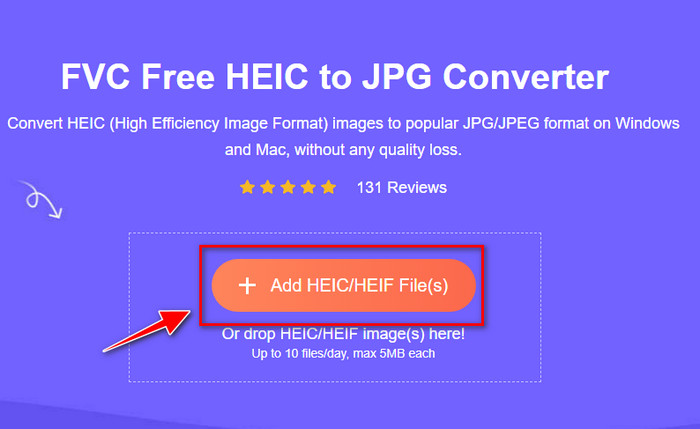
Passaggio 2. Fai clic su Add HEIC/HEIF Files per caricare qui l’immagine HEIC che Lightroom non riesce ad aprire. In alternativa, puoi trascinare e rilasciare il file qui invece di selezionarlo dalla cartella dei file.
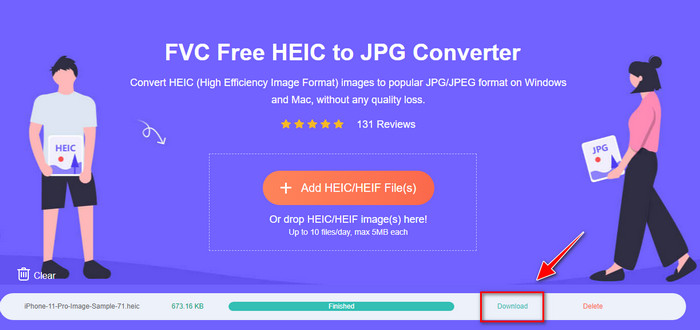
Passaggio 3. Quando la barra di avanzamento è completa, apparirà un pulsante Download; cliccaci per salvare sul desktop il file HEIC appena convertito. Dopodiché, potrai importare il file in Lightroom senza che compaia più una finestra di dialogo che segnala formato non supportato o file danneggiato.
Parte 4. Domande frequenti sull'importazione di HEIC in Lightroom
Ci sono limitazioni all'importazione di file HEIC su Lightroom?
Fino a questo punto, puoi importare file HEIC su Lightroom quanti ne vuoi. Non ha alcuna limitazione sul caricamento di questo tipo di formato su Lightroom.
Lightroom è gratuito su Windows e Mac?
Sfortunatamente, Lightroom su Windows e Mac non è gratuito, ma puoi scaricarlo gratuitamente su Windows e Mac. Sebbene il software non sia gratuito, puoi sfruttare la versione di prova gratuita che supporta per 7 giorni. Se ritieni di aver bisogno del software per molto tempo, puoi abbonarti dopo il periodo di prova.
L'esportazione di un file HEIC su Lightroom lascerà una filigrana?
Per fortuna, Lightroom non aggiunge una filigrana all’immagine che hai caricato. Tuttavia, puoi aggiungere una filigrana se lo desideri. Quindi, se intendi pubblicare la foto su internet, ti consigliamo di aggiungere una filigrana in modo che sia protetta dalle persone che potrebbero cercare di rubarla.
Quale è meglio per l'editing delle immagini? Photoshop o Lightroom?
Dipende dalle tue richieste; con l'aiuto dell'editor Adobe Photoshop e Lightroom, puoi facilmente migliorare l'aspetto della tua immagine. Supponiamo di volere un editor di immagini facile da gestire. In tal caso, Lightroom è una scelta che devi scegliere perché è il miglior editor di immagini per migliorare l'immagine che hai. Ma se vuoi apportare modifiche più dettagliate alle immagini, Photoshop è il tuo editor che si adatta alle esigenze di ogni editor professionista.
Conclusione
Con l'aiuto di Lightroom, puoi facilmente modificare l'immagine che hai o organizzarla di conseguenza per farla sembrare ordinata. Quindi, se vuoi importare il file HEIC su Lightroom, puoi seguire i passaggi che aggiungiamo sia che tu sia un utente Windows o Mac. Ma se riscontri problemi durante l'importazione del file HEIC, leggi la parte tre mentre lo risolviamo per renderlo compatibile con Lightroom. Ora puoi procedere con la modifica. Ci auguriamo che questo articolo ti dia un'idea di come importare il file; se hai altri suggerimenti o consigli, puoi lasciarci un messaggio.
-
 Convertitore HEIC iMazing | Funzioni, pro e contro e come usarlo
 Questo articolo esaminerà l'abilità di iMazing HEIC Converter e le sue alternative, quindi se vuoi saperne di più leggilo con cautela
-
 3 modi più semplici per convertire HEIC in JPG su iPhone come un esperto
 Non hai idea di come cambiare HEIC in JPG su iPhone? Se sei uno degli utenti che hanno un problema con HEIC, leggi questo.
-
 Perché le foto del mio iPhone sono in formato HEIC [Motivi e come risolvere]
 Vuoi sapere perché le foto del mio iPhone sono in formato HEIC? Questo articolo fornisce prove credibili su ciò che rende HEIC il migliore.
