


 Video Converter Ultimate
 Screen Recorder
 Riparazione video
 Download sicuro
Procedure dettagliate per convertire i file AVI in formato M4V
Il formato contenitore multimediale AVI, che sta per Audio Video Interleaved, è una funzionalità del software video di Windows. Consente la riproduzione simultanea di dati audio e video combinati in un unico file. Grazie alle sue capacità uniche, tra cui il controllo sincronizzato e la visualizzazione in tempo reale, AVI è rapidamente diventato uno dei formati video più utilizzati. Tuttavia, se vuoi riprodurre il tuo video su Mac, devi convertire AVI in M4V, perché M4V è un formato Apple che può essere riprodotto su iTunes, Apple QuickTime Player e dispositivi iOS. Può capitare di voler convertire file .avi su Mac in un formato universale come M4V. In questo caso, si consiglia di convertire AVI in M4V per garantire il corretto funzionamento su macOS. Ti mostreremo i metodi migliori per convertire AVI in M4V utilizzando applicazioni online e offline.

Parte 1: Introduzione ad AVI e M4V
| AVI | M4V | |
| Nome del file | Interleave audio video | Video MPEG-4 |
| Estensione del file | .avi | .m4v |
| Descrizione | Il formato di file AVI è uno dei contenitori multimediali più popolari mai creati. L'acronimo AVI, che sta per audio video interleaved, è stato inizialmente reso disponibile al pubblico da Microsoft nel 1992 come componente del loro framework multimediale, "video per Windows". Un file AVI con l'estensione del nome file .avi può avere contenuti video e audio sincronizzati perché è un formato contenitore. Pertanto, gli autori possono modificare e codificare sequenze audio-video o sequenze video utilizzando lo standard. | Apple ha creato l'estensione del file M4V, che è notevolmente simile all'estensione del file MP4, per il contenuto dell'iTunes Store. I dispositivi Apple sono gli unici in grado di riprodurre file M4V. Per riprodurre su dispositivi Apple, altri formati video come MP4 e MOV possono essere convertiti in M4V. La distinzione principale tra i formati di file M4V e MP4 è che il primo supporta la protezione DRM-Copyright, che vieta la violazione del copyright di violazione dei contenuti multimediali. Il computer deve concedere l'autorizzazione accedendo all'account iTunes per acquistare il file multimediale per riprodurre un file M4V protetto da DRM. Tuttavia, se i file non sono protetti da DRM, l'utente può semplicemente rinominare l'estensione del file M4V in MP4 per renderlo compatibile con dispositivi non Apple. |
| Sviluppato da | Microsoft | La società Apple. |
| Programmi associati | VLC Media Player Lettore Apple Quick Time Adobe Premiere Pro 2020 Windows Media Player | KMPlayer Lettore multimediale classico Riproduttore Zoom \Lettore multimediale VLC |
| Categoria file | video | video |
| Tipo MIME | video/x-video | video/x-m4v |
Parte 2: Il modo migliore per convertire AVI in M4V
Vuoi convertire AVI in M4V gratuitamente? Puoi usare FVC Free Video Converter Online. Questo strumento può convertire facilmente il tuo file AVI in formato M4V. Inoltre, supporta molti altri formati video, come FLV, MP4, MOV, WMA e altri. Inoltre, se prevedi di convertire più file AVI in diversi formati, puoi utilizzare questa applicazione perché offre un processo di conversione batch. Puoi anche modificare i tuoi video prima della conversione, ad esempio cambiando frame rate, risoluzione e bitrate. Inoltre, FVC Free Video Converter Online può convertire file audio come MP3, AAC, AC3, FLAC, ecc.
Caratteristiche
◆ Converti numerosi formati di file video, come M4V, AVI, MP4, MOV, VOB, FLV, WMV, ecc.
◆ Può modificare la risoluzione, il bit rate e il frame rate del video.
◆ Converti file audio come MP3, AAC, AC3, FLAC, ecc.
Segui le semplici guide qui sotto per convertire facilmente AVI in M4V.
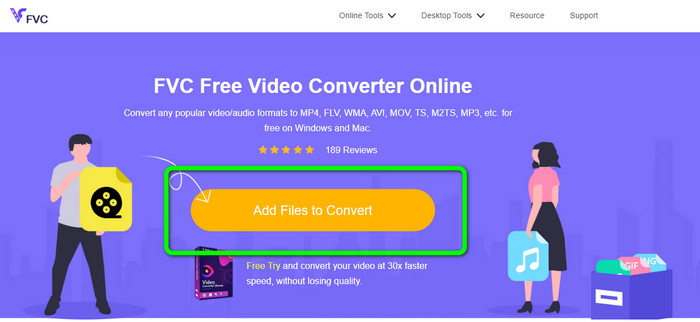
Passaggio 1: Per prima cosa, apri il browser e visita il sito web di FVC Free Video Converter Online. Premi il pulsante Add Files to Convert per caricare il tuo file AVI.
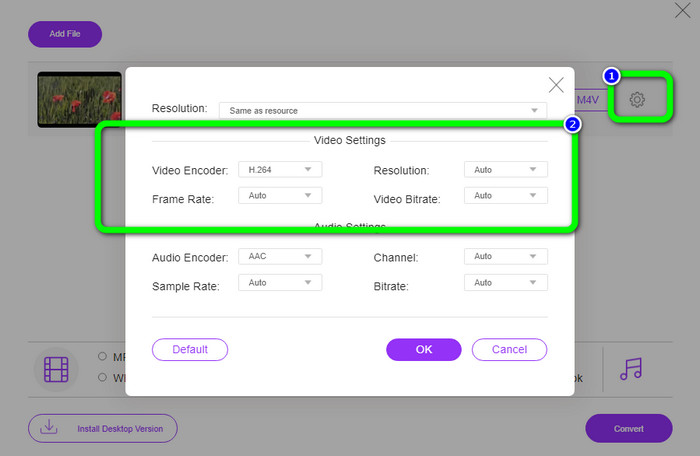
Passaggio 2: Se desideri modificare la risoluzione, il frame rate e il bitrate del tuo video, fai clic sull’icona Impostazioni sulla parte sinistra dell’interfaccia. Quando hai terminato le modifiche, premi OK.
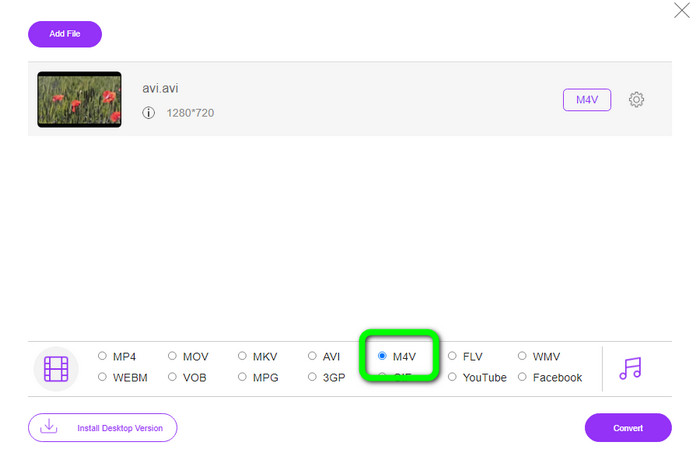
Passaggio 3: Quindi, nella parte inferiore dell’interfaccia, seleziona il file M4V come formato di output.
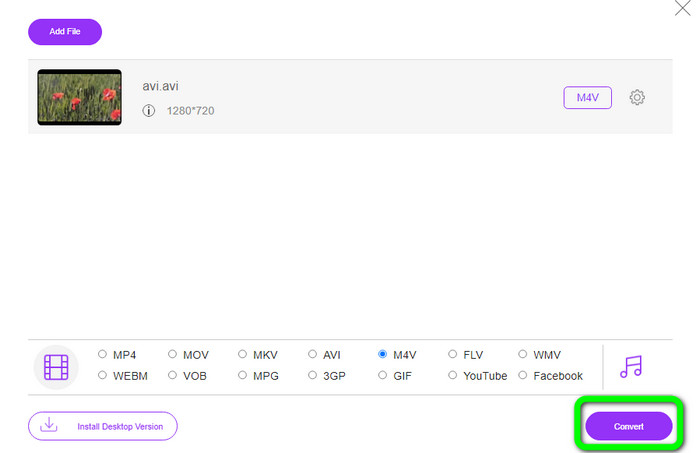
Passaggio 4: Infine, per salvare il tuo file video, fai clic sul pulsante Convert. Attendi il processo di conversione e scarica il risultato finale.
Parte 3: Metodo semplice per convertire AVI in M4V su Windows e Mac
Un altro eccellente convertitore che puoi utilizzare è FVC Video Converter Ultimate. Questo strumento può convertire AVI in M4V su Windows. Può convertire i tuoi file all’istante grazie al suo processo di conversione a velocità ultra, fino a 30 volte più veloce. Inoltre, puoi convertire più file contemporaneamente perché supporta la conversione batch. In più, offre un metodo semplice con un’interfaccia intuitiva, perfetta per i principianti. Inoltre, questo strumento offline non è accessibile solo su Windows, ma è disponibile anche su Mac. Inoltre, puoi anche apportare alcune modifiche ai tuoi video durante la conversione. Puoi modificare i tuoi video migliorandoli, tagliandoli, aggiungendo filtri e altro ancora.
Funzioni
◆ Converte oltre 100 file video, inclusi M4V, MP4, AVI, FLV, MKV, MOV, VOB, WMV e altri.
◆ È disponibile la creazione di un collage con modelli e filtri gratuiti.
◆ Offre creatore di video musicali.
◆ Modifica i video utilizzando un potenziatore video, un rifinitore, un rimuovi watermark, un compressore, ecc.
◆ Converti formati di file immagine, come BMP, JPG, PNG, ecc.
◆ Accelerare e rallentare un video.
Utilizza le guide dettagliate di seguito per sapere come convertire AVI in M4V su Windows e Mac utilizzando FVC Video Converter Ultimate. Useremo la versione di Windows.
Passaggio 1: Scarica FVC Video Converter Ultimate su Windows o Mac facendo clic sul pulsante di download.
Download gratuitoPer Windows 7 o versioni successiveDownload sicuro
Download gratuitoPer MacOS 10.7 o versioni successiveDownload sicuro
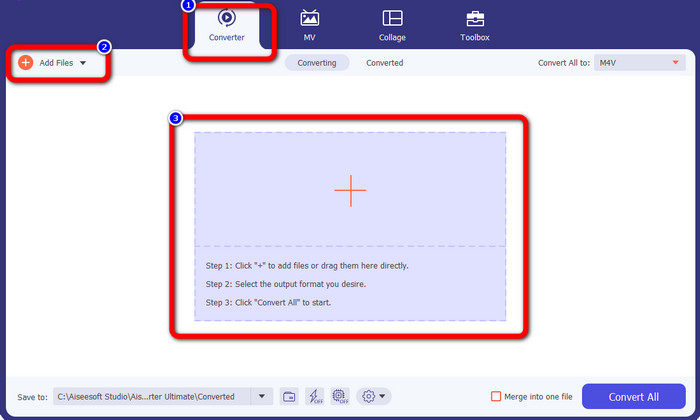
Passaggio 2: Vai al pannello Converter dopo aver aperto l’applicazione. Quindi hai tre opzioni per inserire il tuo file AVI. Per prima cosa, puoi fare clic sul pulsante Add File nella seconda casella. La seconda opzione è fare clic sul segno Plus nella terza casella. Infine, trascina direttamente il file al centro.
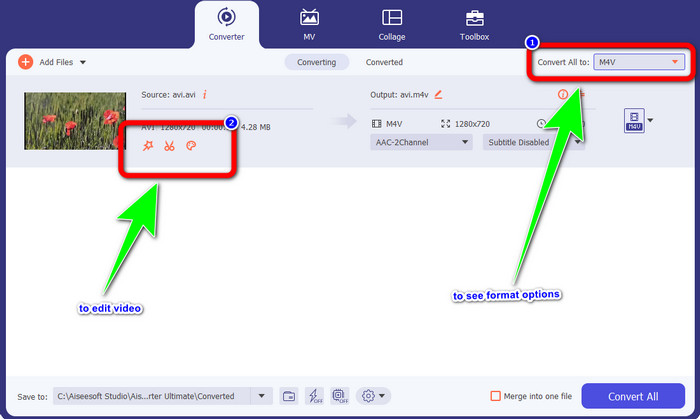
Passaggio 3: Dopo aver aggiunto il file AVI, fai clic sul pulsante Convert All to per visualizzare le opzioni di formato e seleziona il formato di file M4V. Poi, se vuoi modificare il tuo video, puoi andare alla seconda casella. Puoi usare gli strumenti per modificare il video, per esempio aggiungendo filtri, ruotando e ritagliando i video, tagliando e altro ancora.
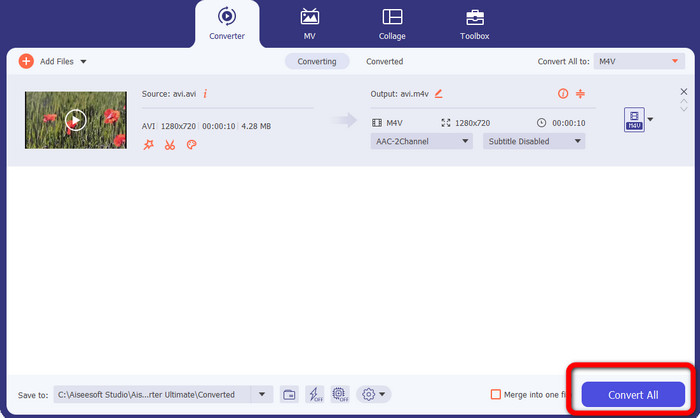
Passaggio 4: Per il passaggio finale, fai clic sul pulsante Convert. Attendi il rapido processo di conversione e salva il video convertito.
Parte 4: come convertire AVI in M4V usando il freno a mano
Handbrake è un altro convertitore per trasformare AVI in M4V gratuitamente. Può convertire vari file come WEBM, M4V, MP4, MKV, ecc. Con l’aiuto di questo strumento puoi convertire facilmente molti file. Tuttavia, Handbrake è complicato da usare. Devi avere una conoscenza sufficiente di questo convertitore. Inoltre, il processo di installazione è confuso. Devi seguire molte procedure prima di utilizzarlo, il che fa perdere tempo agli utenti.
Passaggio 1: Scarica Handbrake sul tuo computer.
Passaggio 2: Seleziona il file AVI che vuoi convertire.
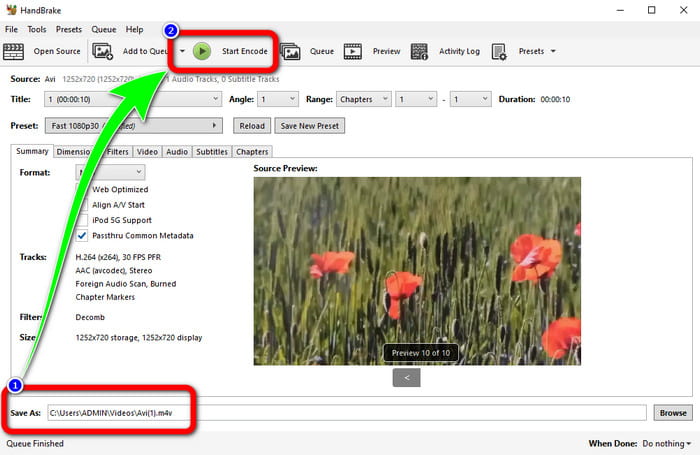
Passaggio 3: Vai su formato e seleziona M4V. Quindi avvia il processo di conversione facendo clic sul pulsante Start.
Parte 5: Domande frequenti sulla conversione di AVI in M4V
1. Come convertire AVI in M4V su Mac?
Puoi utilizzare FVC Video Converter Ultimate. Questo convertitore può convertire facilmente il tuo AVI in M4V usando il tuo Mac.
2. Quanto è grande un file AVI?
Poiché i video AVI non sono compressi, occupano più spazio sul disco rigido. Ad esempio, una singola ora di filmati AVI 352x288 può utilizzare fino a 33 GB (3300 MB) di spazio su disco rigido.
3. Il file AVI è universale?
Sì. Sebbene formati più moderni come MP4, MOV o WMV abbiano sostituito il formato AVI, molte persone utilizzano ancora AVI per la sua portabilità. Quasi qualsiasi computer o dispositivo può riprodurre file AVI.
Conclusione
Questa guida ti mostra gli ottimi metodi per convertire file AVI in M4V utilizzando i tre convertitori. Tuttavia, se desideri un processo di conversione ultra veloce, usa FVC Video Converter Ultimate. E se vuoi un metodo più semplice, usa FVC Free Video Converter Online.
-
 I 5 migliori lettori M4V per Windows / Mac / Android / iOS che dovresti conoscere
 Quando non puoi riprodurre i tuoi video M4V su QuickTime Player, dovresti imparare di più dai 5 eccellenti lettori M4V per Windows, Mac, Android e iOS da questo articolo
-
 AVI VS MP4 - Differenze e somiglianze tra i formati AVI e MP4
 Qual è un formato video migliore, AVI o MP4? Se vuoi ottenere il confronto dettagliato, puoi controllare questo articolo AVI VS MP4. Puoi conoscere le differenze e le somiglianze tra AVI e MP4 in molti aspetti
-
 3 Programma di conversione video utilizzato per convertire iTunes M4V in AVI su Mac
 Non hai idea di come convertire MKV in un formato AVI? Mentre continuiamo a leggere questo articolo, conosceremo i 3 strumenti che possono aiutarti a convertire questo formato di file
