


 Video Converter Ultimate
 Screen Recorder
 Riparazione video
Come aggiungere sottotitoli ai video che salvi sul desktop
Subtitles are the best way to translate dialogues of other countries into your native language to a text. This is created for those who don't understand the dialogues of the actor or actresses. Also, they improve the overall engagement of the audience to the film, series, and movies as well. But in some cases, the video you download has no subtitles or has a separate file for it. So, the best way to add subtitles to videos is presented in this article. So, keep on reading this write-up as we provide steps on how to insert your subtitles and what are the different tools you can use.

Parte 1. 4 dei migliori strumenti che puoi utilizzare per aggiungere sottotitoli al tuo video
1. Video Converter Ultimate (Windows e Mac)
Did you know that you can add subtitles to Video Converter Ultimate? This phenomenal converter has a lot of different features that keep us amaze every time. The overall performance of this software is phenomenal in the line of converting files, editing, making, adding and more. But for now, we will now be going to explain how to add subtitles to a video on a perfect sequence of text. In addition, this tool supports all of the subtitle formats you can use to add it to your video. So, without any more delays, let's proceed on how to add the subtitles by following this step provided only for you below.
5 Easy Steps on How to Add Subtitles on your Video with the Video Converter Ultimate
Step 1. Download the software into your Windows or Mac drive. Next, install it and do the quick set-up then click finish.
Download gratuitoPer Windows 7 o versioni successiveDownload sicuro
Download gratuitoPer MacOS 10.7 o versioni successiveDownload sicuro
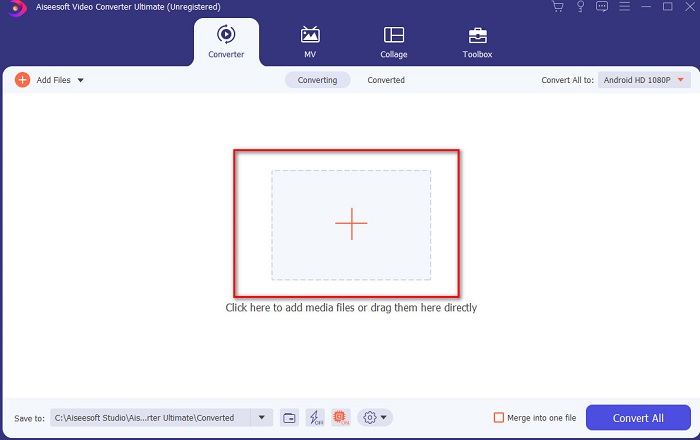
Step 2. Launch the tool, and click the plus button at the middle of the interface. Then locate the video on the folder and click Open.
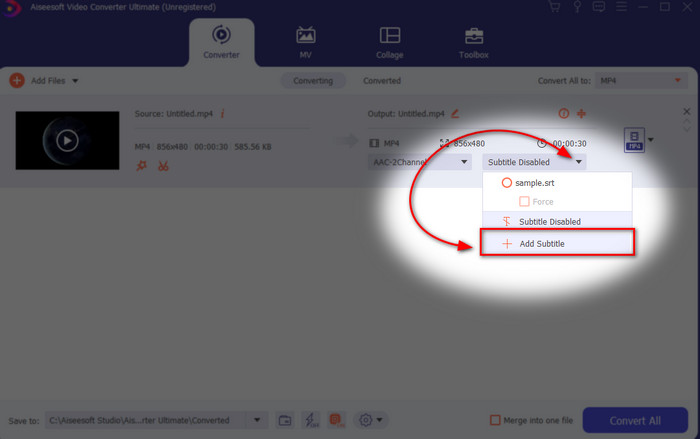
Step 3. On the interface, click the drop-down button for Subtitle and click Add Subtitle. Select the subtitle file on the file folder and click open.
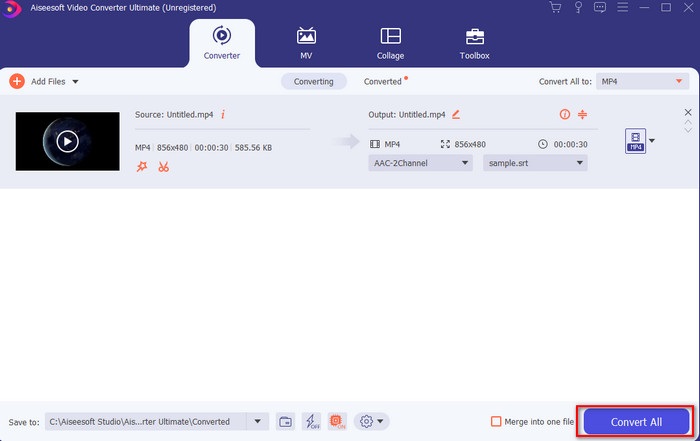
Step 4. After you add the subtitle you can now export it by clicking the Convert All.
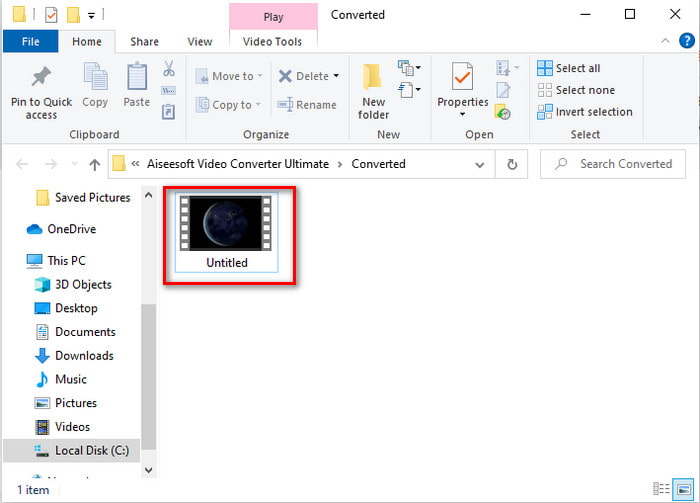
Step 5. The file explorer will pop up next to your screen with the video file that has a subtitle on it. Hit the file to watch and read the subtitle without delays.
Correlato:
How to Cut and Merge Songs Online
2. iMovie (Mac e iPhone)
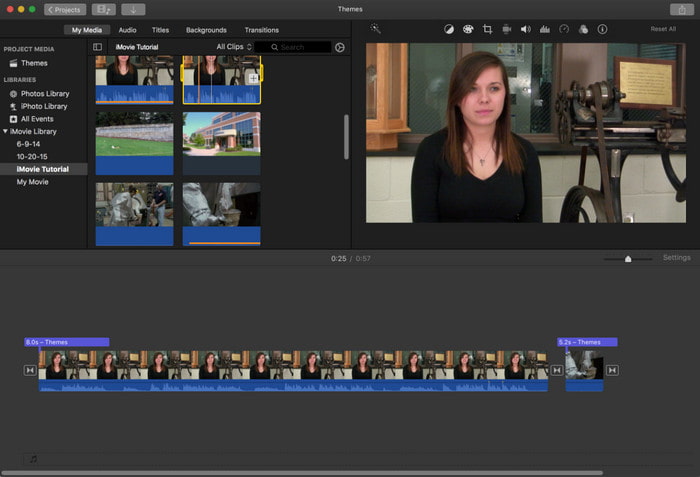
One of the best tools Apple can offer to their users, so adding subtitles to a video on iMovie is easy and free. This default tool is the best in editing and more on Mac, so adding subtitles here is easy as it is. But you can't use SRT subtitle format and add it to your video because this format is not supported by the iMovie. However, the overall performance of this Mac default editor is great to be used by anyone who is on a tight budget. Also, this tool offers a premium version that supports a lot of editing features you can use.
3. Adobe Premiere Pro (Windows e Mac)
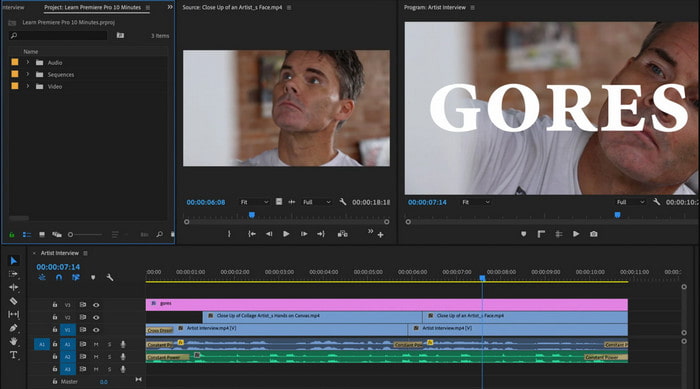
Adobe Premiere Pro offers the best editing features used by professionals in the editing industry. Also, this tool can add SRT subtitle format unlike on iMovie you can't. Moreover, this tool supports almost all of the subtitle formats you can use. Although the tool seems flawless, the price of it is enormous and if you just want to add subtitles to video on Adobe Premiere Pro this is an okay choice but not the best. Especially if you are on a tight budget and don't want to spend a lot. Also, if you are a beginner this is not the best choice because you will need a lot of time to study it first.
4. Clideo (in linea)
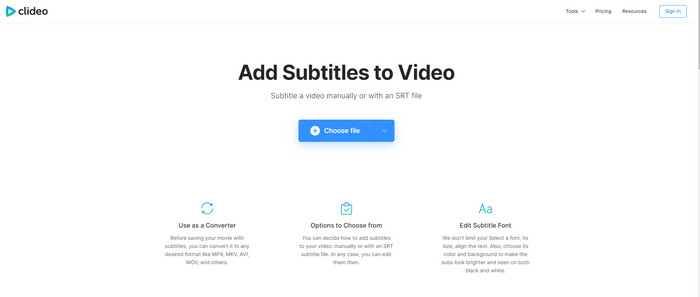
Clideo supports editing features you can use for free if you have an internet connection. This tool can be used in all devices as long as you have a browser. Although the tool is flexible the subtitle format it supports is only .srt. So, if your subtitle is not in the format of SRT then you must manually do it here which is a bit of a hassle for you. Also, the process of adding the video here will depend on your internet. With that being said, if you have a slow internet then expect a lot of time waiting than adding subtitles to video online.
Parte 2. Domande frequenti sull'aggiunta di sottotitoli ai video
Quali sono i diversi tipi di formato dei sottotitoli?
Sul Web ci sono molti formati di sottotitoli diversi, ma il formato più comunemente usato che già incontri è il formato di sottotitoli SRT, WEBVTT e SBV. Perché questi sono i formati migliori e flessibili che puoi usare facilmente, ma ci sono SSA, TTML, DFXB, TXT e altri. Sebbene funzionino alla grande, il primo formato dei sottotitoli menzionato è il migliore che puoi usare.
Qual è la principale differenza tra didascalie e sottotitoli?
Sebbene utilizzino lo stesso formato, ci sono comunque differenze principali tra didascalie e sottotitoli. In primo luogo, i sottotitoli sono inclusi nel video per tradurre la lingua parlata dell'attore o dell'attrice nella lingua dello spettatore. Questo è più comunemente usato da coloro che possono ascoltare l'audio ma non riescono a capire cosa stanno dicendo. Mentre le didascalie sono fatte per descrivere cosa sta succedendo e attraverso il testo come effetti sonori. Questi sono fatti per coloro che possono guardare video ma non possono sentire l'audio chiaramente o non udenti.
Doppiaggio vs Sub; Qual è il migliore?
Alcuni altri spettatori preferiscono Dub rispetto a sub mentre altri sono viceversa. Anche se sono un modo potente per tradurre meglio il mezzo per il pubblico. Dub e sottotitoli hanno molte differenze, ad esempio i sottotitoli sono versioni tradotte dell'audio e si trasformano in testo nel video. Mentre i doppiaggi sono usati dagli spettatori che hanno difficoltà a leggere. Quindi, invece di leggere il contesto, usano i doppiaggi per concentrarsi meglio su ciò che stanno guardando. Quindi, dipende sempre da te quale preferisci usare, se riesci a leggere mentre guardi i sottotitoli sono i migliori ma se vuoi avere una messa a fuoco laser sul video stesso allora usa dub..
Conclusione
Finally, we now understand and learn how to add subtitle files to your video permanently. As we make your searching easier and present different solutions for you to use. Still, it is undeniable that the Video Converter Ultimate is the best choice on the list. Because it supports all of the subtitle formats for you to use. So, instead of a huge amount of money to the other tool that has the same function or even better than the other tool. Then why don't you acquire it first and try it for yourself? To know what we are talking about.
-
 Tutorial - 4 modi gratuiti per unire i video su iPhone in uno nuovo
 Leggi e ottieni 4 semplici modi per unire i video su iPhone. Sono supportati tutti i modelli di iPhone e le versioni di iOS. Puoi combinare 2 e più video su iPhone in un nuovo video rapidamente.
-
 Come comprimere file M4V in dimensioni inferiori (gratuito e online)
 Se stai cercando un modo semplice per ridurre le dimensioni del tuo file M4V, dovresti venire a leggere questo articolo. Qui condivideremo il modo più semplice per comprimere i file M4V con te.
-
 Comprimi WebM - Come comprimere file WebM online
 Come comprimere file WebM online? Qual è il modo più veloce per comprimere file di grandi dimensioni? Questo post spiega 2 modi gratuiti per comprimere WebM.
