


 Video Converter Ultimate
 Screen Recorder
 Riparazione video
3 aiuti efficaci per aiutarti a uscire dalla situazione di ritardo audio
Al giorno d’oggi, per non annoiarci in questa situazione attuale, ci piace guardare video per ammazzare il tempo. Qualunque sia il genere, continuiamo comunque a guardarli per non annoiarci a casa. Infatti, molti di noi hanno già sperimentato audio e video fuori sincrono, il che può essere molto irritante, vero? Ma oggi ti promettiamo che non ti capiterà più. Perché in questo articolo ti forniamo soluzioni su come correggere il ritardo audio nei tuoi video e capire qual è la causa che lo provoca.

Parte 1. Che cos'è il ritardo audio
Il ritardo audio si verifica davvero in diverse situazioni, sia online che offline. Ci sono molti fattori diversi che possono causare un ritardo dell’audio. Inoltre, un ottimo esempio è presente nell’elenco qui sotto. Lascialo leggere con attenzione per capire quale potrebbe essere il motivo.
◆ Il video prima di essere caricato sulla pagina Web o sulle piattaforme è già stato danneggiato, causando la mancata sincronizzazione di audio e video.
◆ Il processo di download del file è stato interrotto o incompleto, il che comporterebbe la perdita o il ritardo del file audio e video.
◆ Malfunzionamento del software di modifica. Questo potrebbe essere un motivo se registri audio e video separatamente e li combini insieme.
Altri possibili motivi di ritardo si verificano in questa situazione:
◆ Se si verifica un ritardo durante la visione di una TV, aspettarsi che sia dovuto alla cattiva rete tra il cavo, il satellite o l'antenna.
◆ I ritardi si verificano online soprattutto se il tuo video è impostato su 4k o 1080 px perché questa qualità richiederà molto tempo per essere caricata rispetto all'audio o viceversa.
E ora che sappiamo quali sono i motivi, ora possiamo risolverlo leggendo il testo qui sotto. Tuttavia, gli altri 2 motivi non possono essere risolti dal software seguente. Ma possiamo suggerire se il video e l'audio non sono sincronizzati online, allora dobbiamo abbassare la qualità per caricare meglio o semplicemente trovare un altro Internet migliore. E se il tuo problema è in TV, è necessario contattare il provider del tuo canale per verificarlo e risolverlo immediatamente. Quindi ora, passiamo alle prime 3 soluzioni di seguito.
Parte 2. Le 3 migliori soluzioni su come risolvere il ritardo audio
1. Usa Video Converter Ultimate
Se stai cercando la soluzione migliore, allora questa deve essere la prima nella nostra lista: il software Video Converter Ultimate, che può sincronizzare facilmente audio e video in soli 3 minuti. Questo software è multipiattaforma, quindi puoi scaricarlo sia su Mac che su PC. Inoltre, la cosa migliore di questo strumento è che tutte le funzioni di montaggio avanzato disponibili su PC sono disponibili anche su Mac e viceversa. Le sue prestazioni hanno già stupito gli utenti ed è diventato la scelta più popolare sia per i principianti che per i professionisti. Non solo, questo strumento supporta un’elaborazione rapida, così non perderai tempo. Detto questo, passiamo a vedere come correggere il ritardo audio in modo efficace seguendo i passaggi qui sotto.
Passaggi su come correggere il ritardo con Video Converter Ultimate:
Passaggio 1. Se è la prima volta che usi questo strumento, è necessario scaricarlo per prima cosa. Dopo il download, installalo, configurarlo e fai clic su Start Now per procedere.
Download gratuitoPer Windows 7 o versioni successiveDownload sicuro
Download gratuitoPer MacOS 10.7 o versioni successiveDownload sicuro
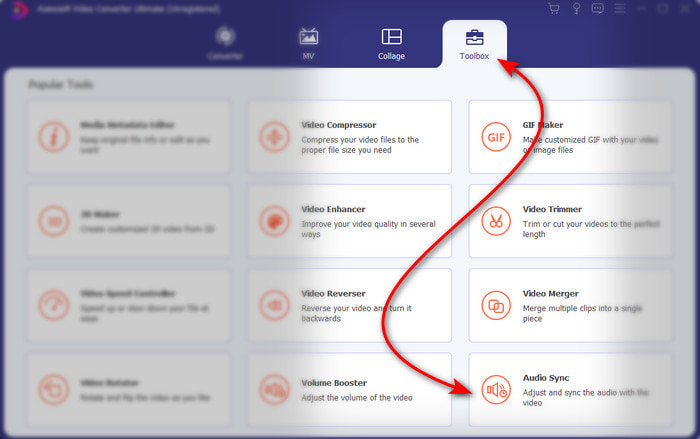
Passaggio 2. Dopo l’avvio del software, vai alla sezione Toolbox e, al suo interno, scegli Audio Sync, quindi cliccaci sopra.
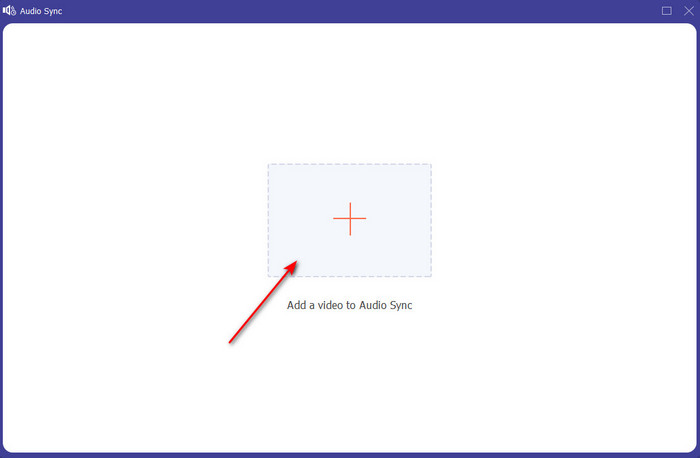
Passaggio 3. Premi il pulsante + per aggiungere il file che vuoi sincronizzare e si aprirà una cartella. Quando hai trovato il video, fai clic su Open.
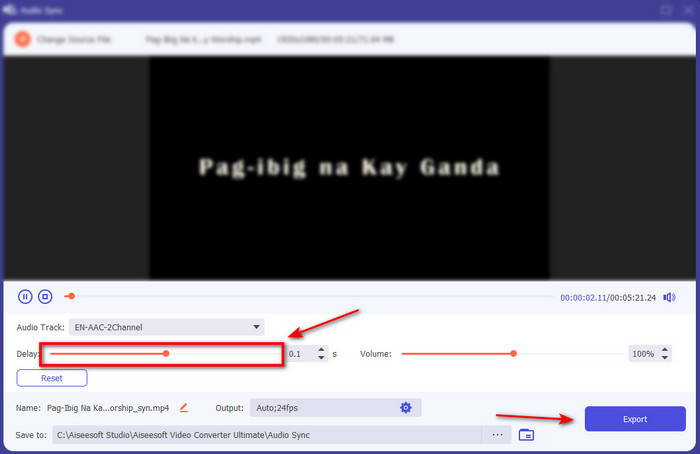
Passaggio 4. Apparirà un’interfaccia come questa e sarà il momento giusto per muovere il delay slider per metterlo in sincronia. Quando audio e video saranno sincronizzati, fai clic su Export per salvare il file.
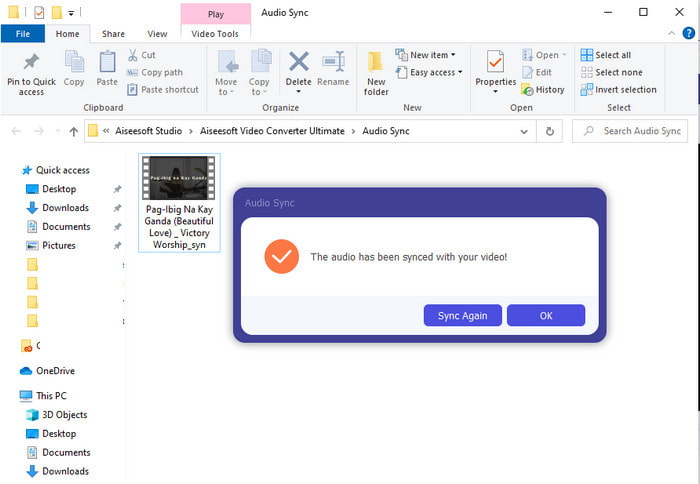
Passaggio 5. Una volta terminato il processo, si aprirà Esplora file con il file pronto. Fai clic sul file per guardarlo e goderti la magia che hai creato con questo software.
2. Usa Avidemux
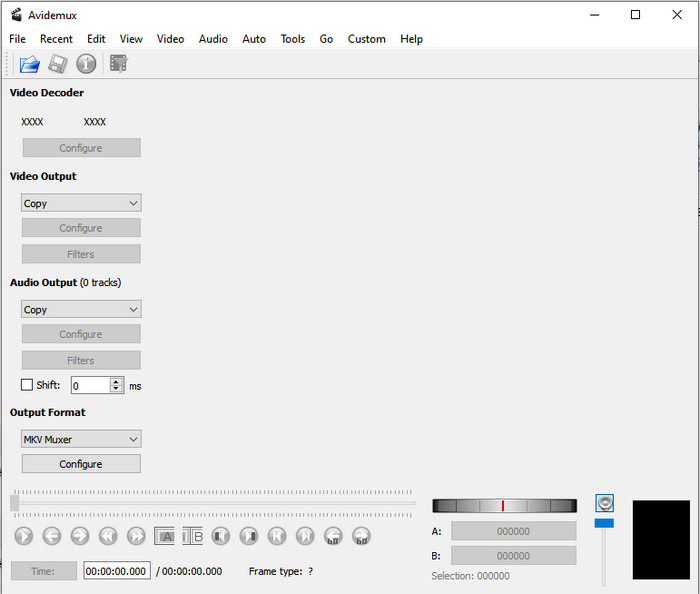
Questo software può aiutarti a correggere il ritardo audio che hai riscontrato. Inoltre, è disponibile su tutte le piattaforme che stai utilizzando attualmente. Quindi, se usi questo strumento su PC e poi passi a Mac, puoi comunque usarlo come editor personale. Tuttavia, alcune funzioni presenti su PC non sono disponibili su Mac o Linux. Inoltre, se intendi usarlo, aspettati qualche difficoltà, perché altre funzioni di questo strumento potrebbero risultare un po’ confuse. Perciò ora, se vuoi provare a correggere il ritardo che riscontri nei tuoi video, segui i passaggi che abbiamo semplificato, così che utenti come te possano seguirli facilmente.
Come sincronizzare audio e video con Avidemux:
Passaggio 1. Scarica prima il software dal sito ufficiale. Avvialo, poi fai clic su File e quindi su Open per selezionare un video dalla cartella.
Passaggio 2. Spunta la casella Shift per applicare automaticamente lo spostamento. Poi inserisci il valore in ms che desideri. Ti suggeriamo di iniziare da - o +200 e, se audio e video sono ancora fuori sincrono, cambia il numero.
Passaggio 3. Una volta che video e audio sono correttamente sincronizzati, è il momento di esportare il risultato facendo clic sul pulsante Save.
3. Usa il convertitore online
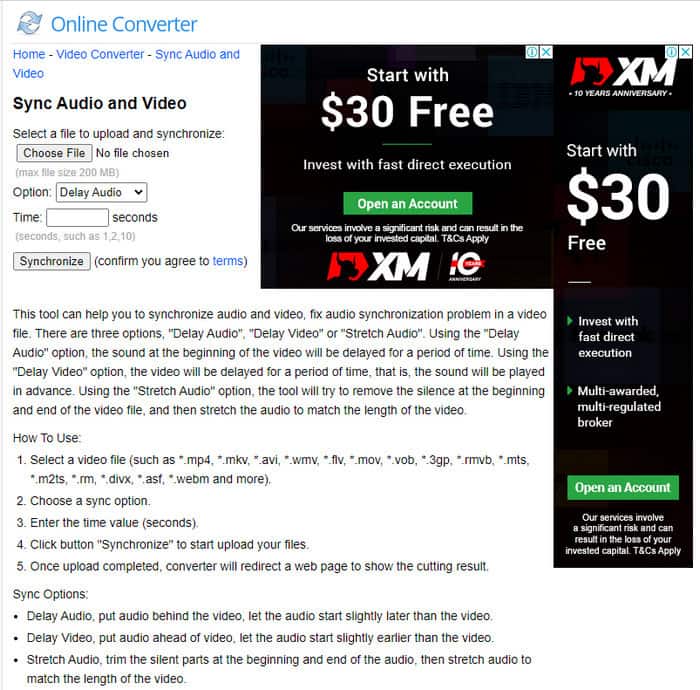
Se non vuoi scaricare un software, allora vale la pena provare questo Online Converter disponibile sul web. La sua interfaccia è molto semplice da capire e facile da usare per chiunque disponga di una connessione Internet stabile. Tuttavia, questo strumento non è la scelta migliore se non hai una connessione internet, perché dipende da essa. Quindi ora, se vuoi imparare come correggere il ritardo audio con Online Converter, segui i passaggi indicati di seguito.
Come correggere il ritardo di audio e video con Online Converter:
Passaggio 1. Cerca la pagina ufficiale di Online Converter. Dopo aver aperto il sito, fai clic su Choose File per inserire il video e il file audio con ritardo.
Passaggio 2. Nella sezione Option puoi scegliere se correggere il ritardo dell’audio o del video. Poi imposta il Time nella casella.
Passaggio 3. Clicca su Synchronize e attendi che il processo finisca, quindi fai clic su Download Now per salvare il video sincronizzato che hai creato.
Parte 3. Domande frequenti sulla correzione del ritardo audio
Posso usare Premiere pro per correggere il ritardo audio?
Assolutamente sì, puoi usare il più rinomato editor sviluppato da Adobe. Quindi, se non hai idea di come fare, clicca su questo link per aprire un nuovo sito per correggere il ritardo audio in Premiere Pro.
Come unire correttamente audio e video per evitare ritardi?
Trovare un software adatto per unire correttamente i tuoi file può essere un po' difficile. Tuttavia, possiamo facilitarti la ricerca avendo raccolto 4 modi diversi per aggiungere qualsiasi traccia audio a un video in modo semplice.
La compressione di un video può causare un ritardo dell'audio?
Al momento, se provi a comprimere un video, questo non avrà alcun effetto sul tuo audio né provocherà ritardi. Perché la compressione serve a ridurre la dimensione del file multimediale, non a danneggiarlo. Quindi, se stai cercando un compressore video sicuro e affidabile, clicca su questo link per conoscere 7 modi per comprimere i video.
Conclusione
Ora che conosciamo i diversi motivi del ritardo audio, è arrivato il momento di correggerlo con gli strumenti indicati sopra. Anche se tutti gli strumenti hanno la stessa funzione, ce n’è comunque uno che spicca rispetto agli altri tre presentati, ed è Video Converter Ultimate. Questo straordinario strumento è già stato utilizzato da milioni di utenti e li ha già aiutati. E ora, se vuoi provare il sollievo dalla tua problematica, scarica subito questo strumento.
-
 [Gratuito e a pagamento] GIF Speed Changer: le migliori scelte del 2025
 Non sei soddisfatto della GIF che hai realizzato online poiché è noiosa e lenta? Questo sarà il tuo giorno fortunato perché presentiamo un articolo sul cambio di velocità GIF e i dettagli che ti aiutano a usarlo e padroneggiarlo.
-
 I 4 migliori lettori video con regolatore di velocità nel 2025
 Non hai notato la velocità di riproduzione di ogni lettore multimediale ogni volta che riproduci un video? Questo articolo è adatto per imparare tutto sui lettori video con controllo della velocità.
-
 3 modi per velocizzare i video su iPhone [Dimostrato]
 Hai problemi a regolare la velocità di riproduzione del tuo video perché stai usando un iPhone? Questo è un ottimo articolo per aiutarti con il tuo problema.
