


 Video Converter Ultimate
 Screen Recorder
 Riparazione video
5 Greatest MP4 Cutter: scopri come ritagliare video su PC, Mac e dispositivi mobili
Se sei un vlogger o un aspirante, fare un video di te stesso è così comune. Ciò richiederebbe molto sforzo e sicurezza, così come scatti davanti a una telecamera. Inoltre, la cosa più comune che tutti i professionisti e i nuovi al vlogging sono gli errori che fai. Invece di riprendere il video, tendono a tagliarlo e unirlo ai video originali. Per creare un video completamente nuovo composto da diverse angolazioni, viste, montaggi e altro, lo tagliano da video diversi e lo aggiungono in uno solo. Ma come nuovo per questo tipo di lavoro o addirittura professionale, scegliere il rifinitore giusto è difficile. Perché non tutte le funzioni come si diceva nell'annuncio dello strumento non sono negli strumenti. Invece di andare all'altro articolo e leggere la raccomandazione, perché non impari prima da questo. Poiché abbiamo raccolto solo le prove reali per il tuo stesso guadagno. Quindi, qui nell'elenco ci sono i cutter MP4 che puoi usare per iniziare a vlogging. Rimani concentrato per sapere quali sono i migliori rifinitori che puoi utilizzare per fornire una prospettiva semplice ma professionale ai tuoi video.

Parte 1. Scarica il miglior software di taglio video MP4 su PC e Mac
Se vogliamo parlare del meglio, allora devi dare priorità alla lettura di questo per primo. Come detto in precedenza, creare vlog è molto più difficile di quanto ci aspettassimo: non si tratta solo di avere la sicurezza per stare davanti alla videocamera e pubblicare i video. Devi anche considerare di avere a disposizione uno strumento multiuso, che renda i tuoi video più piacevoli alla vista per ogni spettatore. FVC Video Converter Ultimate offre funzioni di montaggio avanzate e opzioni di conversione utilizzabili da chiunque lo desideri. Che tu sia un principiante o un professionista, è importante puntare al meglio del meglio presente sul mercato. Anche se è una versione a pagamento, continua comunque a offrire prestazioni al top. E se decidi di sceglierlo come soluzione personale, ti si prospetta un futuro promettente. Vuoi iniziare a fare vlogging oggi? Allora segui questi passaggi per usare questo taglia video MP4.
Passaggio 1. Clicca sul pulsante di download qui sotto e installalo sul tuo PC o Mac. Segui la procedura di installazione dello strumento e clicca su Fine per avviare il software.
Download gratuitoPer Windows 7 o versioni successiveDownload sicuro
Download gratuitoPer MacOS 10.7 o versioni successiveDownload sicuro
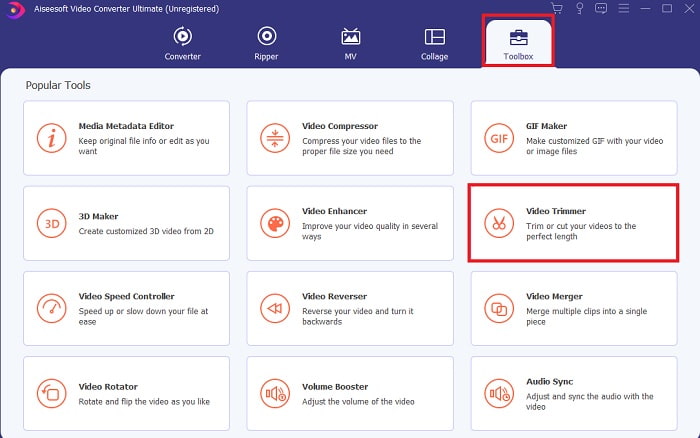
Passaggio 2. Se vedi questa schermata, clicca sulla Toolbar e cerca in basso la voce Video Trimmer.
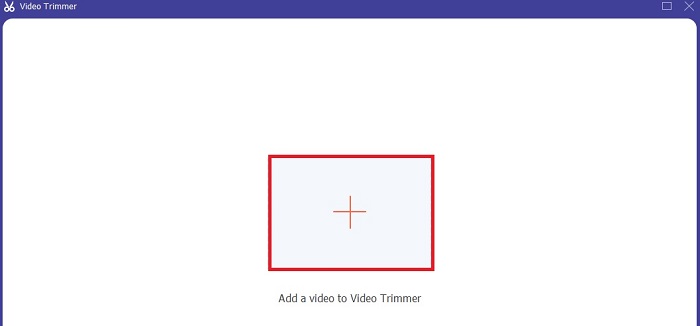
Passaggio 3. Clicca sul pulsante più per aggiungere il file. Seleziona sul tuo disco il file che vuoi tagliare e clicca su open per inserire il video.
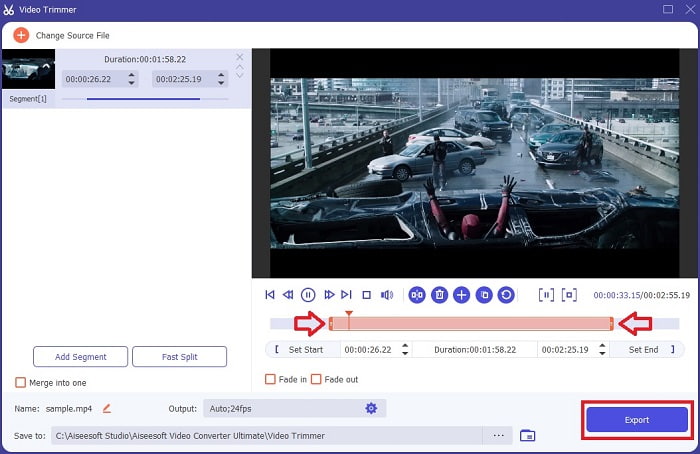
Passaggio 4. Regola il punto di inizio e la fine del tuo video. Manipola il playback in and out per impostare la durata che desideri. Aggiungi una dissolvenza in entrata e in uscita se vuoi. Inoltre puoi modificare anche il formato di output cliccando sul pulsante a forma di ingranaggio. Quando hai finito, clicca sul pulsante Export per avviare il processo di taglio.
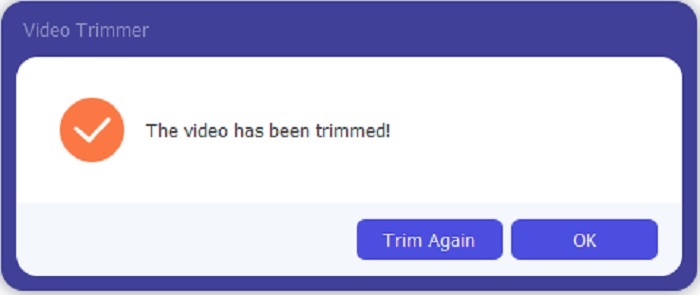
Passaggio 5. Attendi appena qualche secondo e il tuo video sarà stato tagliato. Poi clicca su OK oppure su Trim Again se devi tagliare un altro video. Se vuoi migliorare ulteriormente il video che hai appena realizzato, clicca di nuovo sulla toolbar e cerca il Video Enhancer.
Vantaggio di avere uno strumento di fusione fornito da FVC Video Converter Ultimate con Steps
A differenza di qualsiasi altra app, unire i video in FVC Video Converter Ultimate è semplicissimo da fare. Questa è una funzione bonus se acquisisci questo strumento. Come detto, questo strumento è multiuso, quindi senza ulteriori indugi iniziamo a unire video diversi in uno solo.
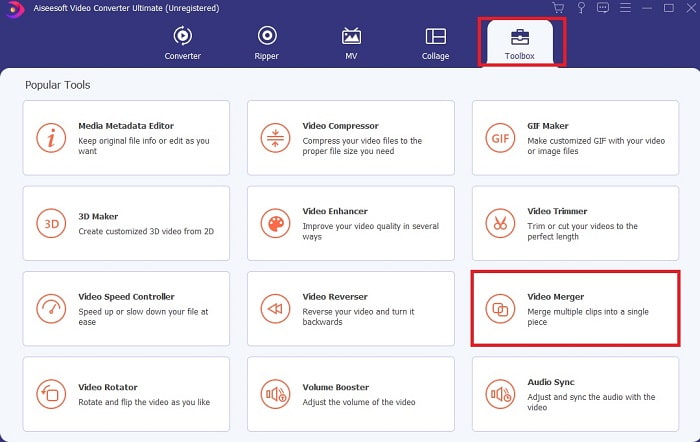
Passaggio 1. Apri il software, vai alla Toolbar, poi individua Video Merger e cliccaci sopra.
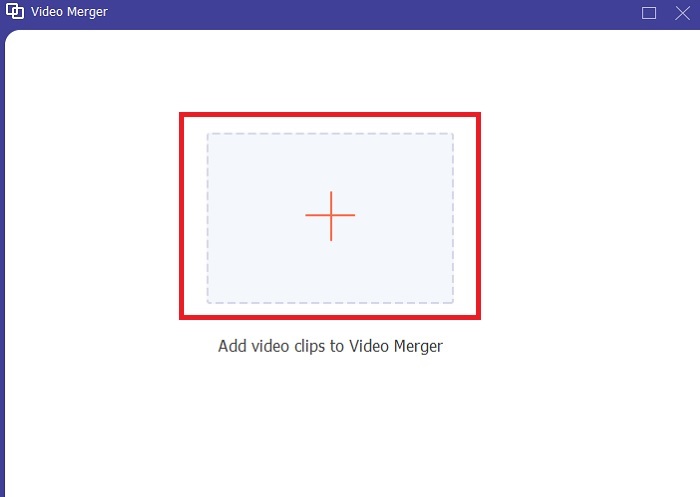
Passaggio 2. Clicca sul pulsante add, seleziona il video che vuoi unire e clicca su open per procedere. Dopo aver selezionato il primo file, clicca sul segno più per aggiungere un altro file da unire.
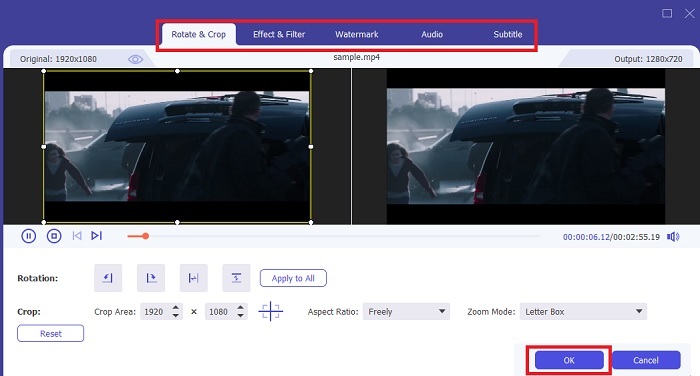
Passaggio 3. Nell’interfaccia, clicca sul pulsante a forma di bacchetta magica per aggiungere effetti, migliorare l’audio, ruotare o ritagliare e aggiungere sottotitoli. Per salvare le modifiche apportate clicca su OK. Se vuoi, ripeti la stessa procedura anche per gli altri video.
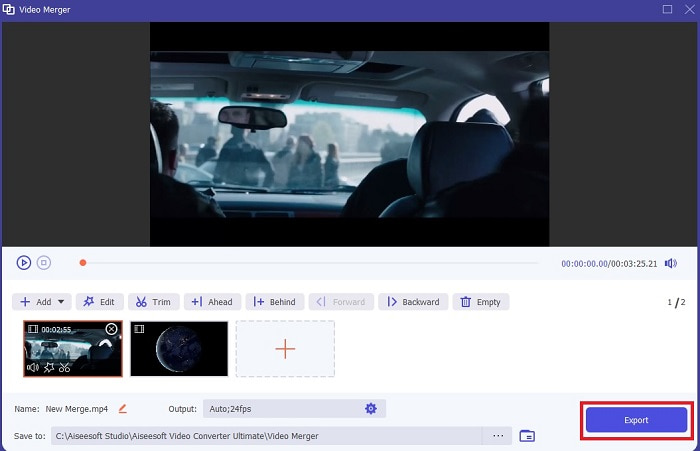
Passaggio 4. Quando sei pronto per avviare il processo, clicca su Export. Una volta terminata l’esportazione, si aprirà automaticamente una finestra del file manager sullo schermo. Per guardare il video esportato ti basta cliccarci sopra e godertelo.
Parte 2. I migliori cutter MP4 online
Questo può essere un buon strumento di taglio, ma non è il migliore come FVC Video Converter Ultimate. Tuttavia vale comunque la pena provare questi taglia MP4 online.
1. Taglierina video online 123Apps
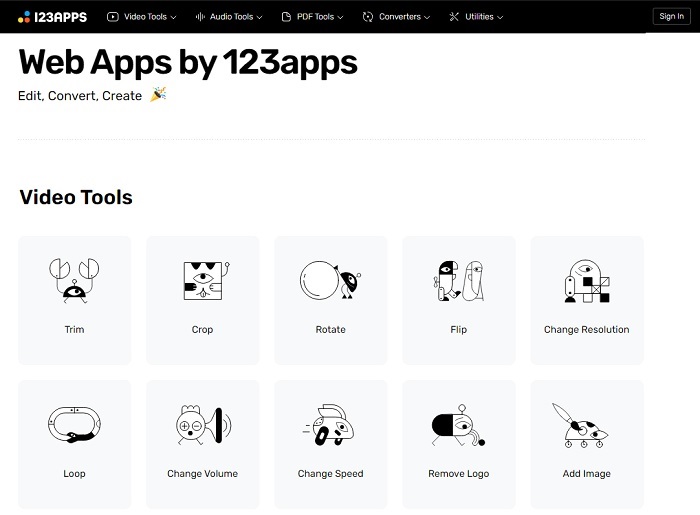
Questo primo strumento online ha lo scopo di migliorare i tuoi video. Può regolare la durata del video, ritagliare, aggiungere testo e altro. Ma questo strumento richiede molto tempo per essere esportato. Dopo aver esportato, devi scaricarlo e questo processo dipenderà dalla tua velocità di Internet. Inoltre, non puoi regolare la qualità dei tuoi video. Quindi, se il tuo video è un po' sfocato e ha bisogno di regolarne gli fps, non puoi farlo qui. Ma comunque vale la pena provare.
2. Clideo
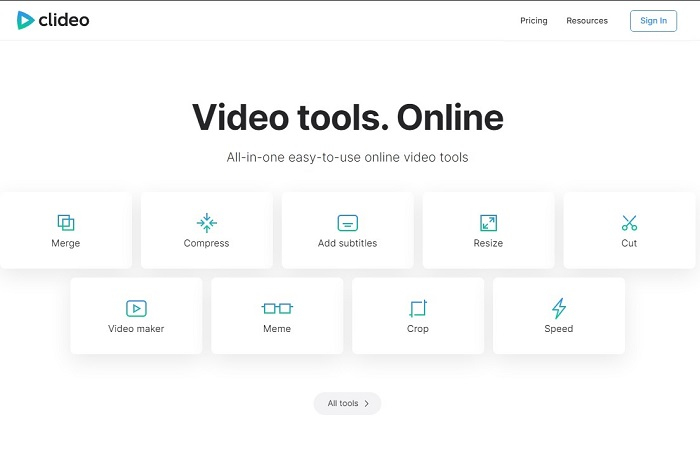
Se parliamo di taglio video, anche questo può essere un’ottima scelta. Clideo è uno dei migliori trimmer MP4 online che puoi trovare. Proprio come il primo strumento online citato in precedenza, anche questo offre funzioni di montaggio di base. Sebbene supporti l’editing di base, non è comunque sufficiente se vuoi realizzare un video davvero accattivante. Ma puoi provarlo direttamente online senza preoccupazioni: è gratuito e sicuro.
Parte 3. Le 3 migliori app per la taglierina MP4 su Android e iOS
Cosa succede se non hai un desktop per utilizzare gli strumenti di cui sopra e vuoi essere un vlogger, è ancora possibile? Se hai un telefono come Android o iOS, puoi utilizzare queste app per eseguire modifiche sui tuoi telefoni. Ma ci sono alcune funzionalità disponibili sopra che non sono qui. Quindi, continua a leggere di seguito per sapere quali sono questi strumenti e scegli tra loro.
1. iMovie per iOS
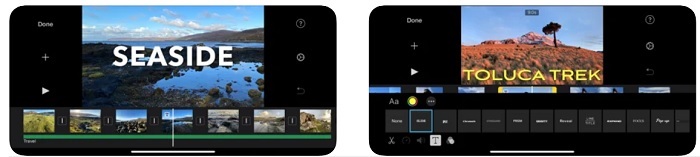
Se vuoi dare un tocco in stile Hollywood al tuo video, allora iMovie è il software giusto. Questa app taglia MP4 è stata creata esclusivamente per gli utenti iOS. Tuttavia, anche se lo strumento offre funzioni di editing avanzate, alcuni bug non sono ancora stati corretti. In alcuni casi l’app si blocca ogni volta che provi a montare un video e lo schermo diventa nero. A volte il video e l’audio non sono sincronizzati a causa di glitch. Questi sono solo alcuni esempi di bug che, pur sembrando piccoli, risultano molto fastidiosi nella pratica. Se vuoi provare iMovie, puoi comunque scaricarlo dall’App Store.
2. Editor e creatore video – Viva Video per Android
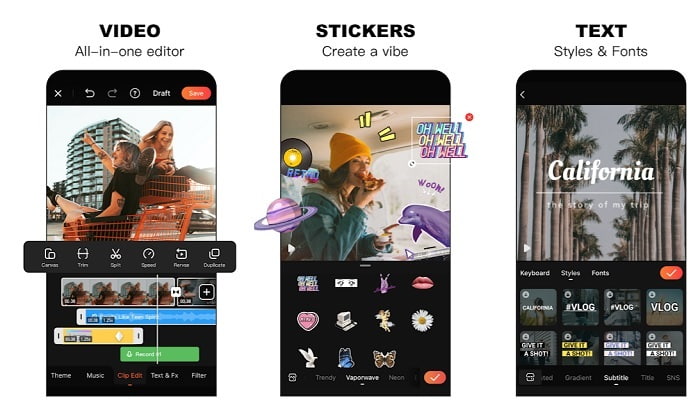
Uno dei migliori taglia MP4 gratuiti su Android è Video Editor & Maker – Viva Video. Proprio come lo strumento citato sopra, entrambi offrono ottime funzioni di editing su smartphone: transizioni per i video, effetti glitch e molto altro, ma si tratta di uno strumento a pagamento. In alcuni casi l’esperienza non è ideale perché non c’è un vero pulsante di annullamento dell’abbonamento all’interno dell’app. Potresti pensare che il modo migliore per fermare l’abbonamento sia eliminare l’app, ma l’abbonamento non si interromperà comunque. Continuerà a addebitare costi sulla tua carta di credito se hai scelto questo metodo di pagamento. Nel complesso, però, lo strumento rimane di classe A, né più né meno.
Parte 4. Domande frequenti su MP4 Cutter
Cos'è un MP4?
MP4 è anche conosciuto come il formato multimediale multiuso. Invece di memorizzare un codice, memorizza i dati di video, immagini fisse, sottotitoli o testi. Inoltre, è il formato video più utilizzato in tutto il mondo.
L'MP4 è lossy o lossless?
Essendo un formato multiuso, MP4 è una compressione con perdita.
Qual è il miglior formato diverso da MP4?
Alcuni formati possono offrire una qualità di output migliore rispetto all’MP4, ma non sono flessibili quanto questo formato. Per esempio, WMV: questo formato genera file più piccoli rispetto all’MP4, ma non è compatibile con i dispositivi Apple, perché è stato pensato come formato nativo per Windows Media Player. Puoi scegliere di convertire i tuoi file MP4 in WMV per una riproduzione più fluida.
Conclusione
Per concludere, ora è più facile capire le differenze tra ciascun strumento da utilizzare. Ma, come detto in precedenza, non tutti offrono le funzioni di taglio avanzate che può garantire FVC Video Converter Ultimate. Soprattutto se vuoi creare video più accattivanti per ottenere più visualizzazioni e anche profitti. Quindi, invece di accontentarti di una soluzione temporanea, perché non scegliere FVC Video Converter Ultimate per affrontare il futuro e ottenere la versione migliore di te stesso?.
-
 Guida su come convertire RMVB in MP4 su Windows / Mac (3 modi gratuiti)
 Vuoi convertire RMVB in MP4 per una facile riproduzione sul tuo computer o telefono cellulare? Troverai modi semplici per convertire i tuoi file RMVB in MP4 in questa guida.
-
 4 Migliori convertitori da MP4 a M4V per trasformare i video MP4 in M4V con facilità
 Quando è necessario modificare i file da MP4 a M4V, è necessario apprendere maggiori dettagli sulle differenze tra i due formati, nonché i migliori convertitori da MP4 a M4V dell'articolo.
-
 Convertitore AMV - 3 migliori metodi per convertire MP4 in AMV su Win / Mac
 Quali sono i migliori convertitori da MP4 ad AMV per trasformare i video in Amine Music Video, puoi saperne di più sui metodi 3 più efficienti per ottenere facilmente i video desiderati dall'articolo.
