


 Video Converter Ultimate
 Screen Recorder
 Riparazione video
 Download sicuro
Rimuovi la filigrana Bandicam con i 3 migliori dispositivi di rimozione della filigrana da utilizzare
Bandicam è uno strumento che tutti amano usare, soprattutto per registrare azione dopo azione quello che accade mentre giochi, sei in riunione, guardi un video e così via. A differenza di altri software concorrenti per la registrazione dello schermo, questo registratore può aiutarti a filmare un video a 480 FPS con l’aggancio DirectX/OpenGL/UWP/Vulkan e altre tecnologie avanzate di accelerazione. Anche se non hai acquistato la versione premium, puoi comunque usarlo e registrare video a 60 o 120 FPS, quindi con un frame rate alto, ma con filigrana. Il modo per salvare un video su Bandicam senza filigrana è acquistare la sua versione completa.
Fortunatamente gli strumenti che includiamo in questo articolo possono rimuovere la filigrana che Bandicam aggiunge al video esportato. Vuoi sapere cosa sono questi? Allora devi continuare a leggere questo articolo per cogliere l'idea!

Parte 1. Come rimuovere la filigrana Bandicam usando il 3 più efficace dispositivo di rimozione della filigrana
FVC Video Converter Ultimate
Il modo più efficace per rimuovere la filigrana di Bandicam è usare uno strumento dedicato, come FVC Video Converter Ultimate. Questo strumento può rilevare la filigrana nel tuo video posizionando il riquadro di selezione sulla filigrana e, puff, sparirà. Funziona come per magia: non rimarrà alcuna traccia della filigrana nel video una volta esportato il file. Potrai finalmente goderti la registrazione fatta con Bandicam senza l’intralcio del logo.
Le funzionalità più probabili di questo strumento sono i convertitori, i potenziatori, gli editor su Toolbox e altro ancora. Puoi avere tutte queste caratteristiche e funzioni se usi questo strumento e lo scarichi subito sul tuo desktop. Per insegnarti come rimuovere la filigrana Bandicam con questo software definitivo, puoi seguire il tutorial scritto completo che aggiungiamo di seguito.
Passaggio 1. Prima di tutto, devi scaricare il software ufficiale sul tuo desktop cliccando il pulsante di download che abbiamo aggiunto qui. Non c’è bisogno di preoccuparsi, perché il link di download è sicuro per utenti Windows e Mac. Dopo aver scaricato il file, cliccalo per installarlo, segui la procedura guidata di installazione WinRAR e fai clic su Avvia Ora per lanciare lo strumento.
Download gratuitoPer Windows 7 o versioni successiveDownload sicuro
Download gratuitoPer MacOS 10.7 o versioni successiveDownload sicuro
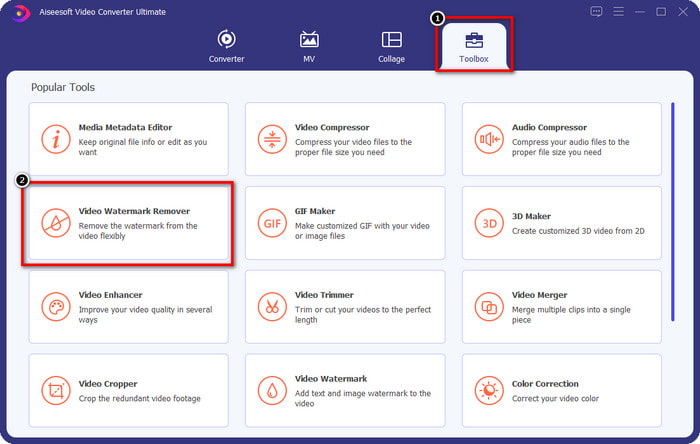
Passaggio 2. Nell’interfaccia principale dello strumento, devi andare nella Cassetta degli attrezzi e, al suo interno, vedrai Rimozione filigrana video; cliccaci per aprire questa funzione.
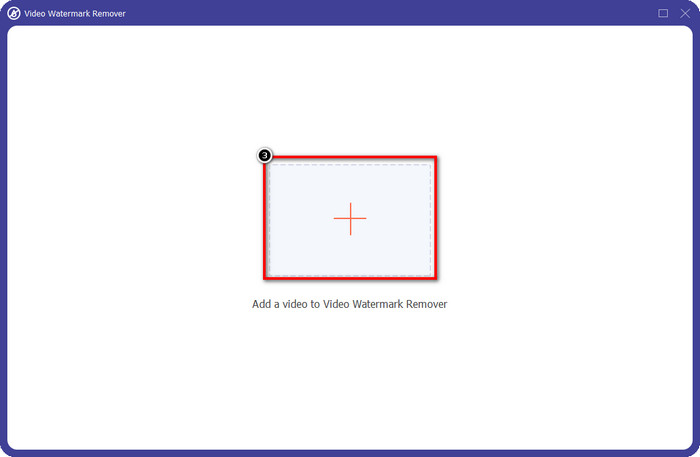
Passaggio 3. Apparirà una nuova finestra sullo schermo; clicca sull’icona + per caricare il file video che contiene la filigrana. Trova il file video nella tua unità locale, quindi clicca su Apri.
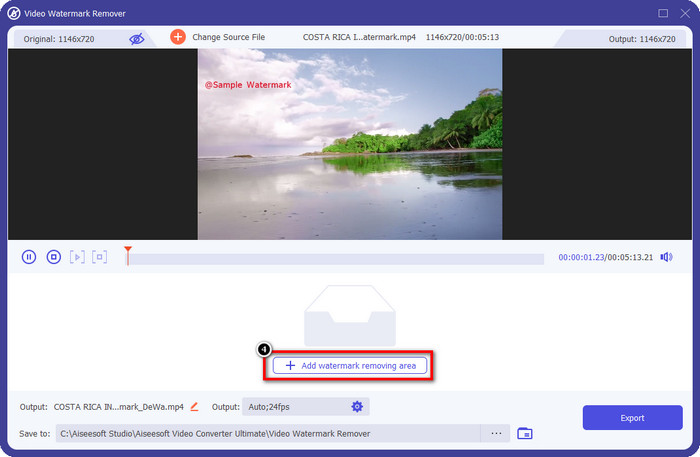
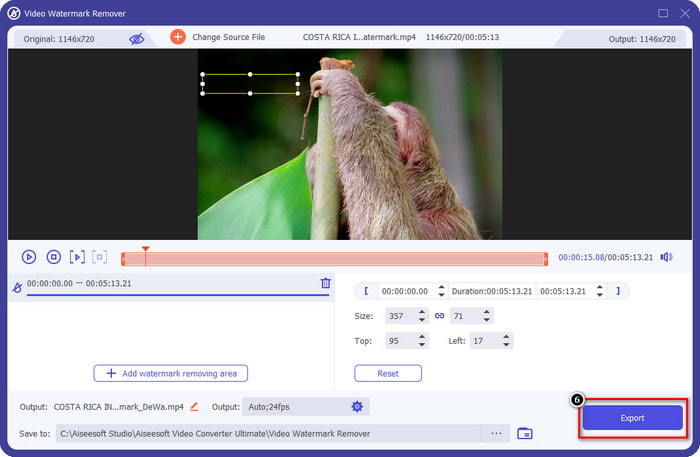
Passaggio 4. Dopo tutto ciò, clicca su Aggiungi area di rimozione filigrana per iniziare a usarla, così potrai avere i video registrati con Bandicam senza filigrana.
Passaggio 5. Nell’anteprima, posiziona il riquadro di selezione sulla filigrana; puoi modificarne le dimensioni per far sì che l’immagine copra perfettamente la filigrana.
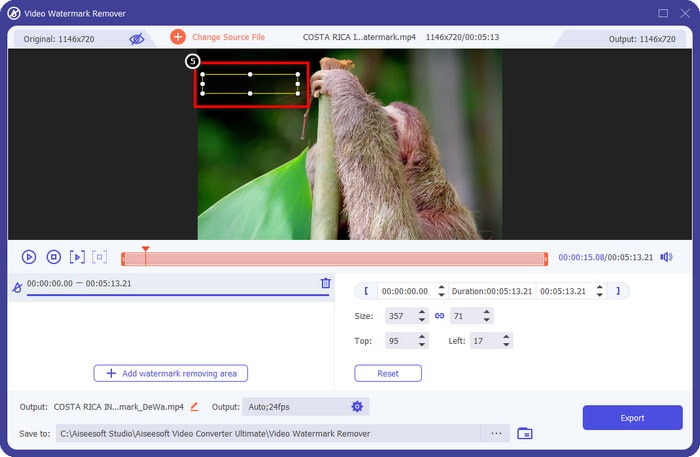
Passaggio 6. Dopo aver posizionato il riquadro di selezione sulla filigrana, clicca su Esporta per scaricare il video senza la filigrana aggiunta da Bandicam.
Rimuovi il logo ora!
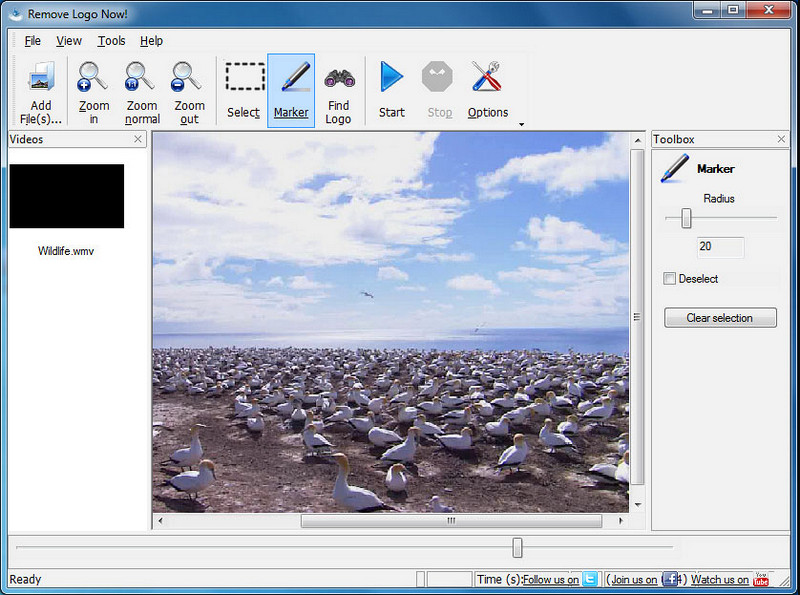
Remove Logo Now! è un completo strumento di rimozione filigrane che puoi usare per eliminare i loghi fissati sui tuoi video. Questo strumento può rilevare automaticamente la filigrana con l’aiuto di algoritmi, ma puoi anche tracciarla manualmente. Puoi usarlo per rimuovere qualsiasi tipo di filigrana senza alcuna fatica. Tuttavia, il software è limitato agli utenti Windows e l’interfaccia è un po’ datata. Ma se vuoi provarlo sul tuo PC Windows, ti mostreremo come rimuovere gratuitamente la filigrana di Bandicam.
Passaggio 1. Puoi visitare il suo sito web per scaricare Remove Logo Now! Controlla cortesemente la sicurezza del sito per verificare che sia l’effettivo sito ufficiale di questo strumento.
Passaggio 2. Apri il software che hai installato, quindi clicca su File per caricare il video di Bandicam con la filigrana.
Passaggio 3. Ora che il video è stato caricato, clicca sull’opzione Find Logo per rilevare automaticamente la filigrana nel tuo video.
Opzionale: se Find Logo non ha rilevato la filigrana nel tuo video tramite algoritmo, è consigliabile usare Marker per evidenziare manualmente la filigrana, quindi cliccare su Clear Selection per rimuoverla.
Passaggio 4. Clicca sull’opzione Start per esportare il video e ottenere una versione della tua registrazione senza la filigrana di Bandicam.
Apowersoft Rimozione filigrana online
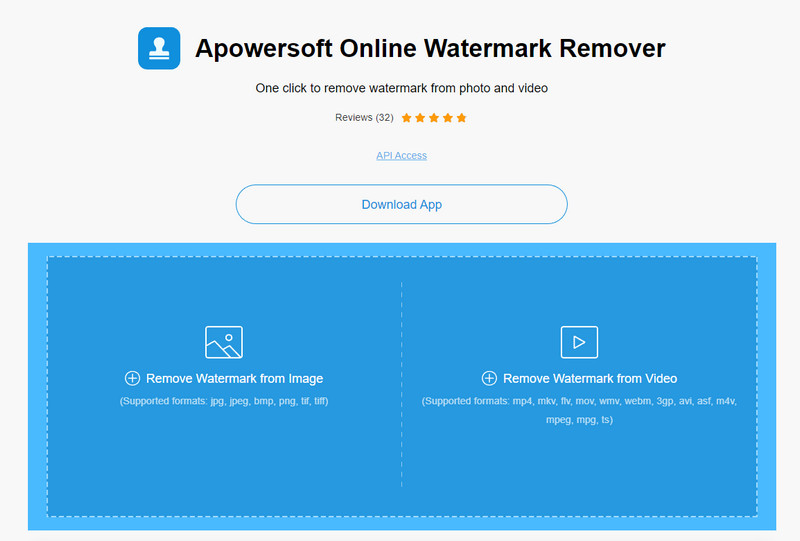
Apowersoft Online Watermark Remover è uno strumento affidabile e senza necessità di download che puoi usare per eliminare efficacemente la filigrana da immagini e video. Lo strumento è molto conosciuto per le sue funzioni di rimozione delle filigrane, perché svolge il lavoro senza lasciare residui sul video esportato. Anche se è uno strumento web, non noterai un calo della qualità video una volta esportato. Invece di acquistare la versione completa di Bandicam priva di filigrana, puoi passare direttamente ai passaggi qui sotto per rimuoverla.
Passaggio 1. Puoi aprire il tuo browser web preferito e cercare il nome di questo strumento di rimozione filigrane online.
Passaggio 2. Qui saranno disponibili due opzioni: clicca su Remove Watermark from Video. Scegli il file video che ha il logo di Bandicam sulla tua unità, quindi premi Apri. Attendi il completamento del caricamento; potrebbe richiedere tempo, soprattutto se la durata del video è lunga.
Passaggio 3. Disegna un riquadro di selezione sul video e assicurati che la filigrana sia all’interno della forma rettangolare.
Passaggio 4. Clicca su Erase per scaricare il file video, questa volta senza filigrana.
Correlato:
Come rimuovere la filigrana dai video esportati con Renderforest
Come rimuovere la filigrana di Viva Video dai filmati
Parte 2. Domande frequenti su come rimuovere la filigrana Bandicam
Bandicam ha una filigrana?
Per gli utenti che utilizzano la prova gratuita, ci sarà una filigrana una volta esportata. Per evitare questo problema, puoi acquistare lo strumento sul sito ufficiale di Bandicam.
Ci sono limitazioni nell'utilizzo della versione gratuita di Bandicam?
Ci sono molte limitazioni se stai utilizzando la versione gratuita di Bandicam, la registrazione di 10 minuti, aggiunta di filigrana, da 60 a 120 FPS supportati, formati di file e velocità di elaborazione. Anche se questo potrebbe essere un problema per la maggior parte, è ancora considerato uno dei migliori registratori dello schermo che puoi utilizzare su Windows.
Come rimuovere la filigrana su Bandicam?
Non c'è altro modo per rimuovere la filigrana su Bandicam, e basta acquistandone la versione pro. Apri il sito Web ufficiale di Bandicam, fai clic su Ottieni versione completa, scegli la licenza che desideri e fai clic su Acquista ora.
Conclusione
In effetti, Bandicam è un registratore dello schermo di prim'ordine che puoi utilizzare gratuitamente. Ma una cosa è certa; l'utilizzo della versione gratuita aggiungerà una filigrana sul video esportato. Con i modi che aggiungiamo in questo articolo, puoi rimuovere con successo la filigrana con il dispositivo di rimozione della filigrana ideale che potrebbe essere la tua scelta. Cosa succede se non si desidera utilizzare uno strumento per rimuovere la filigrana? Quindi ti consigliamo di acquistare Bandicam per rimuovere la filigrana sui video. Ti costerà, ma vale la pena usare la versione pro. Ci auguriamo che questo articolo fornisca le informazioni necessarie per rimuovere la filigrana su Bandicam.
-
 Revisione completa degli efficaci prodotti per la rimozione di filigrane PlaceIt [2022]
 Il dispositivo di rimozione della filigrana PlaceIt che esaminiamo qui sono strumenti efficaci che puoi utilizzare per rimuovere la filigrana sul video che esporti su PlaceIt.
-
 5 modi su come rimuovere la filigrana B612 utilizzando i migliori strumenti
 Vuoi sapere come rimuovere le filigrane B612 dalle tue foto? Puoi rimuovere facilmente la filigrana B612 dalle tue immagini utilizzando questi strumenti eccezionali.
-
 Semplici passaggi su come rimuovere la filigrana del cursore WOW [Risolto]
 WOW Slider è un'app per creare una fantastica presentazione. Tuttavia, incorpora filigrane nel suo output. Leggi di seguito per sapere come rimuovere la filigrana di WOW Slider.
