


 Video Converter Ultimate
 Screen Recorder
 Riparazione video
 Download sicuro
Come rimuovere efficacemente la filigrana iStock su video e immagini con i passaggi
Quando hai bisogno di avere a disposizione un file di contenuti visivi con licenza, puoi accedere a iStock per scaricare questi file. Non tutti possono usare il sito gratuitamente, il che significa che dovrai acquistare l’immagine con denaro reale. Anche se qui puoi scaricare il file gratis, verrà aggiunta una filigrana al file che scarichi. Aggiungendo una filigrana predefinita al file, il sito dichiara che quel contenuto appartiene a iStock. Non ti dà fastidio la filigrana? Se la pensi come noi, leggi questo blog fino alla fine per scoprire la soluzione che abbiamo trovato su internet. Indicheremo anche i piani disponibili sul suddetto sito e come rimuovere la filigrana di iStock in ciascun caso.

Parte 1. Come rimuovere i video e le immagini di iStock Watermarkon con i 3 modi utili
1° modo. Acquistare un credito su iStock
Iniziamo con l'acquisto di credito su iStock. Il credito su iStock è una valuta; questo sito riconosce il credito pari al tuo denaro. Puoi utilizzare il credito per acquistare qualsiasi file con un determinato importo. Puoi salvare le immagini iStock senza filigrana se acquisti un credito. Per sapere come farlo, puoi leggere completamente i passaggi che aggiungiamo di seguito per aiutarti a farlo.
Passaggio 1. Apri il sito ufficiale ed effettua l’accesso al tuo account. Se non hai ancora creato un account, puoi farlo prima di acquistare il credito necessario.
Passaggio 2. Sul sito, fai clic su Pricing per vedere quali piani sono supportati da questo strumento.
Passaggio 3. Verrà visualizzato un elenco di crediti che puoi acquistare, scegli quanti crediti desideri, quindi fai clic su Purchase Credits.
Passaggio 4. Compila le informazioni e i dati di fatturazione che utilizzi per acquistare qui un credito.
2a Via. Rimuovere la filigrana iStock sui video utilizzando FVC Video Converter Ultimate
Per rimuovere la filigrana di iStock dai video, dovrai usare il potente strumento di rimozione delle filigrane, FVC Video Converter Ultimate. È il rimuovi filigrana più scelto, che lavora senza sforzo per eliminare la filigrana dai tuoi video. Questo strumento rimuove la filigrana fotogramma per fotogramma e non lascia residui una volta esportato il file. Quindi, se stai per usare questo software sul tuo desktop, possiamo assicurarti che avrai in poco tempo un video senza filigrana. Vuoi usare questo software? In tal caso, puoi continuare e seguire i passaggi che riportiamo di seguito per aiutarti a rimuovere la filigrana dal video che hai salvato su iStock.
Passaggio 1. Fai clic sul pulsante di download che abbiamo aggiunto qui sotto per installare il programma sul tuo desktop. Scegli il sistema operativo appropriato per ottenere la versione corretta. Dopo averlo scaricato, installa e configura lo strumento, quindi fai clic su Start Now per aprire il software e iniziare a usarlo.
Download gratuitoPer Windows 7 o versioni successiveDownload sicuro
Download gratuitoPer MacOS 10.7 o versioni successiveDownload sicuro
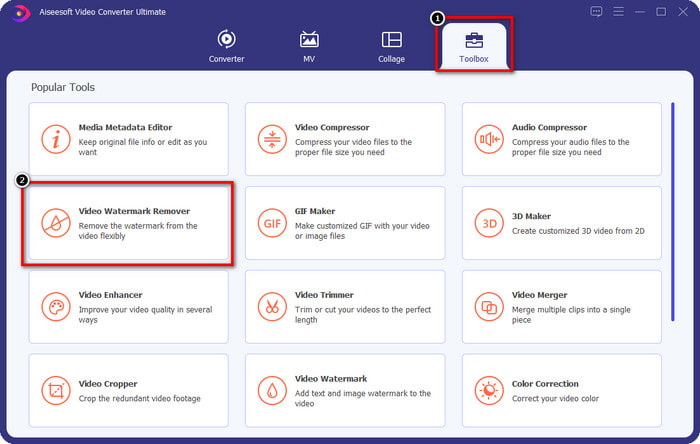
Passaggio 2. Ora che disponi di questo iStock watermark remover, vai alla sezione Toolbox. Cerca Video Watermark Remover per usare questa funzione.
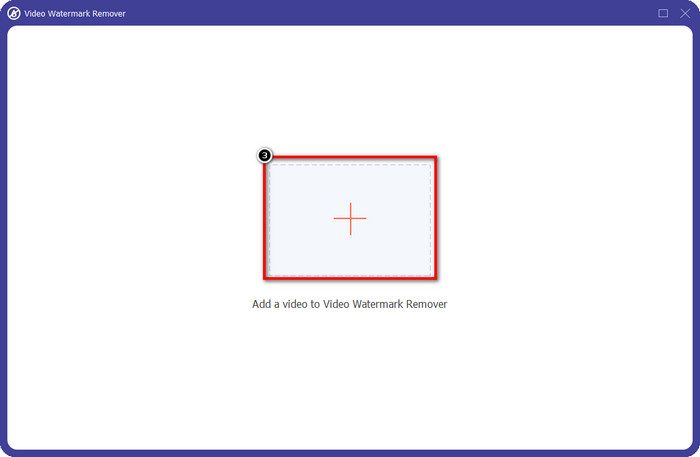
Passaggio 3. Premi il pulsante + per caricare il file video scaricato da iStock che contiene la filigrana. Trova il file video nell’esplora file che apparirà sullo schermo, quindi premi Open per caricarlo.
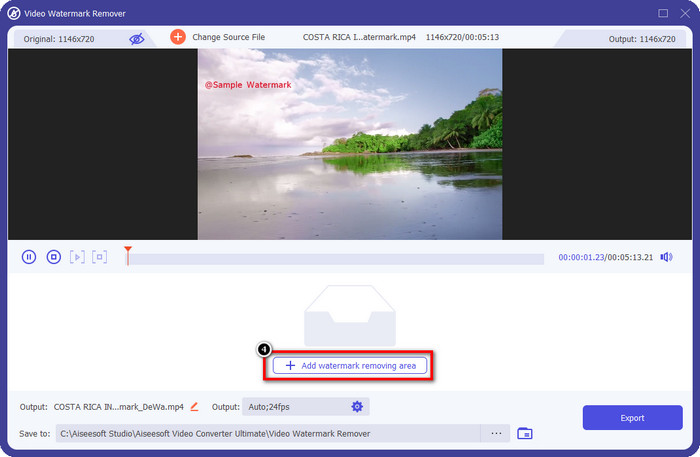
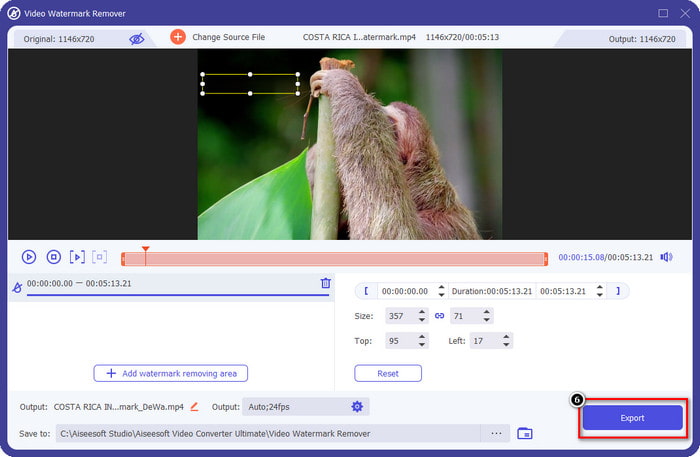
Passaggio 4. Nella nuova finestra, seleziona Add Watermark Removing Area per definire l’area della filigrana sul video che hai caricato.
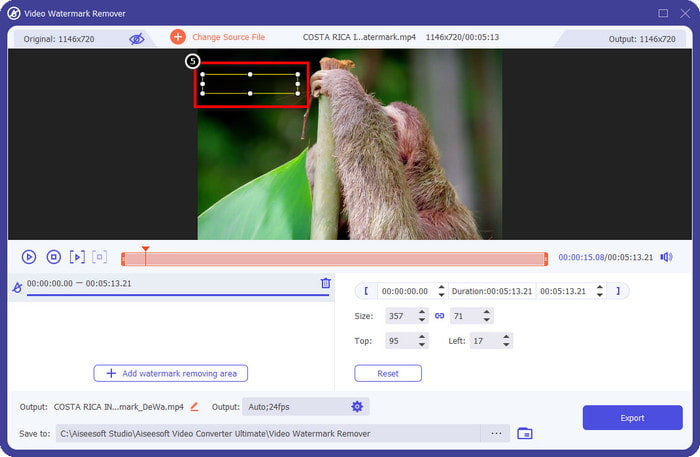
Passaggio 5. Nella parte centrale superiore, regola la forma rettangolare e posizionala sulla filigrana per applicarla all’area desiderata.
Passaggio 6. Se hai completato tutto quanto indicato in questo passaggio, inizia a esportare il file premendo il pulsante Export. In questo modo avrai completato la rimozione della filigrana dal tuo video con l’aiuto di questo strumento avanzato.
3a Via. Rimuovere la filigrana iStock sulle immagini utilizzando il dispositivo di rimozione filigrana gratuito FVC
Per gestire le filigrane sulle immagini, dovrai usare FVC Free Watermark Remover. È un pratico iStock watermark remover online che puoi utilizzare per rimuovere in modo efficiente la filigrana dalle immagini senza scaricare nulla sul tuo dispositivo. Inoltre, non dovrai acquistare o sottoscrivere nulla perché è gratuito. Nonostante sia uno strumento online, le sue prestazioni nella rimozione delle filigrane sono indubbiamente superiori a quelle di altri remover per filigrane di immagini. Non credi a quello che diciamo? C’è solo un modo per dimostrarti che funziona in modo eccellente: seguendo i passaggi che riportiamo qui.
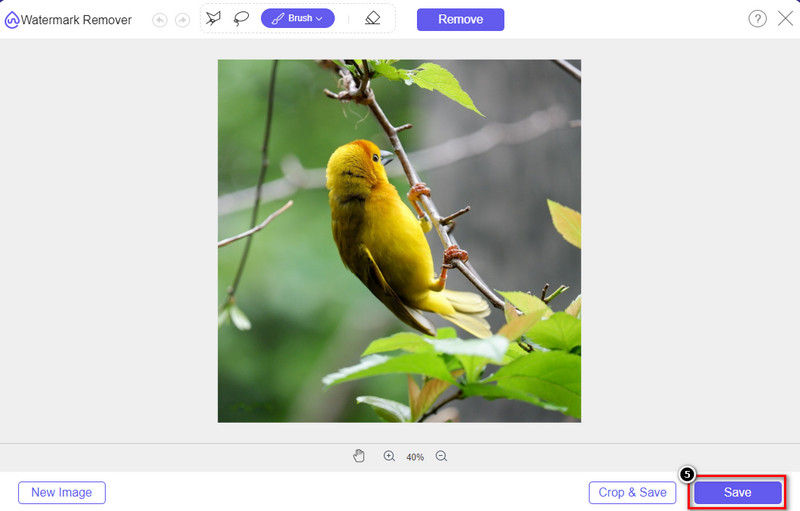
Passaggio 1. Fai clic su questo link per usare immediatamente il watermark remover online per le immagini.
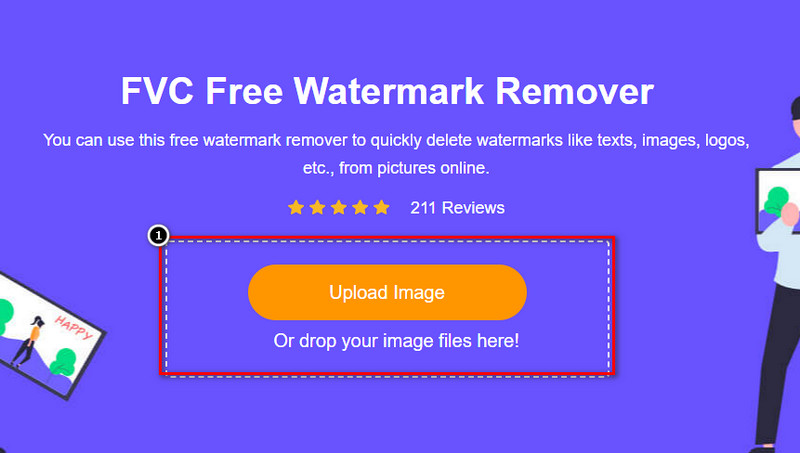
Passaggio 2. Premi Upload Image, seleziona l’immagine con la filigrana e attendi il completamento del processo di caricamento.
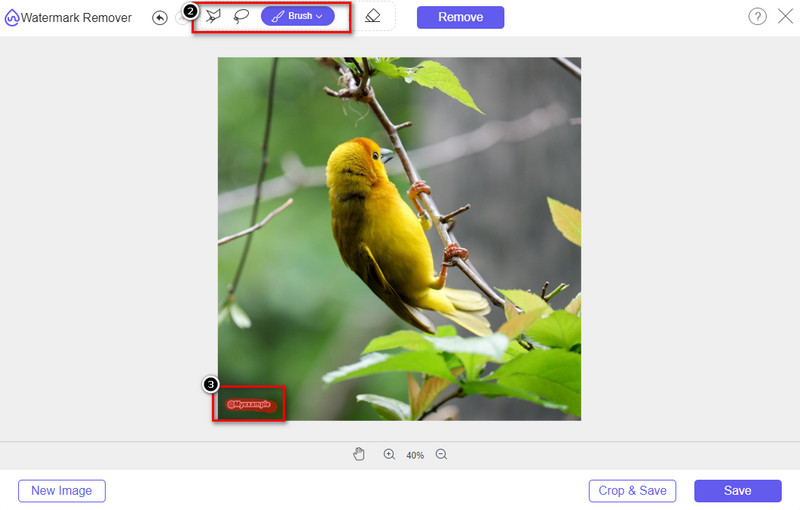
Passaggio 3. Draw sulla filigrana con questi strumenti per evidenziarla.
Passaggio 4. Fai clic su Remove per vedere come appare l’immagine una volta rimossa la filigrana.
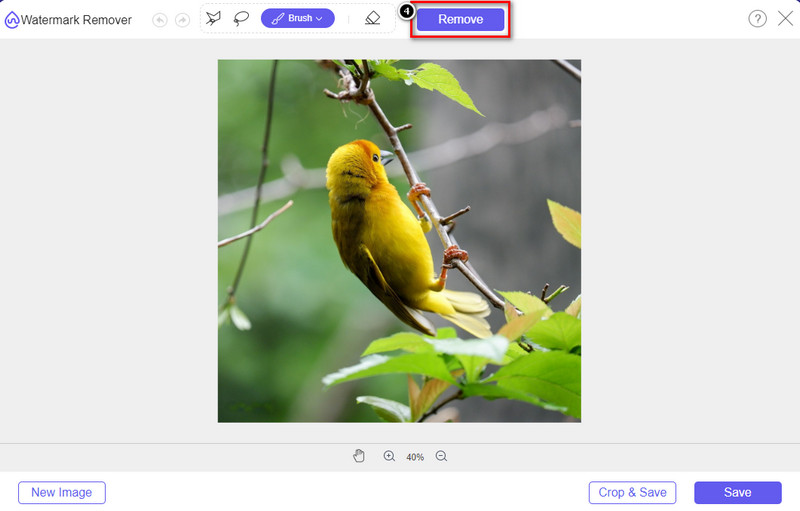
Passaggio 5. Infine, per salvare il file immagine, fai clic su Save per esportare l’immagine senza la filigrana di iStock.
Correlato:
Come rimuovere la filigrana dai video esportati con Renderforest
Come rimuovere la filigrana di Viva Video dai filmati
Parte 2. Domande frequenti su come rimuovere la filigrana iStock
Come scaricare gratuitamente le immagini iStock senza filigrana?
Se intendi scaricare immediatamente un'immagine su iStock, il sito Web applicherà una filigrana all'immagine. Questo sito Web protegge ogni file per evitare problemi di copyright e un uso eccessivo di una determinata immagine. Se vuoi scaricare un'immagine senza filigrana, devi acquistare del credito; puoi seguire i passaggi che aggiungiamo sopra su come farlo.
Quanto costa un singolo credito su iStock?
Il prezzo di un singolo credito su iStock vale $12. Puoi utilizzare il credito per acquistare un file multimediale qui e scaricarlo senza la filigrana sul supporto visivo che desideri. Più credito acquisterai, ci sarà uno sconto per credito; puoi controllare i crediti disponibili che potrebbero piacerti.
Non è costoso acquistare un file su iStock?
Rispetto all'altro sito Web che fornisce lo stesso servizio, è uno dei siti Web più economici che puoi utilizzare per acquistare un file con licenza. Una volta acquistato un file qui, puoi usarlo illimitatamente a differenza dell'altro, dove una volta acquistato, ci sono ancora limitazioni sull'utilizzo del file.
Conclusione
Ora che sai come rimuovere efficacemente la filigrana iStock su video e immagini, possiamo dire che il lavoro è fatto. Allora, quale strada preferisci di più? Vuoi acquistare un credito per avere il file pronto senza filigrana? Oppure vuoi utilizzare gli strumenti che aggiungiamo qui che potrebbero gestire la filigrana su immagini e video? Qualunque sia la tua scelta, avrai comunque il file perfetto e pronto per essere utilizzato senza il disturbo della filigrana.
-
 Come rimuovere la filigrana con Pixlr in passaggi dettagliati [Efficace]
 Vuoi sapere come rimuovere una filigrana con Pixlr? In tal caso, continua a leggere di seguito per sapere come farlo e le alternative che puoi utilizzare.
-
 Rimuovi la filigrana Animotica sui video esportati con 3 metodi comprovati
 Ti sei mai chiesto se è possibile rimuovere la filigrana Animotica sui video che hai esportato? Questo articolo fornisce una procedura.
-
 Modi gratuiti per rimuovere la filigrana di VideoShop sui video [senza sforzo]
 Per rimuovere la filigrana di VideoShop, il tuo dispositivo avrà bisogno di un dispositivo di rimozione della filigrana. Per sapere cosa sono, leggi questo articolo.
