


 Video Converter Ultimate
 Screen Recorder
 Riparazione video
 Download sicuro
I metodi più semplici su come rimuovere il logo ManyCam sul tuo dispositivo
Vuoi imparare come rimuovere il logo di ManyCam su Windows e Mac? In tal caso, questo post ti fornirà diversi metodi per rimuovere un logo dai tuoi video che vale la pena provare. Riprodurre i tuoi video preferiti con watermark o loghi è un po’ irritante. Non riesci a goderti i video e diventano una distrazione. A volte non puoi nemmeno vedere alcune parti delle immagini a causa di watermark, immagini, testi o loghi. Fortunatamente, puoi usare degli ottimi software con funzioni di rimozione watermark per eliminare questi elementi indesiderati dai tuoi video.
Con l'aiuto di queste applicazioni, non rimarrai mai più deluso. Se sei interessato a conoscere i metodi migliori per rimuovere il logo ManyCam, la scelta migliore è leggere questo articolo.

Parte 1: Come rimuovere il logo ManyCam attivando l'abbonamento
Se vuoi imparare come rimuovere i watermark da ManyCam, sei nel posto giusto. ManyCam è un software per il live streaming disponibile sia su Windows che su Mac. Questa applicazione ti consente di creare dirette originali sulle tue piattaforme, realizzare tutorial, presentazioni aziendali, streaming di videogiochi e altro ancora. Inoltre, offre molte altre funzioni interessanti, come aggiungere musica, registrare lo schermo, usare il green screen, trasmettere i giochi e così via. Per i creatori di contenuti, ManyCam è uno strumento prezioso e utile. Include infatti strumenti essenziali come lo screencasting e la registrazione dello schermo, rendendo il loro lavoro più comodo.
Tuttavia, ogni volta che crei o modifichi il tuo video, c'è un logo manycam nella parte inferiore del video, che è inquietante. Fortunatamente, puoi rimuovere questo logo attivando l'abbonamento a ManyCam. Segui questi passaggi per sapere come rimuovere il logo manycam attivando l'abbonamento.
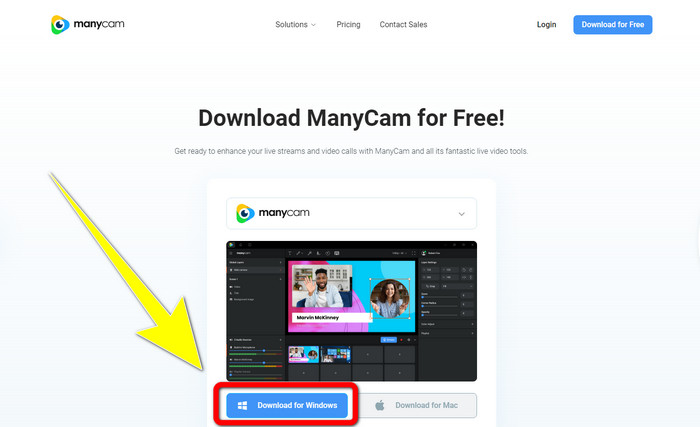
Passaggio 1: Per scaricare ManyCam, fai clic sul pulsante Download for Windows. Poi procedi con l’installazione.
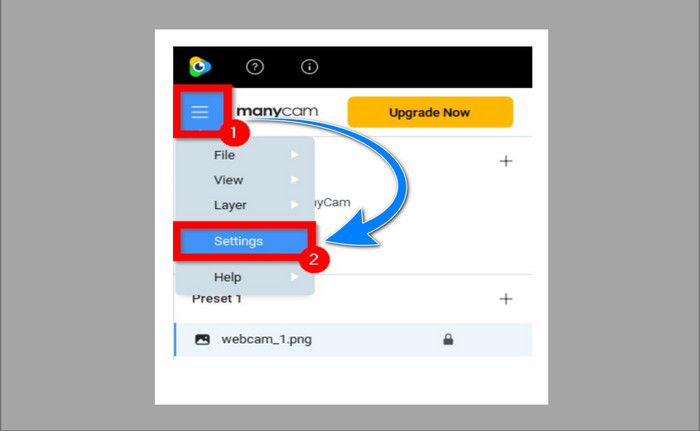
Passaggio 2: Avvia l’applicazione sul computer e clicca sull’icona a panino (menu) di ManyCam, poi vai su Settings > Account e accedi all’account che hai creato dopo aver acquistato l’abbonamento.
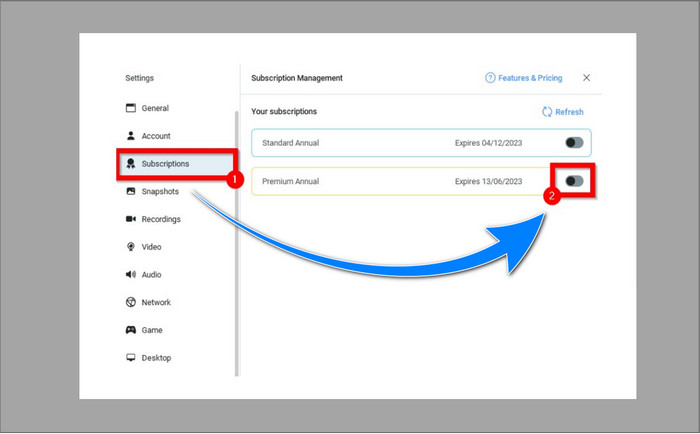
Passaggio 3: Vai alla scheda Subscription per assicurarti che l’abbonamento sia attivo.
Passaggio 4: Se l’abbonamento è già stato attivato, apparirà il messaggio Pop-up e avrai finito.
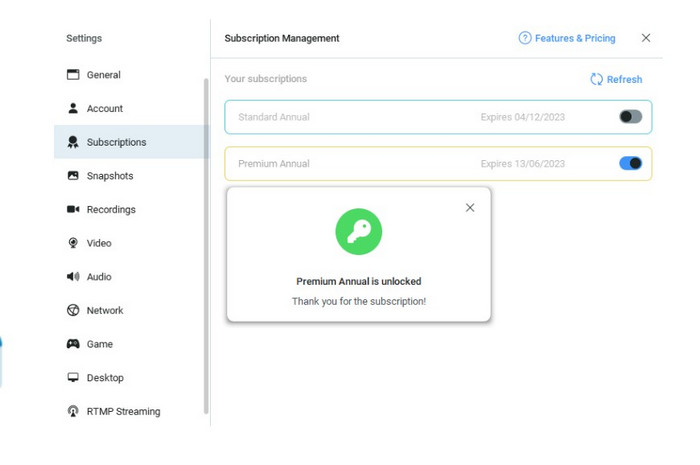
Se la tua applicazione ManyCam è già attivata, le filigrane o il logo sui tuoi video verranno automaticamente rimossi. Puoi divertirti a guardare i tuoi video preferiti senza incontrare filigrane su di essi.
Parte 2: Come rimuovere ManyCam Logo senza abbonamento
Vuoi rimuovere gratuitamente il watermark da ManyCam? Oltre all’applicazione ManyCam, puoi usare anche un altro programma per rimuovere il logo di ManyCam. La migliore applicazione che puoi utilizzare è Video Converter Ultimate. Questo programma può eliminare gli oggetti indesiderati nei tuoi video, come testi, watermark, loghi, ecc. Inoltre, Video Converter Ultimate offre molti strumenti di editing che puoi sfruttare, come il controllo della velocità del video, il miglioramento video, l’aggiunta e la rimozione di watermark, la correzione del colore, il potenziamento del volume e altro ancora. Il miglior strumento che puoi usare per rimuovere i watermark con Video Converter Ultimate è Video Watermark Remover.
Questo strumento ti aiuterà a eliminare facilmente le filigrane. Inoltre, questa applicazione è disponibile sia su Windows che su Mac. Inoltre, non avrai difficoltà a utilizzare questa applicazione. Supporta anche diversi formati di file audio e video, come MP4, FLV, MOV, MKV, MP3, AAC e altri. Se desideri rimuovere il logo ManyCam utilizzando Video Converter Ultimate, questo articolo ti mostrerà due modi. In questi modi vengono utilizzati il ritaglio video e la rimozione di filigrane video.
1. Utilizzo di Ritaglio video
Passaggio 1. Scarica FVC Video Converter Ultimate e procedi con l’installazione.
Download gratuitoPer Windows 7 o versioni successiveDownload sicuro
Download gratuitoPer MacOS 10.7 o versioni successiveDownload sicuro
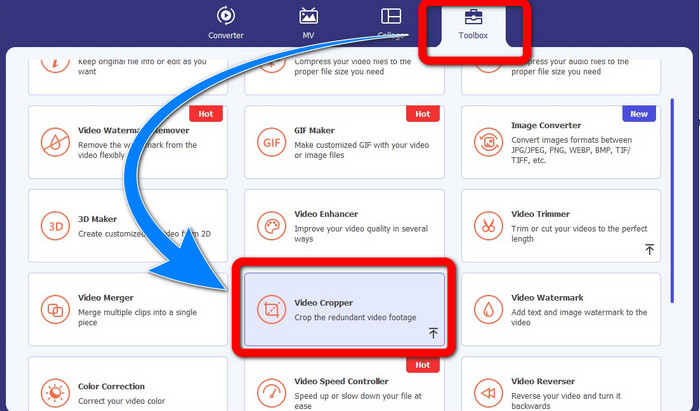
Passaggio 2: Dopo l’installazione, avvia il programma. Clicca su Toolbox > Video Cropper.
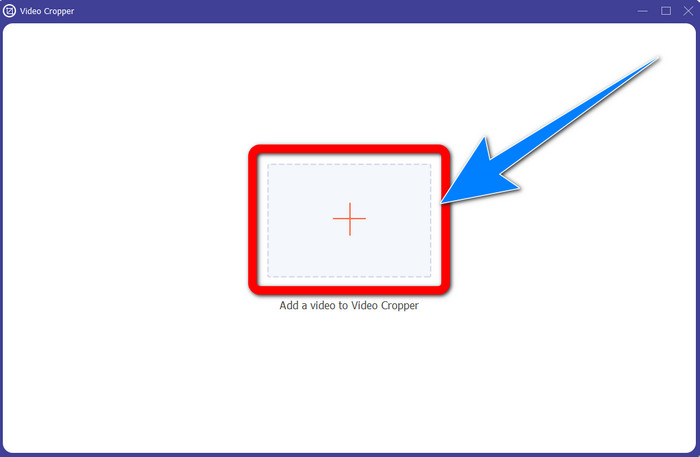
Passaggio 3: Dopo aver cliccato su Video Cropper, si aprirà un’altra interfaccia. Clicca sul pulsante con il segno Più e aggiungi i video con watermark provenienti da ManyCam.
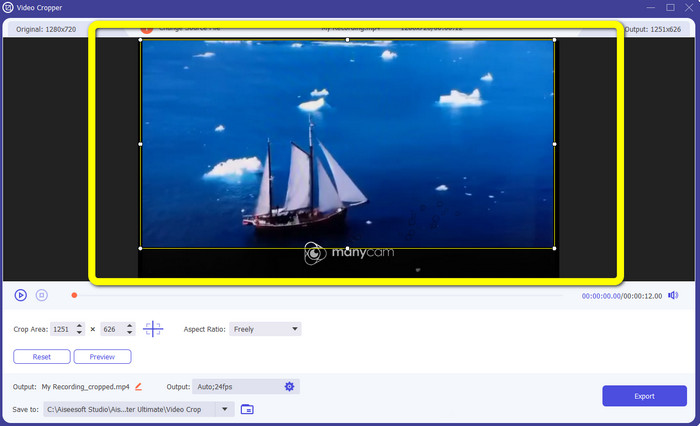
Passaggio 4: Quando il file è stato aggiunto, puoi ritagliare il video e rimuovere il watermark.
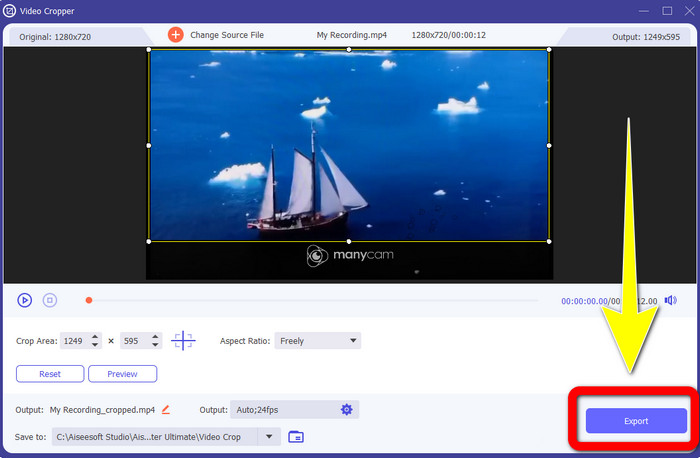
Passaggio 5: Quando il watermark è stato rimosso, clicca sul pulsante Export per salvare il risultato finale. Ora puoi riprodurre il tuo video preferito senza watermark.
2. Utilizzo di Rimozione filigrana video
Passaggio 1: Apri il programma. Vai su Toolbox > Video Watermark Remover.
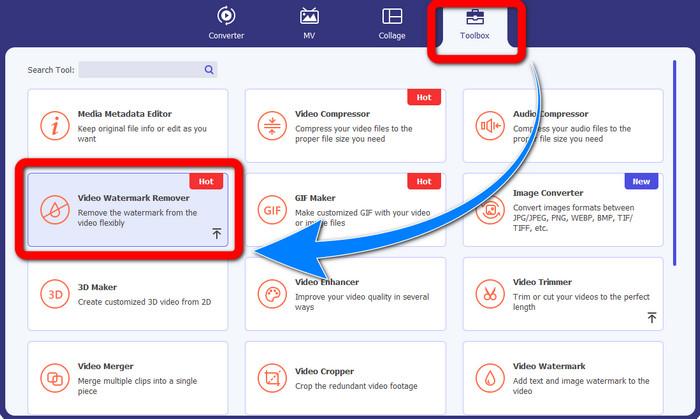
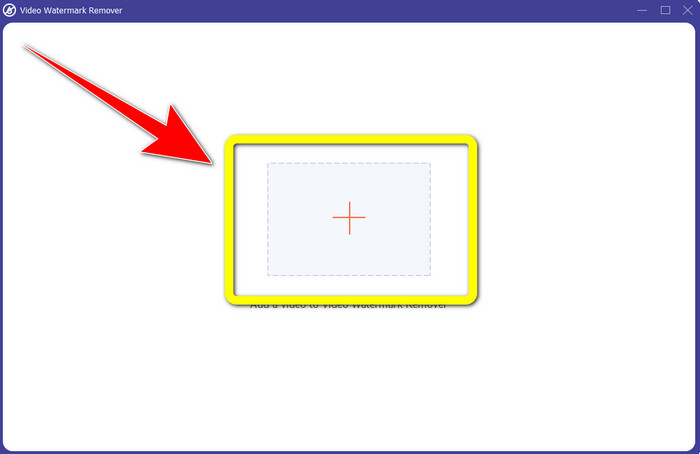
Passaggio 2: Dopo aver cliccato su Video Watermark Remover, apparirà un’altra interfaccia. Clicca sul pulsante con il segno Più per aggiungere il tuo video con watermark da ManyCam.
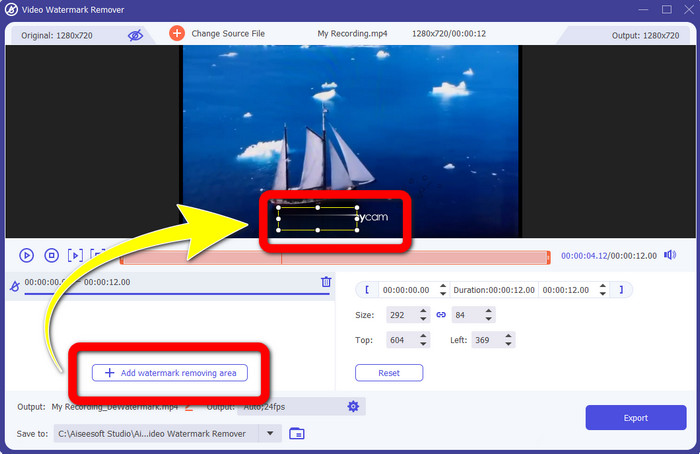
Passaggio 3: Dopo aver aggiunto il video, clicca su Add Watermark Removing Area, quindi nel video apparirà un riquadro. Trascina il riquadro sopra il watermark per coprirlo.
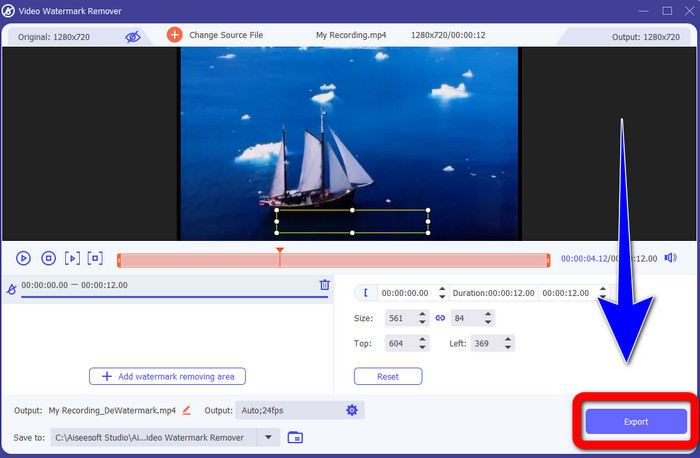
Passaggio 4: Dopo aver rimosso i watermark dai tuoi video, clicca su Export per salvare il risultato. Questo è il modo migliore per rimuovere gratuitamente il logo di ManyCam.
Parte 3: Domande frequenti sulla rimozione del logo ManyCam
Quanto tempo ci vorrà per rimuovere il logo?
Non devi aspettare più a lungo perché il processo di rimozione del logo o di eventuali oggetti non necessari richiederà solo pochi secondi.
Posso rimuovere il logo ManyCam sul mio telefono?
Sì! Puoi rimuovere il logo ManyCam sui tuoi dispositivi Android o iPhone utilizzando diverse applicazioni software con rimozione di filigrane. Cerca l'applicazione sul tuo Play Store o App Store e prova a utilizzare quelle applicazioni che puoi vedere nei risultati migliori.
C'è un modo migliore per rimuovere le filigrane sul mio Mac?
Certamente sì! Puoi usare un’ottima applicazione con funzione di rimozione watermark per eliminare i watermark anche sul tuo Mac. Questa applicazione è Video Converter Ultimate. È perfetta sia per Windows sia per Mac. Questo software può aiutarti a rimuovere gli elementi indesiderati dai video, come loghi, watermark, immagini e testi.
Posso utilizzare lo strumento di ritaglio dall'applicazione ManyCam per rimuovere il logo ManyCam?
Purtroppo no! Usare lo strumento di ritaglio per rimuovere il logo di ManyCam non è efficace. Anche se provi a ritagliare il video per eliminare il logo, questo continuerà a comparire. L’unica soluzione per rimuovere il logo è attivare l’abbonamento su ManyCam.
Oltre a ManyCam, esiste un modo alternativo per rimuovere le filigrane sui miei video?
Si C'è! Oltre a ManyCam, ci sono più applicazioni con rimozione filigrana che puoi utilizzare senza acquistare. Una delle migliori applicazioni che puoi utilizzare per rimuovere le filigrane sui tuoi video è Video Converter Ultimate. È semplice e facile da usare, adatto ai principianti.
Conclusione
In base alle informazioni riportate sopra, puoi imparare come rimuovere il logo di ManyCam su Windows e Mac. Puoi usare ManyCam stesso per rimuovere facilmente il logo dopo aver attivato il tuo abbonamento. Inoltre, se vuoi usare un programma con rimozione watermark gratuita, devi usare Video Converter Ultimate. Questa applicazione sarà di grande aiuto per eliminare gli elementi indesiderati dai tuoi video.
-
 I metodi più semplici su come rimuovere la filigrana dalle foto
 Sei irritato dalle filigrane sulle tue foto? Non preoccuparti! Questo articolo fornirà metodi semplici e facili per rimuovere le filigrane dalle tue foto.
-
 Come rimuovere la filigrana Powtoon usando 4 metodi efficaci
 Leggi questo articolo per imparare come rimuovere la filigrana Powtoon usando i migliori strumenti che abbiamo incluso qui e un tutorial.
-
 Recensione di Apowersoft Watermark Remover: caratteristiche, pro e contro e prezzi
 Apowersoft Watermark Remover è una delle migliori soluzioni di rimozione di filigrane che supporta online e offline, fai clic qui per saperne di più!
