


 Video Converter Ultimate
 Screen Recorder
 Riparazione video
 Download sicuro
I migliori trucchi su come rimuovere il testo di Snapchat dallo screenshot
Vuoi sapere come rimuovere il testo di Snapchat dallo screenshot? Sei nel posto giusto. Questo articolo ti mostrerà i metodi più semplici per rimuovere il testo di Snapchat dalle tue foto e dai tuoi video. Questi metodi sono facili da seguire, perfetti e adatti anche a utenti non professionisti. Se sei interessato a queste soluzioni semplici, interrompi subito quello che stai facendo e concentrati sulla lettura di questo articolo informativo.

Parte 1: Come rimuovere il testo e i sottotitoli di Snapchat dalle immagini
La cosa migliore da fare per rimuovere un testo di Snapchat da una foto è usare un remover di watermark. In questo modo puoi eliminare qualsiasi elemento dalle tue foto, come testi, loghi, watermark, ecc. Se stai cercando uno strumento eccellente e affidabile, puoi usare FVC Free Watermark Remover. Può aiutarti a cancellare il testo di Snapchat dalle immagini online in modo istantaneo. Puoi capire facilmente come funziona grazie a un’interfaccia intuitiva, una guida dettagliata e pulsanti semplici.
Inoltre, FVC Free Watermark Remover supporta i formati di file immagine di input e output comunemente usati, come PNG, JPG, JPEG, BMP e altri. Inoltre, questo strumento è disponibile su Windows 7,8,10,11 e macOS 10.7 sopra. Infine, questa applicazione promette di garantire la privacy di ogni utente, quindi non devi preoccuparti delle tue foto o informazioni. Se vuoi rimuovere un testo Snapchat dalle tue foto, segui la semplice guida qui sotto.
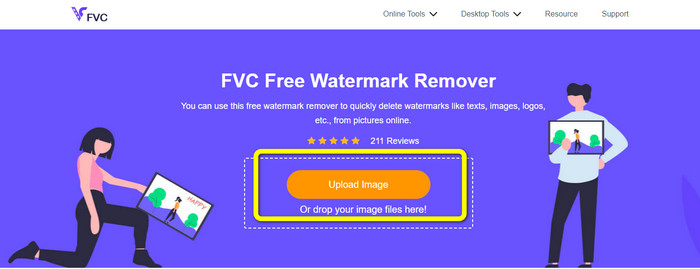
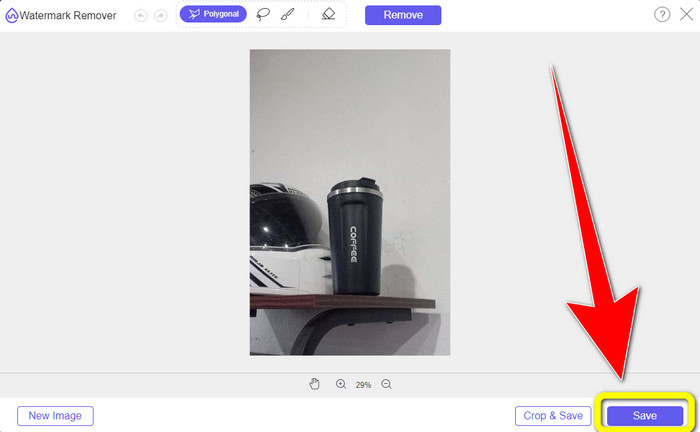
Passo 1: Vai al sito di FVC Free Watermark Remover. Fai clic sul pulsante Upload Image e aggiungi la foto con il testo di Snapchat che vuoi rimuovere.
Passo 2: Dopo aver caricato la foto, puoi usare le opzioni del remover di watermark: gli strumenti poligonali, lo strumento lazo e lo strumento pennello.
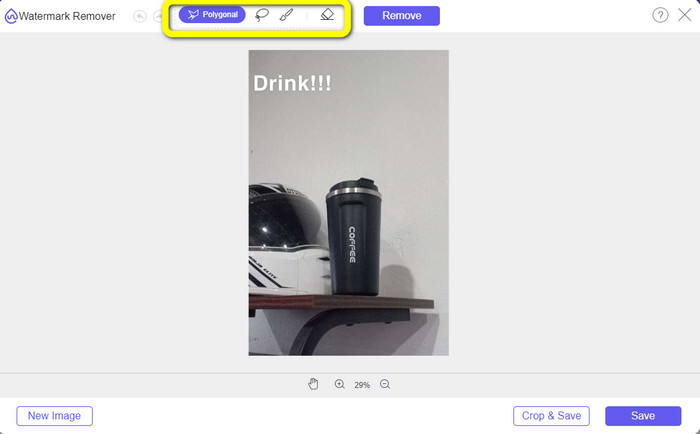
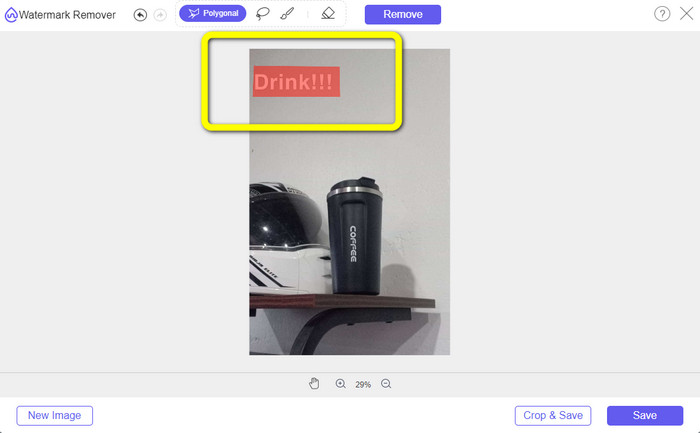
Passo 3: Usando questi strumenti, puoi evidenziare il testo che desideri rimuovere.
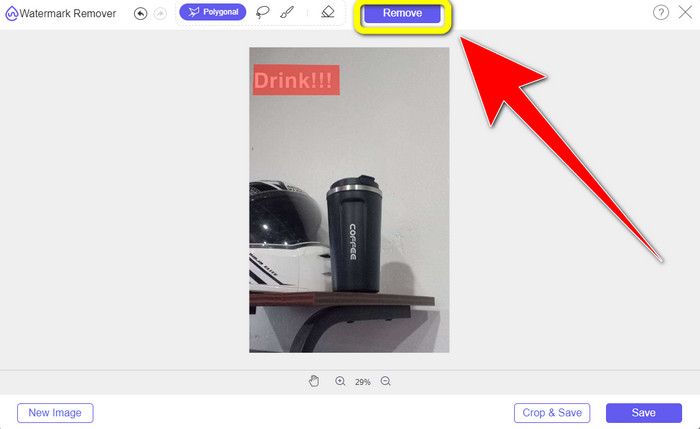
Passo 4: Quando hai finito di evidenziare il testo nella foto, puoi fare clic sul pulsante Remove per eliminare il testo dall’immagine. Dopodiché, attendi il completamento del processo di rimozione.
Passo 5: Dopo aver rimosso il testo dalla foto, puoi fare clic sul pulsante Save per scaricare l’immagine senza testo.
Parte 2: come rimuovere il testo di Snapchat dal video
Dopo aver rimosso un testo di Snapchat dalla tua foto, possiamo anche aiutarti a imparare come rimuovere un testo di Snapchat dal tuo video. In questa parte, la migliore applicazione da usare è Video Converter Ultimate. Questo programma può rimuovere oggetti indesiderati dai tuoi video, come testi, watermark, loghi, ecc. Puoi anche usarlo per eliminare il testo in due modi semplici: tramite lo strumento video watermark remover e tramite lo strumento di ritaglio video. Se il testo di Snapchat si trova in un angolo o sul bordo del video, puoi usare lo strumento di ritaglio; se invece il testo è nella parte centrale del video, puoi usare lo strumento video watermark remover.
Inoltre, questa applicazione dispone di vari strumenti di editing di cui puoi usufruire, come un potenziatore video, un compressore video, un invertitore video, l'aggiunta e la rimozione della filigrana, il trimmer video, il ritaglio, il rotatore, il creatore di GIF e altro ancora. Supporta anche numerosi formati di file video, come MP4, FLV, MKV, MOV, ecc. Inoltre, puoi utilizzare questa applicazione su Mac e Windows, il che è conveniente per gli utenti. Se desideri rimuovere il testo di Snapchat dai tuoi video utilizzando i due semplici modi, devi seguire i semplici passaggi seguenti.
Utilizzo della funzione di rimozione della filigrana video
Passo 1: Scarica Video Converter Ultimate sul tuo computer Windows o Mac. Avvia il programma dopo l’installazione.
Download gratuitoPer Windows 7 o versioni successiveDownload sicuro
Download gratuitoPer MacOS 10.7 o versioni successiveDownload sicuro
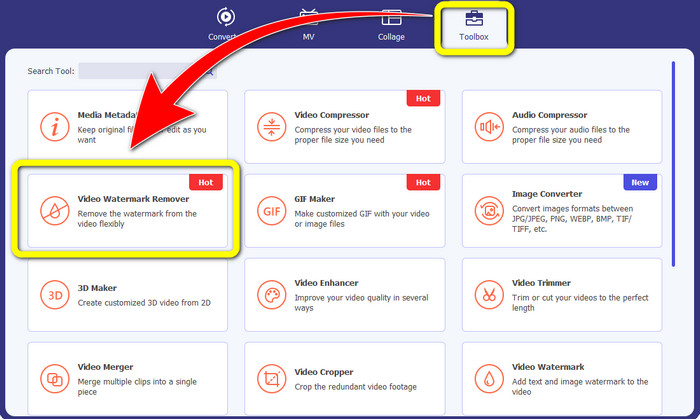
Passo 2: Dopodiché, nella parte superiore dell’interfaccia vedrai quattro opzioni. Fai clic sul pannello Toolbox e seleziona lo strumento Video Watermark Remover.
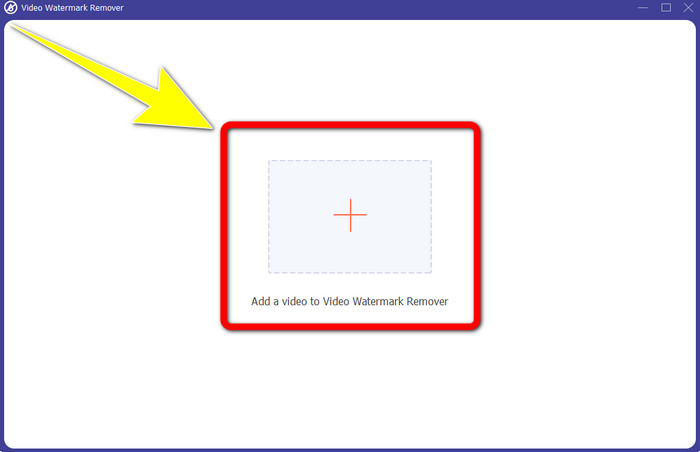
Passo 3: A questo punto, apparirà un’altra finestra sullo schermo. Clicca sull’icona + e inserisci il video con il testo di Snapchat.
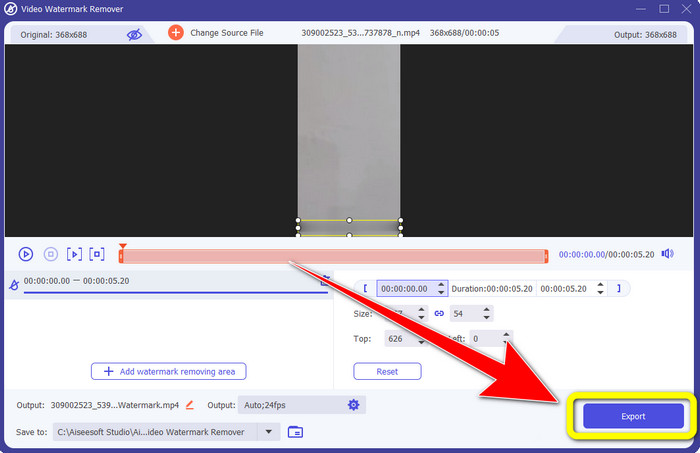
Passo 4: Quando hai finito di inserire il video, fai clic sulla funzione Add Watermark Removing Area. Apparirà una piccola casella sul video; trascinala per coprire il testo di Snapchat.
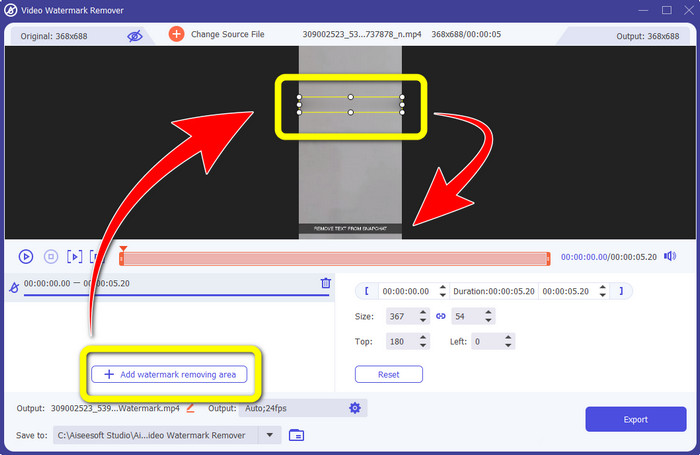
Passo 5: Dopo aver trascinato la casella sul testo di Snapchat, vedrai che il testo è già scomparso. Fai clic sul pulsante Export per salvare definitivamente il video.
Utilizzo della funzione di ritaglio video
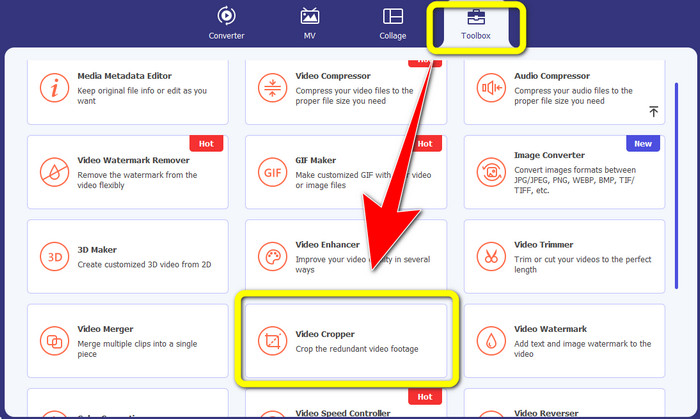
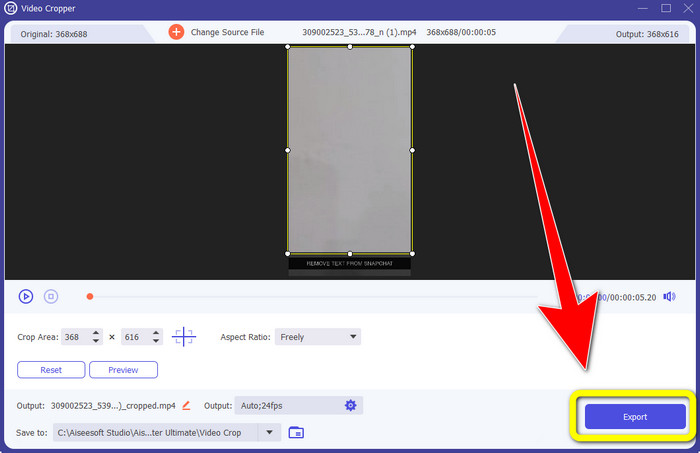
Passo 1: Avvia Video Converter Ultimate sul tuo computer. Seleziona il pannello Toolbox e vai allo strumento Video Cropper.
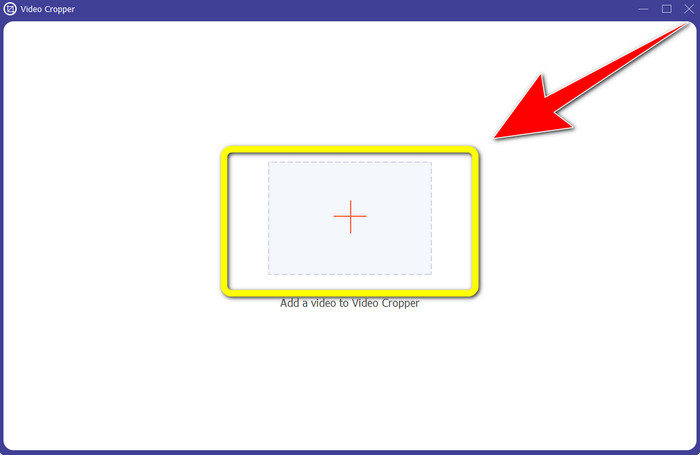
Passo 2: Dopo aver cliccato sullo strumento Video Cropper, apparirà una nuova interfaccia sullo schermo. Fai clic sul pulsante + per importare il video con il testo di Snapchat che vuoi rimuovere.
Passo 3: In questa fase puoi ritagliare il video per eliminare il testo di Snapchat usando il mouse per trascinare il bordo dell’area. Puoi tagliare i bordi del video.
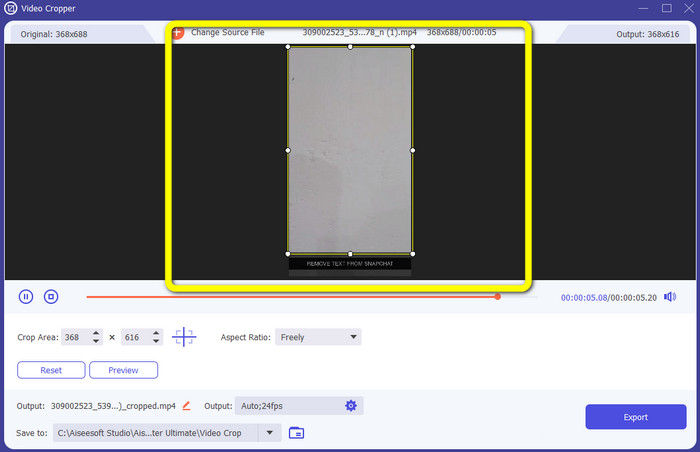
Passo 4: Per l’ultimo passaggio, puoi già fare clic sul pulsante Export per salvare il video senza il testo di Snapchat.
Parte 3: Domande frequenti sulla rimozione di testo Snapchat da foto e video
Posso anche rimuovere il testo di Snapchat dalle foto usando il mio telefono?
Si, puoi. Puoi utilizzare molte applicazioni con rimozione filigrana, come PicLab, Photo Retouch-Object Removal, Airbrush e altro.
Posso rimuovere un testo Snapchat dalla mia foto senza perdere la qualità della mia immagine?
Se non vuoi perdere la qualità della foto dopo aver rimosso il testo di Snapchat, devi usare FVC Free Watermark Remover. Dopo il processo di rimozione, potrai conservare la qualità originale delle immagini.
Come faccio a disattivare i sottotitoli di Snapchat?
I sottotitoli di Snapchat vengono caricati manualmente dall'editore, consentendo una migliore precisione dei sottotitoli. L'interruttore a fumetto nella parte inferiore dello schermo può essere utilizzato per attivare o disattivare i sottotitoli.
Qual è la migliore applicazione con un dispositivo di rimozione della filigrana che posso utilizzare per il mio desktop?
Se stai cercando un’applicazione, puoi usare Video Converter Ultimate. Questo programma ti permette di rimuovere i watermark dai video senza alcuno sforzo. Inoltre, offre molte altre funzioni che puoi sfruttare.
Qual è la filigrana nella foto o nel video?
Le filigrane sono le firme, i loghi e i testi che puoi vedere nella foto o nel video. Dice solo ad altre persone chi è l'effettivo proprietario delle immagini o dei video. La filigrana è uno dei modi migliori per proteggere la foto e promuovere il nome di un prodotto.
Conclusione
Come puoi vedere, il modo migliore per rimuovere il testo di Snapchat da foto e video è usare un’ottima applicazione dotata di funzione di rimozione dei watermark. Questo articolo ti mostra come eliminare il testo di Snapchat dalle foto utilizzando FVC Free Watermark Remover. Inoltre, illustra come rimuovere il testo di Snapchat dai video usando Video Converter Ultimate, che offre due metodi efficaci: lo strumento video watermark remover e lo strumento di ritaglio video.
-
 Come rimuovere il logo dal video utilizzando Windows Movie Maker
 Se vuoi imparare a rimuovere i loghi dai video utilizzando Windows Movie Maker e altri modi alternativi, leggi questo articolo. Abbiamo modi semplici per te.
-
 Come rimuovere il logo VideoScribe dal video senza sforzo
 Non devi più preoccuparti di rimuovere il logo VideoScribe dai tuoi video. Questo articolo fornirà metodi senza problemi. Leggi questo post per saperne di più
-
 Il modo più veloce per rimuovere il logo dal video in Adobe Premiere Pro
 Prova questi modi semplici e veloci per rimuovere i loghi da un video in Adobe Premiere Pro. Questo articolo ti offrirà i modi migliori per provare a utilizzare il tuo dispositivo.
