


 Video Converter Ultimate
 Screen Recorder
 Riparazione video
 Download sicuro
I migliori metodi su come rimuovere il logo VideoScribe da un video
Desideri imparare come rimuovere il logo di VideoScribe dai tuoi video? Ci sono casi in cui ti ritrovi un logo sui tuoi video. Non puoi evitarlo, soprattutto quando il proprietario del video vuole proteggere i propri contenuti e promuovere il proprio marchio. Puoi trovare un logo anche quando usi la versione gratuita di una determinata applicazione. Il miglior esempio è l’applicazione VideoScribe. Se stai usando la versione gratuita di questa applicazione, il tuo video avrà il logo VideoScribe, a meno che tu non acquisti la versione a pagamento. Tuttavia, prima di farlo, puoi usare altre applicazioni gratuite per rimuovere il logo dai tuoi video. Devi leggere questo articolo per scoprire come rimuovere un logo senza acquistare nulla.

Parte 1: Come rimuovere il logo VideScribe dal video offline
Se vuoi rimuovere il logo di VideoScribe dai tuoi video offline, puoi usare Video Converter Ultimate. Questa applicazione può aiutarti a rimuovere il logo di VideoScribe dai tuoi video in modo facile e veloce. Puoi anche usare questo software per modificare i video senza perdere qualità. Inoltre, ha un’interfaccia grafica semplice che offre risultati di alta qualità. Video Converter Ultimate è disponibile sia su Mac che su Windows. Nonostante le numerose funzioni, è comunque adatto ai principianti. Questa applicazione supporta molti formati di file, come FLV, MOV, MP4, MTS, DivX, XviD e molti altri. Inoltre, offre numerosi strumenti di editing per migliorare i tuoi video, come miglioramento, taglio, ritaglio, correzione del colore, rotazione dei video e molto altro. Video Converter Ultimate può anche offrirti due modi per rimuovere il logo di VideoScribe dai tuoi video.
Utilizzo della rimozione di filigrane video
Passaggio 1: Fai clic sul pulsante di download qui sotto per scaricare Video Converter Ultimate sul tuo Windows o Mac. Dopodiché, installa il software sul tuo dispositivo e avvia l’applicazione.
Download gratuitoPer Windows 7 o versioni successiveDownload sicuro
Download gratuitoPer MacOS 10.7 o versioni successiveDownload sicuro
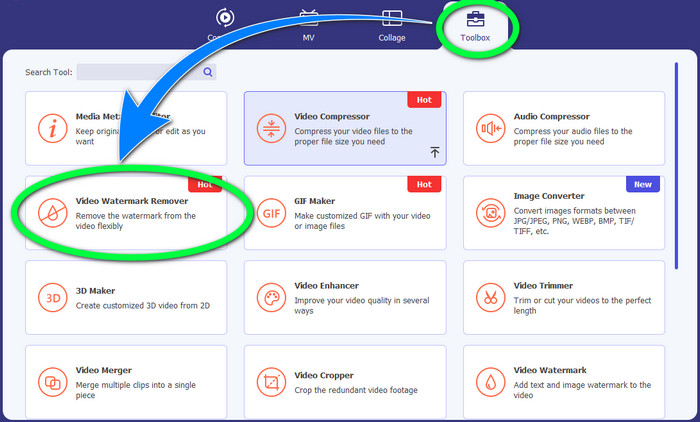
Passaggio 2: Successivamente, vai al pannello Toolbox e fai clic sul pulsante Video Watermark Remover. Una nuova interfaccia apparirà sullo schermo.
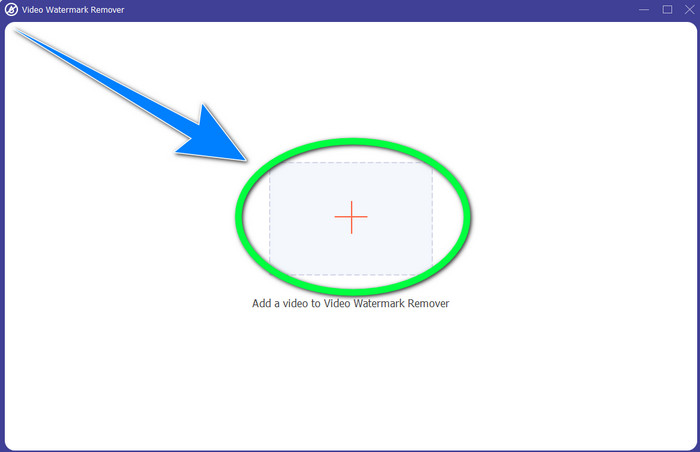
Passaggio 3: Fai clic sul pulsante + per importare il file video con il logo di VideoScribe che desideri rimuovere.
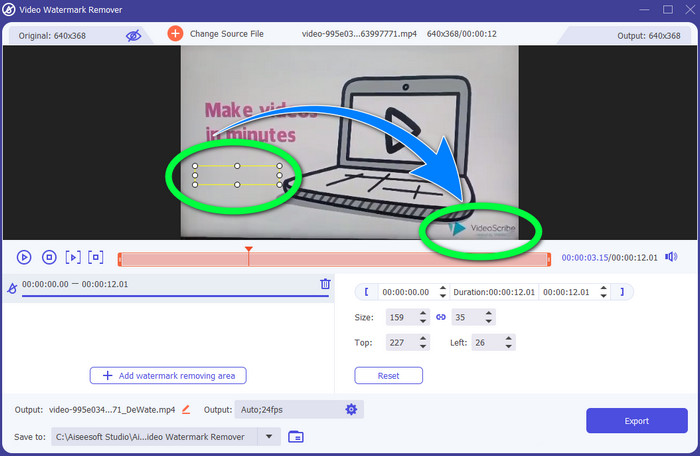
Passaggio 4: Una volta terminata l’importazione del video, fai clic su Add Watermark Removing Area e posiziona il piccolo riquadro di selezione sul logo. Puoi regolare la dimensione del riquadro.
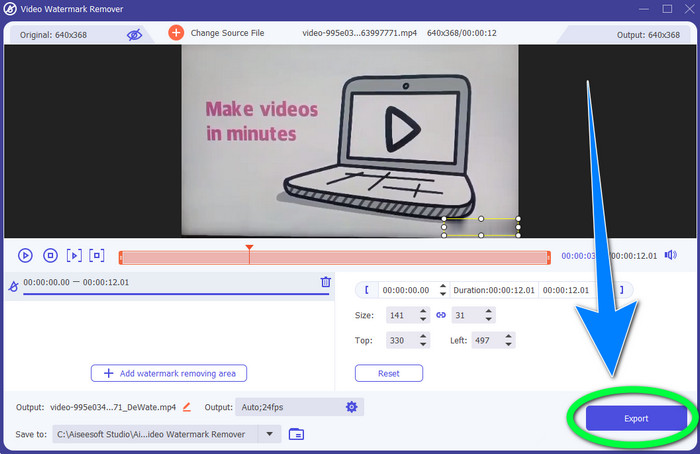
Passaggio 5: Come ultimo passaggio, puoi fare clic sul pulsante Export per salvare il video senza più visualizzare il logo.
Utilizzo della funzione Video Cropper
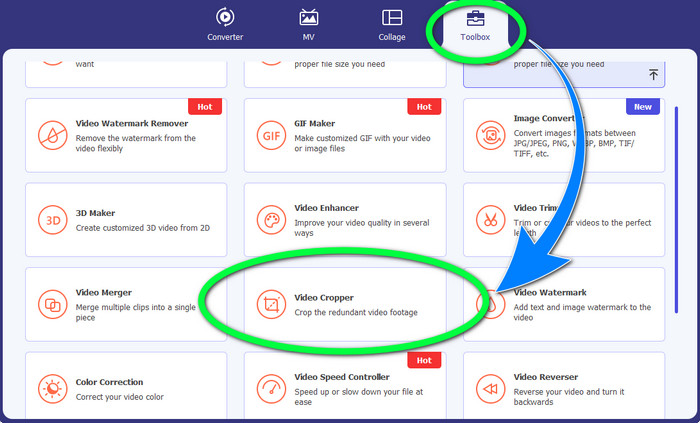
Passaggio 1: Lo strumento di ritaglio è un altro modo per rimuovere il logo di VideoScribe. Sotto la sezione Toolbox, fai clic sul pulsante Video Cropper.
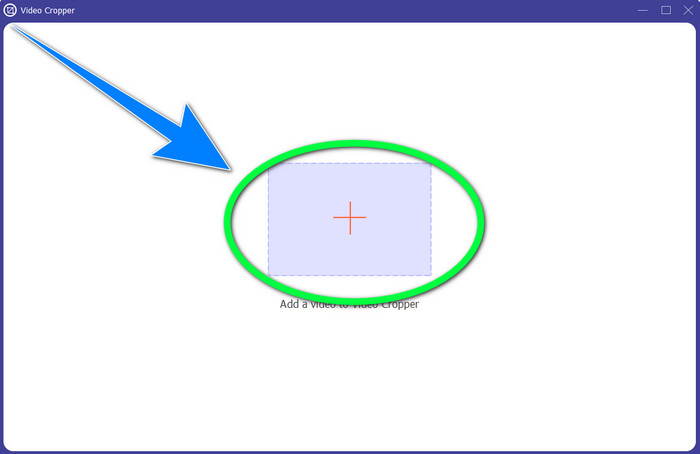
Passaggio 2: Apparirà una nuova interfaccia sullo schermo. Seleziona il pulsante con il simbolo + e inserisci il tuo video con il logo di VideoScribe.
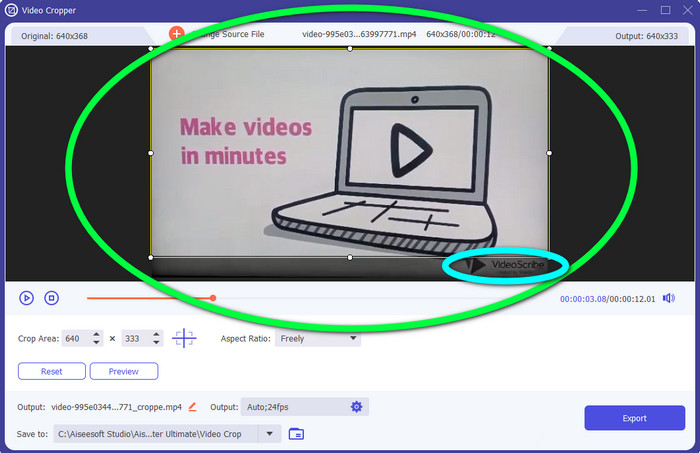
Passaggio 3: Lo strumento di ritaglio ti consente di ritagliare i bordi del tuo video. Se il logo si trova sul bordo del video, puoi tagliarlo per rimuovere il logo.
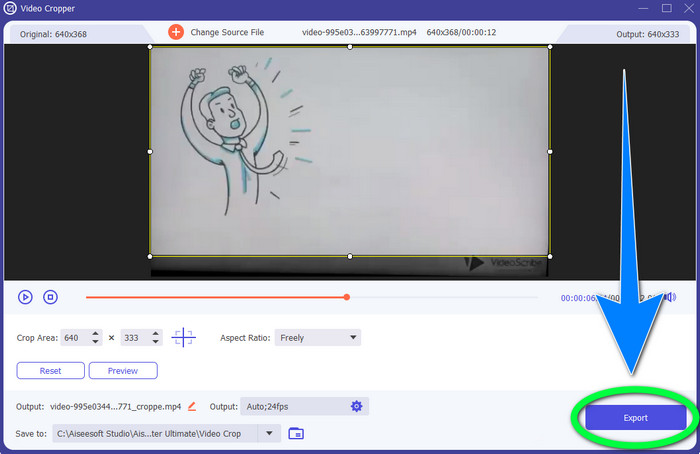
Passaggio 4: Poi, se ritieni di aver già rimosso il logo di VideoScribe, puoi selezionare il pulsante Export e salvare il video finale sul tuo dispositivo.
Parte 2: Come rimuovere il logo VideoScribe dai video online
Utilizzo di BeeCut-Online Watermark Remover
Vuoi rimuovere il logo di VideoScribe dai tuoi video online? BeeCut-Online Watermark Remover è uno degli strumenti online fantastici e utili che puoi usare. Questo strumento online può aiutarti a rimuovere oggetti fastidiosi dai tuoi video, come loghi, watermark, testi, data e ora, e altro ancora. Quindi, puoi rimuovere il logo di VideoScribe dai tuoi video senza sforzo grazie alla sua interfaccia semplice. Inoltre, BeeCut-Online Watermark Remover supporta numerosi formati di file, come FLV, MOV, MP4, WebM, ASF, AVI, 3GP, MPG e altri. Inoltre, con questo strumento puoi anche rimuovere elementi di disturbo dalle tue immagini. Purtroppo, questa applicazione dipende da Internet, il che significa che non puoi usarla se non hai accesso o connessione a Internet. Per quanto riguarda il processo di rimozione, a volte può richiedere tempo, a seconda che la tua connessione sia veloce o lenta. Ti abbiamo fornito di seguito i passaggi ordinati.
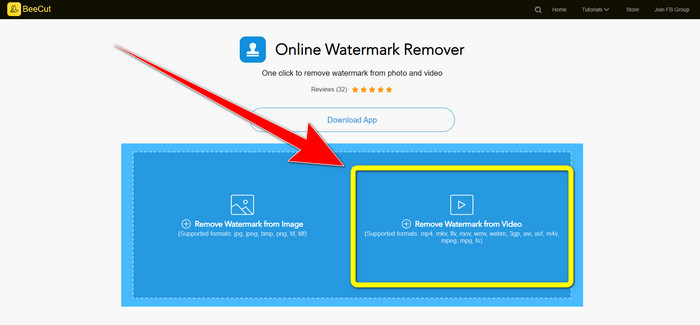
Passaggio 1: Vai al sito web di BeeCut-Online Watermark Remover. Fai clic sul pulsante Remove Watermark from Video e allega il tuo video con il logo di VideoScribe.
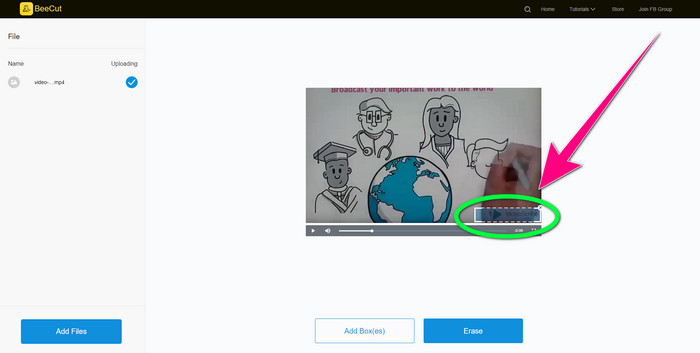
Passaggio 2: Dopo aver aggiunto il tuo video, usa il piccolo riquadro che vedi sul video e trascinalo per coprire il logo.
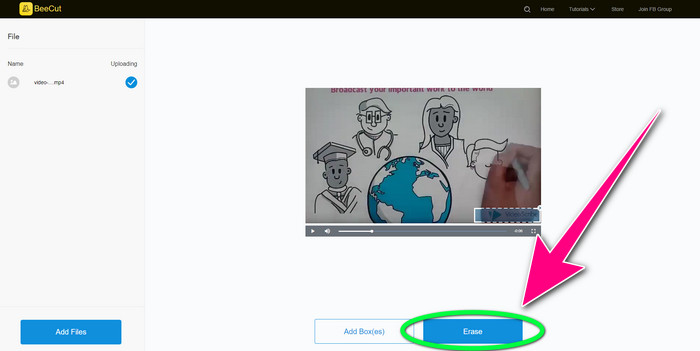
Passaggio 3: Quando hai finito di coprire il logo usando il piccolo riquadro, seleziona il pulsante Erase per salvare e scaricare il video senza il logo di VideoScribe.
Utilizzo di Rimozione filigrana video online
Video Watermark Remover Online è un altro strumento online che puoi usare per rimuovere il logo di VideoScribe dai tuoi video. Ha un’interfaccia semplice ed è adatto ai principianti. Inoltre, puoi rimuovere i loghi dai tuoi video senza perdere qualità, il che è ottimo. Tuttavia, questo strumento online ha funzionalità limitate nella versione gratuita. Puoi rimuovere i loghi solo da 5 video e non puoi esportarli in altri formati di file. E poiché si tratta di un’applicazione online, non puoi usarla senza una connessione a Internet. Inoltre, a volte lo strumento non funziona correttamente. Se vuoi imparare a rimuovere i loghi dai tuoi video, segui i semplici passaggi riportati di seguito.
Passaggio 1: Vai al sito web di Video Watermark Remover Online. Fai clic sul pulsante Click or Drag Videos Here per inserire il tuo video con un logo VideoScribe.

Passaggio 2: Fai clic sul pulsante Remove Watermark e attendi il completamento del processo di rimozione. Poi potrai salvare il tuo video.
Parte 3: Domande frequenti sulla rimozione del logo VideoScribe dal video
Posso fidarmi degli strumenti online per rimuovere i loghi dai miei video?
Si, puoi. Gli strumenti online sono sicuri e possono proteggere il tuo file video. Alcuni strumenti possono eliminare automaticamente i tuoi file dopo il processo, quindi non devi preoccuparti. Tuttavia, non tutti gli strumenti online sono uguali, quindi devi comunque cercare recensioni per sapere se puoi fidarti di un particolare strumento.
Come si eliminano i loghi da un video?
Se vuoi sbarazzarti del logo, scarica Video Converter Ultimate sul tuo computer o Mac. Puoi utilizzare lo strumento di rimozione della filigrana video o lo strumento di ritaglio video. Questi due modi possono aiutarti a eliminare il logo dal tuo video.
Posso rimuovere il logo VideoScribe senza un abbonamento?
Sì, naturalmente! Puoi rimuovere il logo VideoScribe utilizzando Video Converter Ultimate. Non è necessario acquistare questa applicazione per rimuovere il logo perché è gratuita.
Conclusione
Questo articolo ti ha fornito informazioni sulla rimozione del logo di VideoScribe dai video utilizzando uno strumento scaricabile e strumenti online. Tuttavia, se desideri rimuovere un logo dai tuoi video in modo rapido e senza sforzo, puoi usare Video Converter Ultimate.
-
 3 degli ultimi prodotti per la rimozione di filigrane di Shutterstock di cui avrai mai bisogno
 Non ti piace la filigrana di Shutterstock allegata al video esportato? Puoi utilizzare un dispositivo di rimozione della filigrana di Shutterstock per cancellarlo in modo efficace.
-
 Come rimuovere la filigrana Powtoon usando 4 metodi efficaci
 Leggi questo articolo per imparare come rimuovere la filigrana Powtoon usando i migliori strumenti che abbiamo incluso qui e un tutorial.
-
 Recensione di Apowersoft Watermark Remover: caratteristiche, pro e contro e prezzi
 Apowersoft Watermark Remover è una delle migliori soluzioni di rimozione di filigrane che supporta online e offline, fai clic qui per saperne di più!
