


 Video Converter Ultimate
 Screen Recorder
 Riparazione video
 Download sicuro
Ottimo modo per rimuovere la filigrana da Camtasia 9 che devi provare
Se stai cercando il modo più semplice e migliore per rimuovere la filigrana in Camtasia 9, sei nel posto giusto. Ci sono molti video eccellenti che vogliamo guardare. Tuttavia, alcuni di essi hanno una grande filigrana, che li rende più fastidiosi e impedisce di apprezzare il contenuto del video stesso. Inoltre, a causa di questi elementi superflui, ci sono parti del video che non puoi vedere, il che rende gli spettatori ancora più delusi. Per fortuna, esistono alcuni software con strumenti di rimozione filigrane che puoi usare per eliminare le filigrane dai tuoi video, così potrai goderti i tuoi film preferiti senza disturbi. Se vuoi saperne di più su come rimuovere rapidamente le filigrane dai tuoi video, leggi questo articolo dall’inizio alla fine.

Parte 1: Il modo migliore per rimuovere la filigrana da Camtasia
Utilizzo di Video Converter Ultimate
Se stai cercando un’applicazione potente e affidabile con strumenti per la rimozione delle filigrane, Video Converter Ultimate è un eccellente software che puoi utilizzare. Con questa applicazione puoi rimuovere le filigrane dai tuoi video. Puoi usarla anche se il tuo video ha filigrane provenienti da altre app come Camtasia. Inoltre, è facile e intuitiva da usare, quindi adatta ai principianti. In aggiunta, offre vari strumenti di editing di cui puoi usufruire, come Compressore Video, Miglioratore Video, Taglierina Video, Compressore Audio, Reverse Video, Rotatore Video e altro ancora. Questo articolo mostrerà due modi per rimuovere le filigrane dai tuoi video usando Video Converter Ultimate.
1. Utilizzo di Rimozione filigrana video
Passaggio 1: Scarica Video Converter Ultimate sul tuo computer. Poi procedi con il processo di installazione.
Download gratuitoPer Windows 7 o versioni successiveDownload sicuro
Download gratuitoPer MacOS 10.7 o versioni successiveDownload sicuro
Passaggio 2: Quando l’installazione è terminata, apri l’applicazione e vai su Toolbox > Video Watermark Remover. Quindi, un’altra interfaccia apparirà sullo schermo.
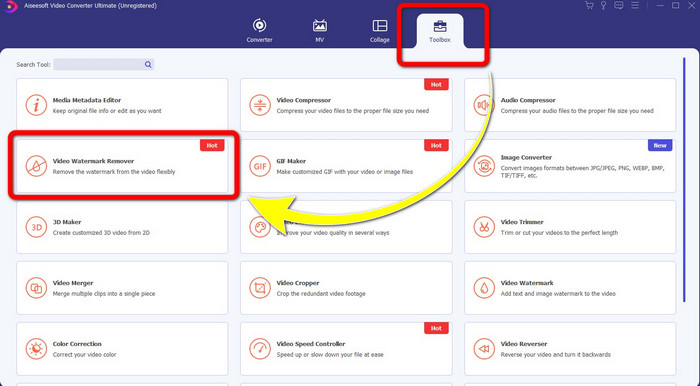
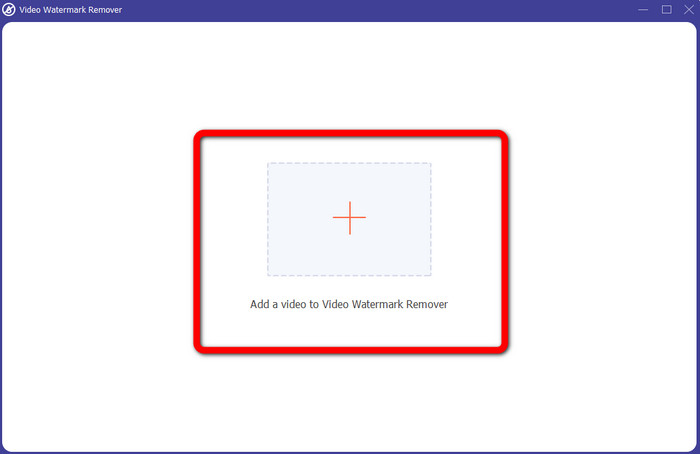
Passaggio 3: Quando sarà comparsa la nuova interfaccia, fai clic sul pulsante con il segno Più e aggiungi il video con la filigrana.
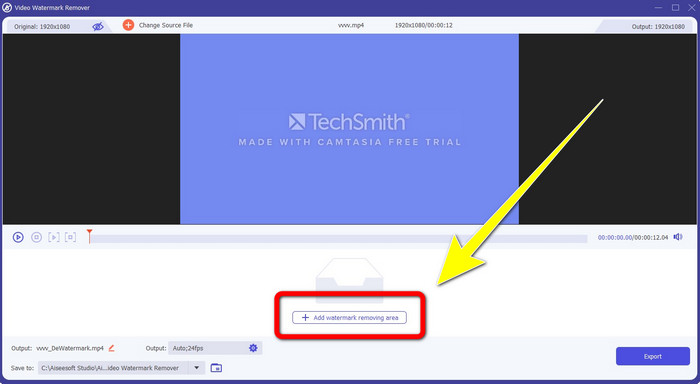
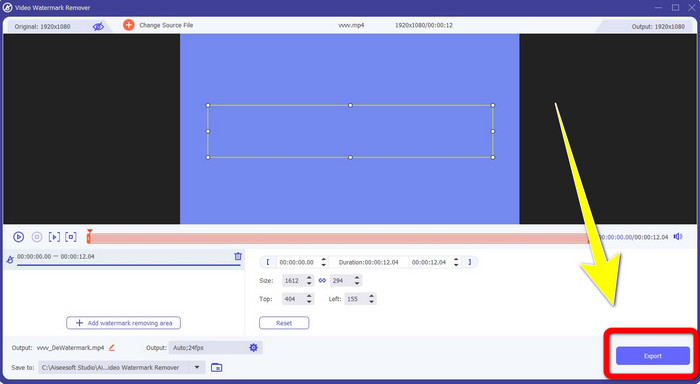
Passaggio 4: Dopo aver aggiunto il video con la filigrana, fai clic su Add Watermark Removing Area.
Passaggio 5: Apparirà sullo schermo un riquadro a forma di box. Usa il riquadro per coprire la filigrana nel tuo video.
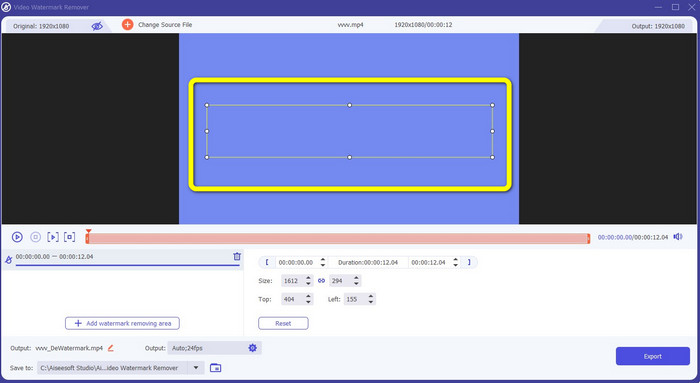
Passaggio 6: Quando la filigrana sarà stata coperta, sparirà dal tuo video. Fai clic su Export per salvare il video. In questo modo, potrai rimuovere ora la filigrana del video esportato da Camtasia.
2. Utilizzo delle funzioni di ritaglio
Un altro metodo che puoi provare è usare la funzione di ritaglio di Video Converter Ultimate. È uno dei modi più semplici per rimuovere le filigrane dai tuoi video, soprattutto se la filigrana si trova solo in un angolo o sul bordo del video. Ritagliando i tuoi video, puoi eliminare immediatamente gli elementi indesiderati presenti nel filmato. Segui questi semplici passaggi per rimuovere le filigrane usando lo strumento di ritaglio.
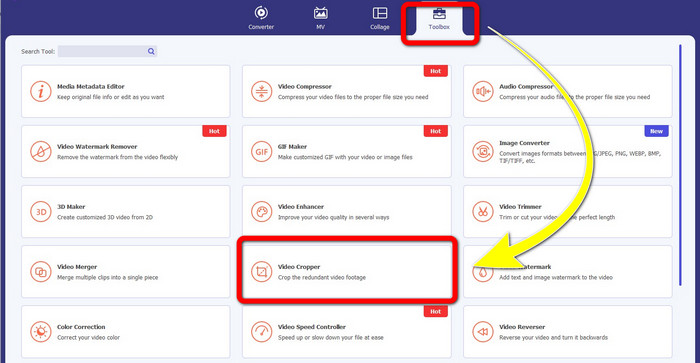
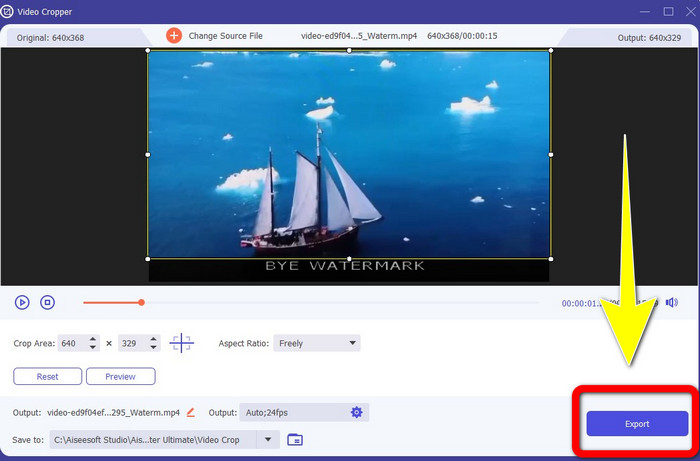
Passaggio 1: Apri Video Converter Ultimate. Fai clic su Toolbox > Video Cropper. Poi, un’altra interfaccia apparirà sullo schermo.
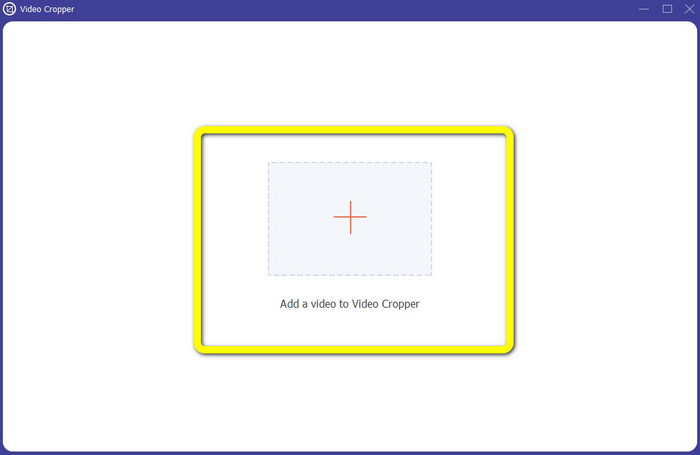
Passaggio 2: Fai clic sul pulsante con il segno Più e aggiungi il video con la filigrana che desideri rimuovere.
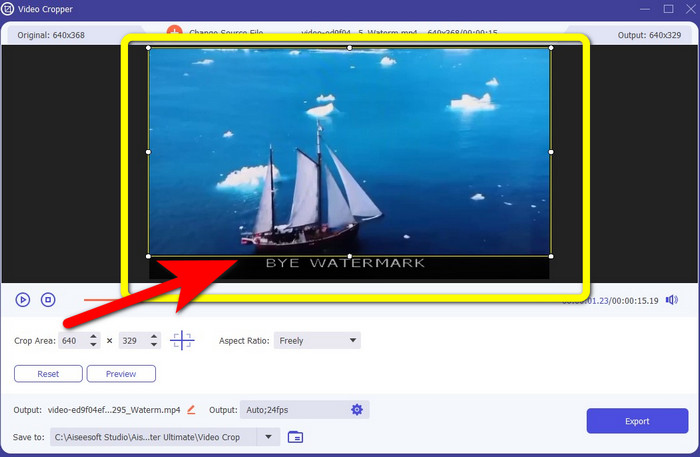
Passaggio 3: Dopo aver caricato il video con la filigrana, puoi ora ritagliare il bordo del video fino all’area dove si trova la filigrana. In questo modo, puoi rimuovere le filigrane.
Passaggio 4: Se hai già ritagliato il video e vedi che la filigrana è scomparsa, fai clic su Export per salvare il video modificato. Ora puoi goderti la visione del tuo video senza alcuna filigrana sullo schermo.
Parte 2: Come produrre video in Camtasia senza filigrana
Vuoi imparare a produrre un video con Camtasia senza filigrane? Prima, definiamo che cos’è Camtasia. Camtasia è uno strumento di montaggio semplice e utile che puoi usare. Inoltre, è anche un software di registrazione dello schermo. In aggiunta, offre varie funzioni di editing che puoi apprezzare, come annotazioni, transizioni, animazioni, effetti audio, effetti video e altro ancora. Puoi anche creare una presentazione con questa applicazione.
Con l'aiuto di questa applicazione, puoi rendere i tuoi video più attraenti e unici per gli spettatori. In Camtasia, puoi produrre bellissimi video che puoi goderti. Tuttavia, questa applicazione ha una filigrana dopo aver esportato il video a meno che non acquisti l'applicazione. Segui questi semplici passaggi per imparare molte cose in questa applicazione, in particolare la creazione di video in Camtasia.
Con l'aiuto di questa applicazione, puoi rendere i tuoi video più attraenti e unici per gli spettatori. In Camtasia, puoi produrre bellissimi video che puoi goderti. Tuttavia, questa applicazione ha una filigrana dopo aver esportato il video a meno che non acquisti l'applicazione. Segui questi semplici passaggi per imparare molte cose in questa applicazione, in particolare la creazione di video in Camtasia.
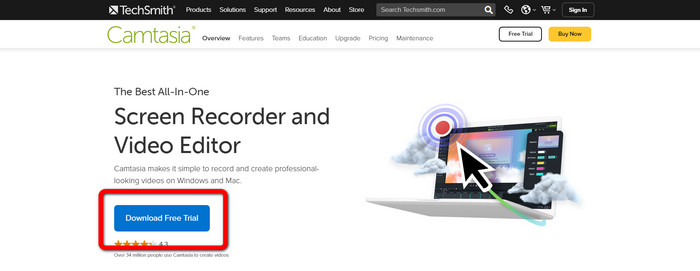
Passaggio 1: Devi scaricare Camtasia sul tuo computer Windows. Fai clic sul pulsante Download Free Trial per ottenere l’applicazione. Poi apri l’applicazione dopo il processo di installazione.
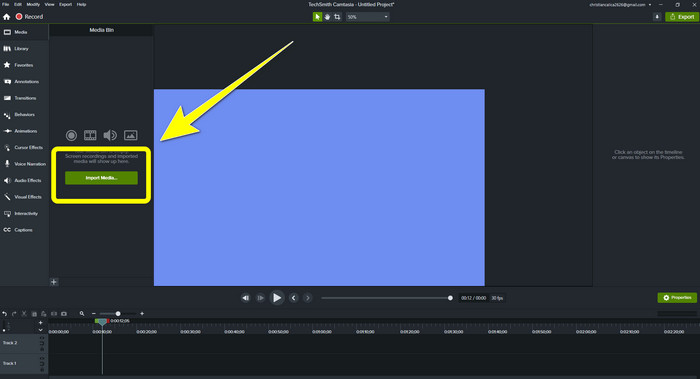
Passaggio 2: Dopo aver avviato l’applicazione, fai clic sul pulsante Import Media per aggiungere il file che desideri modificare.
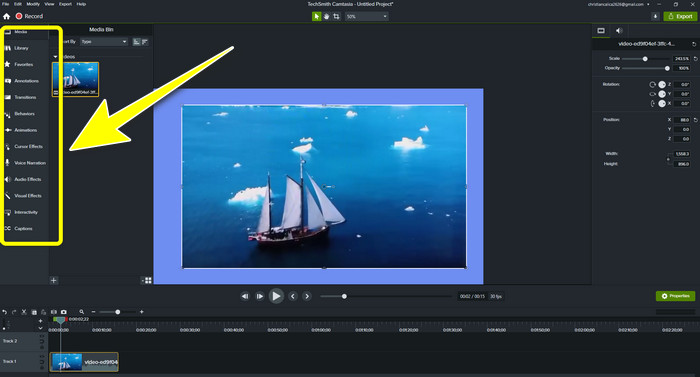
Passaggio 3: Ora puoi modificare i tuoi file in questa applicazione usando gli strumenti di editing, come l’aggiunta di sottotitoli, transizioni, animazioni, annotazioni, comportamenti e altro ancora.
Passaggio 4: Se hai terminato ed è soddisfatto del montaggio dei tuoi video, puoi fare clic sul pulsante Export > Local File per salvare il risultato.
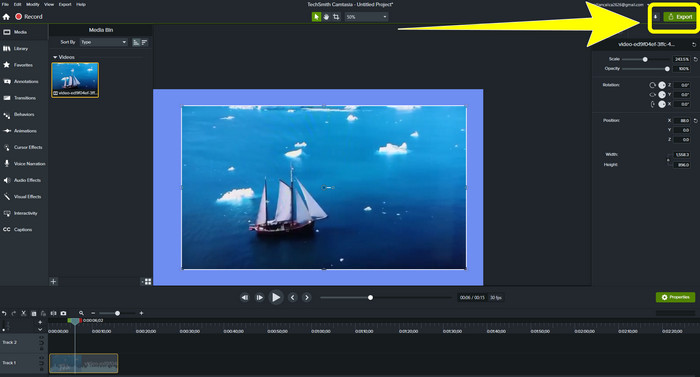
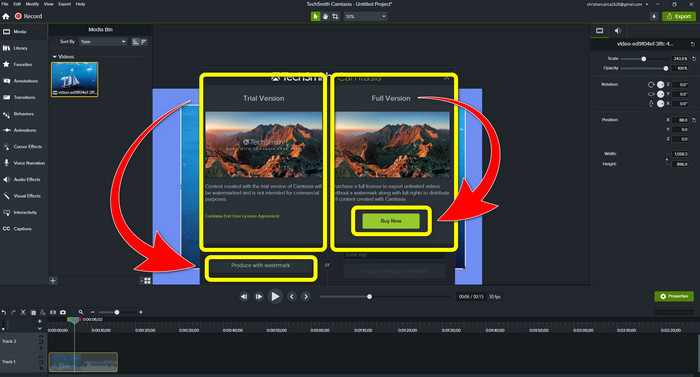
Passaggio 5: Dopo aver fatto clic su Export > Local File Button, apparirà un’altra interfaccia. Se desideri acquistare l’applicazione, fai clic sul pulsante Buy per produrre un video in Camtasia senza filigrana. Tuttavia, se utilizzi solo la versione di prova gratuita, il tuo video avrà una filigrana dopo l’esportazione e il salvataggio.
Correlato a:
Come rimuovere il watermark di Filmora dai tuoi video o progetti gratuitamente
Il trucco più rapido per rimuovere la filigrana Adobe Stock da un video [ Tutorial ]
Parte 3: Domande frequenti sulla rimozione di filigrane
Esiste un eccellente dispositivo per la rimozione di filigrane che posso utilizzare sul mio Mac?
Assolutamente sì! Puoi usare applicazioni con strumenti di rimozione filigrane come Video Converter Ultimate. È in grado di rimuovere le filigrane dai tuoi video. Inoltre, questa applicazione è disponibile sia su Windows che su Mac, il che la rende ancora più comoda.
C'è un modo per rimuovere le filigrane dalle foto?
Assolutamente si! Puoi utilizzare molte applicazioni sul tuo dispositivo per rimuovere le filigrane dalle foto. La cosa migliore che devi fare è cercare sul tuo browser gli strumenti di rimozione delle filigrane e cercare i primi 10 risultati nella pagina dei risultati.
Posso rimuovere le filigrane usando il mio telefono?
Si, puoi! Alcune delle applicazioni con rimozione filigrana sono ora accessibili su Mac e Windows e cellulari come telefoni Android e iPhone.
Come posso rimuovere le filigrane utilizzando uno strumento di ritaglio?
Rimuovere le filigrane sulle foto o sui video utilizzando uno strumento di ritaglio è un gioco da ragazzi, soprattutto se la filigrana si trova sul bordo dell'immagine. Tutto quello che devi fare è ritagliarlo, eliminare la filigrana e il gioco è fatto.
Conclusione
Come puoi vedere, questo articolo mostra i modi migliori per rimuovere la filigrana da Camtasia 9. Inoltre, presenta un’applicazione eccellente e affidabile con due metodi per eliminare gli elementi superflui dai tuoi video. Questa applicazione è Video Converter Ultimate.
-
 5 modi per rimuovere una filigrana da un video in modo professionale
 Hai bisogno di rimuovere una filigrana da un video per farlo sembrare professionale? Bene, leggi questo articolo mentre aggiungiamo un tutorial su come farlo!
-
 3 degli ultimi prodotti per la rimozione di filigrane di Shutterstock di cui avrai mai bisogno
 Non ti piace la filigrana di Shutterstock allegata al video esportato? Puoi utilizzare un dispositivo di rimozione della filigrana di Shutterstock per cancellarlo in modo efficace.
-
 I metodi più semplici su come rimuovere la filigrana dalle foto
 Sei irritato dalle filigrane sulla tua foto? Non preoccuparti! Questo articolo fornirà metodi semplici e facili per rimuovere le filigrane dalle tue foto
