


 Video Converter Ultimate
 Screen Recorder
 Riparazione video
 Download sicuro
Come rimuovere la filigrana in SmartDraw con 2 modi possibili
Se hai bisogno di un modo semplice e potente per creare grafici, disegni e mappe e poi presentarli con una qualità di livello enterprise, allora usa SmartDraw. Puoi usare la tua immaginazione e trasformarla in realtà con l’aiuto di SmartDraw. Lo strumento è gratuito? Puoi usare la prova gratuita di sette giorni che ti permette di utilizzare lo strumento gratis, ma con una filigrana. Gestire una filigrana sui file esportati può essere fastidioso. Qui ti presentiamo questo articolo perché proponiamo solo i migliori strumenti disponibili sul mercato che funzionano in modo efficiente per rimuovere la filigrana. Continua a leggere le informazioni qui sotto per imparare come rimuovere la filigrana in SmartDraw in due modi efficaci.

Parte 1. Come rimuovere la filigrana in Smart Draw acquistando una chiave di licenza [Versione ufficiale]
Come rimuovere la filigrana da SmartDraw? È il primo modo che ti presenteremo ed è acquistando la chiave di licenza per questo strumento. Questa piattaforma ti offre diversi tipi di piani che puoi ottenere che andranno a beneficio della tua fine. Inoltre, non puoi acquistare l'accesso per un mese a questo strumento, quindi se prevedi di acquistare la sua chiave di licenza, ti verrà addebitato mensilmente, ma il totale che pagherai è nella sua versione annuale. Se apprezzi le prestazioni di questo strumento e desideri acquistarlo, puoi seguire i passaggi che aggiungiamo di seguito.
Passaggi su come rimuovere la filigrana in SmartDraw con una chiave di licenza:
Passaggio 1. Apri il sito ufficiale di SmartDraw e assicurati di accedere al sito corretto per effettuare una transazione sicura.
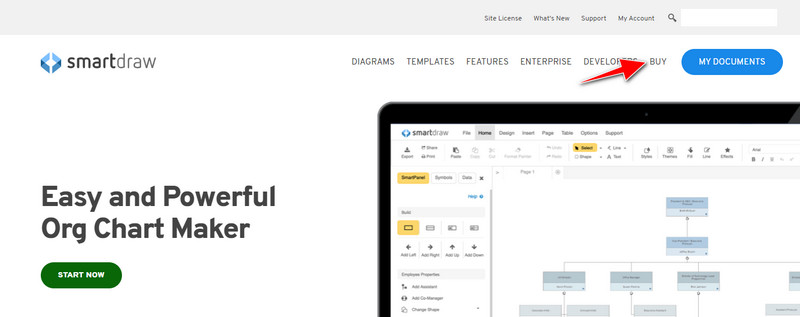
Passaggio 2. Sul sito, fai clic su Buy per vedere i piani disponibili.
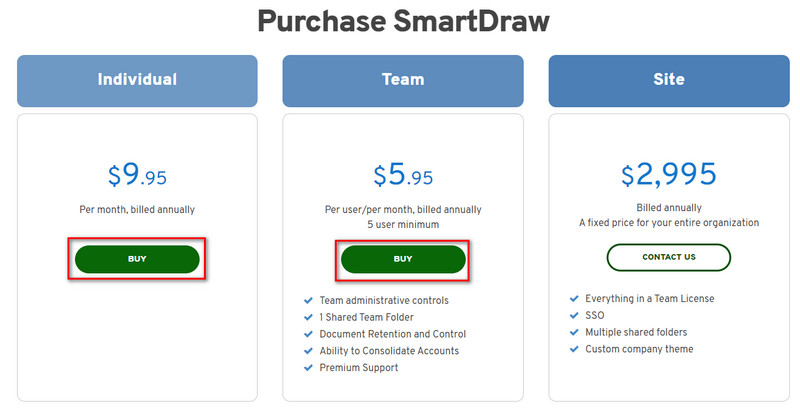
Passaggio 3. Puoi acquistare SmartDraw come Individual, Team o Site. Fai clic su Buy Now se intendi acquistare la versione Individual o Team.
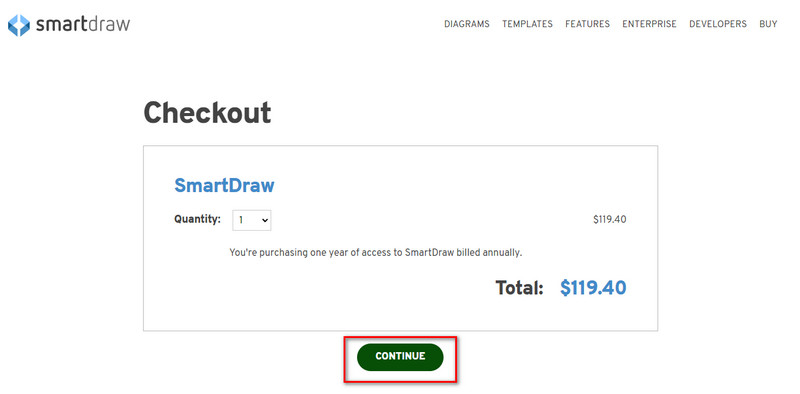
Passaggio 4. Sul lato destro vedrai il totale da pagare per lo strumento su base annuale; fai clic su Continue per procedere.
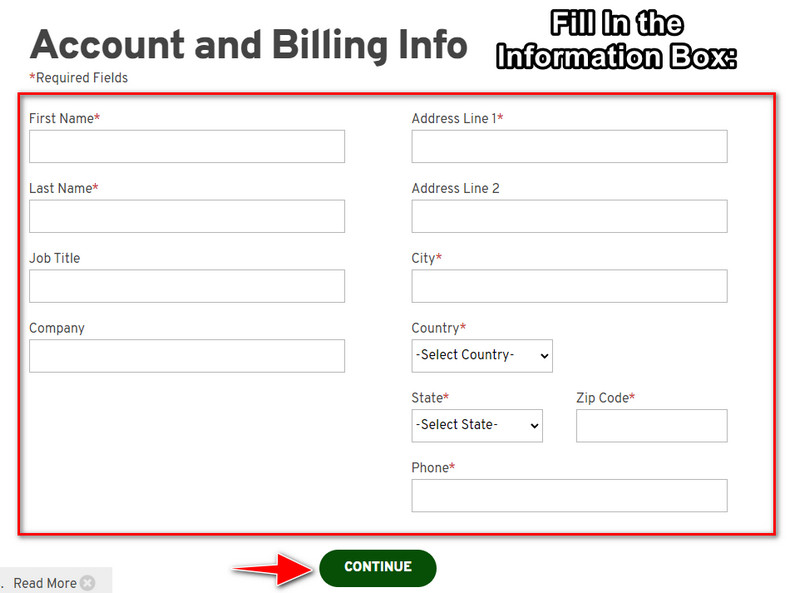
Passaggio 5. Aggiungi le informazioni del tuo account e di fatturazione richieste, quindi premi Continue per procedere e ottenere la chiave di licenza.
Parte 2. Come rimuovere la filigrana in Smart Draw gratuitamente utilizzando il servizio Web [nessun costo]
Come rimuovere la filigrana dalla versione di prova di SmartDraw senza acquistare? Allora dovrai usare FVC Free Watermark Remover Online. Questo rimuovi-filigrana è subito pronto all’uso. Non ti serve alcuna competenza specifica per eliminare la filigrana dalla tua immagine, perché l’utilizzo di questo strumento non è affatto complicato. Anche se sei un utente esperto, puoi comunque usare questo software per rimuovere filigrane o oggetti indesiderati dalle tue immagini. Grazie a questo rimuovi-filigrana, non resterà alcuna macchia sull’immagine che non possa essere eliminata. Vuoi provare questo software invece di acquistare la chiave di licenza? In tal caso, segui la guida qui sotto per rimuovere efficacemente la filigrana dalle immagini.
Passaggi su come rimuovere gratuitamente la filigrana di SmartDraw su un grafico o un diagramma:
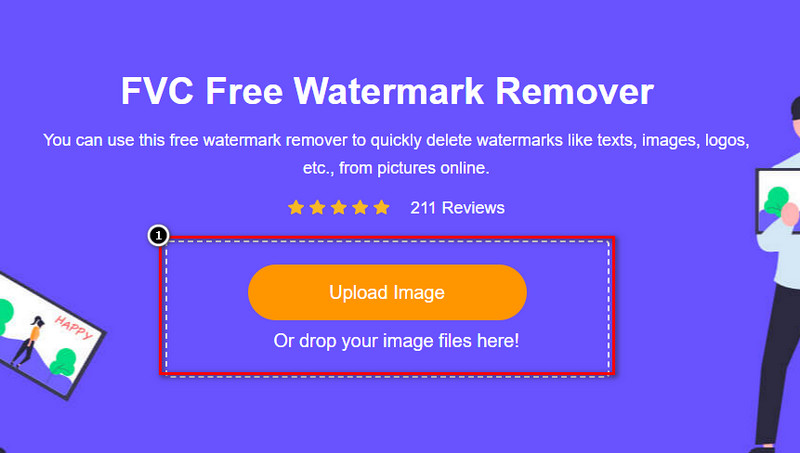
Passaggio 1. Invece di cercare lo strumento web nel browser, puoi fare clic su questo link per aprirlo, che si aprirà in una nuova scheda del tuo motore di ricerca.
Passaggio 2. Con il mouse, trascina e rilascia il grafico o il diagramma che hai creato con SmartDraw per caricarlo.
Passaggio 3. Ora che il rimuovi-filigrana online è avviato, scegli lo strumento con cui vuoi evidenziare la filigrana sull’immagine.
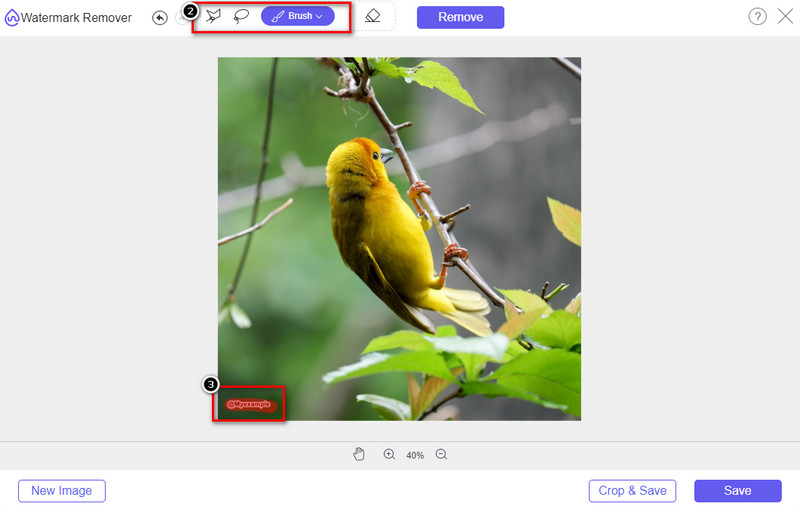
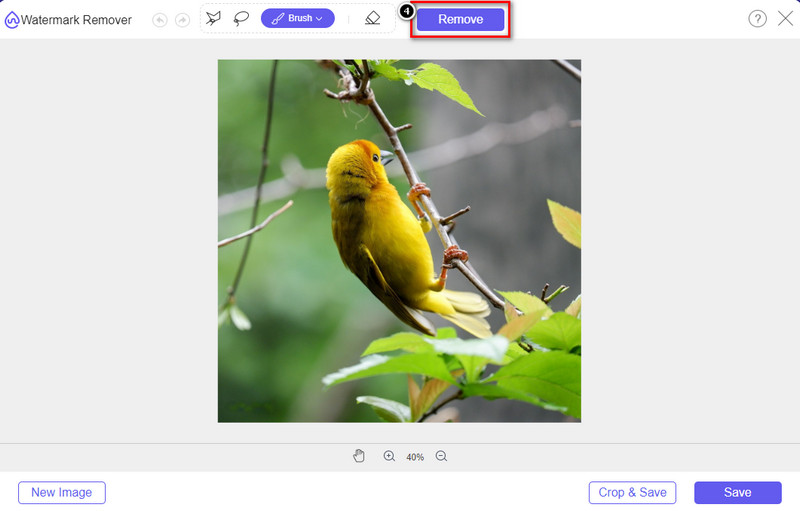
Passaggio 4. Dopo aver evidenziato la filigrana o il logo sull’immagine caricata, premi Remove.
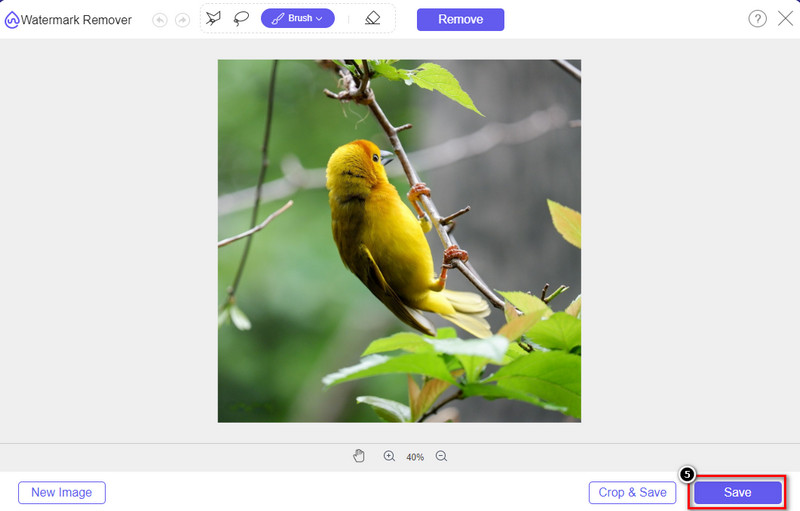
Passaggio 5. Attendi il completamento del processo di rimozione della filigrana e fai clic su Save per scaricare il grafico o diagramma che hai caricato. Si aprirà una cartella sullo schermo; ora controlla la versione del grafico o diagramma che hai creato senza filigrana.
Vantaggi dell’uso di FVC Free Watermark Remover Online:
◆ Non è necessario scaricare l'app perché è disponibile sul web.
◆ Supporta un'ampia gamma di immagini e può rimuovere efficacemente le filigrane.
◆ È un dispositivo di rimozione filigrane dedicato che produce stampe di alta qualità.
◆ Nessuna filigrana viene aggiunta all'output finale una volta esportato.
◆ Nessuna limitazione sul numero di volte da utilizzare e sulla dimensione del file.
Parte 3. Parte aggiuntiva: come creare grafici, grafici o diagrammi su SmartDraw con passaggi dettagliati
La parte precedente ti insegna come sbarazzarti della filigrana SmartDraw. In questa parte, ti insegneremo come creare un grafico, un grafico e un diagramma con l'aiuto di SmartDraw; puoi seguire i passaggi che aggiungiamo di seguito per sapere come farlo.
Passaggio 1. Vai al suo sito ufficiale per creare un grafico, un diagramma o una mappa concettuale.
Passaggio 2. Dopo aver aperto il sito ufficiale, fai clic su Start Now e accedi al tuo account.
Passaggio 3. Sul lato sinistro, scegli il tipo di modello che vuoi usare o creare.
Passaggio 4. Aggiungi le informazioni a ciascun elemento del diagramma di flusso. Sul lato sinistro del sito troverai opzioni aggiuntive che puoi utilizzare.
Passaggio 5. Fai clic sul pulsante Export, scegli il formato che desideri ottenere e fai clic per avviare il processo. Se stai usando la versione gratuita, ci sarà una filigrana; puoi copiare i passaggi della parte 2 per rimuovere la filigrana.
Ulteriori letture:
Come rimuovere la filigrana B612 dalle tue immagini
Come rimuovere gratuitamente la filigrana di WOW Slider
Parte 4. Domande frequenti su come rimuovere la filigrana SmartDraw
SmartDraw può esportare immagini PNG?
Sì, puoi avere un grafico trasparente in formato PNG. Tuttavia, se utilizzi la versione gratuita, aggiungerà una filigrana. Puoi acquistare la versione ufficiale, quindi ci sarà una filigrana sull'immagine esportata.
Quanto costa SmartDraw?
Se stai per acquistare un piano su SmartDraw, puoi acquistare il suo piano a partire da $ 5.95. Puoi controllare gli altri prezzi che fornisce sul sito ufficiale.
Qual è il vantaggio di acquistare la versione premium di SmartDraw?
Puoi ottenere il controllo dell'amministratore del team, la cartella del team, il supporto premium ed esportare immagini senza filigrana per i singoli piani. Per altri vantaggi premium, puoi ottenere, visitare il sito Web ufficiale e vedere quali caratteristiche e funzioni puoi ottenere.
Conclusione
Ora che sai come salvare SmartDraw senza filigrana con i due modi che aggiungiamo. O lo acquisti o usi uno strumento per rimuovere la filigrana sul file esportato. Se non ti piace acquistare lo strumento, devi usarlo perché è lo strumento web più efficiente per eliminare la filigrana. Se ritieni che questo articolo ti abbia aiutato a risolvere il problema, allora ci dai 5 stelle.
-
 4 modi migliori per rimuovere la filigrana dalla GIF [Online & Offline]
 Hai bisogno di rimuovere la filigrana dalla GIF? Con lo strumento in questo articolo, imparerai i diversi stili con il diverso dispositivo di rimozione della filigrana disponibile sulla tua piattaforma.
-
 5 modi più semplici per rimuovere i metadati in qualsiasi file multimediale
 Come rimuovere i metadati? È difficile farlo? Devo acquistare o utilizzare uno strumento gratuito per rimuovere i tag? Tutte queste domande hanno risposte in questo articolo.
-
 Eccezionale rimozione di filigrane Photobucket online e offline
 Scopri come rimuovere la filigrana Photobucket dalle tue foto usando questo straordinario dispositivo di rimozione della filigrana Photobucket. Leggi questo articolo per imparare i modi.
