


 Video Converter Ultimate
 Screen Recorder
 Riparazione video
Intensifica la tua esperienza nel risolvere problemi come Come rallentare un video
Sei un artista alle prime armi e vuoi guardare un tutorial di art design per migliorare le tue capacità artistiche. Tuttavia, la maggior parte di questi tutorial è accelerata, in modo da accumulare una certa durata ma restare di piccole dimensioni per il caricamento. Perciò pensi a una soluzione che richiede di ridurre la velocità del video. Ma non sai come rallentare un video in time‑lapse come la maggior parte dei tutorial di arte. Leggi questo articolo per approfondire le tue conoscenze su questo problema che molti artisti emergenti hanno.

Parte 1. 3 Semplici Passaggi per Rallentare un Video [Desktop/Laptop]
Ci sono molti approcci alle offerte web, sia online che offline. Alcuni di essi devono essere scaricati, soprattutto quando si utilizza un desktop o un laptop in fase di modifica. C'è una differenza significativa tra l'utilizzo di un desktop in termini di dettagli nell'utilizzo; ecco perché questo articolo seleziona il modo migliore per rallentare un video offline o online su un desktop. Ecco gli approcci con i relativi passaggi forniti:
Approccio 1. Usa Video Converter Ultimate
È possibile scaricare e usare molti convertitori anche quando non si è connessi a Internet. Per rallentare un video puoi usare Video Converter Ultimate, una delle migliori alternative. È semplice da usare e puoi scaricarlo gratuitamente. Non devi preoccuparti che la connessione internet rallenti un video online, perché questo software ti permette di modificare il video senza problemi. Grazie al suo impressionante strumento Video Speed Controller, ora puoi regolare la velocità di riproduzione dei tuoi video in meno di un minuto. Ora che sei curioso di sapere come funziona, ecco alcune procedure guidate da seguire:
Passaggio 1: Fai semplicemente clic sul pulsante Free Download per scaricare il software sul desktop del tuo computer. L’installazione del software e la personalizzazione della configurazione vengono poi completate nei passaggi successivi.
Download gratuitoPer Windows 7 o versioni successiveDownload sicuro
Download gratuitoPer MacOS 10.7 o versioni successiveDownload sicuro
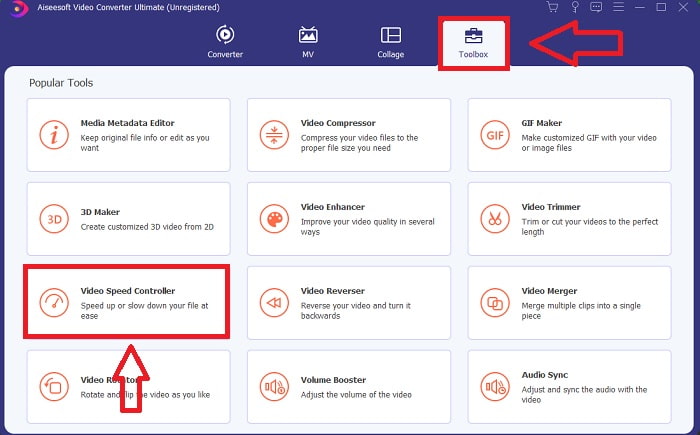
Passaggio 2: Per usare Video Speed Controller, avvia il software subito dopo l’installazione e seleziona lo strumento dal menu Toolbox.
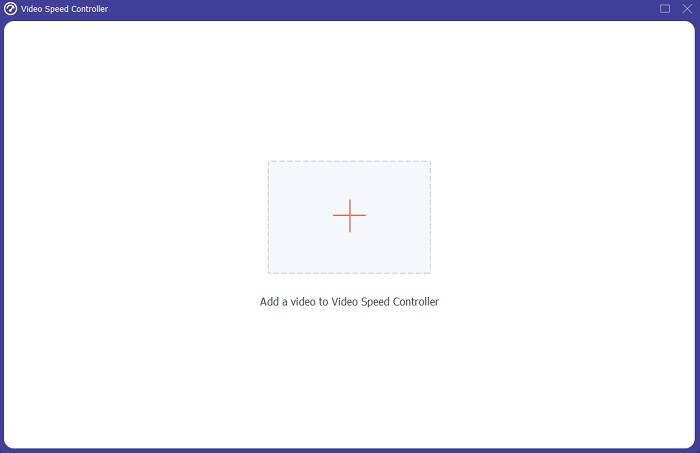
Passaggio 3: L’interfaccia di Video Speed Controller apparirà dopo che ci avrai cliccato sopra. Per caricare un file, fai clic sull’icona +.
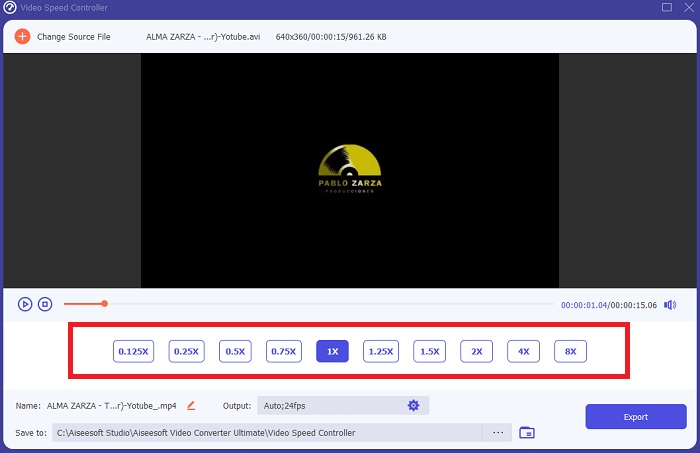
Passaggio 4: Ora puoi iniziare a rallentare il tuo video scegliendo valori più bassi rispetto alla velocità normale. La maggior parte dei valori comparirà sul lato sinistro della velocità effettiva del tuo video.
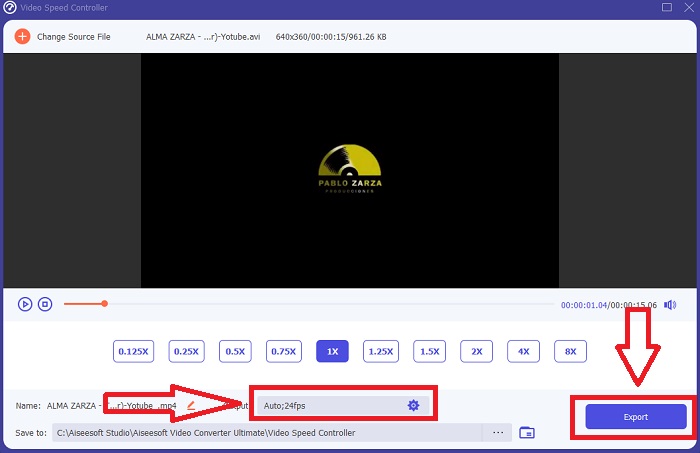
Passaggio 5: Dopo aver terminato di modificare la velocità di riproduzione della clip video, puoi selezionare il formato di output, la risoluzione, la qualità e gli altri parametri che desideri utilizzare. Quando hai finito, fai clic su Export e scegli dove vuoi che il file venga salvato una volta completato tutto.
Approccio 2. Usa VEED
VEED e il suo strumento web open source sono utilizzati dai creatori di contenuti di tutto il mondo per produrre video per i social media e altri usi. È un'applicazione web che richiede una solida connessione per funzionare correttamente, ma puoi caricare direttamente e modificare la velocità di riproduzione nella sua interfaccia utente. Inoltre, ha varie funzionalità, una delle quali è una diminuzione della velocità di riproduzione del video. Ora puoi rallentare un video senza scaricare nulla sul desktop. Hai solo bisogno di un motore di ricerca e di una forte connessione per accedere a questo strumento online. Ha un'interfaccia utente semplice e intuitiva che può avvantaggiare la maggior parte degli utenti principianti che hanno bisogno di rallentare un video senza imparare passaggi complicati. Ecco le procedure di esempio da digerire per ottenere le modifiche desiderate al tuo video.
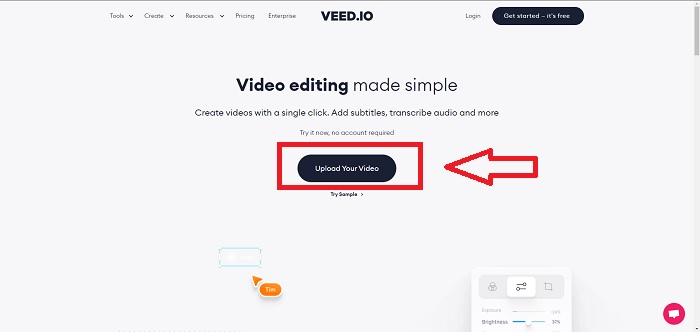
Passaggio 1: Clicca sul pulsante Upload Your Video per inviare un file video dal tuo computer al server.
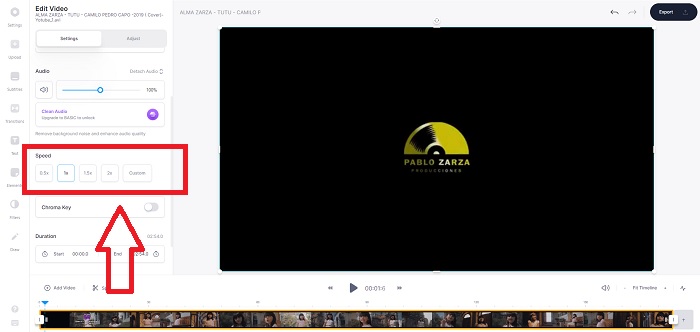
Passaggio 2: Puoi accedere all’interfaccia di modifica dello strumento web facendo clic sulla Video Track nell’angolo in alto a sinistra. Seleziona una velocità di riproduzione più elevata cercando l’opzione Speed e cliccandoci sopra. Se la velocità che preferisci non è disponibile tra le opzioni, puoi scegliere Custom per ignorare le impostazioni predefinite e riprodurre la tua clip video a una velocità personalizzata.
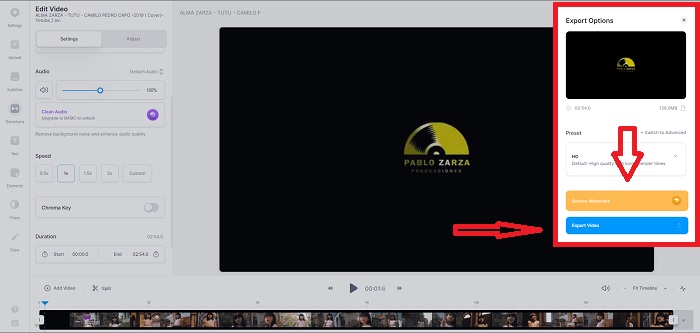
Passaggio 3: Dopo aver modificato la velocità desiderata del video, procedi alla scheda di esportazione facendo clic su Export. Nel frattempo, puoi scegliere la qualità che preferisci per il tuo video e rimuovere la filigrana acquistando la versione premium dello strumento online. Se è tutto a posto, trasferisci il video convertito sul tuo computer tramite Exporting Video.
Parte 2. 3 semplici passaggi per rallentare un video [telefono cellulare]
Sei stanco di pensare a una soluzione che risponda a come rallentare un video su iPhone o Android? Ci sono molte app e strumenti disponibili su Internet da utilizzare per giustificare che esiste una risposta al problema indicato. Ma ecco gli strumenti migliori e più accessibili che consigliamo di utilizzare se sei un editor di telefoni cellulari e vuoi creare un capolavoro dal piccolo dispositivo che hai.
Approccio 1. Usa iMovie
Ora puoi controllare la velocità di riproduzione o rallentare il tuo video su iPhone e iPad con questa applicazione gratuita e utile chiamata iMovie. È una delle app più affidabili disponibili sui dispositivi con sistema iOS che può modificare i tuoi video e, soprattutto, modificare la velocità di riproduzione. Per sapere di più su questa applicazione, ecco i passaggi da seguire per risolvere il problema descritto sopra:
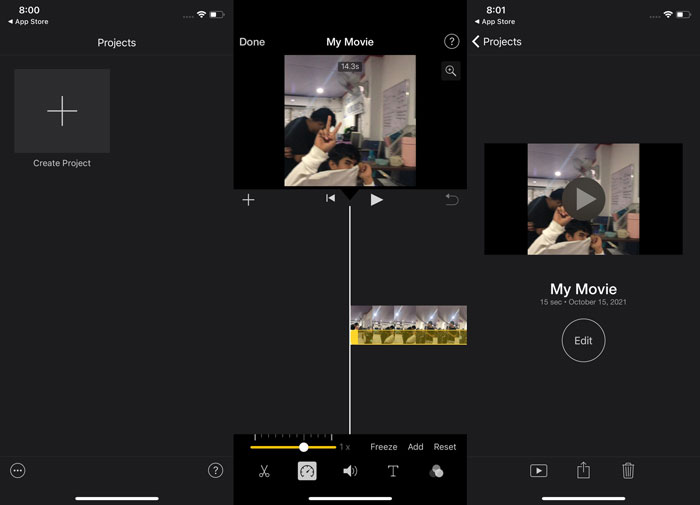
Passaggio 1: Inizia a montare il tuo filmato in iMovie sul tuo iPhone o iPad. Potresti visualizzare una breve panoramica dell’interfaccia utente prima di proseguire. Nella pagina Projects, fai clic sul segno più per aggiungere una nuova clip video; poi seleziona Movie dal menu New Projects.
Passaggio 2: Seleziona un video dal rullino prima di passare alla sezione Create Movie. Lo strumento velocità assomiglia a un tachimetro e può essere trovato toccando la clip video nella timeline e poi aspettando che compaiano gli strumenti di modifica. Riavvolgi o manda avanti le riprese facendo scorrere il cursore giallo nella parte inferiore. Rispetto alla velocità originale, gli elementi possono essere accelerati fino al doppio o rallentati fino a un ottavo.
Passaggio 3: Fai clic su Done nell’angolo in alto a sinistra dello schermo una volta terminato il processo. Puoi salvare il video finito selezionandolo dal menu Share e decidendo poi dove conservarlo.
Approccio 2. Usa VideoFX Music Video Maker
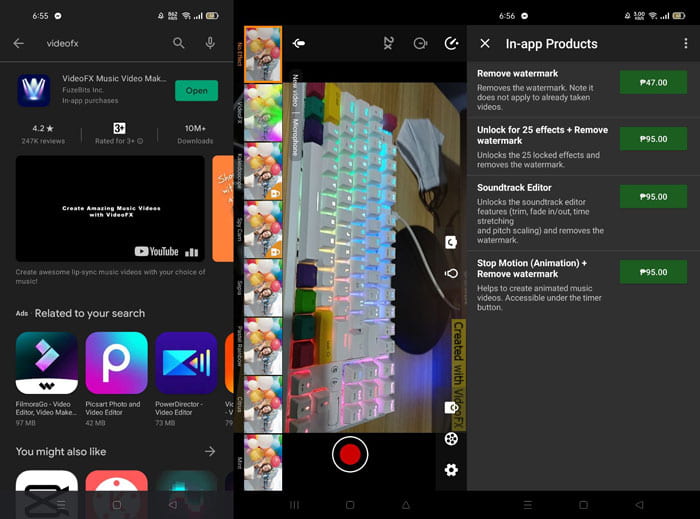
Crea i tuoi video musicali in pochi secondi con lo strumento VideoFX Music Video Maker. Tutto ciò che devi fare è registrare un video usando uno dei tanti effetti disponibili, scegliere una canzone e salvarlo nella memoria interna del tuo telefono Android. Poiché puoi applicare i filtri prima di registrare il video, l’app è davvero semplice da usare. Nel bene e nel male, il montaggio in post‑produzione non è possibile; le modifiche possono essere fatte solo prima che il video venga girato. Prima di iniziare a registrare, scegli un brano che si abbini bene al tuo video. Puoi aumentare o rallentare la velocità della musica, ma le modifiche devono essere fatte prima della registrazione del video. Ecco i passaggi da seguire:
Passaggio 1: Scarica e installa VideoFX sul tuo telefono Android.
Passaggio 2: Poiché le funzioni di questa app si applicano solo mentre il video viene registrato, inizia a registrare premendo il pulsante Record.
Passaggio 3: Quindi fai clic su 2x per regolare la velocità del video che stai registrando. Prima di sbloccare tutte le funzionalità dell’app, devi acquistare l’accesso completo.
Parte 3. Domande frequenti sul rallentamento di un video
Come rallentare un video su iPhone?
I content creator e i videomaker hanno a disposizione una moltitudine di strumenti, e il rallentatore è uno dei migliori. Un video con un numero più elevato di fotogrammi al secondo offre un’esperienza di visione più piacevole. Tuttavia, i video rallentati non sono sempre l’approccio migliore per ogni contenuto che realizzi. In alcuni casi, lo slow‑motion non è appropriato o è addirittura superfluo. Di conseguenza, la tua unica opzione è riportare il video in slow‑motion dell’iPhone alla velocità normale.
Come si rallenta un video nella galleria?
I telefoni Android e iOS hanno icone delle impostazioni da toccare per attivare la modalità al rallentatore o al rallentatore prima di registrare video. Dovresti registrare le scene al rallentatore a raffiche da cinque a dieci secondi per evitare di avere troppe riprese.
Perdo la qualità se rallento un video?
No, non perderai la qualità di un video, ma vedrai la risoluzione e la frequenza dei fotogrammi del tuo video diminuire per ogni secondo che riduci alla velocità media. Quando la velocità di riproduzione del tuo video viene aumentata o diminuita, solo il fotogramma verrà diviso. Aumentandolo si otterrà l'effetto desiderato. Cinque volte più veloce, ovvero 60 fotogrammi per 1/120 di secondo. In altre parole, a meno che il video non abbia una frequenza fotogrammi bassa, non avrà alcun effetto.
Conclusione
Pertanto, tramite questo articolo, hai imparato tutti i diversi metodi che ogni sistema operativo offre per affrontare il problema delle varie app per rallentare un video. Sono inoltre forniti dei passaggi per alcuni utenti principianti che non hanno alcuna esperienza nel montaggio video. Consigliandoti un’app che ti aiuti a gestire la velocità di riproduzione del tuo video e il resto degli strumenti di editing, scarica il software Video Converter Ultimate per vivere al meglio l’esperienza di un editor professionista.
-
 I 4 migliori lettori VOB per cellulari Android per usi diversi
 Quando scarichi video VOB e vuoi guardarli su Android, puoi scegliere quello più adatto tra i seguenti 4 migliori lettori VOB in questo articolo.
-
 Le 5 migliori alternative a Windows Media Player per cellulari Android
 Dal momento che non puoi scaricare Windows Media Player per Android, dovresti leggere questo articolo e conoscere le 5 migliori alternative a Windows Media Player.
-
 I 5 migliori lettori video per iPhone da non perdere nel 2021
 Per riprodurre video in tutti i formati e avere una migliore esperienza di visualizzazione sul tuo iPhone, dovresti leggere questo articolo e conoscere i migliori 5 lettori video per iPhone 12/11/X/8/7/6.
