


 Video Converter Ultimate
 Screen Recorder
 Riparazione video
Come velocizzare i video in molti modi possibili utilizzando iPhone
Stai per creare il miglior video musicale del tuo progetto scolastico e vuoi rappresentare una scena sul ciclo della vita. Desideri mandare avanti velocemente l’intero video musicale aumentando la velocità di riproduzione ed eseguire correttamente la transizione da giovane ad adulto, ma hai solo il telefono per riuscirci. Hai solo un iPhone – per essere precisi – per aumentare la velocità di riproduzione e montare l’intero video musicale. Tuttavia, l’iPhone è famoso per il suo approccio restrittivo al download delle applicazioni, perché per alcune di esse è necessario acquistare la versione completa per avere accesso a tutte le funzioni. Continua a leggere questo articolo per capire a fondo come velocizzare un video su iPhone.

Parte 1. Il modo migliore per velocizzare i video su iPhone
Precedentemente noto come iPhone OS, iOS è un sistema operativo mobile di Apple Inc. sviluppato esclusivamente per l’hardware dell’azienda. È conosciuto anche per la sua esclusività nel download delle applicazioni, a differenza di Android. Tuttavia, l’iPhone offre altre applicazioni in grado di modificare e personalizzare una clip video e che sono disponibili sul suo sistema operativo. Alcune di queste applicazioni permettono anche di controllare la velocità di riproduzione; parlando del controllo della velocità video su iPhone, queste app sono facili da usare e gratuite da scaricare su qualsiasi dispositivo iOS. Per saperne di più sul controllo della velocità video su iPhone, ecco i passaggi riportati di seguito:
Metodo 1. Usa iMovie per velocizzare i video su iPhone
Puoi creare trailer in stile Hollywood in risoluzione 4K con iMovie sul tuo iPhone. Dopo aver montato tutti i tuoi video, puoi aggiungere titoli animati, musica e altri ritocchi finali come filtri ed effetti. Il software iMovie di Apple rende semplice raccontare la tua storia in modo rifinito e professionale e poi condividere il tuo lavoro con amici e familiari. iMovie offre funzioni che possono migliorare la qualità del tuo video grazie ai vari modelli e strumenti di finitura disponibili; introduce inoltre la possibilità di controllare la velocità di riproduzione su iPhone. Poiché la maggior parte dei montatori deve dare importanza alle problematiche presentate, ecco i passaggi da seguire per ottenere la velocità desiderata usando questo strumento su iPhone.
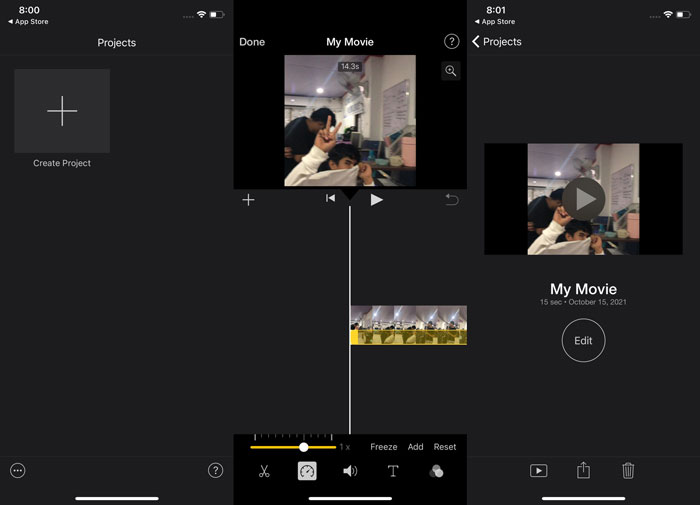
Passaggio 1: Avvia l’app iMovie sul tuo iPhone o iPad. Se compare una schermata di panoramica dell’interfaccia, seleziona Continua. Per iniziare una nuova clip video, vai alla pagina Progetti e tocca l’icona con il segno +. Vai alla finestra Nuovi progetti e seleziona Filmato per continuare.
Passaggio 2: Tocca Crea filmato nella parte inferiore dello schermo dopo aver selezionato un video dal rullino. Lo strumento della velocità assomiglia a un tachimetro e si trova toccando la clip video nella timeline e aspettando che compaiano gli strumenti di modifica prima di usarli. Sposta semplicemente il Cursore giallo in basso per mandare avanti velocemente o rallentare le riprese video. Puoi aumentare la velocità fino al doppio o rallentarla fino a un ottavo rispetto a quella originale.
Passaggio 3: Se è tutto a posto, tocca Fine nell’angolo in alto a sinistra dello schermo del telefono. Per salvare il video finito, tocca il pulsante Condividi nella parte inferiore dello schermo e seleziona dove desideri conservarlo.
Metodo 2. Usa Videoshop per velocizzare i video su iPhone
Quando si tratta di software di montaggio video, ci sono poche opzioni migliori di Videoshop. Con questo strumento puoi modificare rapidamente il tuo video aggiungendo effetti come musica, voce fuori campo, testo e immagini. Puoi anche applicare in un attimo straordinari filtri ai tuoi video, creare presentazioni fotografiche e modificare, unire, copiare, incollare, ruotare e capovolgere i tuoi filmati. Inoltre, con questa applicazione puoi regolare velocemente la velocità di riproduzione per creare video in fast motion o slow motion. Con pochi e semplici passaggi puoi cambiare la velocità di riproduzione del tuo video finché non raggiungi quella desiderata. Per saperne di più su come velocizzare un video con Videoshop su iPhone, ecco l’elenco dei passaggi da seguire per poterlo usare con facilità.
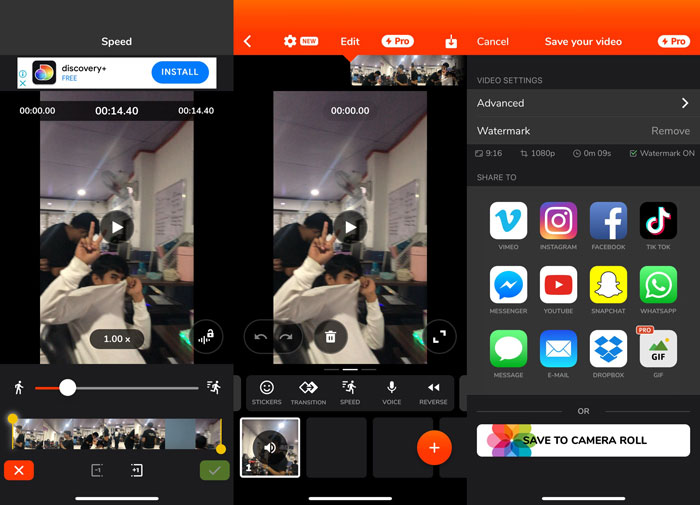
Passaggio 1: Quando apri per la prima volta l’editor video sul tuo iPhone, ti verrà data la possibilità di registrare un nuovo video o importare un video già salvato. Usa l’editor video e, una volta aggiunto un file video alla finestra dell’editor, apparirà una nuova interfaccia. Nella parte inferiore dell’editor video è presente una Barra degli strumenti con numerosi strumenti. Scorri o tocca lo schermo verso sinistra e destra all’interno di questa barra. Una volta selezionato Velocità, ti verrà mostrato un menu di controllo della velocità del video.
Passaggio 2: Utilizzando questo editor video su iPhone, puoi cambiare facilmente la velocità del tuo filmato. La riproduzione può essere rallentata o accelerata trascinando la Manopola della velocità verso sinistra o verso destra. Per vedere l’anteprima della modifica, premi il pulsante Riproduci. Potrai poi regolare di nuovo la velocità del video finché non sarai soddisfatto del risultato personalizzato.
Passaggio 3: Salva il tuo lavoro toccando il pulsante Fatto nell’angolo in alto a destra.
Parte 2. Modo alternativo per velocizzare i video su iPhone
Se fai fatica a memorizzare tutti i passaggi dello strumento precedente, questo articolo presenta un’alternativa che aiuta a risolvere il problema di come velocizzare un video fino a 2x su iPhone. Non sei particolarmente pratico nell’usare l’iPhone come editor per i tuoi video, soprattutto quando vuoi aumentare la velocità di riproduzione. Video Converter Ultimate sarà la migliore alternativa da prendere in considerazione, perché ti permette di aumentare in modo permanente la velocità del tuo video. Scarica e usa Video Converter Ultimate come controllore della velocità dei tuoi filmati. Questo software comprende numerose funzioni e strumenti che possono migliorare le tue capacità di montaggio. Include anche uno strumento Video Speed Controller per risolvere il problema che hanno molti utenti iOS. Con questo strumento puoi ora regolare facilmente la velocità del tuo video e ottenere un’ottima qualità del filmato. Inoltre, può modificare la velocità del video in pochi secondi grazie al suo rapido processo di conversione. Nel complesso, questo software lavora in modo professionale, pur offrendo un’interfaccia intuitiva. Poiché questo metodo alternativo si basa su un software accessibile solo dal computer, devi imparare come trasferire i video dal tuo iPhone al computer per poterlo utilizzare.
1. Per iniziare, usa un cavo USB per collegare il tuo iPhone a un PC.
2. Apri l'app Foto sul tuo PC facendo clic sul pulsante Start e poi su Foto.
3. Seguire le indicazioni sullo schermo dopo aver selezionato Importa da un dispositivo USB. Hai il controllo completo su ciò che importi e su dove viene salvato. Concediti un po' di respiro mentre si svolgono i processi di rilevamento e trasferimento.
Ora puoi seguire i passaggi seguenti per velocizzare i tuoi video sul tuo iPhone.
Passaggio 1: Per eseguire il software sul tuo computer, devi prima scaricarlo facendo clic su Download gratuito nel pulsante riportato di seguito. Dopo averlo scaricato sul desktop, puoi installarlo e fare clic su Avvia ora per completare l’installazione.
Download gratuitoPer Windows 7 o versioni successiveDownload sicuro
Download gratuitoPer MacOS 10.7 o versioni successiveDownload sicuro
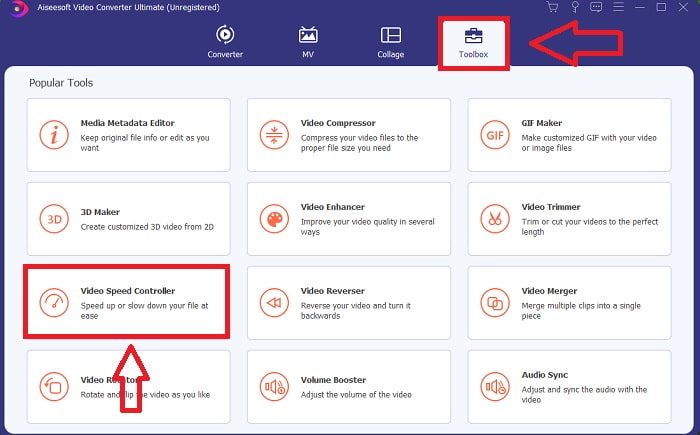
Passaggio 2: Dopo aver installato il software, prova ad avviarlo e vedrai la sezione di conversione nell’interfaccia principale del programma. Quindi, vai alla funzione Toolbox. Da lì vedrai i vari strumenti disponibili nel software e, per regolare la velocità del video, seleziona Video Speed Controller.
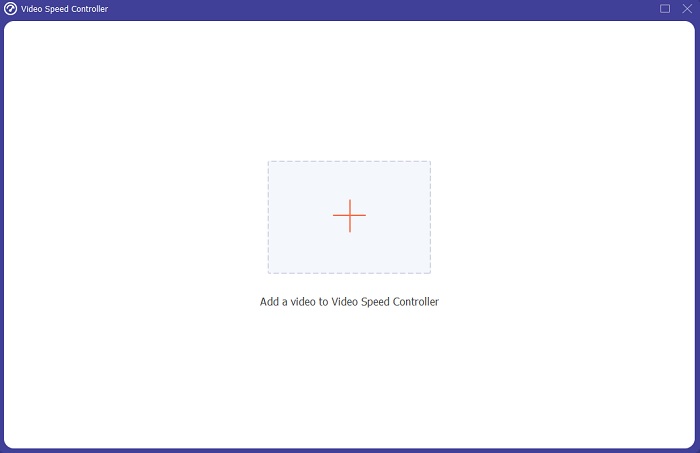
Passaggio 3: Dopo aver proseguito, sullo schermo apparirà un’altra scheda. Avvia il processo di montaggio premendo il segno +.
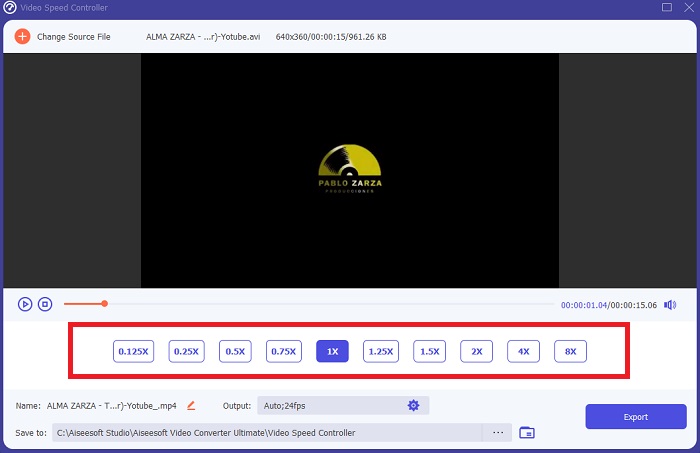
Passaggio 4: Puoi iniziare la fase di montaggio selezionando di quante volte aumentare o diminuire il frame rate del video per modificarne la velocità di riproduzione. Se sei già soddisfatto della velocità del tuo video, puoi personalizzare la qualità del file di output regolando formato, risoluzione, frame rate, ecc. Inoltre, avrai la possibilità di rinominare il video di output.
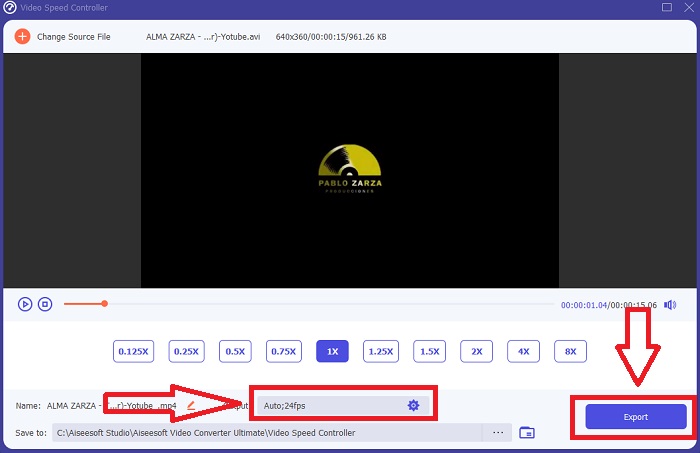
Passaggio 5: Per salvare il tuo lavoro, fai clic su Esporta e scegli una destinazione nel file system del computer.
Correlato:
Parte 3. Domande frequenti su come velocizzare i video su iPhone
Come funziona un controller video?
Il controllo della velocità del video player determina la velocità di riproduzione del video. Quando si utilizza un lettore multimediale per guardare un film, il video verrà riprodotto alla stessa velocità di un video standard. Lo scopo del controllo della velocità del video player è consentire all'utente di modificare la velocità di riproduzione del video. Alcuni dei video devono essere rallentati in modo da poter seguire l'azione.
Come posso modificare in modo permanente la velocità di riproduzione video?
Pensa a quanti passaggi sono necessari per modificare la velocità di riproduzione dei tuoi video. Nonostante il fatto che gli strumenti video e gli editor video siano prontamente disponibili online, sei ancora alla ricerca dello strumento migliore per risolvere i problemi di velocità di riproduzione con il tuo video clip. Numerosi strumenti web sono disponibili su Internet, alcuni dei quali sono gratuiti ma richiedono il pagamento per sbloccare tutte le funzionalità. Video Converter Ultimate, un programma gratuito per velocizzare i video, è la soluzione migliore per modificare in modo permanente la velocità di riproduzione.
Come posso velocizzare un video MP4?
Sono disponibili numerosi convertitori per il download e l'utilizzo offline. Puoi velocizzare la riproduzione video utilizzando Video Converter Ultimate come alternativa ad altri convertitori video. Il video speed booster è solo una delle tante funzionalità disponibili perché è un software open source gratuito.
Conclusione
Come ho detto, gli utenti iPhone che sognano di risolvere la velocità di riproduzione dei propri video non devono acquistare strumenti diversi. Ci sono molti editor gratuiti disponibili che devi cercare; alcuni hanno bisogno di una comprensione critica per usarlo correttamente, ma la maggior parte di essi è accessibile. Parlando dei migliori strumenti disponibili, ti consigliamo di utilizzare Video Converter Ultimate per velocizzare i tuoi video clip fino a 2 volte la velocità normale o anche fino a 8 volte veloce. Inoltre, il video può essere rallentato fino a un quarto della sua velocità normale utilizzando questa funzione. Questo software ha tutto ciò che un editor professionista vuole avere e, utilizzandolo, avrai la possibilità di diventare un professionista.
-
 [2 migliori soluzioni] Come riprodurre facilmente film AVI su iPhone/iPad
 Non riesci a riprodurre film AVI sul tuo iPhone/iPad e non vuoi scaricare lettori video di terze parti? Puoi imparare 2 modi efficienti per convertire i video AVI da riprodurre su iPhone.
-
 [Risolto] Come risolvere i video che non vengono riprodotti su iPhone con passaggi dettagliati
 I video locali nella galleria non possono essere riprodotti sul tuo iPhone tramite il lettore video predefinito? Succede sempre che i video di YouTube online non vengano riprodotti su iPhone? Ecco 5 soluzioni per aiutarti in questo articolo.
-
 I 5 migliori lettori video per iPhone da non perdere nel 2021
 Per riprodurre video in tutti i formati e avere una migliore esperienza di visualizzazione sul tuo iPhone, dovresti leggere questo articolo e conoscere i migliori 5 lettori video per iPhone 12/11/X/8/7/6.
