


 Video Converter Ultimate
 Screen Recorder
 Riparazione video
Come velocizzare i video online: approcci estesi disponibili su Internet
La lezione online è un altro metodo di insegnamento usato nei programmi didattici misti, soprattutto durante questa pandemia, e le video‑lezioni vengono offerte come alternativa ai corsi sincroni. Tuttavia, la maggior parte delle presentazioni video che durano un’ora sono davvero noiose da guardare. Alcuni studenti non hanno altra scelta che aumentare la velocità o mandare avanti il video per cogliere i dettagli essenziali della lezione. Questo articolo è perfetto per risolvere questo tipo di problema che hanno molti studenti. Di seguito trovi alcuni esempi di come accelerare un video online.

Parte 1. Diversi modi disponibili per aumentare la velocità di riproduzione video
Accelerare i video può sembrare insolito, perché tutti i video vengono riprodotti a velocità normale. Ma alcune persone vogliono guardare una clip video a una velocità doppia rispetto alla media. Per esempio, alcuni lo fanno per saltare i dettagli non essenziali di un video che possono rendere un film noioso da guardare, ad esempio quando riguardi un film. Vuoi solo saltare le scene di dialogo e andare direttamente alle parti d’azione o al climax. Allo stesso tempo, alcuni preferiscono guardare i video in modo più rapido. Esistono applicazioni di montaggio che spesso è necessario acquistare prima di usarle e che possono aiutarti in questo dilemma. Tuttavia, il software e gli strumenti web indicati qui sotto ti permetteranno di accelerare un video online gratis.
Metodo 1. Usa Clideo
Il software di video marketing Clideo include funzioni per creare, modificare, comprimere e preparare i video per la distribuzione praticamente a qualsiasi pubblico online. Dispone di molte funzioni, tra cui una raccolta di strumenti di editing, un motore di personalizzazione e vari formati disponibili. Uno degli strumenti permette di mandare avanti e velocizzare il video. E se ti stai chiedendo come utilizzarlo, ecco i passaggi per usare Clideo:
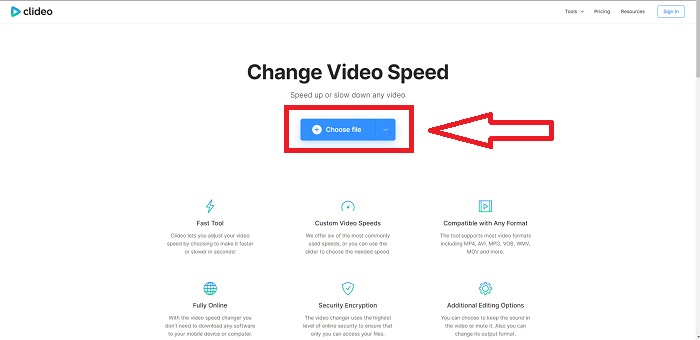
Passaggio 1: Fai clic su Choose File nell’interfaccia di Clideo e carica la clip video che desideri velocizzare.
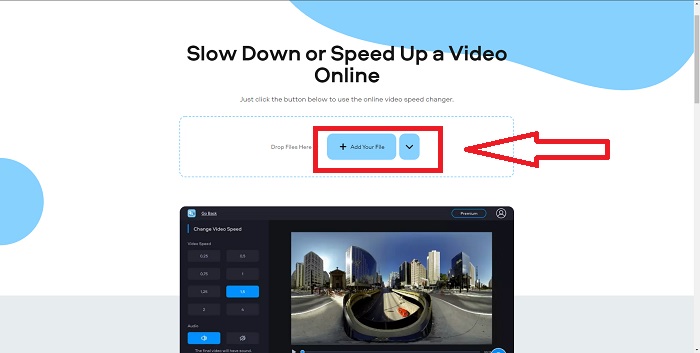
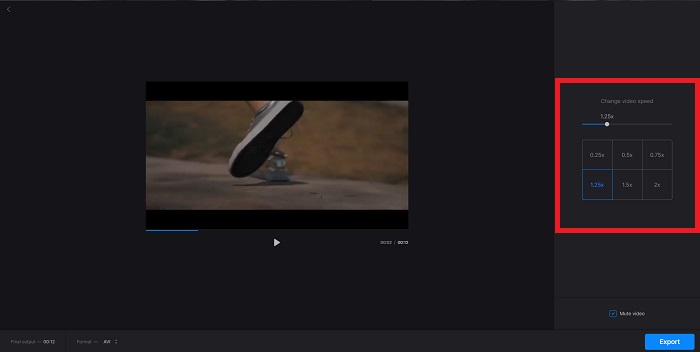
Passaggio 2: Dopo aver caricato il tuo video, seleziona la velocità desiderata per applicarla al file video nell’angolo destro dell’interfaccia. Puoi scegliere se rendere un video più veloce o più lento rispetto alla velocità originale della clip. Hai anche la possibilità di disattivare completamente l’audio del video.
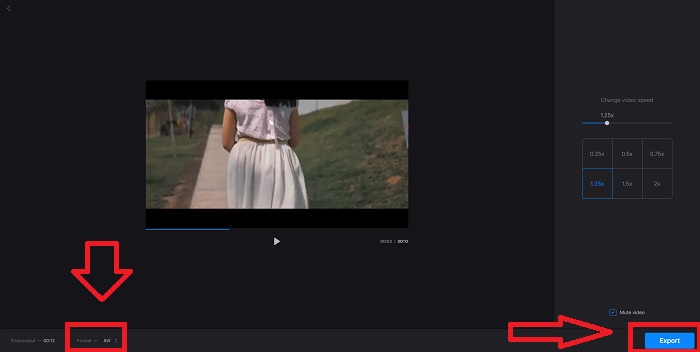
Passaggio 3: Se sei già soddisfatto della velocità applicata al tuo video, seleziona il formato compatibile per il tuo file. I formati disponibili sono AVI, 3G2, 3GP, F4V, ASF, FLV e M2TS. Poi, se è tutto pronto per il caricamento, esporta il file cliccando su Export e premi Download per trasferire il file sul tuo desktop.
Metodo 2. Usa Fastreel
Lo strumento di montaggio video Fastreel ti permette di creare brevi clip, modificare video e usare modelli preimpostati per rendere il processo più rapido ed efficiente. Una delle aziende che offre questo servizio è Movavi, nota anche per il suo software di montaggio e conversione video. Poiché funziona in qualsiasi browser – Firefox, Google Chrome, Opera e Safari – Fastreel è un’ottima alternativa ai programmi desktop sia per utenti Windows che Mac. Come il primo strumento web, anche Fastreel offre funzioni che ti aiutano a accelerare un video online. Segui i passaggi indicati di seguito:
Passaggio 1: Nell’interfaccia di Fastreel, fai clic su Use Online Tools per aprire tutti gli strumenti disponibili.
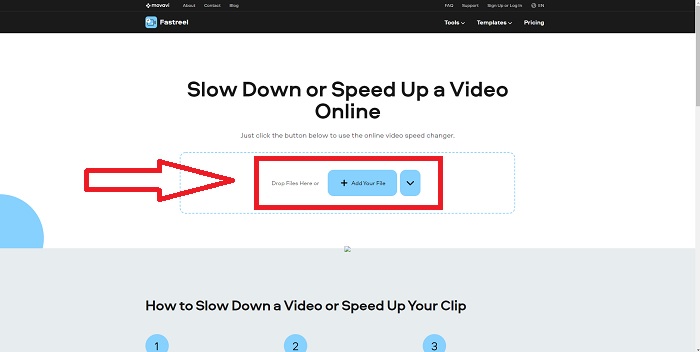
Passaggio 2: In seguito vedrai una panoramica di tutte le funzioni di Fastreel. Scorri verso il basso e trova la sezione Effects, quindi fai clic su Change Video Speed per iniziare a modificare la clip video. Procedi cliccando su Add file e continua l’editing.
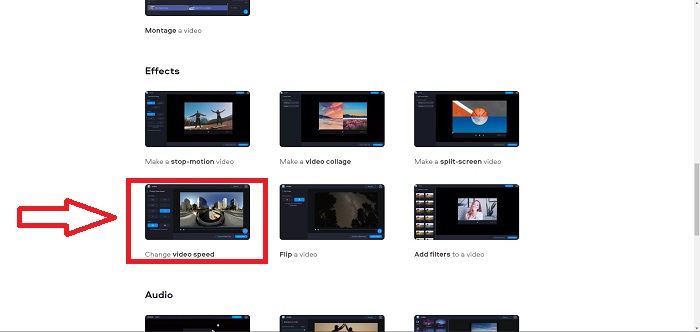
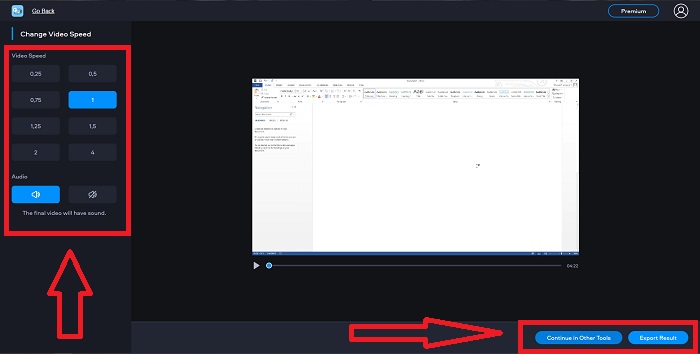
Passaggio 3: Infine, regola la velocità di riproduzione, aumentandola o diminuendola. Potrai scegliere se esportare il file o usare un altro strumento di Fastreel. Tuttavia, puoi sbloccare tutte le altre funzioni cliccando su Premium.
Metodo 3. Usa Flixier
Il seguente strumento web non ha alcuna limitazione sulla dimensione del file quando modifichi la velocità di riproduzione, perché può accelerare online un video di grandi dimensioni. Prova a usare Flixier, il nostro editor video online che crea video direttamente nel browser nel modo più semplice possibile. Aggiungere testo ai video e immagini è facile come trascinarli nell’editor. Non hai bisogno di scaricare o installare alcun software per tagliare, rifilare o ritagliare video in pochi minuti. Indipendentemente dal tuo livello di esperienza, puoi produrre rapidamente contenuti di alta qualità. Ecco i passaggi spiegati di seguito:
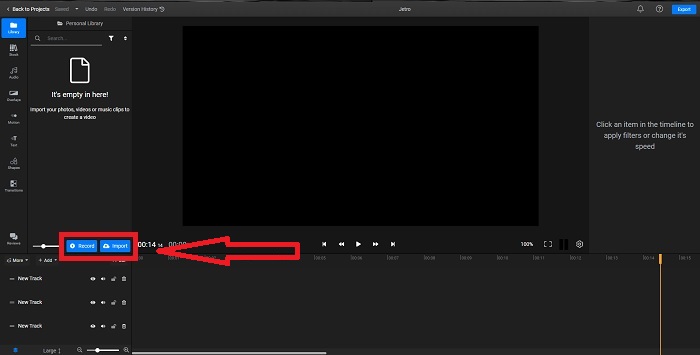
Passaggio 1: Apri Flixier in un’altra scheda e inizia a importare la tua clip video dal desktop cliccando su Import oppure inizia a registrare cliccando su Record. Trascina il video importato sulla traccia e inizia a montare.
Passaggio 2: Nell’angolo destro vedrai la scheda Video tra gli strumenti di editing. Scorri verso il basso e fai clic su Video Speed per regolare la velocità di riproduzione della clip importata. Seleziona se vuoi ridurre o aumentare la velocità a 0,5x, 1,5x, 2x, oppure trascina lo Slider per impostare con precisione la velocità di riproduzione che vuoi applicare alla tua clip.
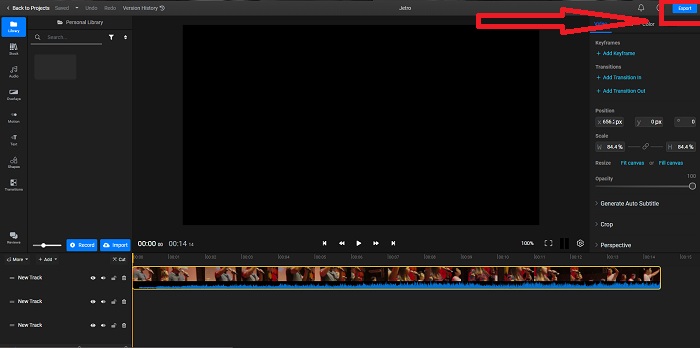
Passaggio 3: Esporta la clip cliccando su Export nell’angolo in alto a destra dell’interfaccia. Dopo di che, apparirà un’altra schermata. In questa interfaccia puoi rinominare il file esportato e scegliere diversi social media e servizi di archiviazione cloud.
Metodo 4. Usa Video Converter Ultimate - Il modo più semplice
Se sei indeciso su quale sia il modo migliore per rendere il video più veloce, non vuoi più usare un editor online e preferisci un software da installare, prova a usare Video Converter Ultimate per modificare il tuo video e persino personalizzarne la velocità di riproduzione.
Passaggio 1: Fai clic sull’opzione Free Download per salvare il software sul disco rigido del tuo computer. Dopodiché puoi personalizzare il tuo sistema installando e configurando il programma.
Download gratuitoPer Windows 7 o versioni successiveDownload sicuro
Download gratuitoPer MacOS 10.7 o versioni successiveDownload sicuro
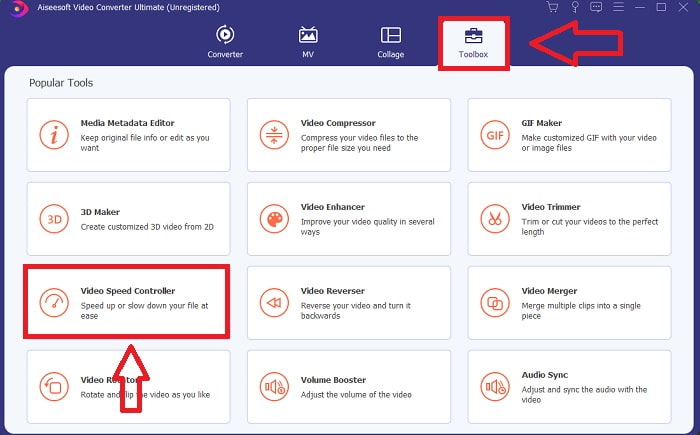
Passaggio 2: Una volta installato il programma, avvialo selezionando l’opzione Toolbox dalla barra dei menu e poi scegli Video Speed Controller dall’elenco che compare.
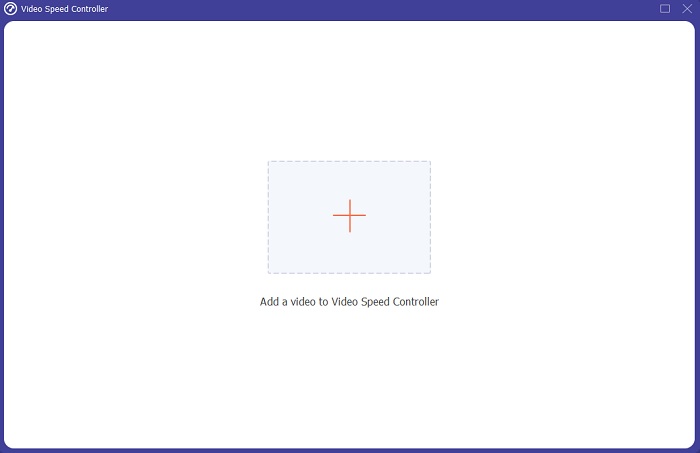
Passaggio 3: Fai clic sul pulsante + dove preferisci per aggiungere un file e continua quindi a modificare il video.
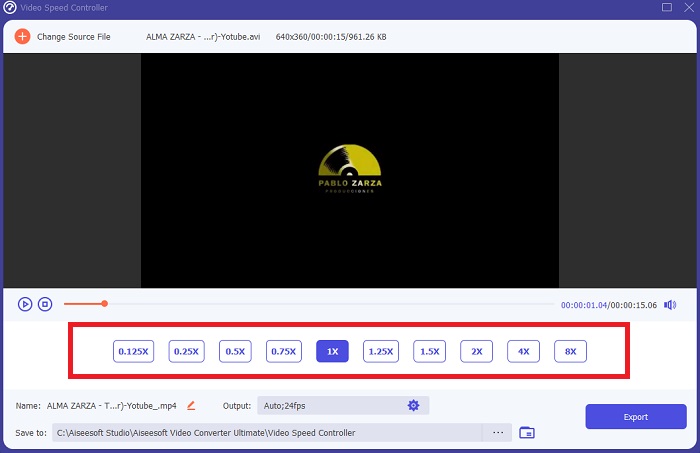
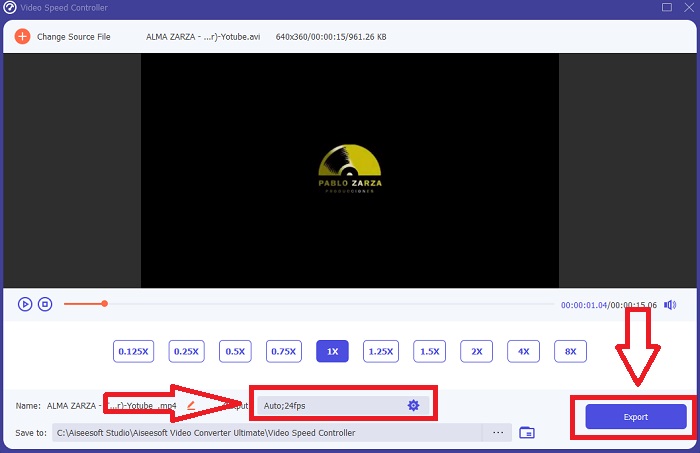
Passaggio 4: Regola la velocità di riproduzione scegliendo di quante volte aumentare o diminuire la velocità del video.
Passaggio 5: Quando hai finito di modificare la velocità di riproduzione della clip, puoi scegliere il tipo di output che desideri impostando formato, risoluzione, qualità, ecc. Fai clic su Export e specifica dove salvare il file.
Correlato:
Miglior lettore VOB per Android
Miglior lettore video per iPhone
Parte 2. Domande frequenti su come velocizzare i video online
La dimensione del file del video si riduce se si aumenta la velocità di riproduzione?
Solo il fotogramma verrà diviso ogni volta che aumenti o diminuisci la velocità di riproduzione del tuo video. Se lo aumenti di 0,5 volte più velocemente, il fotogramma sarà di 60 fotogrammi per 1/120 di secondo. In breve, non può influire sul video a meno che il video non abbia già un frame rate basso.
Quale strumento è molto più facile da usare per rendere i video più veloci?
Tutti gli strumenti possono essere utilizzati o scaricati gratuitamente. Tuttavia, Video Converter Ultimate è la migliore alternativa per ogni strumento Web discusso nella parte precedente dell'articolo. Questo strumento ha anche molte funzionalità disponibili e può aiutarti a migliorare il tuo video nei modi accessibili possibili.
Lo strumento accetta tutti i formati?
No, alcuni degli strumenti forniti possono supportare solo un numero limitato di formati. Alcuni di loro possono convertire l'output in un formato diverso. Tuttavia, Video Converter Ultimate può supportare vari formati ed è anche disponibile per tutti i dispositivi. Può anche velocizzare i video mp4 online poiché la maggior parte dei lettori multimediali può supportare il formato mp4.
Conclusione
Accelerare i video può essere un'idea strana per la maggior parte delle persone e ha portato solo a scopi insoliti. Tuttavia, avvantaggia ancora le persone che vogliono l'idea di convertire i loro video in modo veloce. Questo articolo può essere uno scritto utile per le persone che sono una manciata nell'esplorazione della modifica dei video e nel rispondere a tutte le domande sull'accelerazione di un video clip.
-
 Come convertire i file MKV per riprodurli su PS3 senza problemi [Risolto]
 Vuoi riprodurre video MKV sulla tua PS3? Tuttavia, la PS3 non può riprodurre direttamente i file MKV. Questo articolo ti mostrerà come convertire i video MKV in formati video supportati da PS3 per riprodurli su PS3 senza problemi.
-
 Lettore DVD Android – Come riprodurre video DVD su cellulari Android
 Come riprodurre file DVD su cellulari Android? Ci sono lettori DVD Android? In questo articolo imparerai 3 modi per riprodurre video DVD su cellulari Android con o senza driver esterno.
-
 I 10 migliori lettori MP4 Android gratuiti per la riproduzione di video HD/4K
 Sebbene i cellulari Android abbiano i lettori predefiniti per riprodurre video MP4, non supportano la regolazione delle impostazioni di riproduzione e altre funzioni. Pertanto, puoi conoscere i migliori 10 lettori MP4 Android da questo articolo.
