


 Video Converter Ultimate
 Screen Recorder
 Riparazione video
Impara come velocizzare i video in Windows Media Player nei migliori modi possibili [Evidence Based]
Tutte le scene video differiscono nella loro velocità di riproduzione, ma differiscono anche per lo scopo con cui la velocità viene modificata. Quando aumenti la velocità del tuo video, questo simboleggia eventi irrilevanti e poco interessanti nel film o nel video. Al contrario, quando rallenti il video, metti in evidenza momenti o scene molto importanti da mostrare. Queste modifiche alla velocità di riproduzione sono fondamentali da eseguire durante il montaggio o la creazione di filmati. Leggi questo articolo per insegnare agli utenti come accelerare i video, soprattutto in alcuni comuni lettori multimediali sul nostro desktop come Windows Media Player.

Parte 1. Windows Media Player: come velocizzare i video
Windows Media Player è un lettore multimediale gratuito di Microsoft fornito con ogni copia di Windows. È anche conosciuto come lettore WMP o WM di Microsoft. Oltre a consentire loro di guardare foto e ascoltare musica, consente loro anche di guardare video. Il ripping di CD audio e l'organizzazione della tua libreria musicale sono entrambi possibili con Windows Media Player (WMP). Ha anche una scheda di modifica che aiuta a regolare video, immagini e musica. Se desideri velocizzare un video utilizzando Windows Media Player, ecco i passaggi da seguire:
Passaggio 1: Apri Windows Media Player; nell’angolo sinistro, scegli la scheda Video.
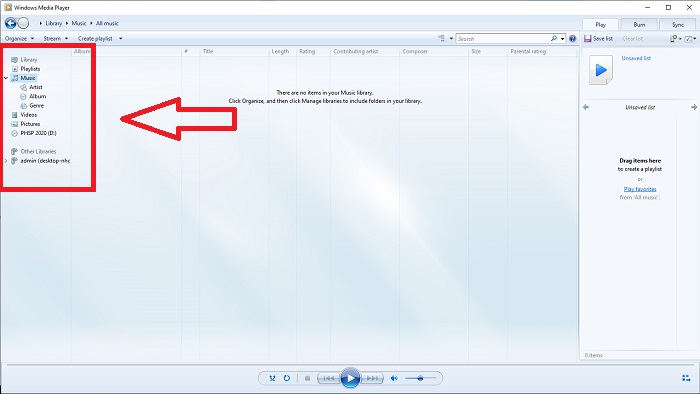
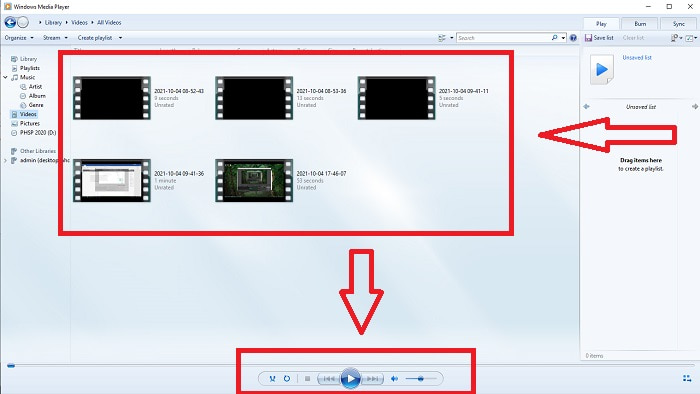
Passaggio 2: Riproduci il video facendo doppio clic con il tasto sinistro o clic con il tasto destro, oppure puoi premere il pulsante Riproduci nell’angolo inferiore centrale dell’interfaccia.
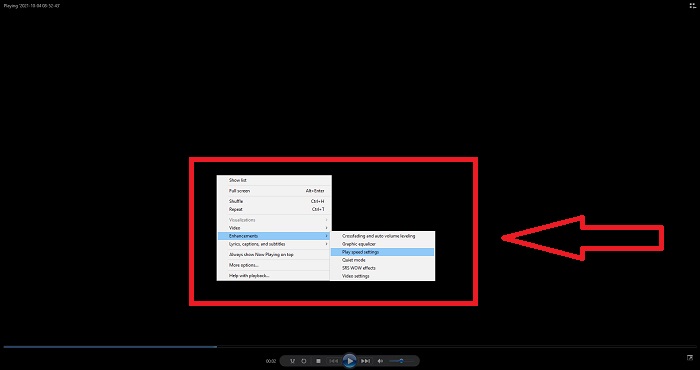
Passaggio 3: Quindi fai clic con il tasto destro sullo schermo per accedere alla scheda di modifica. Procedi facendo clic su Miglioramenti e Impostazioni velocità di riproduzione. Dopo di che, puoi regolare la velocità di riproduzione del tuo videoclip trascinando il Cursore.
Parte 2. Cosa succede se la velocità di riproduzione di Windows Media Player non funziona?
Durante la riproduzione di file video AVI, WAV o MOV, potresti imbatterti in Windows Media Player e riscontrare un problema durante la riproduzione dell'errore del file. I video di qualità mediocre vengono spesso visualizzati in formato AVI. Altri lettori multimediali non hanno problemi a riprodurre l'AVI. WMP, d'altra parte, potrebbe avere un problema tecnico durante la riproduzione di un file AVI. Windows Media Player non supporta i file AVI perché sono codificati utilizzando i codec. Potresti aver ricevuto la seguente notifica: Windows Media Player non può riprodurre il file. Il lettore potrebbe non supportare il tipo di file o potrebbe non supportare il codec utilizzato per comprimere il file. Ci sono due possibili spiegazioni per questo fenomeno.
1. Poiché non corrisponde al file richiesto, Windows Media Player (WMP) non può supportare il codec per il file.
2. Windows Media Player non supporta i codec di compressione.
Passaggio 1: Apri il Pannello di controllo sul tuo computer e trova Visualizza per, quindi fai clic su Icone grandi per accedere a tutte le funzioni complete del Pannello di controllo.
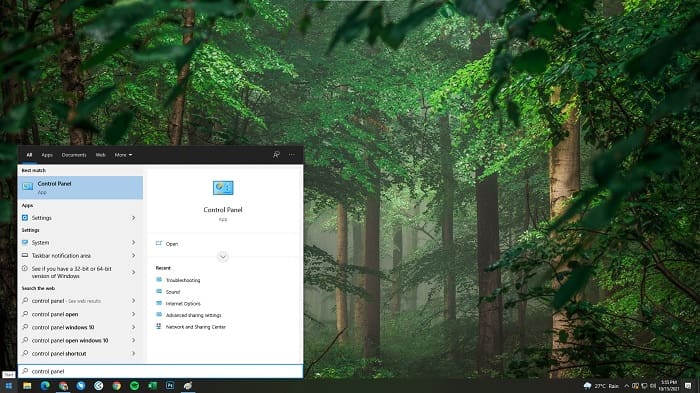
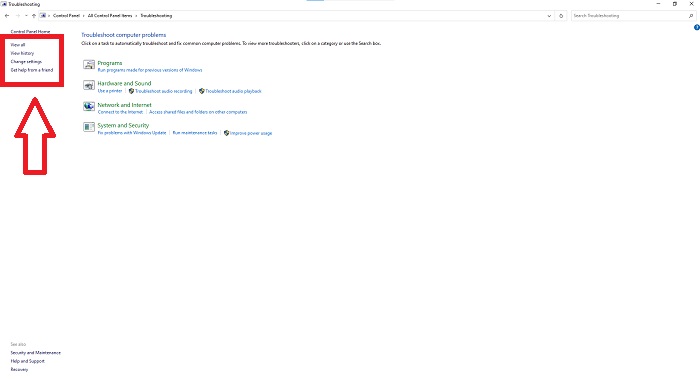
Passaggio 2: Procedi facendo clic su Risoluzione dei problemi. Nell’angolo sinistro, fai clic su Visualizza tutto e trova Raccolta multimediale di Windows Media Player.
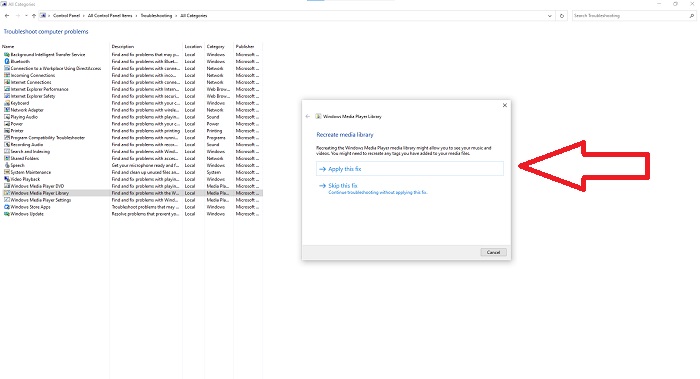
Passaggio 3: Infine, esegui la risoluzione dei problemi per Windows Media Player facendo clic su Avanti dopo la comparsa di una finestra. Poi continua selezionando Applica questa correzione. Quando la risoluzione dei problemi è terminata, scegli se chiuderla o lasciare un commento sulla procedura.
Parte 3. Un altro modo fattibile per velocizzare i video
Supponiamo che tu abbia problemi a correggere la velocità di riproduzione dei tuoi video a causa dei passaggi complicati. Inoltre, se la risoluzione dei problemi non funziona e non riesci ancora a riprodurre il video. Ci sono strumenti web disponibili su Internet e alcuni di essi devono essere acquistati prima di avere accesso allo strumento completo. Video Converter Ultimate è la migliore alternativa per velocizzare i video ed è gratuito. Questo software può modificare il tuo video al livello successivo, ed ecco i passaggi forniti:
Passaggio 1: Seleziona Download gratuito del software direttamente sul tuo computer. Successivamente, personalizza e installa il programma.
Download gratuitoPer Windows 7 o versioni successiveDownload sicuro
Download gratuitoPer MacOS 10.7 o versioni successiveDownload sicuro
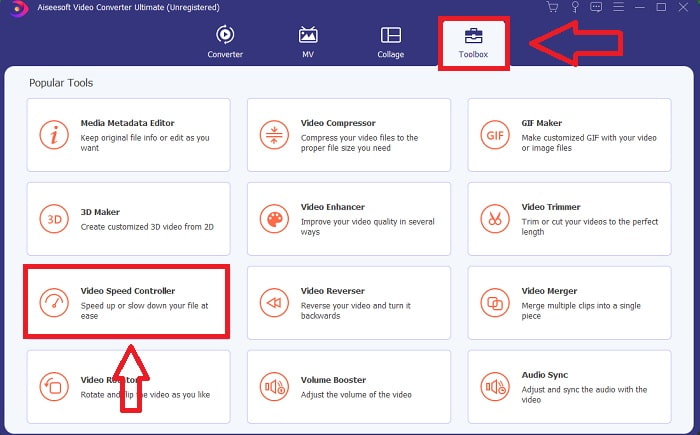
Passaggio 2: Una volta installato il programma, avvialo selezionando l’opzione Toolbox dalla barra dei menu e poi scegli Video Speed Controller dall’elenco che compare.
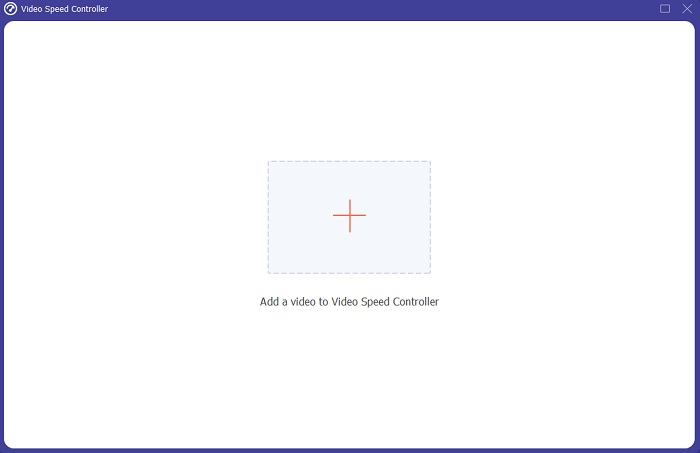
Passaggio 3: Fai clic sul pulsante + a tua scelta per aggiungere un file e poi continua a modificare il video.
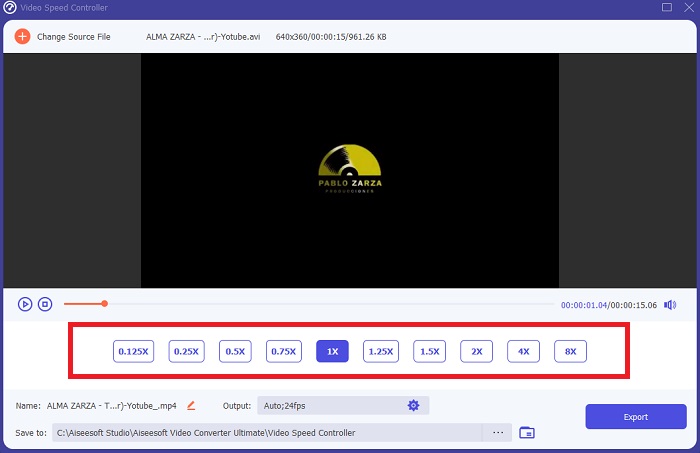
Passaggio 4: Seleziona di quante volte aumentare o diminuire il frame rate del video per modificarne la velocità di riproduzione.
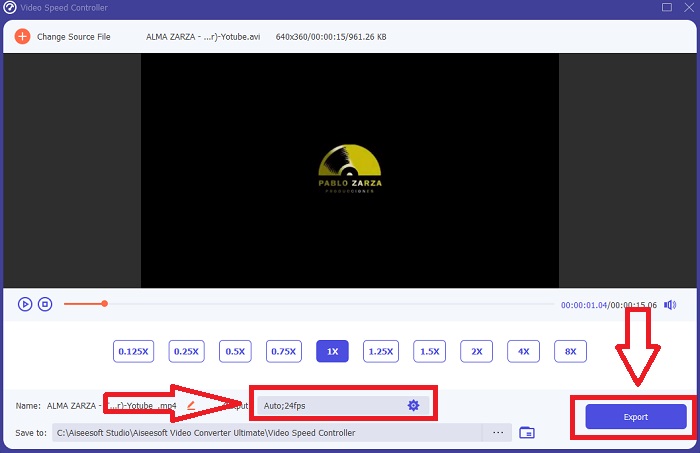
Passo 5: Modificando formato, risoluzione, qualità e così via potrai scegliere il risultato finale desiderato dopo aver terminato di regolare la velocità di riproduzione del tuo video. Fai clic su Esporta e poi seleziona una posizione in cui salvare il tuo lavoro quando hai finito.
Parte 4. Domande frequenti su come velocizzare i video in Windows Media Player
Come riparare i video MP4 che non possono essere riprodotti su Windows Media Player?
Come detto in precedenza nell’articolo, Windows Media Player non supporta un’ampia gamma di formati video. Poiché supporta solo i formati più adatti a Windows, è difficile correggere gli errori usando questo lettore multimediale. Per questo motivo è necessario imparare come convertire o come riprodurre i formati video MP4. Il link qui rimanda a un articolo utile per aiutarti a risolvere questo problema.
Come riprodurre DVD in Windows Media Player?
Alcuni film sono su DVD e, per riprodurli, devi trovare il lettore multimediale adatto per la riproduzione dei DVD. Windows Media Player è uno dei più comuni lettori multimediali che riproducono DVD. Inoltre, questo lettore introduce alcune impostazioni che aiutano nella modifica mentre si riproduce un DVD. Qui trovi ulteriori dettagli su come riprodurre DVD in Windows Media Player.
La dimensione del file del video si riduce se si aumenta la velocità di riproduzione?
Solo il fotogramma verrà diviso ogni volta che aumenti o diminuisci la velocità di riproduzione del tuo video. Se lo aumenti di 0,5 volte più velocemente, il fotogramma sarà di 60 fotogrammi per 1/120 di secondo. In breve, non può influire sul video a meno che il video non abbia già un frame rate basso.
Conclusione
In conclusione, Windows Media Player può essere un software limitato che supporta solo pochi formati. Tuttavia, esistono alcune funzioni che questo software può offrire per risolvere problemi legati ai formati video. Se però desideri aumentare la velocità di riproduzione del tuo videoclip, scarica Video Converter Ultimate, non solo per accelerare il tuo video. Questo software può portare il tuo video a un livello superiore. Con tutte le funzioni disponibili, sarà il miglior e più accessibile software che consigliamo di utilizzare.
-
 Da WebM a GIF: 3 convertitori gratuiti da WebM a GIF per creare le tue GIF
 WebM è una GIF? Come trasformare un video in una GIF? Esiste un convertitore gratuito da WebM a GIF? Questo post condivide 3 modi gratuiti per aiutarti a convertire WebM in GIF.
-
 Come convertire video MKV in GIF animate senza Photoshop/FFmpeg
 Dopo aver scaricato e visto film MKV sul tuo computer, potresti voler condividere alcuni momenti meravigliosi con gli amici o su Internet come GIF. In questo articolo, puoi conoscere i 2 modi più semplici per convertire MKV in GIF.
-
 Crea la tua migliore GIF animata tramite GIF Maker online [2021]
 Una recensione informativa su come creare una GIF utilizzando questi semplici creatori di GIF online che già incontri o meno sul web.
