


 Video Converter Ultimate
 Perakam Skrin
 Pembaikan Video
Belajar Menggunakan Premiere Pro untuk Mempercepatkan Video dengan 2 Alternatif Tayangan Perdana
Premiere Pro ialah salah satu perisian berkelas tinggi yang dibangunkan oleh Adobe untuk penyuntingan video profesional. Selain itu, prestasi alat ini telah dipuji oleh ramai pengguna yang telah menggunakannya. Malah, kami akan mengajar anda cara mempercepatkan video dengan bantuan alat ini. Dengan itu, anda tidak perlu melalui terlalu banyak tetapan atau apa sahaja yang perlu anda lakukan terlebih dahulu. Sekarang, mari kami ajarkan anda cara mempercepatkan video dalam Premiere Pro dan apakah alternatifnya.

Bahagian 1. Cara Mempercepatkan Video dalam Premiere Pro
Penyunting video berkelas tinggi yang pasti anda ingin beli dan gunakan ialah Adobe Premiere Pro. Alat ini adalah pakej lengkap yang pasti digemari oleh golongan profesional. Ini kerana perisian ini boleh mengendalikan kerja penyuntingan yang berat yang anda ingin lakukan sebagai seorang pro. Selain itu, jika anda mahukan hasil yang mengagumkan maka anda mesti belajar cara menggunakan alat ini. Namun, mempelajari cara menggunakan Premiere Pro sudah tentu akan mengambil banyak masa anda, jadi jika anda seorang yang sibuk maka ini sepatutnya menjadi pilihan terakhir anda. Walau bagaimanapun, jika anda bersemangat untuk belajar dan mempunyai banyak masa terluang maka anda mesti mencubanya.
Selain itu, jika anda ingin menggunakan alat ini maka anda mesti membelanjakan sejumlah besar wang kerana ia benar-benar mahal berbanding dengan alat penyuntingan video yang lain. Jadi sekarang, jika anda ingin belajar tentang cara menggunakan Adobe Premiere Pro cc 2018 atau versi yang lebih tinggi untuk mempercepatkan video, ikuti langkah mudah di bawah.
Langkah-langkah Cara Mempercepatkan Video dalam Adobe Premiere Pro:
Langkah 1. Beli dan muat turun Adobe Premiere Pro di laman web rasminya. Kemudian lancarkan alat tersebut untuk mula mempercepatkan video.
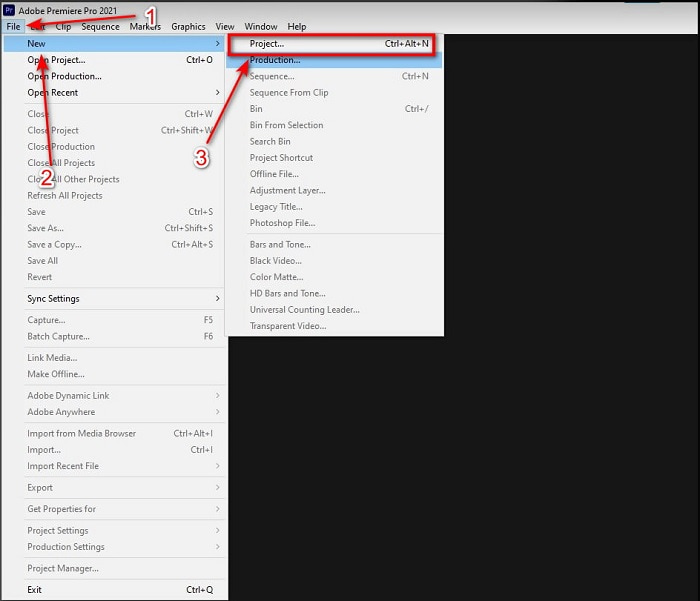
Langkah 2. Klik File, kemudian pergi ke New dan Project. Tunggu sehingga antara muka seperti ini muncul dan klik OK untuk meneruskan. Buka folder dan cari video, seret dan lepaskan fail ke dalam Media Browser untuk meletakkannya bersebelahan dengan Timeline.
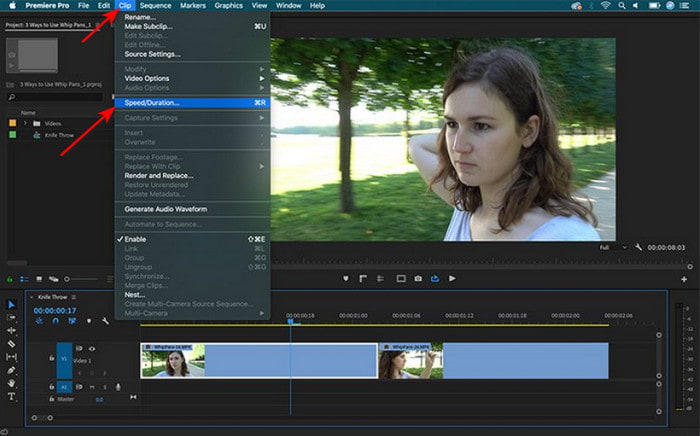
Langkah 3. Klik video yang anda masukkan pada Timeline dan klik Clip di bahagian atas. Kemudian di bawahnya pilih Speed/Duration dan tekan. Tukar peratusan kelajuan mengikut kehendak anda dan klik OK untuk menyimpan kelajuan baharu, dan untuk menyimpan fail klik butang Export.
Bahagian 2. 2 daripada Alternatif Premiere Pro Terbaik untuk Mempercepatkan Video
1. Video Converter Ultimate
Jika masalah anda ialah mempercepatkan video maka inilah penyelesaiannya, iaitu Video Converter Ultimate. Tidak seperti penyunting video lain, alat yang luar biasa ini adalah yang terbaik dalam semua jenis penyuntingan, penukaran, pembuat GIF, penggalak, main balik terbalik, mempercepatkan dan banyak lagi. Selain itu, ramai pengguna sudah menggemari perisian ini kerana ia menyediakan ciri lanjutan seperti Adobe Premiere Pro tetapi dalam versi yang dipermudahkan. Selain itu, kami hampir tidak menemui alat lain yang menyediakan ciri lanjutan yang sangat mudah digunakan. Ringkasnya, tiada apa yang setanding dengan Video Converter Ultimate. Walaupun alat ini berbayar, ia tetap berbaloi dengan setiap sen yang anda belanjakan dan harganya sangat murah. Jadi sekarang, jika anda ingin tahu alternatif kepada cara mempercepatkan video dalam Premiere Pro maka ikut langkah-langkah di bawah dengan betul.
Langkah-langkah Cara Mempercepatkan Video dengan Bantuan Video Converter Ultimate:
Langkah 1. Muat turun perisian ke pemacu komputer anda, kemudian pasangkannya untuk meneruskan.
Muat Turun PercumaUntuk Windows 7 atau lebih baharuMuat Turun Selamat
Muat Turun PercumaUntuk MacOS 10.7 atau lebih baharuMuat Turun Selamat
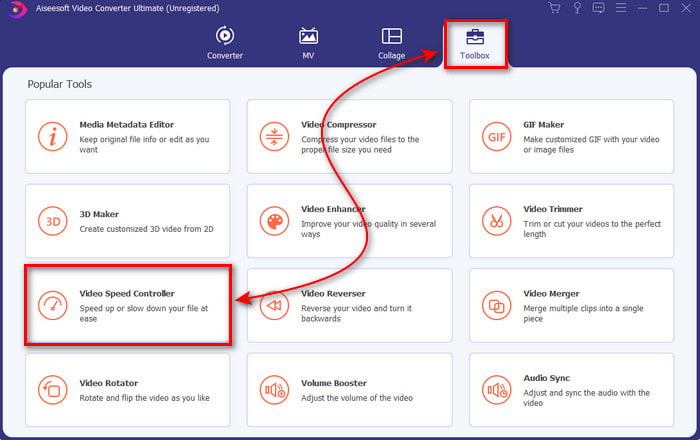
Langkah 2. Mulakan alat tersebut kemudian klik Toolbox dan cari Video Speed Controller.
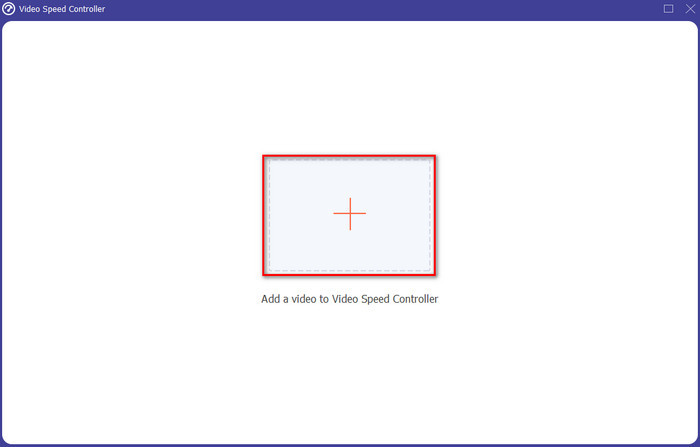
Langkah 3. Untuk menambah video yang anda ingin percepatkan, klik butang +. Kemudian cari fail dalam folder dan klik Open untuk memasukkan fail video.
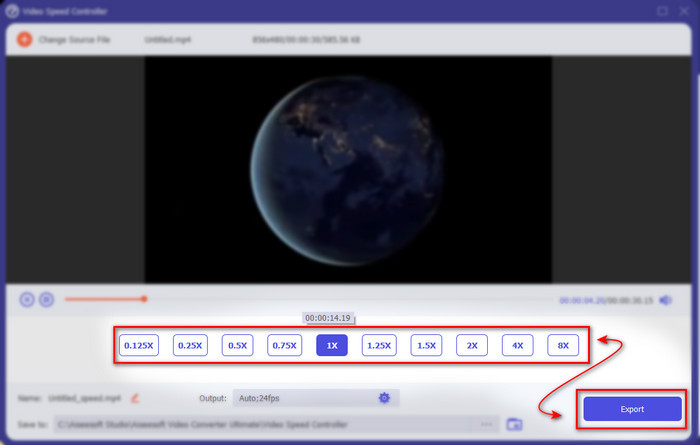
Langkah 4. Kemudian pilih kelajuan yang anda mahu pada video anda dengan mengklik pilihan dalam kotak. Jika anda sudah berpuas hati dengan kelajuan video anda maka klik Export untuk menyimpannya terus ke komputer anda.
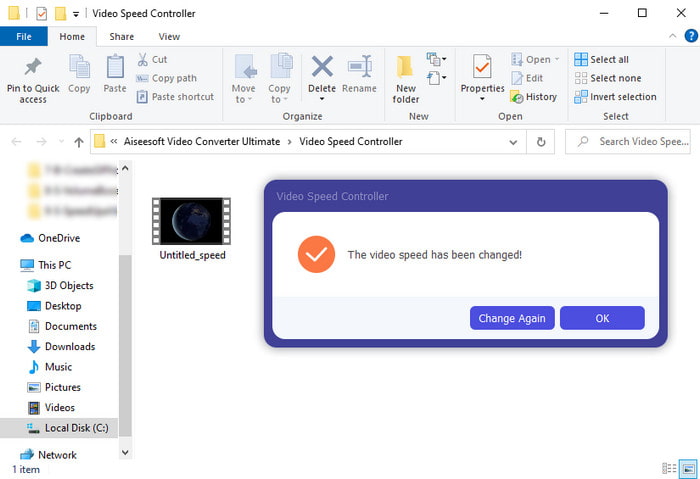
Langkah 5. Satu folder akan muncul apabila proses eksport selesai. Klik fail yang telah anda percepatkan tadi dan kagumilah kerana tiada kehilangan kualiti pada video yang telah dipercepatkan.
2. iMovie
Jika anda mempunyai Mac maka anda mesti menggunakan alat ini kerana ia sudah dipra-pasang dalam Mac anda. iMovie ialah salah satu penyunting video popular yang anda pasti suka gunakan kerana ciri percuma yang disediakannya. Jika anda pengguna Windows maka jangan harap anda boleh menggunakan alat ini kerana ia tidak tersedia pada PC anda. Walaupun alat ini percuma untuk digunakan, masih terdapat beberapa kekurangan seperti ciri penyuntingan utama yang mungkin anda mahu gunakan tetapi tidak tersedia dalam alat ini. Namun, jika bajet anda terhad maka ini sepatutnya pilihan utama untuk pengguna Mac. Selain itu, jika anda ingin mencapai kesan seperti Premiere Pro speed up video maka ikut langkah-langkah di bawah.
Cara Mempercepatkan Video dalam iMovie:
Langkah 1. Buka iMovie pada Mac anda dan klik File kemudian Import Media dan pilih fail untuk meneruskan.
Langkah 2. Seret video yang anda masukkan tadi ke Timeline. Kemudian klik fail video pada Timeline untuk membolehkan pelarasan kelajuan. Di sebelah kanan klik Speed kemudian pilih daripada senarai juntai bawah kelajuan yang ingin anda gunakan.
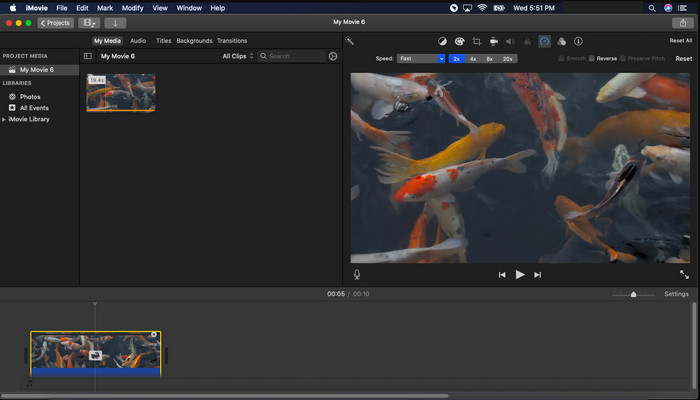
Langkah 3. Selepas menerapkan kelajuan baharu klik Export dan Export File untuk menyimpan versi video yang telah dipercepatkan.
Bahagian 3. Soalan Lazim tentang Premiere Pro Speed Up
Bolehkah saya memperlahankan video di Premiere Pro?
Ya, sudah tentu boleh, hanya ikut prosedur yang sama seperti di atas tetapi kali ini peratusan kelajuan diturunkan kepada kurang daripada seratus untuk menjadikannya lebih perlahan. Atau anda boleh klik di sini untuk belajar cara melambatkan video dengan lebih terperinci.
Seberapa pantas saya boleh menetapkan video pada Premiere Pro?
Peratusan maksimum yang boleh anda tetapkan pada kelajuan video ialah 10,000% peratus. Jadi, jika anda ingin tahu sama ada ia benar, semak sendiri dan tetapkan kelajuannya kepada 10,000%.
Adakah Adobe Premiere Pro mempunyai keperluan sistem?
Sebenarnya ya, terdapat keperluan minimum perisian Adobe perlu dapat menggunakan alat dengan betul. Seperti, dalam senarai ini di bawah: GPU: Intel® i5-4590 / AMD FX 8350 bersamaan atau terkini; RAM: 8GB ram atau lebih tinggi; sistem pengendalian: Microsoft Windows atau macOS; paparan hendaklah 1920 x 1080 atau lebih tinggi.
Kesimpulannya
Apabila kita sampai ke penghujungnya, kini lebih jelas kepada kita bahawa kelajuan mudah pun boleh dilakukan dengan pro perdana. Walau bagaimanapun, pro perdana adalah sangat mahal jadi kami menyenaraikan beberapa perisian mampu milik yang anda ingin gunakan untuk mempercepatkan. Seperti Video Converter Ultimate kerana perisian ini menyediakan ciri penyuntingan mewah walaupun komputer anda adalah low end. Jadi, jika anda ingin mengetahui cara mempercepatkan video dalam Premiere Pro dengan mudah kemudian muat turun Video Converter Ultimate untuk mengalami ciri yang sama tetapi dalam versi yang mudah.
-
 [4 Cara] Cara Mempercepatkan Video Anda Dalam Talian dengan Mudah
 Adakah anda ingin mempercepatkan video dalam talian? Baca artikel ini untuk anda mengetahui lebih lanjut tentang mempercepatkan video dengan cara yang berbeza yang mungkin.
-
 Cara Lebih Mudah untuk Mempercepatkan Video Format MP4 [Luar Talian & Dalam Talian]
 Adakah anda ingin mempercepatkan video anda, tetapi ia dalam Format MP4? Artikel ini mungkin membantu anda mengetahui perbezaan dalam cara mempercepatkan video anda sama ada dalam talian atau luar talian.
-
 4 Pemain Video Terbaik dengan Pengawal Kelajuan pada 2021
 Tidakkah anda perasan kelajuan main balik setiap pemain media apabila anda memainkan video? Artikel ini sesuai untuk anda mempelajari semua tentang pemain video dengan kawalan kelajuan.
