


 Video Converter Ultimate
 Perakam Skrin
 Pembaikan Video
Proses Penukaran Dalam Talian dan Luar Talian: SWF kepada WMV
SWF ialah format fail lama yang dicipta oleh Adobe untuk pemain Shockwave Flash. Flash kini tidak lagi disokong oleh banyak pelayar, tidak pernah disokong oleh peranti iOS, dan format fail SWF jarang digunakan pada masa kini kerana masalah prestasi dan keselamatan. Sebaliknya, WMV ialah satu set codec pemampatan video yang dicipta untuk penstriman video internet awal dan media fizikal seperti HD-DVD dan Blu-Ray. Video dalam format fail ini boleh dimainkan secara natif pada peranti Windows, jadi anda mungkin mahu menukar fail SWF kepada WMV kerana pemain Flash semakin tidak disokong, dan anda tidak lagi boleh memainkan fail SWF. Oleh itu, kami menyediakan dua pilihan untuk anda menukar SWF anda kepada WMV.

Bahagian 1. Bagaimana untuk Menukar SWF kepada WMV pada Windows dan Mac dengan Mudah
Video Converter Ultimate ialah penukar multimedia yang boleh menukar hampir semua fail video dan audio utama kepada format keluaran yang anda inginkan. Ia boleh menukar fail video secara kelompok, menjadikannya lebih berkuasa daripada yang disangka. Ia bukan sahaja menukar, malah turut membolehkan pengguna mengubah suai video mereka dengan bantuan alat penyuntingan yang berguna. Selain itu, penukar video ini menyokong pelbagai format, termasuk yang paling banyak digunakan pada masa kini. Yang lebih penting, ia menukar pada kadar yang lebih pantas berbanding perisian seumpamanya. Untuk menggunakan perisian ini, ikut langkah mudah berikut:
Langkah 1: Klik butang Free Download untuk memuat turun fail .exe yang anda perlukan untuk memasang perisian. Tunggu sehingga selesai, buka fail tersebut, dan ikut proses pemasangan sehingga habis. Klik Start Now dan lancarkan perisian.
Muat Turun PercumaUntuk Windows 7 atau lebih baharuMuat Turun Selamat
Muat Turun PercumaUntuk MacOS 10.7 atau lebih baharuMuat Turun Selamat
Langkah 2: Muat naik fail video yang ingin anda tukar dengan mengklik butang + di tengah antara muka. Sebagai alternatif, seret fail dari desktop anda dan lepaskannya pada antara muka, dan ia akan diimport secara automatik.
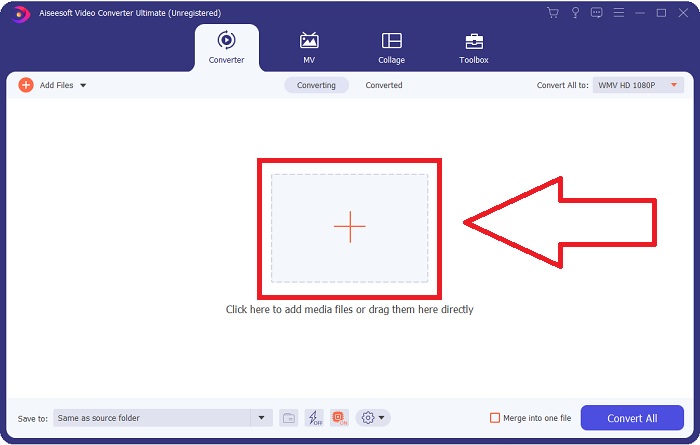
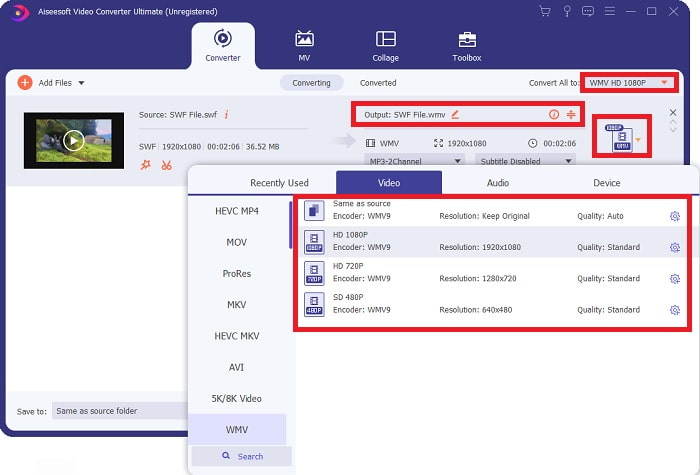
Langkah 3: Klik anak panah juntai bawah di sebelah kanan, di mana anda akan melihat format semasa video anda, dan ia akan memaparkan semua format yang tersedia untuk dipilih. Dalam kes ini, skrol ke bawah dan pilih WMV atau cuma taipkannya pada bar carian. Semua kualiti video juga boleh dipilih pada panel kanan.
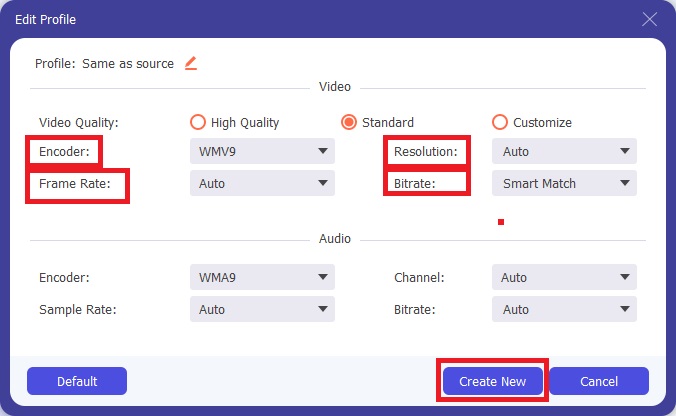
Langkah 4: Untuk menyunting video anda dengan lebih lanjut, klik ikon gear di sebelah kanan untuk memaparkan semua alat penyuntingan yang berguna. Dari situ, anda boleh membuat semua pelarasan yang perlu mengikut keperluan anda. Hanya klik butang Create New setelah anda selesai.
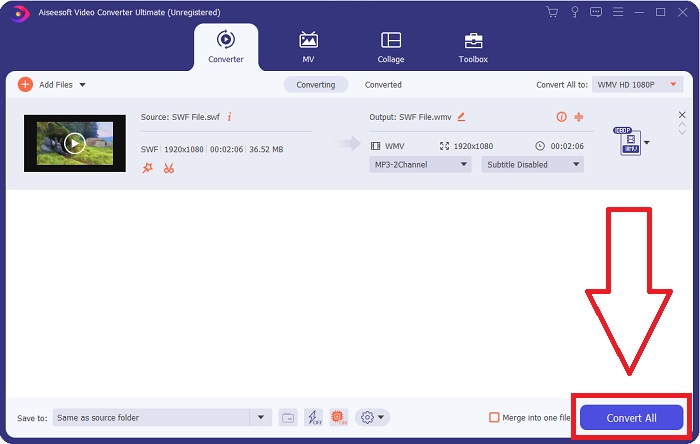
Langkah 5: Selesaikan proses penukaran dengan mengklik butang Convert All di penjuru kanan bawah tetingkap dan tunggu sehingga ia selesai.
Bahagian 2. Satu lagi Petua untuk Menukar SWF kepada WMV Dalam Talian
FVC Free Video Converter sentiasa percuma dan tidak memerlukan pendaftaran. Sesetengah penukar video dalam talian percuma mengehadkan jangka masa penukaran atau saiz fail. Jika anda telah menggunakan semua masa penukaran percuma anda atau fail anda terlalu besar, anda perlu membeli pelan, walaupun anda jarang menukar video. Tetapi FVC Free Video Converter tidak mempunyai sekatan sedemikian dan boleh menukar video pada bila-bila masa.
Selain itu, perkhidmatan ini tidak memerlukan pendaftaran untuk menukar fail yang lebih besar, tidak seperti kebanyakan penukar video dalam talian memerlukan pendaftaran untuk menukar video yang lebih besar daripada 1GB. Berikut ialah langkah yang perlu anda ikuti untuk alat hebat ini:
Langkah 1: Untuk pergi ke laman web, klik pautan ini. Kemudian, muat turun pelancar dengan cepat dengan mengklik butang Add Files to Convert dan tunggu sehingga selesai.
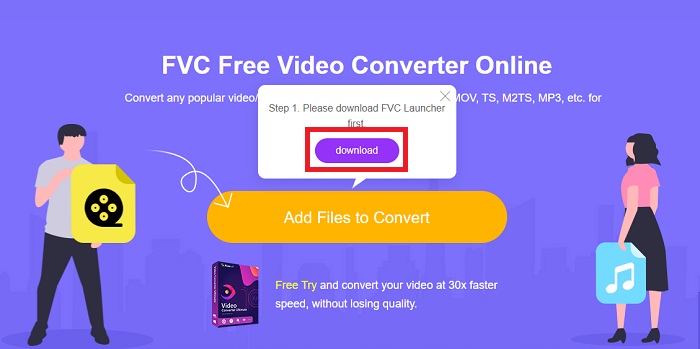
Langkah 2: Klik butang yang sama sekali lagi, dan kali ini ia akan membenarkan anda memuat naik fail video yang ingin anda tukar. Selepas itu, pilih WMV antara semua format yang tersedia.
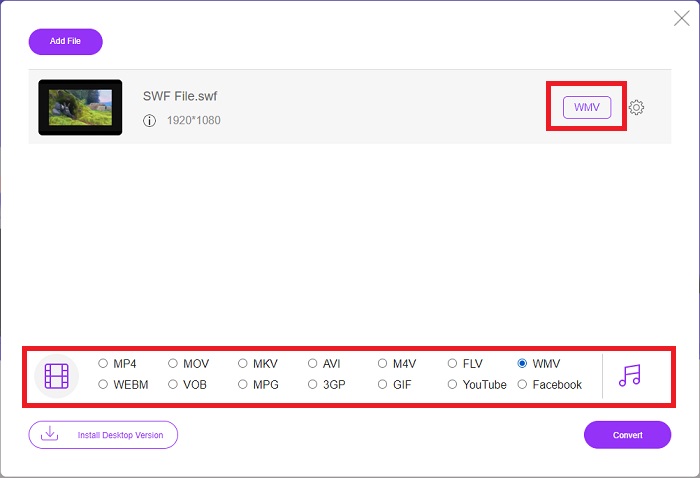
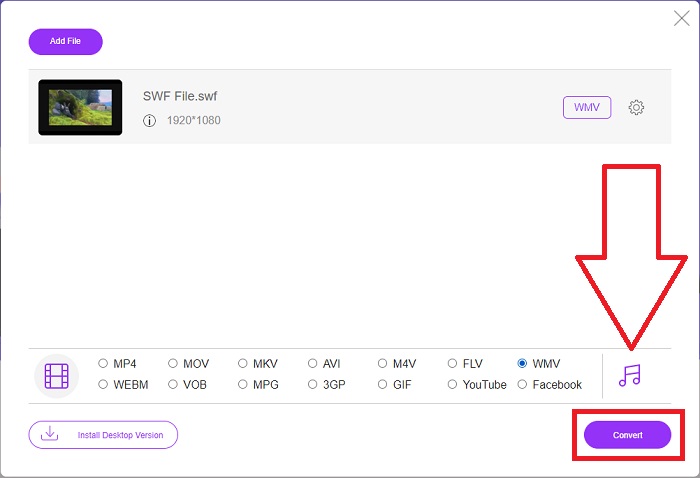
Langkah 3: Anda masih boleh menggunakan alat penyuntingan yang berguna seperti dalam perisian tersebut. Hanya klik ikon gear, dan ia akan memaparkan semua pelarasan yang boleh anda buat. Untuk menyimpan perubahan yang dibuat, klik OK dan setelah anda selesai membuat pelarasan, klik Convert untuk memulakan proses.
Berkaitan:
Bahagian 3. Pengetahuan Luas Mengenai Format SWF dan WMV
Jika anda ingin mengetahui lebih lanjut mengenai kedua-dua format, teruskan membaca artikel ini. Kami menyediakan semua maklumat yang diperlukan dan penting yang mungkin anda perlukan sebagai latar belakang.
Adobe menggunakan format fail SWF untuk menyimpan filem dan animasi berasaskan vektor. Format Web Kecil ialah singkatan; namun, ia juga dikenali sebagai Format ShockWave. Ia biasanya digunakan untuk menyiarkan video melalui internet, terutamanya permainan berasaskan pelayar. Malangnya, Adobe menyatakan bahawa ia akan berhenti menyokong format Flash menjelang akhir tahun 2020 disebabkan masalah prestasi dan keselamatan.
Sebaliknya, fail WMV ialah fail Video Windows Media yang boleh memampatkan menggunakan satu atau lebih format pemampatan video Microsoft. Ia ialah format storan video yang popular dalam Windows, itulah sebabnya ia digunakan oleh apl pihak ketiga tertentu untuk perkara seperti animasi pendek. Ia direka bentuk untuk berfungsi dengan pemain media Microsoft seperti Windows Media Player dan Movies & TV. Untuk digunakan dengan sistem Pengurusan Hak Digital (DRM), fail WMV mungkin disulitkan.
| Format Web Kecil | Video Windows Media | |
| Sambungan fail | .swf | .wmv |
| Pemaju | Adobe Systems Incorporated | Microsoft |
| Program Sokongan | ◆ Adobe Flash Player ◆ Adobe Flash ◆ CC profesional ◆ Pemain GOM ◆ Adobe Dreamweaver 2020 | ◆ Pemain Media VLC ◆ MPlayer ◆ Pemain Media Klasik ◆ Windows Media Player |
Bahagian 4. Soalan Lazim tentang Menukar SWF dan WMV
Apakah kegunaan fail WMV?
Fail video WMV ialah format terbaik untuk menjual bahan video dalam talian atau melalui HD DVD dan Cakera Blu-ray.
Apakah kegunaan fail SWF?
Fail kilat, atau fail SWF, sering digunakan untuk pengedaran maklumat multimedia yang cekap melalui internet.
Bolehkah fail SWF diedit?
Adobe Flash ialah format fail yang digunakan oleh Adobe. Tidak seperti fail multimedia lain, dan fail SWF memerlukan pemalam Flash Player untuk melihat pelayar web. Tambahan pula, Pengguna tidak boleh mengedit terus fail SWF.
Kesimpulannya
FVC Video Converter Ultimate ialah pilihan yang sesuai untuk anda jika anda seorang pemula atau hanya seorang amatur dalam hal penukaran video. Anda tidak menukar format video dengan kerap. Faedahnya, seperti penukaran format video yang berterusan, penukaran fail video pantas berbanding program setanding, operasi mudah, sokongan untuk pelbagai format, dan sebagainya, membantu ia menjadi penukar video terbaik di luar sana. Apabila ia datang kepada penukaran video, Video Converter Ultimate dan setara dalam taliannya ialah pilihan yang paling boleh diterima.
-
 [2 Penyelesaian] Cara Menukar Fail SWF ke GIF dengan Mudah secara Percuma
 Apabila anda gagal mengeksport format GIF melalui perisian Flash, anda boleh mencuba menyimpan fail dalam format SWF pada mulanya. Kemudian anda dapat mempelajari 2 cara mudah untuk menukar fail SWF ke GIF dari artikel ini.
-
 Senarai Teratas 5 Penukar SWF ke AVI Percuma Terbaik [Berasaskan Web & Desktop]
 Adakah anda ingin tahu cara menukar fail SWF anda kepada AVI? Jadi jika tidak, baca artikel ini kerana kami menyediakan penyelesaian tentang penukaran masalah SWF anda.
-
 [Percuma & Mudah] Alat Luar Biasa untuk Digunakan dalam Menukar SWF kepada MOV
 Pernahkah anda cuba menukar SWF kepada MOV kerana anda tidak boleh mengedit video? Siapa yang harus dipersalahkan atas ketidakserasian editor video anda? Teruskan membaca untuk penyelesaian anda.
