


 Video Converter Ultimate
 Perakam Skrin
 Pembaikan Video
Cara Mengalih Keluar Tera Air daripada GIF Dalam Talian [Langkah demi langkah]
Menambah tera air pada GIF telah menjadi salah satu cara untuk melindungi GIF, tetapi bagaimana jika anda perlu menghapus tera air yang anda tambahkan pada GIF anda? Apa yang harus anda lakukan? Adakah Pembuat GIF anda mempunyai fungsi ini? Tidak mempunyai penghapus tera air? Kami tahu masalah ini agak menyusahkan, bukan? Namun tidak perlu risau kerana semua persoalan ini akan terjawab sebentar lagi, kerana kami telah menemui empat alat penghapus tera air yang boleh anda gunakan secara luar talian dan dalam talian. Alat‑alat ini dipilih khas dari pasaran untuk memberikan pilihan terbaik kepada anda untuk menghapus tera air pada GIF.
Sekilas Apl Ini
| Video Converter Ultimate | Alat GIF dalam talian | WatermarkRemover.io | Pixlr | PhotoShop | |
| Resolusi | 8 RIBU | 1080P | 5K | 8 RIBU | 300K |
| Kelajuan Proses | Cepat | Sederhana | Sederhana | Cepat | Bergantung pada Perkakasan Anda |
| Keperluan Perkakasan | rendah | T/A | Sederhana | tinggi | Sangat Tinggi |
Bahagian 1. Cara Paling Mudah untuk Mengalih Keluar Tera Air daripada GIF pada Windows & Mac dengan Pantas
Video Converter Ultimate boleh membantu anda menghapus tera air daripada GIF dengan berkesan, sama ada anda menginginkannya ataupun tidak. Alat ini boleh membantu anda menambah tera air dan menghapuskannya; ringkasnya, ia adalah alat serba lengkap yang anda perlukan pada Windows atau Mac. Bukan itu sahaja, dengan alat ini anda juga boleh mencipta GIF anda sendiri dan menambah tera air yang anda mahu bagi melindungi GIF yang anda hasilkan. Untuk mencubanya, anda boleh ikut langkah ringkas yang kami sediakan, dan itu sahaja. Dengan itu, anda boleh menggunakan GIF tanpa tera air dalam masa kurang daripada satu minit.
Kelebihan Video Converter Ultimate:
◆ Ia adalah pilihan terbaik untuk mengalih keluar dan menambah tera air pada GIF anda.
◆ GUI mesra pengguna boleh membantu anda memahami perkara yang berlaku pada antara muka alat dengan cepat.
◆ Proses penukaran ultra-pantas terbina dalam dan pecutan perkakasan boleh membantu anda dengan mengimport dan mengeksport sepantas kilat.
◆ Tersedia pada semua platform seperti Windows dan Mac untuk dimuat turun.
◆ Ia mempunyai ciri lanjutan pembuat GIF terbaik yang boleh anda gunakan pada desktop anda untuk mencipta GIF yang diperibadikan.
Langkah Cara Menghapus Tera Air Daripada GIF dengan Ultimate Watermark Remover
Langkah 1. Muat turun perisian ke pemacu komputer anda dengan mengklik butang di bawah. Kemudian lancarkan dan muat naik GIF atau video.
Muat Turun PercumaUntuk Windows 7 atau lebih baharuMuat Turun Selamat
Muat Turun PercumaUntuk MacOS 10.7 atau lebih baharuMuat Turun Selamat
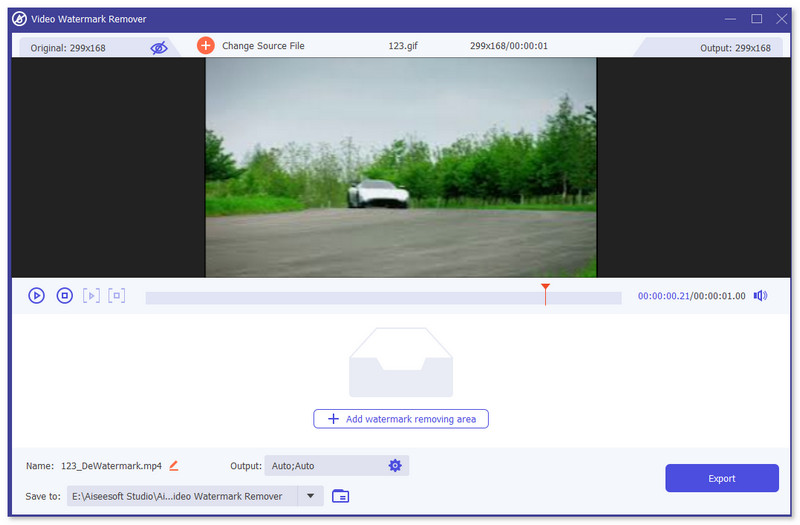
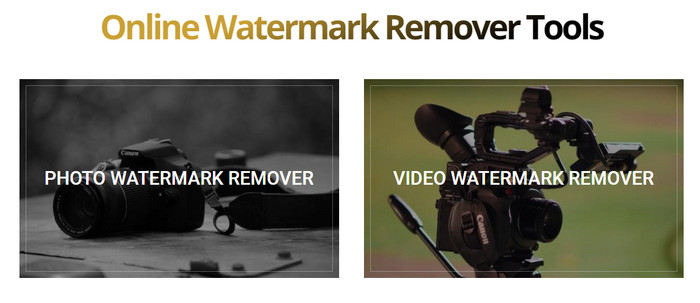
Langkah 2. Buka penghapus tera air, pergi ke Kotak Peralatan (Toolbox), dan cari Video Watermark Remover.

Langkah 3. Muat naik GIF atau video dan klik Export.
Berkaitan:
Alih keluar Tera Air daripada GIF dengan Adobe Photoshop
Jika anda telah memasang Adobe PhotoShop pada komputer anda, anda juga boleh bergantung padanya untuk mengalih keluar tera air atau bayang-bayang daripada gambar. PhotoShop boleh diiktiraf sebagai salah satu alat penyunting foto yang paling popular dan berkuasa yang membolehkan anda menambah kesan, menapis, memadam objek, dll. Walaupun ia bukan editor foto percuma, ia memberikan anda percubaan percuma selama 30 hari. Kini anda boleh mengikuti panduan di bawah untuk mengalih keluar objek yang tidak diingini daripada foto.
Langkah 1. Lancarkan PhotoShop pada komputer anda. Anda boleh pergi ke laman rasmi Adobe untuk memuat turun PhotoShop secara percuma dan mendapatkan percubaan percuma.
Langkah 2. Anda boleh terus seret dan lepas untuk mengimport fail imej yang ingin anda sunting. Selain itu, anda boleh klik File pada bar menu dan kemudian klik Open untuk memilih foto tempatan pada komputer anda.
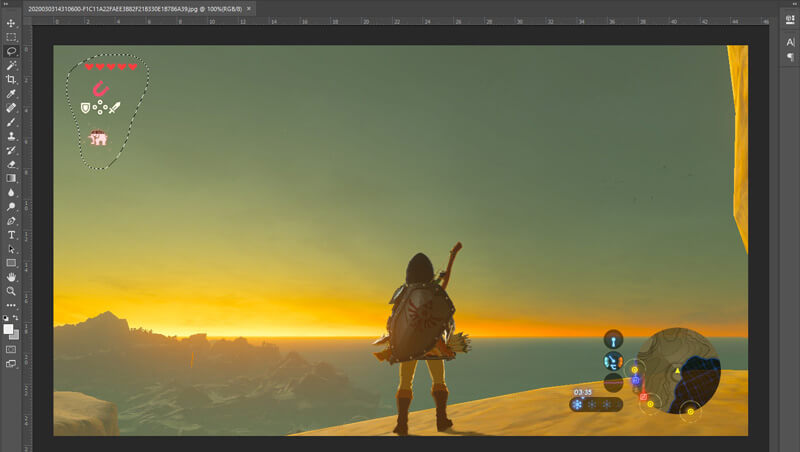
Langkah 3. Anda boleh menggunakan alat Select and Mask untuk memilih objek yang tidak diingini. Pada langkah ini, anda bebas memilih alat yang sesuai untuk memilih kawasan yang ingin anda buang.
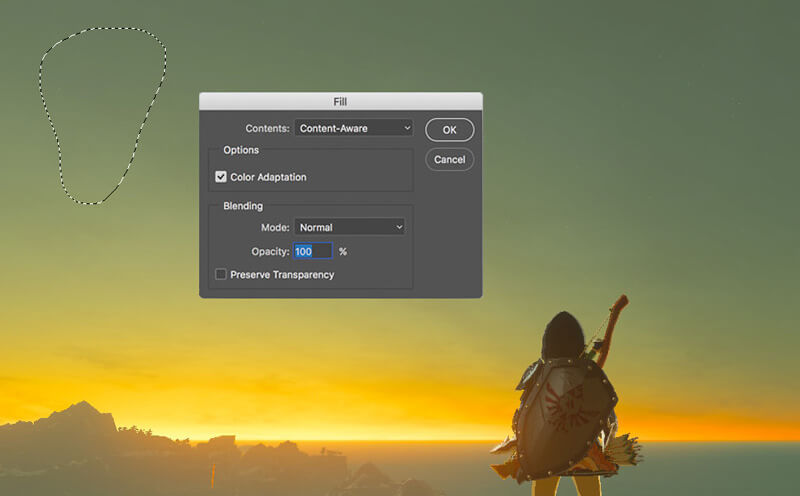
Langkah 4. Sekarang anda boleh bergantung pada alat Content-Aware Fill Photoshop untuk menghapus objek daripada foto dan menggantikan bahagian tersebut dengan kandungan yang sesuai. Secara perbandingan, jika anda tidak hanya mahu memadam objek tertentu dalam foto, fungsi Content-Aware Fill boleh memberikan kesan keluaran yang lebih baik.
Langkah 5. Setelah PhotoShop menghapus objek, anda boleh klik File dan kemudian Save untuk menyimpan gambar yang telah disunting pada komputer anda. Anda boleh memilih mana-mana format imej popular seperti JPG, PNG, GIF, dan lain‑lain sebagai format keluaran. Di sini anda juga boleh menekan Ctrl + S untuk menyimpan dan mengeksport fail imej anda daripada PhotoShop.
Bahagian 2. Cara Membuang Tera Air daripada GIF Dalam Talian
Dengan alatan dalam talian percuma ini, anda boleh mengalih keluar tera air pada GIF. Tetapi, anda perlu ingat bahawa alatan ini tidak akan berfungsi jika anda tidak mempunyai sambungan internet kerana semua alatan adalah bergantung kepada rangkaian. Selain itu, menggunakannya mungkin mengambil masa kerana penimbal semasa anda menggunakan alatan web ini. Jadi, jika anda ingin mengetahui penghapus GIF percuma dalam talian, baca butiran di bawah.
Alih keluar Tera Air daripada GIF dengan Alat GIF Dalam Talian
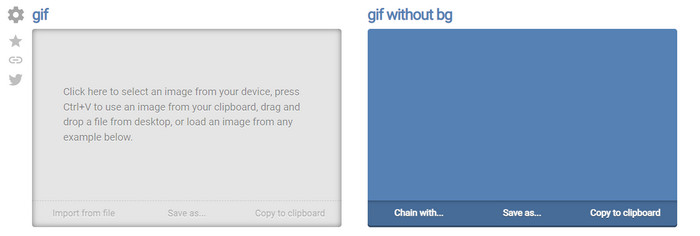
Online GIF Tools ialah alat percuma yang boleh anda gunakan untuk menghapus tera air pada GIF. Alat ini menyediakan fungsi penghapusan lanjutan kepada pengguna seperti menghapus tera air latar belakang pada GIF. Walaupun alat ini mengagumkan, proses menghapus tera air boleh menjadi rumit kerana ia menghapus piksel warna tertentu pada setiap bingkai.
Langkah 1. Buka Online GIF Tools pada pelayar web anda.
Langkah 2. Klik Import File untuk memuat naik GIF. Di bawah background color, klik options color coder untuk mencari warna tera air.
Langkah 3. Klik Save As dan Download selepas itu untuk menyimpan GIF pada pemacu anda.
Alih Keluar Tera Air daripada GIF dengan Penanggal Tera Air Dalam Talian
Dengan WatermarkRemover.io, tera air anda akan dihapus secara automatik pada GIF. Alat ini sangat bagus untuk menghilangkan tera air secara percuma. Ia membolehkan pengguna kurang bersusah payah menghapus tera air kerana anda tidak perlu melakukannya sendiri; alat ini yang akan mengerjakannya untuk anda. Namun, ada sesetengah kawasan yang tidak disokong oleh alat ini; secara ringkasnya, anda tidak boleh memuat turun GIF yang telah dihapus tera airnya.
Langkah 1. Lancarkan WatermarkRemover.io dan tambahkan fail GIF dengan mengklik bahagian di bawah logo.
Langkah 2. Selepas menambah fail, proses akan bermula secara automatik dan tunggu sehingga siap.
Langkah 3. Klik butang muat turun untuk menyimpannya ke komputer anda.
Alih keluar Tera Air daripada GIF dengan Pixlr

Jika anda mahukan alat web terbaik untuk membuang tera air pada GIF anda, maka gunakan Pixlr. Tidak seperti dua alat web yang disebutkan tadi, alat ini jauh berbeza kerana ia mempunyai banyak fungsi yang mungkin anda mahu gunakan untuk menghapus tera air. Walaupun alat ini serupa dengan Photoshop, ada beberapa bahagian yang tidak seampuh Photoshop, terutamanya dalam menghapus tera air daripada GIF, dan ia sendiri akan menambah tera air pada penghujung proses eksport.
Langkah 1. Cari Pixlr dan buka laman tersebut.
Langkah 2. Tekan Advance Editor, tambahkan GIF, klik Open Image. Selepas menambah GIF, klik ikon droplet untuk mengaburkan tera air, klik pada tera air berulang kali dan pastikan ia hilang.
Langkah 3. Klik File kemudian Save.
Bahagian 3. Soalan Lazim tentang Mengalih Keluar Tera Air daripada GIF
Adakah mengalih keluar tera air menjadikan saiz fail lebih kecil?
Saiz fail akan berubah, tetapi ia tidak akan memberi kesan yang ketara kerana anda hanya mengalih keluar sedikit tera air pada video anda. Jadi, jika saiz fail asal dan tera air yang diekstrak tidak hampir sama, masalahnya adalah pada apa yang anda gunakan.
Mengapakah terdapat kabur pada video saya selepas mengalih keluar tera air?
Terdapat kabur pada video anda selepas anda mengalih keluar tera air kerana itu adalah cara alat untuk mengalih keluar tera air. Ia adalah salah satu kaedah yang disediakan oleh alat untuk mengalih keluar tera air pada mana-mana video atau imej dengan mengaburkannya.
Adakah kualiti GIF akan berubah selepas mengalih keluar tera air?
Anda tidak akan melihat perubahan mengenai kualiti selepas mengalih keluar tera air pada GIF anda. Tetapi sesetengah alatan merendahkan kualiti GIF anda kerana ia tidak menyokong GIF berkualiti tinggi. Jadi, ingat untuk memilih alat yang betul yang menyokong pengeksportan output berkualiti tinggi walaupun anda telah mengalih keluar tera air daripadanya.
Kesimpulannya
Kesimpulannya, blog ini memberi kita peluang untuk dengan berkesan menghapus tera air pada GIF atau video yang kita gunakan. Jadi, alat‑alat yang kami bentangkan adalah berkesan dan sesuai untuk menghapus tera air pada GIF kita. Namun begitu, Video Converter Ultimate tetap menonjol dalam fungsi menghapus atau menambah tera air pada GIF anda. Jadi, jika pandangan kita sama tentang alat ini, maka anda patut menggunakannya, dan jika tidak, anda patut cuba memuat turunnya dan menghapus tera air pada GIF anda. Selepas itu, alat ini akan membantu anda melakukannya dengan pantas, dan pandangan anda tentang keupayaan alat ini akan berubah.
-
 Cara Terbaik Cara Menambah Tera Air pada Video dalam Photoshop pada Windows & Mac
 Ingin tahu cara menambah tera air pada video di Photoshop? Dalam kes itu, artikel ini akan memberikan anda satu atau dua perkara yang perlu anda ketahui.
-
 3 Penyelesaian Terbaik tentang Cara Membuang Tera Air daripada Video dengan Mudah
 Mahu mengalih keluar tera air yang menjengkelkan pada video? Dengan blog ini, anda boleh mempelajari idea berbeza tentang mengalih keluar tera air pada video.
-
 5 Cara Terbaik untuk Menukar Imej kepada GIF Beranimasi [Dikemas kini 2022]
 Perlukan imej penukar kepada GIF? Artikel ini akan menyediakan lima penukar terbaik yang boleh kami temui di pasaran. Jadi, mari's mengetahui alatan ini dengan membaca artikel ini.
