


 Video Converter Ultimate
 Perakam Skrin
 Pembaikan Video
 Muat Turun Selamat
6 Penukar HEIC kepada JPG Terbaik untuk Digunakan untuk Menukar HEIC kepada JPG Standard
In this day and age, many of us love to take snaps, whether they are selfies or groupies on our mobile devices, such as iPhones. The vast majority of the images taken on iOS devices are in the format of HEIC because it has become the standard image format for iOS. When you transfer the file to others that are non-iOS, it won't open because that device doesn't support it by default. If you want to send the image file on other devices, you must consider converting it into a JPG format because this format supports widely by many devices. The list below will teach you to convert HEIC to JPG with the five converters you can use to finish the job.

Bahagian 1. Cara Menukar HEIC kepada JPG Menggunakan Alat Web [Cara Dalam Talian]
Kami menguji setiap satu daripada 3 penukar HEIC dalam talian yang disebut ini untuk memberikan maklumat yang berkaitan tentang mereka. Jika anda ingin menggunakan alat web percuma, ini adalah bahagian untuk anda, tetapi ingat bahawa terdapat beberapa batasan untuk menggunakan penukar seperti ini. Lebih penting lagi, pastikan sambungan internet yang stabil jika anda menggunakan alatan di bawah untuk mengelakkan gangguan semasa menukar. Sila baca butiran lengkap di bawah untuk mengetahui setiap daripada mereka.
Penukar HEIC ke JPG FVC Percuma
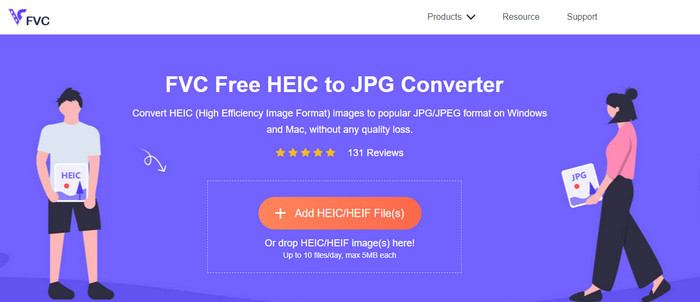
FVC Free HEIC to JPG Converter can help you convert HEIC files to JPG format in less than a few clicks. With this web tool, you won't need to download any additional installer on your drive or even sign up to use it. Although this tool is free to use, there are some limitations, like you can convert up to ten files per day, and the maximum file size for each image should be 5MB or less. Compared to some converters online, this might be enough, especially if you aren't using it often. So, if you want to test the online tool out, you can follow the instructions we include below.
Step 1. First and foremost, click this link to open a new tab on your web browser; this link will lead you to the main website of the online converter.
Step 2. Hit the Add HEIC/HEIF File (s), find the HEIC file on the folder that will show, click it and press Open to upload it.
Step 3. The conversion process will automatically start; you may now click the Download button when converting is finished.
HEIC kepada JPEG
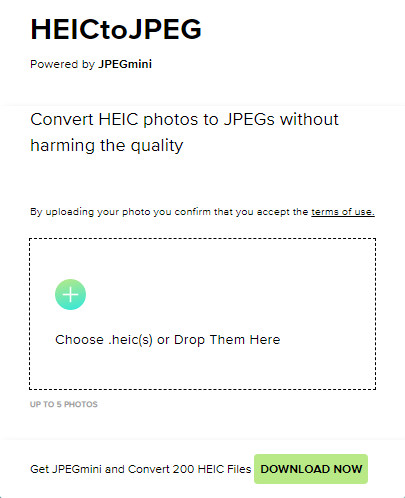
HEIC to JPEG is an online tool you can depend on how to convert HEIC to JPG, same as the online tool we mentioned this is free to access. With this tool, you can convert your HEIC file into a supported JPG then transfer it to the other device that doesn't support HEIC. Even though the tool can convert your HEIC, you will need to keep in mind that there are limitations on how many times you can convert per day. Unlike the online converter abovementioned, this web tool can only convert five HEIC files per day, which is much more limited than the other converters. If you want to use it, follow the steps given.
Step 1. Search the web converter on your search engine and open it.
Step 2. Click the plus button to upload the HEIC file you have on your desktop.
Step 3. Wait for the uploading process and optimizing, then click Download JPEG.
Image.convert-online
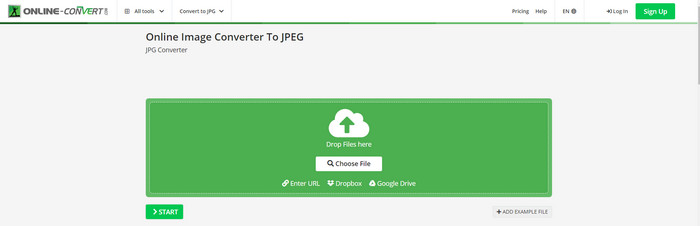
Image.convert-online allows you to convert HEIC to JPG online with the other optional setting to adjust the quality of the picture. Far from the first two converts, you can use on the webS, and you can use this web tool without limitation and convert your HEIC files here more than what the other two offer. Also, you can enhance the quality of the image and choose the compression you want to have. However, this tool's image editing features aren't as pro as the other dedicated editor you can use. Nonetheless, it is still a great HEIC converter you can use.
Step 1. Open your favorite browser, type the Image.convert-online, then click to open.
Step 2. Click Choose File and insert the HEIC file on the web tool.
Step 3. Adjust the image settings and compression; click Start if everything is settled in, then click Download to save it to your desktop.
Bahagian 2. Cara Menukar Fail HEIC kepada JPG atau JPEG pada Windows & Mac [Cara Luar Talian]
Jika anda mempunyai sambungan internet yang lemah, alat web yang kami nyatakan di atas bukanlah pilihan terbaik untuk menyelesaikan dan mengendalikan masalah ini. Jadi, jika anda ingin menyelesaikan masalah tanpa menggunakan sambungan internet, anda boleh membaca dan mengikuti langkah-langkah yang kami tambahkan pada setiap alat yang dinyatakan di bawah. Sila baca dengan teliti untuk mengetahui cara menukar HEIC pada desktop anda menggunakan cara luar talian.
Aiseesoft HEIC Converter – Pilihan Terbaik untuk Menukar Fail HEIC
Aiseesoft HEIC Converter is the tool that you will ever need in regards to how to change HEIC to JPG problem you will encounter on your desktop. If you want the best tool for converting the HEIC file, then there is no doubt that this is the tool that can help you. With its straightforwardness, you won't need to be a professional to use the tool because, with just a few clicks, you can have the converted HEIC at your reach.
Selain keupayaan menukarnya, alat ini menyokong proses penukaran kilat, jadi jangan risau lagi kerana anda boleh memiliki JPEG dengan serta-merta. Anehnya, alat ini boleh menukar berbilang fail HEIC secara serentak jika anda mempunyai pelbagai fail HEIC. Menakjubkan, bukan? Jika anda kagum dengan penerangan yang kami nyatakan, anda mesti terus membaca langkah-langkah seterusnya kerana kami menyediakan tutorial yang mudah diikuti untuk menukar HEIC kepada JPG pada Windows dan Mac dengan jayanya.
Step 1. After downloading the software, follow the installation process, then open it.
Step 2. You can drag and drop the HEIC files in here for an easier process of uploading the file here, or you can either click the Add HEIC, find the file on your desktop, then click Open to place it.
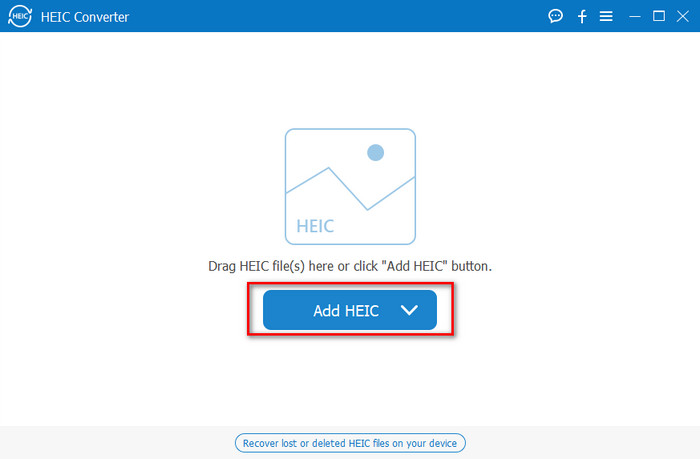
Anda menambah seberapa banyak yang anda mahukan fail HEIC di sini kerana alat ini boleh menukar fail HEIC kepada JPG secara serentak.
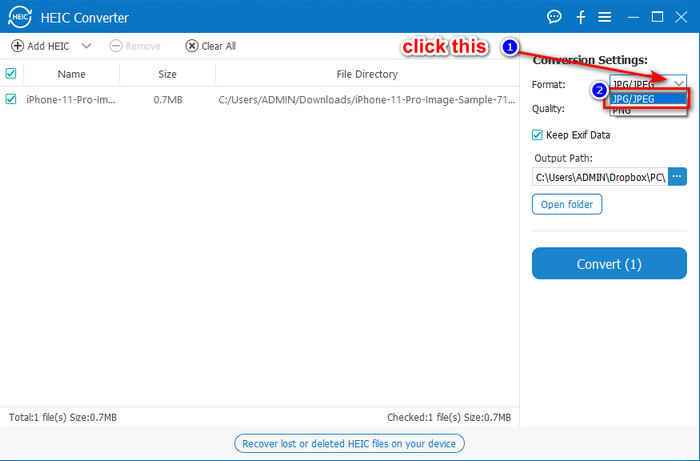
Step 3. After uploading the HEIC file, click the drop-down button at the upper right corner of the interface and choose the JPEG/JPG.
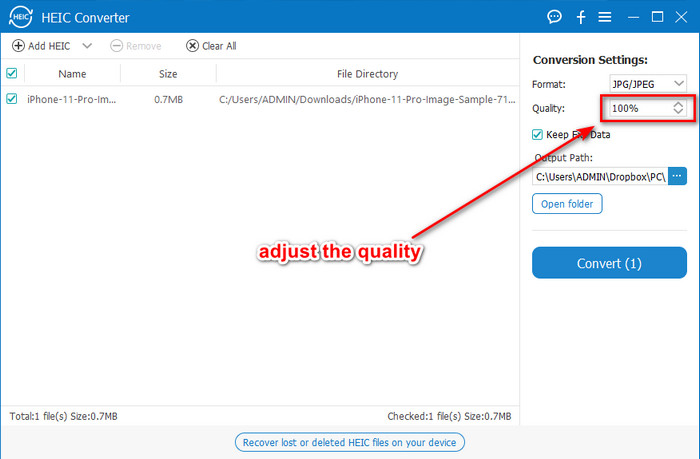
Optional. Unlike on some converters, here, you can adjust the quality of the HEIC image by changing it on the Quality before you export it.
Step 4. If everything is done and you're ready to convert the HEIC to JPG, you can now click the Convert button. The conversion process will begin; waiting is unnecessary because of the ultra-fast converting process this tool supports. As easy as that, you can now share the file in another format but in the .jpg extension.
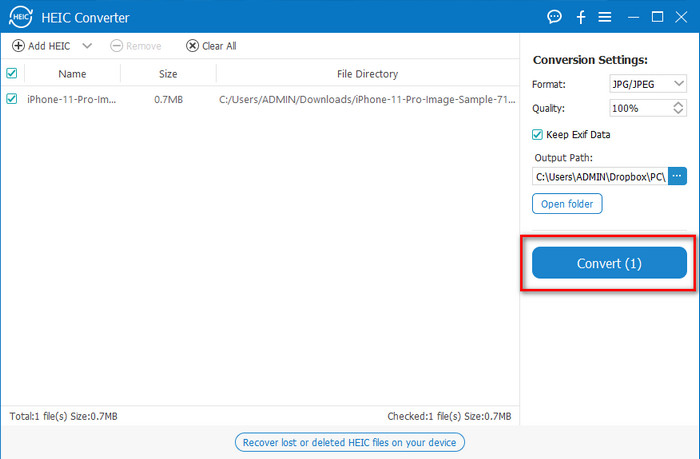
Itu sahaja untuk menukar foto HEIC anda kepada JPG. Selain itu, anda boleh menggunakan alat ini untuk menukar HEIC kepada PNG dalam satu kelompok.
Pratonton
Preview is the native image viewer you can use to view and change the HEIC format. However, the converting this tool can do isn't usual that will take a process like the other tool in this article. If you use this default image viewer, you can change the file extension of the HEIC into .jpg.
Selain daripada keupayaannya untuk melihat dan menukar, ia juga boleh menyulitkan fail PDF dan menyekat penggunaan fail, pembetulan imej dan lain-lain. Anda boleh mengikuti langkah di bawah untuk menukar HEIC kepada JPG pada macOS jika anda pengguna Mac.
Step 1. Open your Finder, locate the Preview, then open the HEIC file using the tool.
Step 2. Once you open the file with the Preview, go to the File menu and choose on the list Export.
Step 3. Click format and select either JPEG or JPEG-2000, and click Save if you are finished.
GIMP
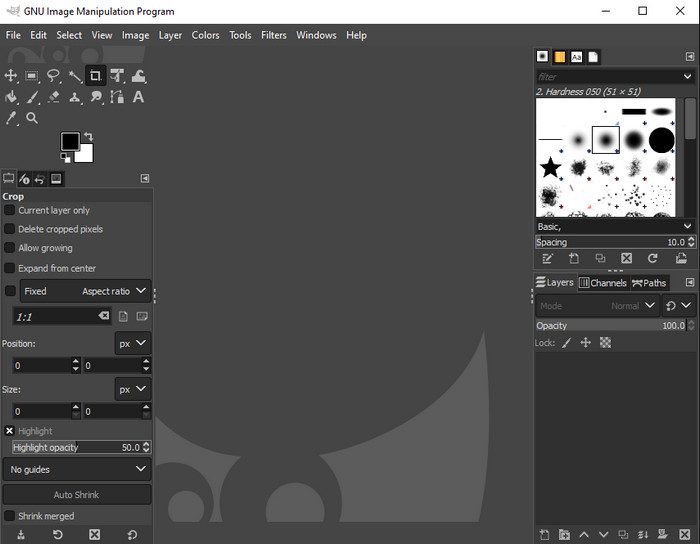
GIMP is a dedicated image editor you can download on your Windows and Mac. This tool supports editing the HEIC file; you have to make it look better, like adjusting the saturation, contrast, etc. Same as the Preview available on Mac, this tool performs not as a converter, but it can change the file extension of HEIC into a JPE, JPEG, JPG, or another image format you want.
Tidak banyak alat ini untuk ditawarkan untuk menukar, tetapi jika anda ingin mengetahui cara menukar HEIC kepada JPG pada PC, anda boleh menyalin langkah yang kami tambahkan di bawah.
Step 1. Download the software on your Windows or Mac, then launch it after the downloading process.
Step 2. Go to the File menu, click Open, select the HEIC file you have on your desktop and upload it.
Step 3. Back to the File menu, click Export As, then a panel of Export Image will show, click Select File Type (By Extension), then click the JPEG on the list. Lastly, click Export if you are done.
Bahagian 3. Soalan Lazim tentang Menukar HEIC kepada JPEG
Selepas menukar foto HEIC kepada JPG, adakah ia mengalih keluar ketelusan?
Yes, the transparency of HEIC will is unavailable after you convert the format to JPG. After all, JPEG or JPG doesn't support transparency like the PNG. Instead, you can use the Aiseesoft HEIC Converter to convert HEIC into a transparent PNG. In step 3, after clicking the drop-down button, choose the PNG instead of the JPG/JPEG, follow the succeeding steps to export the file.
Apakah format HEIC?
HEIC is a known format containing image files but in a smaller file size than the JPG, but the quality is preserved and high-quality. Apple Inc now uses this format as a native image format on their iOS and Mac products. If you want to know more about the said format, you can click this link to learn more about the HEIC file format.
Bolehkah saya menukar HEIC kepada JPG secara berkelompok?
You can use the Aiseesoft HEIC Converter, a dedicated batch HEIC file converter you can download on your Windows and Mac. Upload as many as you want HEIC files in here, then convert them all into JPG or PNG without degrading their quality. Also, there isn't a limitation on how many times you can convert, and the file size doesn't matter with this tool.
Kesimpulannya
Anda kini boleh mengendalikan penukaran fail HEIC kepada format JPG dengan maklumat dan langkah-langkahnya. Pilih sama ada anda mahu menggunakan penukar HEIC ke JPG dalam talian atau luar talian; apapun pilihan anda, kejayaan ada di sisi anda semasa anda membaca artikel ini dengan teliti.
If you haven't decided yet on what to use, we suggest that you download the Aiseesoft HEIC Converter, for it is the best HEIC converter among the rest on the list. You can test the tool by downloading it on your desktop, see if it fits you, and solve the problem by following the steps above.
-
 MOV terbaik ke DivX Percuma untuk Menggunakan Penukar untuk Mac dan Windows
 Kami mempunyai penyelesaian untuk anda jika anda sedang mencari penukar percuma MOV ke DivX. Artikel ini membentangkan penukar MOV ke DivX teratas untuk Mac dan Windows.
-
 WMV Percuma ke DivX Converters Pilihan Utama Pengguna
 Berikut ialah penukar WMV percuma kepada DivX terbaik yang kebanyakannya digunakan oleh pengguna. Artikel ini memberikan anda cara terbaik untuk menukar fail WMV anda kepada DivX.
-
 Petua tentang Cara Menukar Metadata Video pada iPhone dalam Jangkauan
 Adakah anda menghadapi kesukaran menukar metadata video pada peranti iPhone? Nasib baik, artikel ini bercakap tentang cara terbaik untuk menukar metadata video pada iPhone.
