


 Video Converter Ultimate
 Perakam Skrin
 Pembaikan Video
 Muat Turun Selamat
Cara Mengimport Fail HEIC dalam Lightroom pada Windows & Mac Dengan Berkesan
Suppose you are interested in improving the HEIC image or organizing it. In that case, you can import HEIC to Lightroom and do all of the arranging and editing at ease. You can easily upload it here without downloading an additional codec for HEIC to view or edit with this software. So if you need a guide that will teach you how to import the HEIC file in this software, you can read and follow the Windows and Mac ways we include in this write-up.
Tanpa berlengah lagi, mari baca butiran berikut untuk mengetahui cara melakukannya, dan jika Lightroom gagal mengimport HEIC, ada cara kami juga menambahkannya di sini. Tetapi sebelum perkara lain, anda mesti memuat turun perisian pada Windows atau Mac anda sebelum membaca butiran berikut.

Bahagian 1. Cara Mengimport HEIC ke Lightroom pada Windows 10/11 atau Dikemas kini Anda
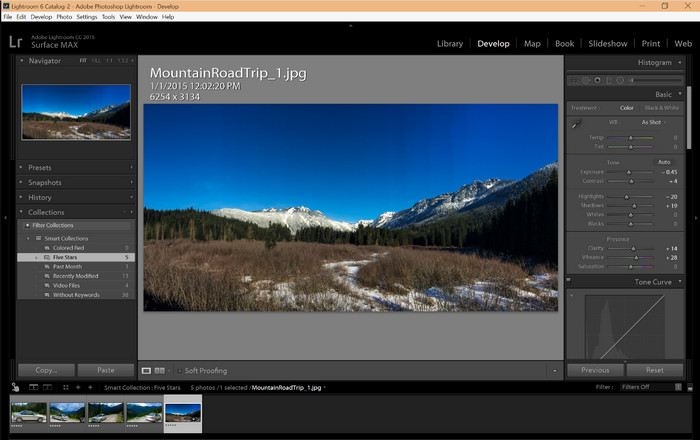
Lightroom menyokong versi Windows yang dikemas kini; bahagian ini adalah untuk anda jika anda memuat turun perisian pada OS Windows anda. Anda tidak perlu risau kerana Lightroom boleh membuka fail HEIC dengan mudah dengan mengikuti tutorial di bawah.
Step 1. Download the software on your Windows 10/11, then install it and open it to proceed.
Step 2. When the software is already running on your system, click the + button, press the Browse, and select the HEIC file you want to import here.
Step 3. After selecting them, you can now view the HEIC files using Lightroom on your Windows 10/11.
Bahagian 2. Cara Membuka Foto HEIC dalam Lightroom pada Mac 10.13 ke Atas Anda
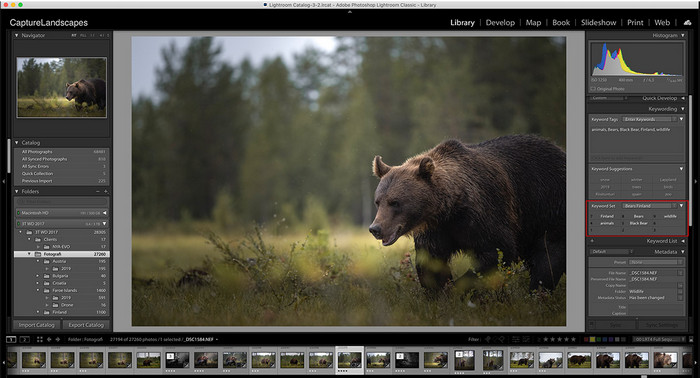
Walaupun tanpa Lightroom, anda boleh melihat fail HEIC dengan mudah, terutamanya jika versi Mac anda ialah High Sierra 10.13 atau yang lebih baharu pada Pratonton. Walaupun Pratonton menyokong ciri pengeditan, ia tidak mencukupi untuk digunakan untuk pengeditan yang rumit, seperti yang Lightroom boleh berikan kepada anda. Selain itu, anda tidak perlu risau tentangnya kerana Lightroom menyokong fail HEIC untuk mengedit atau menyusunnya pada Mac anda.
Step 1. Install the software on your macOS 10.13 or higher; if the version of your operating is lower, then expect that the software won't open. After you download Lightroom on your desktop, you must now open it.
Step 2. In the upper part section, you will find different menus and the name of Lightroom on the upper-left side, which means the software is already open. Press the File menu and proceed to the Add Photos, or you can use a hotkey on your keyboard instead by pressing Command + Shift + I.
Step 3. A folder will show on your screen; select the image you want to import and click Review for Import.
Bahagian 3. Lightroom Gagal Mengimport Fail HEIC | Penyelesaian Terbaik untuk Menyelesaikan Masalah HEIC Tidak Disokong
Ramai pengguna menghadapi masalah memuat naik fail HEIC kerana keserasian dengan perisian seperti Lightroom pada Windows dan Mac; walaupun dengan bantuan kaedah di atas, ia masih mustahil. Tetapi tidak perlu berasa sedih kerana ada cara untuk membuat fail HEIC anda diimport di Lightroom dengan menukar HEIC kepada JPG dengan bantuan alat terbaik di web.
FVC Free HEIC to JPG Converter is the solution you must use to convert the HEIC file on your Windows and Mac without the software downloaded. A web tool like this can turn your un-supported format into a standard one like the JPEG. You can upload the image efficiently on Lightroom without experiencing an unsupported format. In addition to converting HEIC to JPG, you can also upload multiple HEIC images here and convert them all simultaneously to support batch conversion. Amazing right? Do you want to know what amazes us more? Well, you can do a speed-up conversion for free. If you want to fix the unsupported problem you encounter on HEIC, follow the indicated steps below to know how to convert the format.
Langkah Mudah Cara Menukar Format HEIC kepada JPG Menggunakan Alat Web:
Step 1. FVC Free HEIC to JPG Converter by clicking this link, you can open the main website of the converter on your favorite search engine. No need to worry because it is safe to use, and there aren't any ads that could be pesky on the web interface.
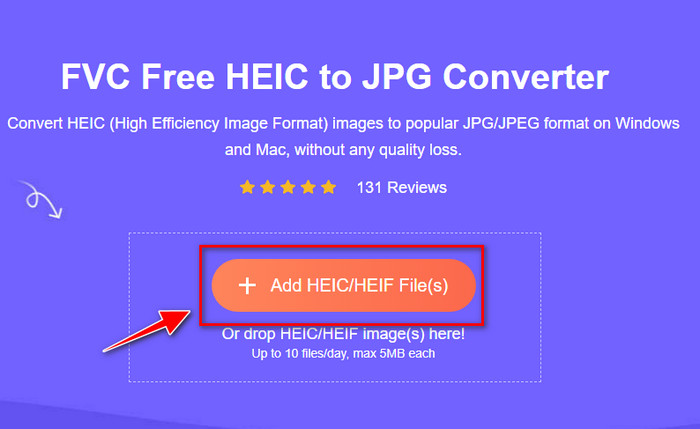
Step 2. Click the Add HEIC/HEIF Files to upload the HEIC image that Lightroom can't open here. Alternatively, you can drag and drop the file here instead of selecting them in the file folder.
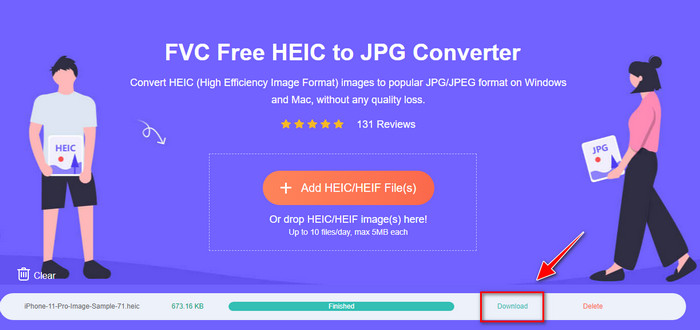
Step 3. A Download button will show up if the progress bar is complete; click it to save the newly converted HEIC file on your desktop. After that, you can now import the file on Lightroom without accepting a dialogue box that says unsupported or corrupted.
Bahagian 4. Soalan Lazim tentang Mengimport HEIC dalam Lightroom
Adakah terdapat sebarang had untuk mengimport fail HEIC pada Lightroom?
Sehingga tahap ini, anda boleh mengimport fail HEIC pada Lightroom seberapa banyak yang anda mahu. Ia tidak mempunyai sebarang had untuk memuat naik jenis format ini pada Lightroom.
Adakah Lightroom percuma pada Windows dan Mac?
Malangnya, Lightroom pada Windows dan Mac bukanlah percuma, tetapi anda boleh memuat turunnya secara percuma pada Windows dan Mac anda. Walaupun perisian itu tidak percuma, anda boleh mengambil kesempatan menggunakan percubaan percuma yang disokongnya selama 7 hari. Jika anda merasakan bahawa anda memerlukan perisian untuk masa yang lama, anda boleh melanggan selepas tempoh percubaan.
Adakah mengeksport fail HEIC pada Lightroom akan meninggalkan tera air?
Luckily, Lightroom doesn't add a watermark to the image you've uploaded here. But you can add a watermark if you want to add one. So, if you are going to post the picture on the internet, then we suggest that you add a watermark on it so that it has protection from the people who will try to steal it.
Mana yang lebih baik untuk penyuntingan imej? Photoshop atau Lightroom?
Ia bergantung pada permintaan anda; dengan bantuan editor Adobe Photoshop dan Lightroom, anda boleh menjadikan imej anda lebih baik dari segi rupa. Katakan anda mahukan editor imej yang mudah dikendalikan. Dalam kes itu, Lightroom ialah pilihan yang anda mesti pilih kerana ia adalah editor imej terbaik untuk meningkatkan imej yang anda miliki. Tetapi jika anda ingin melakukan penyuntingan imej yang lebih terperinci, Photoshop ialah editor anda yang sesuai dengan keperluan setiap editor profesional.
Kesimpulannya
Dengan bantuan Lightroom, anda boleh mengedit imej yang anda miliki dengan mudah atau menyusunnya dengan sewajarnya untuk menjadikannya kelihatan kemas. Jadi, jika anda ingin mengimport fail HEIC pada Lightroom, anda boleh mengikuti langkah yang kami tambahkan sama ada anda pengguna Windows atau Mac. Tetapi jika anda menghadapi masalah mengimport fail HEIC, baca bahagian tiga sambil kami menyelesaikannya untuk menjadikannya serasi dengan Lightroom. Anda kini boleh meneruskan dengan mengeditnya. Kami berharap penulisan ini memberi anda idea tentang cara mengimport fail; jika anda mempunyai cadangan atau cadangan lain, anda boleh meninggalkan mesej kepada kami.
-
 iMazing HEIC Converter | Fungsi, Kebaikan & Keburukan, dan Cara Menggunakannya
 Artikel ini akan menyemak keupayaan iMazing HEIC Converter dan alternatifnya jadi jika anda ingin mengetahui lebih lanjut mengenainya baca ini dengan berhati-hati
-
 3 Cara Paling Mudah untuk Menukar HEIC kepada JPG pada iPhone Seperti Pakar
 Tidak mempunyai idea bagaimana untuk menukar HEIC kepada JPG pada iPhone? Jika anda salah seorang pengguna yang menghadapi masalah dengan HEIC maka baca ini.
-
 Mengapa Foto iPhone Saya berada pada Format HEIC [Sebab dan Cara Menyelesaikan]
 Adakah anda ingin tahu mengapa foto iPhone saya dalam format HEIC? Artikel ini memberikan bukti yang boleh dipercayai tentang perkara yang menjadikan HEIC yang terbaik.
