


 Video Converter Ultimate
 Perakam Skrin
 Pembaikan Video
 Muat Turun Selamat
Memampatkan Fail AVI untuk Mendapatkan Ukuran Fail Lebih Kecil tanpa Kehilangan Kualiti
Tidak kira anda mahu menghantar fail AVI ke e-mel, atau memuat naik fail AVI ke laman web, sangat penting untuk memampatkan AVI. Terdapat banyak editor video dan pemampat yang dapat mengecilkan fail AVI. Untuk lebih spesifik, anda boleh menukar format video, memotong klip video yang tidak diingini atau menetapkan semula parameter untuk menjadikan video AVI anda lebih kecil. Sekiranya anda ingin mengekalkan format dan kandungan video AVI, anda boleh menggunakan pemampat video untuk menetapkan semula tetapan video. Inilah 3 cara percuma untuk memampatkan fail AVI tanpa kehilangan kualiti. Baca dan ikuti sahaja.

Bahagian 1: Cara Memampatkan Fail AVI Dalam Talian secara Percuma
Terdapat begitu banyak pemampat video dalam talian di pasaran, mana yang boleh menjadi pemampat AVI terbaik anda dalam talian? Bagi kebanyakan pengguna, terdapat beberapa faktor penting yang perlu anda pertimbangkan.
Muat Turun PercumaUntuk Windows 7 atau lebih baharuMuat Turun Selamat
Muat Turun PercumaUntuk MacOS 10.7 atau lebih baharuMuat Turun Selamat
1. Sepenuhnya percuma dan selamat digunakan.
2. Tiada had saiz fail maksimum.
3. Kumpulan AVI memampatkan kumpulan.
4. Kompres video AVI yang besar melebihi GB ke saiz fail yang sangat kecil.
5. Ubah format video, resolusi dan kadar bit untuk mengecilkan saiz video.
Nasib baik, anda boleh mendapatkan semua fungsi tersebut dalam FVC Free Video Compressor. Anda boleh memampatkan fail AVI yang besar dalam talian secara percuma pada komputer Windows dan Mac anda. Tiada langganan atau pendaftaran diperlukan. Kelajuan 30x lebih pantas menjadikannya sangat pantas untuk memampatkan AVI berbanding pesaing lain. Sekarang, mari lihat cara untuk memampatkan saiz video AVI dalam talian.
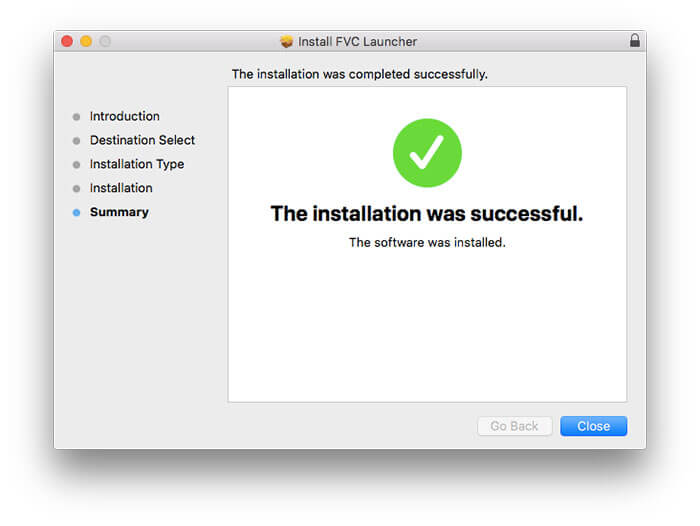
Langkah 1: Buka pemampat video percuma dalam talian ini. Klik Add Files to Compress untuk memasang pelancar.
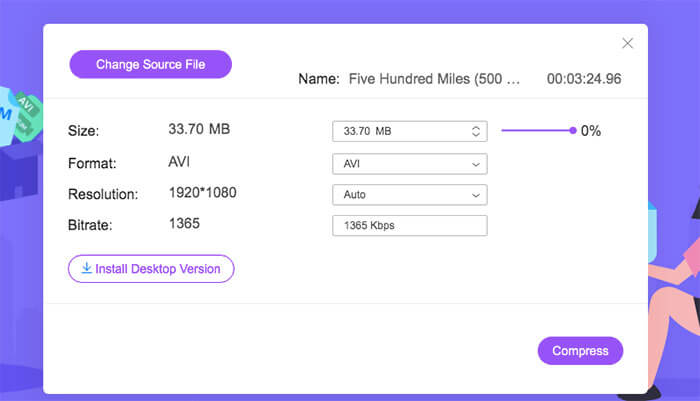
Langkah 2: Semak dan tambah video AVI anda. Anda akan mendapat antara muka yang ringkas dan intuitif untuk pemampatan AVI seterusnya.
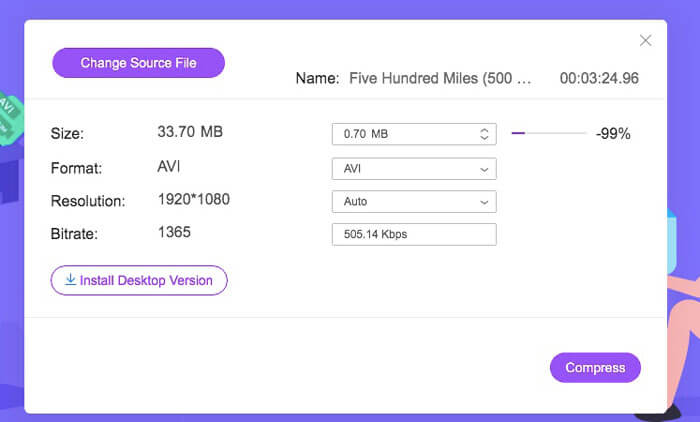
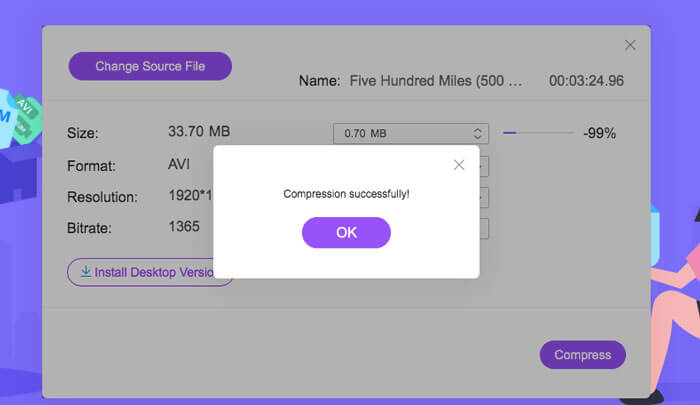
Langkah 3: Dalam bahagian Size, anda boleh mengurangkan saiz video AVI dengan menggerakkan peluncur di sebelahnya. Atau anda boleh menetapkan saiz video AVI termampat dengan anak panah Upside dan Downside.
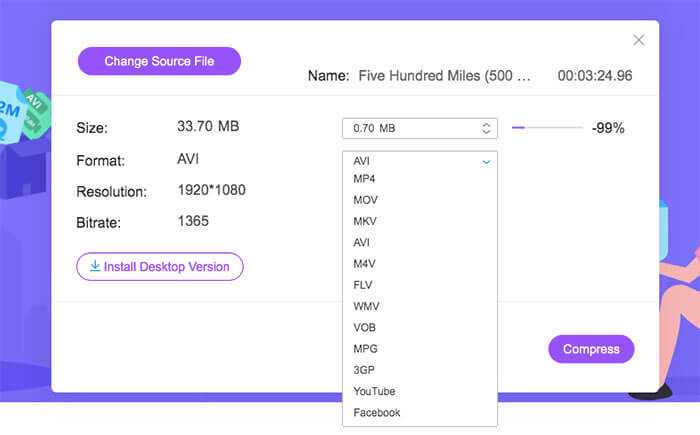
Langkah 4: Kembangkan senarai Format. Anda boleh memampatkan AVI kepada MP4, MOV dan juga format YouTube dan Facebook. Kemudian, pilih satu profil Resolution untuk mengurangkan saiz fail AVI.
Langkah 5: Klik Compress dan tetapkan folder keluaran. Selepas pemberitahuan Compression successfully muncul, anda boleh mendapatkan video AVI yang telah dimampatkan.
Bahagian 2: Cara Memampatkan Video AVI di Windows
Untuk memampatkan video AVI pada Windows 10/8/7 secara percuma, ada pilihan lain yang boleh anda gunakan. Windows Movie Maker dapat memampatkan fail AVI pada Windows 10 dan versi sebelumnya. Lakukan seperti yang ditunjukkan oleh perenggan berikut.
Langkah 1: Buka Windows Movie Maker. Klik Import Video di bawah Capture Video untuk menambah video AVI anda.
Langkah 2: Pilih video AVI yang telah diimport. Kemudian seret dan lepaskannya ke Timeline di bawah.
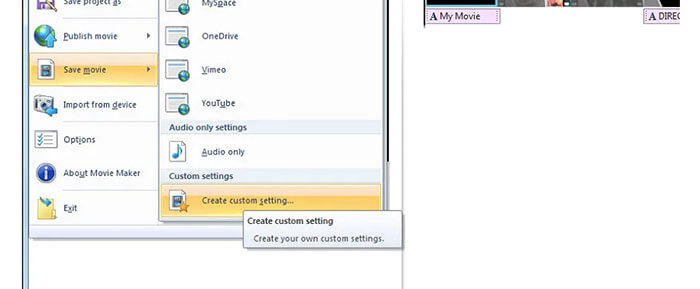
Langkah 3: Klik Save Movie File dan create custom settings daripada senarai File.
Langkah 4: Di bawah Video settings, anda boleh melaraskan lebar, tinggi, bitrate dan kadar bingkai video untuk menjadikan video AVI ini lebih kecil.
Langkah 5: Klik Save untuk mengecilkan video AVI anda pada Windows kepada saiz fail yang lebih kecil.
Bahagian 3: Cara Memampatkan Fail Video AVI pada Mac
iMovie juga boleh menjadi perisian pemampat video AVI percuma anda. Anda boleh menggunakan iMovie untuk memampatkan video .avi di Mac secara percuma. Lebih-lebih lagi, anda boleh memotong tepi hitam dan bahagian yang tidak diingini untuk mengurangkan saiz video dalam iMovie juga. Terdapat banyak alat penyuntingan dan pemampatan video yang berguna di iMovie.
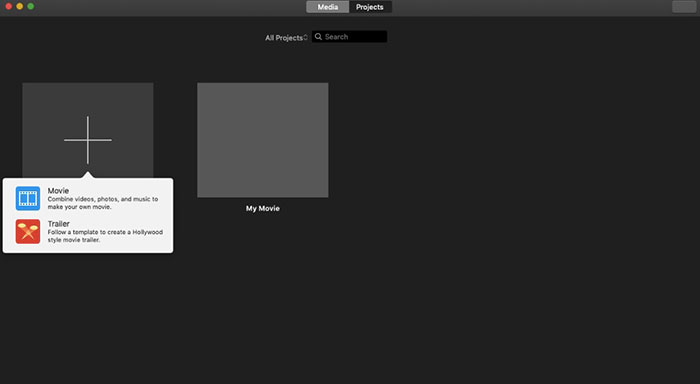
Langkah 1: Jalankan iMovie. Pilih New Movie daripada senarai juntai bawah File.
Langkah 2: Cipta projek baharu untuk fail video AVI termampat anda.
Langkah 3: Klik Import di bahagian atas. Pilih dan tambah video AVI yang terlalu besar ke dalam iMovie.
Langkah 4: Kembangkan senarai File dan pilih Share diikuti dengan File…. Klik ikon Export di penjuru kanan atas, kemudian pilih File.
Langkah 5: Untuk mengurangkan saiz video AVI, anda perlu menurunkan resolusi video dan profil kualiti. Klik Next diikuti dengan Save untuk mendapatkan fail AVI termampat anda.
Bahagian 4: Soalan Lazim Memampatkan AVI
Mengapa AVI begitu besar?
Anda dapati bahawa fail berformat .avi cenderung lebih besar daripada fail lain. AVI menggunakan pemampatan yang lebih sedikit untuk menyimpan data video dan audio. Atau anda boleh menganggap AVI sebagai format video tanpa kerugian. Oleh itu, fail AVI sentiasa dalam ukuran fail yang besar.
Bagaimana memampatkan AVI dengan After Effects?
Tambah video AVI anda ke dalam After Effects. Pergi ke senarai Composition. Pilih Add to Adobe Media Encoder Queue. Dalam Media Encoder, cari fail projek anda dalam enjin render. Beralih ke senarai Video atau Audio pada panel kanan. Tukar kualiti video/audio, bitrate dan butiran lain. Sebenarnya, anda boleh menyemak anggaran saiz fail di penjuru kanan bawah. Klik OK untuk menyimpan perubahan dan mengurangkan saiz fail AVI dalam After Effects tanpa kehilangan kualiti.
Adakah ia berfungsi untuk memampatkan format AVI ke MP4?
Ya. Anda boleh menukar dan memampatkan AVI kepada MP4 untuk mengurangkan banyak saiz video. AVI ialah format video tanpa hilang (lossless), manakala MP4 ialah format video berhilang (lossy). Selain itu, anda boleh melaraskan tetapan video untuk melengkapkan pemampatan fail AVI.
Anda boleh menggunakan alat di atas untuk memampatkan AVI dalam talian dan luar talian secara percuma. Tidak ada panjang video atau had saiz fail. Anda boleh mengurangkan saiz video dan memampatkan AVI untuk e-mel, Twitter, Facebook dan banyak lagi secara langsung. Omong-omong, jika anda perlu mengumpulkan fail AVI kompres, menggunakan FVC Free Video Compressor adalah penyelesaian terpantas anda. Anda boleh memampatkan fail AVI besar dalam talian secara percuma dengan kelajuan 30x lebih pantas. Ia 100% percuma dan selamat digunakan untuk semua pengguna.
-
 MKV vs MP4 - Perbandingan antara MKV dan MP4
 Bagaimana memilih antara MKV dan MP4? Format mana yang lebih baik untuk kualiti video? Dalam artikel ini, kami akan membuat perbandingan terperinci MKV vs MP4 untuk membantu anda membuat pilihan.
-
 Cara Memampatkan Video MP4 ke Saiz Lebih Kecil
 Video MP4 terlalu besar untuk dimuat naik? Ingin mengurangkan saiz video? Berikut adalah 3 kaedah yang cekap untuk memampatkan fail MP4 ke saiz yang lebih kecil tanpa had.
-
 MP3 VS MP4: Apa Perbezaan Antara MP3 dan MP4
 MP3 atau MP4, yang mana lebih baik? Apakah perbezaan antara MP3 dan MP4? Artikel ini akan membandingkan MP3 dengan MP4 dari semua aspek yang dapat anda gambar.
