


 Video Converter Ultimate
 Perakam Skrin
 Pembaikan Video
 Muat Turun Selamat
Cara Hebat untuk Mengalih Keluar Logo daripada Video Menggunakan Peranti Anda
Menonton video kegemaran anda memang memuaskan, sehinggalah video itu mempunyai objek yang tidak diperlukan, seperti logo, tera air, teks dan sebagainya. Jika anda sedang mencari kaedah yang paling baik dan berguna, anda perlu membaca artikel ini untuk mendapatkan idea. Dengan menggunakan aplikasi yang hebat, anda boleh mencuba pelbagai cara untuk membuang logo daripada video secara luar talian dan dalam talian. Dengan bantuan penyingkir logo ini, anda boleh menikmati menonton filem, klip video, persembahan slaid kegemaran anda dan banyak lagi. Dengan cara ini, anda tidak akan menghadapi masalah yang sama lagi. Jika anda ingin mempelajari cara berkesan untuk membuang logo daripada video anda, jangan abaikan artikel penuh maklumat ini.

Bahagian 1: Kaedah Terbaik untuk Mengalih Keluar Logo daripada Video
Andaikan anda sedang mencari alat penyingkir logo percuma. Aplikasi terbaik yang boleh anda gunakan ialah Video Converter Ultimate. Aplikasi ini dapat membantu anda membuang logo daripada video anda. Bukan hanya logo, tetapi juga apa-apa objek lain yang tidak diperlukan pada video anda, seperti tera air, teks, imej dan sebagainya. Selain itu, anda boleh membuang logo dengan mudah kerana ia hanya mempunyai langkah-langkah mudah yang boleh diikuti walaupun oleh pemula.
Selain itu, Video Converter Ultimate mempunyai proses penyingkiran yang pantas, tidak seperti aplikasi lain yang memakan banyak masa untuk mengalih keluar logo daripada video. Menggunakan aplikasi ini, anda boleh mengalih keluar logo dalam dua alatan mudah, penghilang tera air video dan pemangkas video. Tambahan pula, ia mempunyai ciri yang boleh anda nikmati, seperti penukar video, pengawal kelajuan video, pemampat video, pembetulan warna, pemangkas video, pembuat kolaj dan banyak lagi. Jika anda ingin mengetahui dua cara untuk mengalih keluar logo menggunakan Video Converter Ultimate, ikuti langkah di bawah.
1. Menggunakan fungsi Pembuang Tera Air Video
Langkah 1: Untuk langkah pertama, anda mesti pergi ke laman web Video Converter Ultimate dan muat turun perisian tersebut. Selepas memuat turun, teruskan ke proses pemasangan dan lancarkan Video Converter Ultimate pada Desktop anda.
Muat Turun PercumaUntuk Windows 7 atau lebih baharuMuat Turun Selamat
Muat Turun PercumaUntuk MacOS 10.7 atau lebih baharuMuat Turun Selamat
Langkah 2: Selepas melancarkan perisian, pergi ke panel Toolbox. Seterusnya, cari Video Watermark Remover, dan klik padanya.
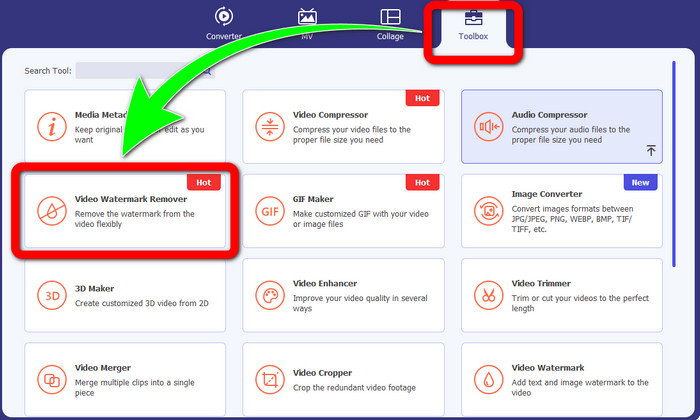
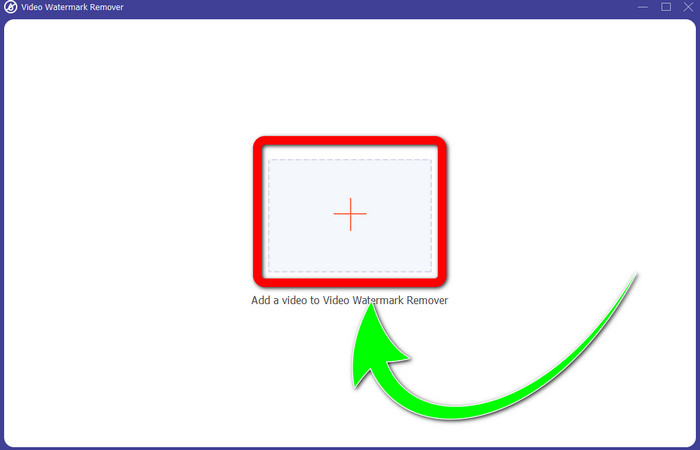
Langkah 3: Setelah anda selesai mengklik Video Watermark Remover, antara muka lain akan muncul pada desktop anda. Pilih butang tanda Tambah dan import video anda yang mempunyai logo.
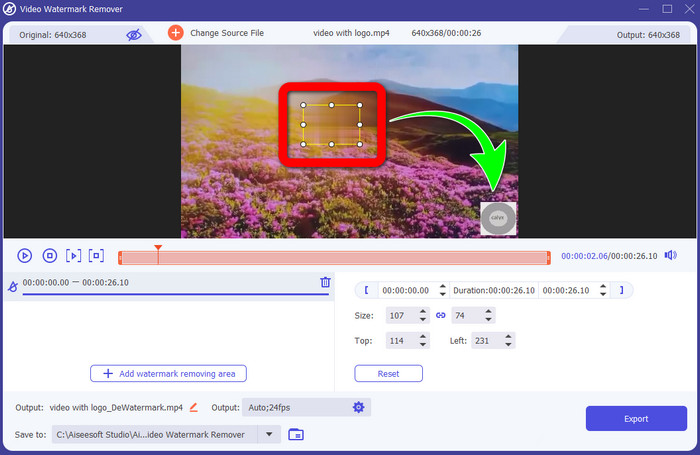
Langkah 4: Pilih butang Add Watermark Removing Area. Kotak kecil akan muncul pada video anda. Alihkan kotak itu ke logo untuk menutupinya.
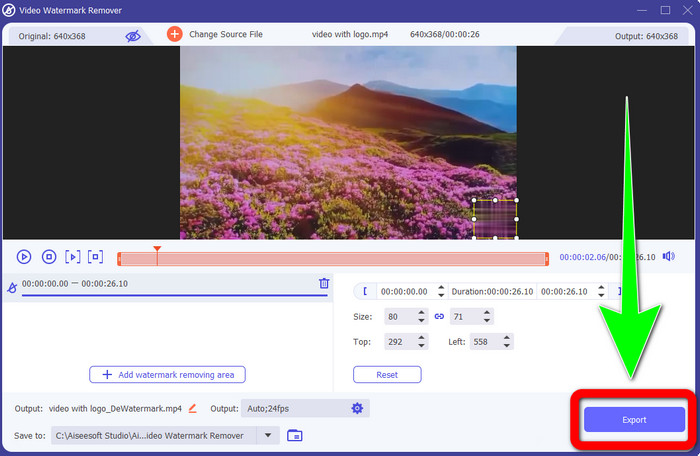
Langkah 5: Setelah anda selesai mengalihkan kotak untuk menutup logo, pilih butang Export untuk menyimpan video akhir anda.
1. Menggunakan fungsi Pemotong Video
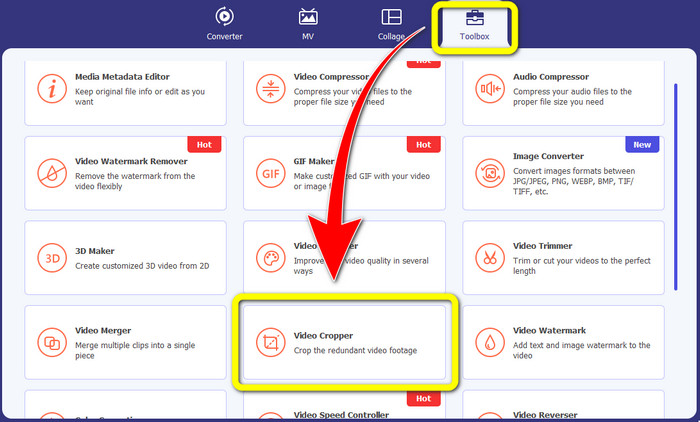
Langkah 1: Buka Video Converter Ultimate, pergi ke Toolbox, dan klik butang Video Cropper. Kemudian antara muka lain akan muncul pada skrin anda.
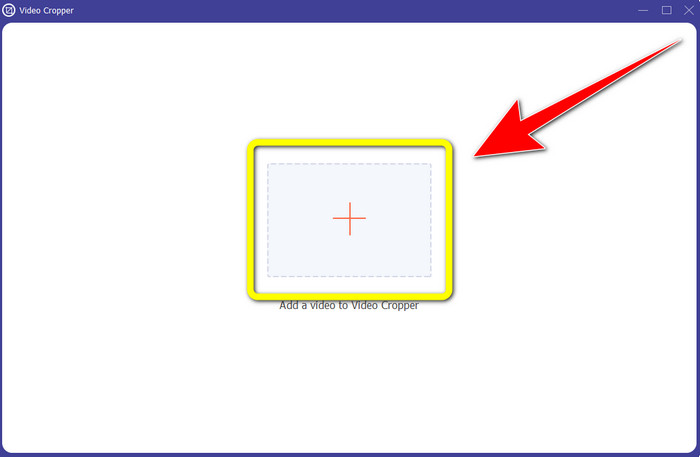
Langkah 2: Apabila antara muka lain sudah muncul pada skrin anda, pilih butang tanda Plus untuk mengimport video anda yang mempunyai logo.
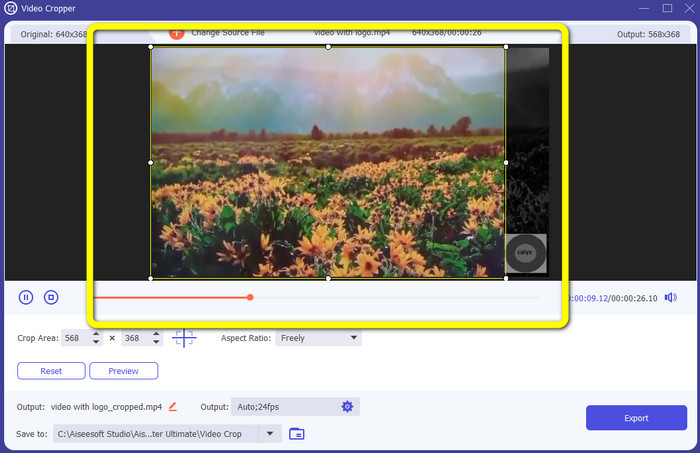
Langkah 3: Selepas mengimport video, anda boleh memotong (crop) video anda untuk menghapuskan logo tersebut.
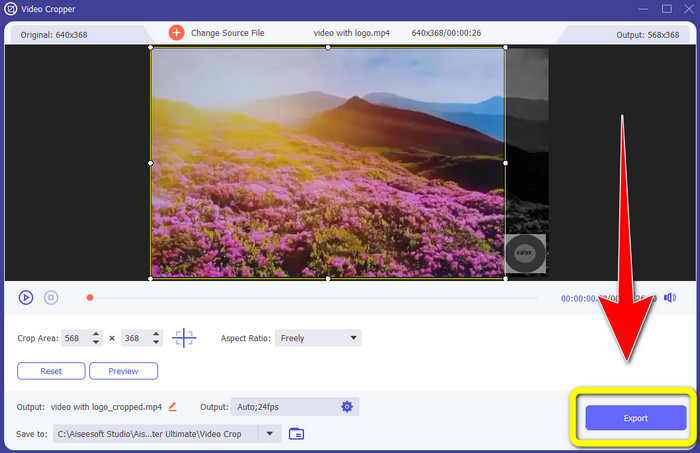
Langkah 4: Klik butang Export selepas memotong video.
Bahagian 2: Cara Membuang Logo daripada Video Dalam Talian
Jika anda sedang mencari aplikasi hebat yang boleh anda gunakan untuk membantu anda cara membuang logo daripada video, anda boleh menggunakan 123APPS. Aplikasi ini boleh membantu anda membuang logo daripada video anda dengan cepat dan mudah, yang amat sesuai untuk pemula. Selain itu, alat dalam talian ini adalah percuma, jadi anda tidak perlu risau sama ada perlu membelinya atau tidak. Tambahan pula, antara fungsi baik dalam aplikasi ini ialah dapat menyingkirkan objek yang mengganggu pada video anda, seperti tera air, teks, imej dan sebagainya. Ia juga menyokong pelbagai format fail, seperti MOV, WMV, AVI, MP4 dan banyak lagi. Namun, setiap kali anda memuat naik fail, proses muat naik mengambil masa yang lama. Proses penyingkiran juga terlalu perlahan. Jika anda ingin membuang logo daripada video anda, ikuti langkah mudah ini.
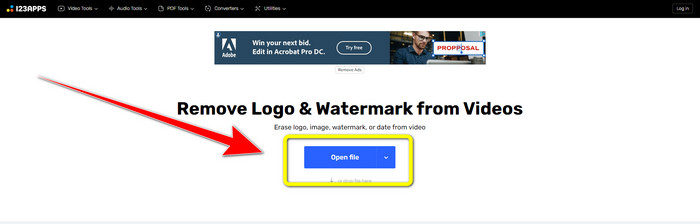
Langkah 1: Pergi ke laman web 123APPS. Klik butang Open file dan tambah video anda yang mempunyai logo TikTok.
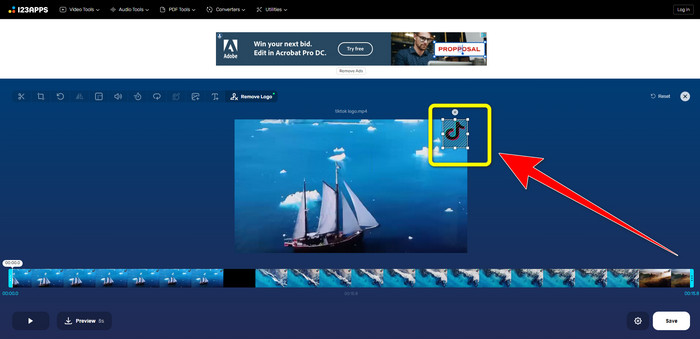
Langkah 2: Selepas anda melampirkan video, buat satu kotak menggunakan tetikus pada skrin dan tutup bahagian logo untuk menghapuskannya.
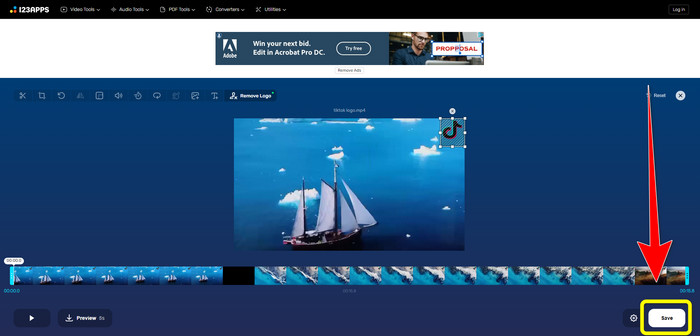
Langkah 3: Selepas menutup logo, anda kini boleh klik butang Save untuk menyimpan video akhir anda tanpa logo.
Bahagian 3: Bagaimana untuk Alih Keluar Logo daripada Video pada iPhone dan Android
Cara Memadam Logo daripada Video pada Android
Jika anda ingin tahu cara membuang logo daripada video menggunakan Android, Remove and Add Watermark ialah aplikasi yang boleh anda gunakan. Perisian ini boleh membantu anda membuang logo daripada video anda dengan serta-merta. Ia bukan sahaja boleh dipercayai untuk membuang objek yang tidak diperlukan daripada video anda, malah anda juga boleh membuang atau menghapuskan logo daripada imej, yang memudahkan pengguna. Selain itu, penyingkir ini ringkas dan mudah digunakan. Akhir sekali, ia pantas ketika menyimpan video anda. Jika anda ingin menghapuskan logo daripada video anda, ikuti langkah mudah di bawah.
Langkah 1: Muat turun Remove and Add Watermark pada peranti Android anda.
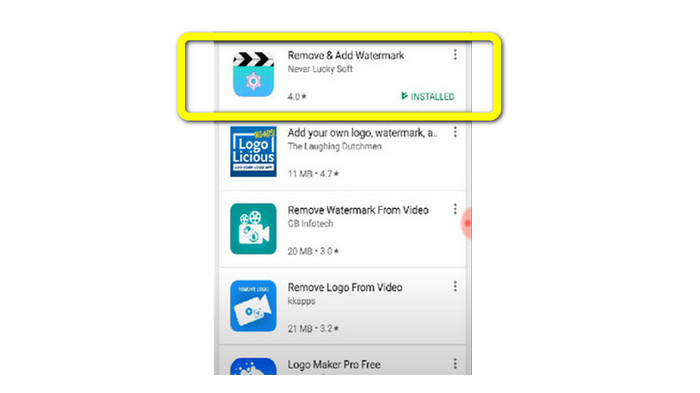
Langkah 2: Selepas memuat turun aplikasi, klik butang Select Video > Remove Logo untuk menambah video anda yang mempunyai logo.
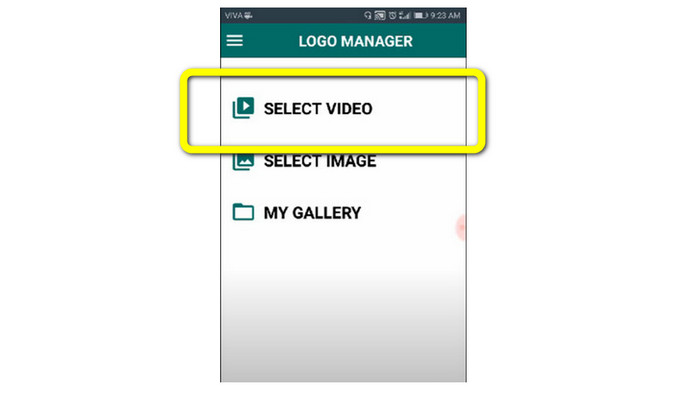
Langkah 3: Sebuah kotak mini akan muncul pada skrin anda apabila video sudah ditambahkan. Gunakan kotak tersebut untuk membuang logo.
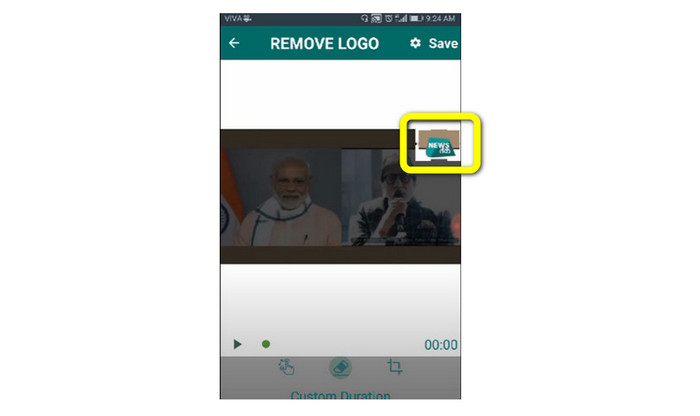
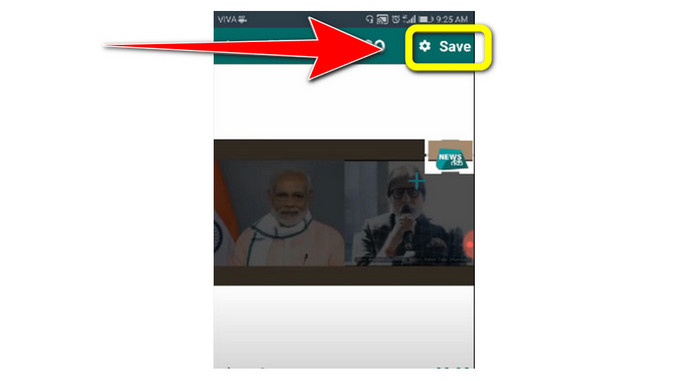
Langkah 4: Jika anda sudah selesai menutup logo, klik butang Save untuk menyimpan video anda tanpa logo.
Cara Memadam Logo daripada Video pada iPhone
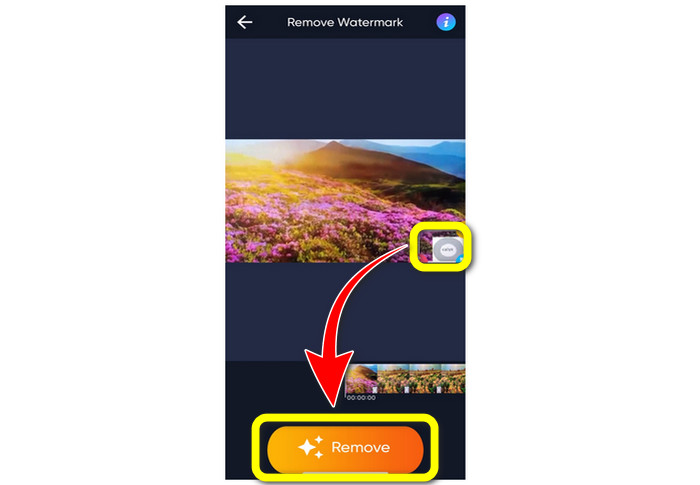
Jika anda ingin memadam logo daripada video menggunakan iPhone, aplikasi terbaik yang boleh anda gunakan ialah Watermark Remover Retouch. Aplikasi ini membolehkan anda membuang objek yang tidak diperlukan daripada video, seperti logo, tera air, teks, imej dan sebagainya. Anda juga boleh membuangnya dengan cepat, yang sesuai untuk pengguna baharu. Selain itu, ia mempunyai antara muka yang ringkas supaya anda boleh menggunakan aplikasi ini dengan mudah. Jika anda ingin menggunakan aplikasi ini untuk membuang logo daripada video iPhone anda, ikuti langkah mudah di bawah.
Langkah 1: Muat turun Watermark Remover Retouch pada iPhone anda. Kemudian lancarkan aplikasi dan tambah video yang mempunyai logo.
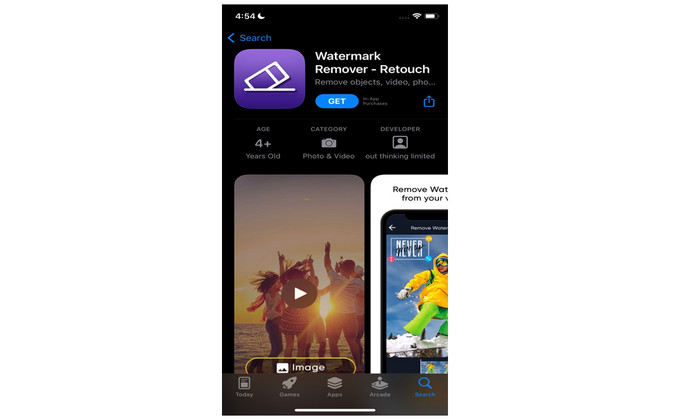
Langkah 2: Sebuah kotak kecil akan muncul pada video apabila video sudah ditambahkan. Gunakan kotak ini untuk menutup logo. Kemudian, klik butang Remove dan simpan video anda tanpa tera air.
Berkaitan dengan:
Cara Menghapus Tera Air Filmora pada Video atau Projek Anda secara Percuma
Trik Terpantas untuk Menghapus Tera Air Adobe Stock daripada Video [Tutorial[
Bahagian 4: Soalan Lazim tentang Mengalih Keluar Logo daripada Video
Adakah selamat untuk mengalih keluar logo dalam talian?
Ya betul! Aplikasi dalam talian adalah selamat dan selamat untuk digunakan. Perkara terbaik yang perlu anda lakukan ialah mencari aplikasi yang akan membantu anda mengalih keluar logo dan menggunakannya.
Adakah mungkin untuk mengalih keluar tandatangan daripada video saya?
Ya, sudah tentu. Anda boleh membuang tandatangan daripada video anda menggunakan Video Converter Ultimate. Tandatangan, tera air, logo dan teks boleh dibuang dengan mudah menggunakan aplikasi yang hebat ini.
Apakah aplikasi terbaik yang boleh saya gunakan untuk mengalih keluar logo menggunakan Mac saya?
Aplikasi terbaik yang boleh anda gunakan untuk membuang logo pada Mac anda ialah Video Converter Ultimate. Aplikasi ini tersedia bukan sahaja untuk Windows tetapi juga untuk Mac, yang memudahkan pengguna.
Kesimpulannya
Artikel ini telah memberikan anda cara yang berkesan dan boleh dipercayai untuk membuang logo daripada video anda. Dengan cara ini, anda boleh menikmati menonton video kegemaran anda tanpa logo. Akhir sekali, jika anda mahukan kaedah paling mudah dan tanpa usaha untuk membuang logo daripada video anda, anda mesti menggunakan Video Converter Ultimate.
-
 Cara Mengeluarkan Tera Air Animaker Tanpa Kos [Cara Terbukti]
 Bagaimana untuk membuang tera air Animaker? Dengan alat terbaik yang kami daftarkan dalam blog ini, anda boleh menggunakannya untuk menghilangkan tera air.
-
 Tutorial tentang Mengalih Keluar Tera Air daripada Graf Asal [100% Berfungsi]
 Untuk mengalih keluar tera air daripada Graf Asal, anda memerlukan bantuan. Bantuan yang anda perlukan disertakan dalam artikel ini, anda boleh membaca ini untuk mengetahui.
-
 Cara Mengalih Keluar Tera Air dalam SmartDraw dengan Mudah [2 Cara Terbukti]
 Bagaimana untuk mengalih keluar tera air dalam Smart Draw? Jika anda mempunyai soalan yang sama, anda boleh bergantung pada artikel ini kerana kami membantu anda!
