


 Video Converter Ultimate
 Perakam Skrin
 Pembaikan Video
 Muat Turun Selamat
Trik Hebat untuk Menukar WMV kepada M4V Dengan Mudah yang Boleh Anda Cuba
Are you one of the users looking for excellent and easy methods to convert your WMV to M4V? There are various converters you can find on the web. However, some of them don’t support WMV and M4V file formats. If that is your problem, this article can provide you with the easiest solution using worthy applications. You will also discover their features to get an idea of the other functions of these applications. Read the article from top to bottom to find out more essential details.

Bahagian 1: Pengenalan kepada WMV dan M4V
Format Fail WMV
| Nama | WMV |
| Sambungan fail | .wmv |
| Penerangan | Akronim WMV (Windows Media Video) bermaksud sekumpulan codec video yang pertama kali dilancarkan oleh Microsoft pada rangka kerja Windows Medianya. Ia pertama kali dicipta untuk menandingi format RM pada aplikasi penstriman internet. Ia menyimpan fail video yang dimampatkan dan juga membantu Blu-ray/DVD menyampaikan kandungan. |
| Kategori Fail | Video |
| Dibangunkan oleh | Microsoft |
| Program Berkaitan | Pemain Media VLC Pemain MP Pemain Media Klasik Pemain Media Windows |
| Jenis MIME | video/x-ms-asf video/Mpeg |
| Butiran Teknikal | Kandungan multimedia yang telah dikodkan terkandung dalam fail WMV menggunakan format bekas Format Sistem Lanjutan (ASF). Fail ASF harus menggunakan sambungan fail.ASF dan bukannya sambungan fail.WMV, walaupun ASF boleh mengandungi multimedia dalam pengekodan yang berbeza daripada permit standard fail WMV. |
Format Fail M4V
| Nama | M4V |
| Sambungan fail | .m4v |
| Penerangan | Apple mencipta format fail M4V, format bekas video yang serupa dengan standard MP4. Perbezaan utama ialah format fail M4V boleh mempunyai perlindungan salinan DRM. Dalam iTunes Storenya, Apple mengekod fail video menggunakan format M4V. |
| Kategori Fail | Video |
| Dibangunkan oleh | Apple Inc. |
| Program Berkaitan | Pemain Media VLC Pemain KMP Pemain Media Klasik Pemain Zum |
| Butiran Teknikal | Fail M4V boleh dilindungi menggunakan perlindungan salinan FairPlay Apple untuk mengelakkan replikasi yang tidak dibenarkan. Hanya komputer yang diluluskan (melalui iTunes) dengan akaun yang digunakan untuk membeli video boleh memainkan fail M4V yang dilindungi FairPlay. |
Bahagian 2: Cara Terbaik untuk Menukar WMV kepada M4V untuk Mac dan Windows
The best way to convert WMV to M4V is the FVC Video Converter Ultimate. This converter is downloadable on both Windows and Mac. It can convert 100+ video file formats, such as WMV, M4V, MP4, AVI, FLV, MKV, MOV, and more. When converting, you can convert multiple files simultaneously because this application can handle the batch conversion. Also, you will never be disappointed when it discusses the conversion process. This converter offers a high-speed conversion process, wherein you can convert files 30x faster than the average speed.
Tambahan pula, Video Converter Ultimate mempunyai satu lagi fungsi utama. Jika anda berminat untuk menukar fail imej anda, anda boleh berbuat demikian.
Ciri-ciri
◆ Tukar format fail video yang berbeza, seperti M4V, WMV, FLV, AVI, MP4, MOV, VOB, dsb.
◆ Menawarkan alat penyuntingan video, seperti penambah video, pemampat, pemangkas, perapi, pembalikan, dsb.
◆ Mampu mencipta Kolaj.
◆ Membuat Video Muzik tersedia.
◆ Membenarkan penukaran kelompok.
◆ Tukar kelajuan video.
◆ Tukar format fail imej seperti PNG, JPG, BMP, WEBP dan banyak lagi.
Mari tukar WMV kepada M4V pada Mac menggunakan FVC Video Converter Ultimate. Gunakan panduan mudah di bawah.
Step 1: Download and install the FVC Video Converter Ultimate on your Mac by clicking the download button below with the Mac version.
Muat Turun PercumaUntuk Windows 7 atau lebih baharuMuat Turun Selamat
Muat Turun PercumaUntuk MacOS 10.7 atau lebih baharuMuat Turun Selamat
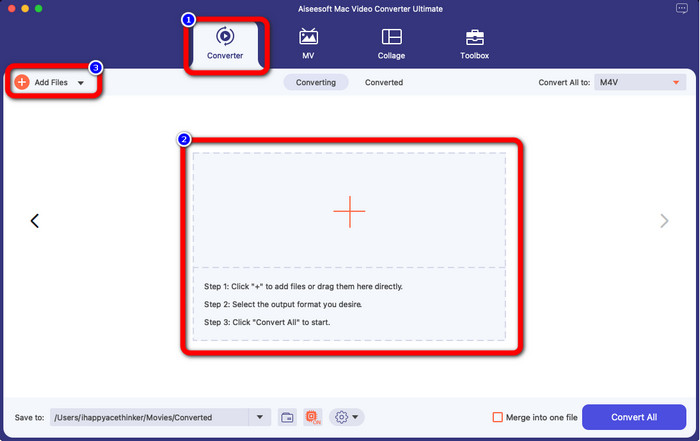
Step 2: Launch the application and select the Converter panel. Then, click the + icon or Add Files button to insert your WMV video file.
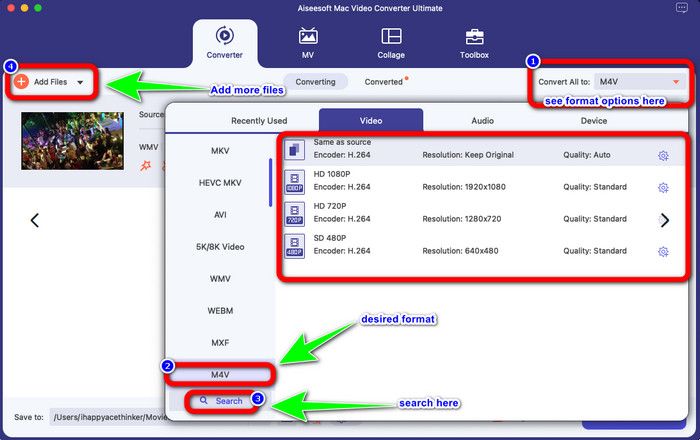
Step 3: After adding your video, click the Convert All to button to view the format options, and select the M4V file format. You can also search your desired format on the search box on the lower part of the interface. You can still click the Add Files button to add more videos to do batch conversion.
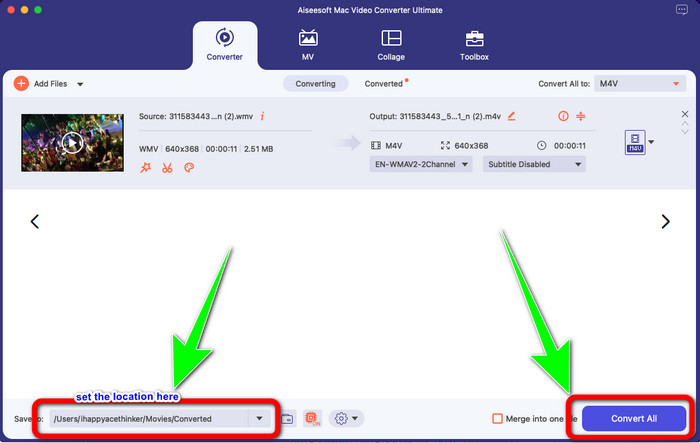
Step 4: When you select your desired file format, the M4V, you can already choose the location where you want to save your video. Then click the Convert button.
Bahagian 3: Cara Percuma untuk Menukar WMV kepada M4V
To convert WMV to M4V for free, you can use Convertfiles.This online software is also capable of converting multiple files. It has easy instructions with a simple interface, which is suitable for all users. Aside from converting videos, you can also convert images, audio, presentation, and more. However, there are times when this converter doesn't perform well. It has a slow conversion process, and the ads are annoying.
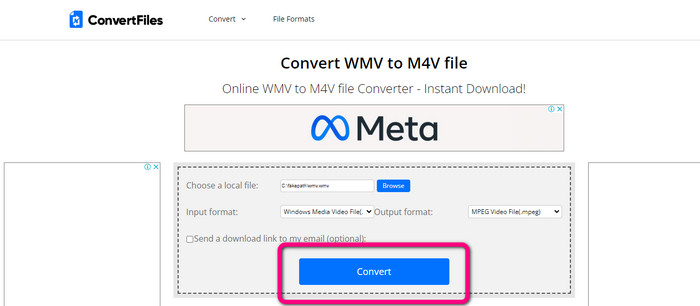
Step 1: Go to the Convertfiles website.
Step 2: Upload the WMV file format you want to convert.
Step 3: On the Output format, select the M4V file. Then click the Convert button.
Bahagian 4: Kaedah Cemerlang untuk Menukar WMV kepada M4V Dalam Talian
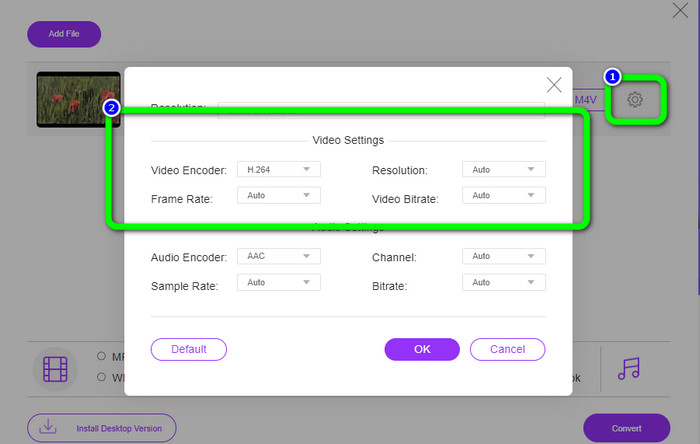
Another method to convert WMV to M4V online is to use the FVC Free Video Converter Online. With the help of this online tool, converting WMV is easy. It also converts more files like AVI, MP4, FLV, MKV, VOB, etc. Moreover, even though it is a free online converter, you don’t need to worry about the quality of your video. You can save your converted video with the original quality. Furthermore, you can also change your video's bit rate, frame rate, and resolution.
Ciri-ciri
◆ Mampu menukar kadar bit, kadar bingkai dan resolusi video.
◆ Menawarkan penukaran kelompok.
Ikuti langkah terperinci di bawah untuk menukar WMV kepada M4V menggunakan FVC Free Video Converter Online.
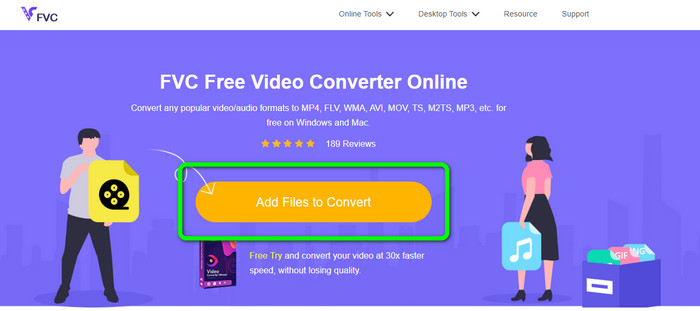
Step 1: Visit the FVC Free Video Converter Online website. Then, click the Add Files to Convert button.
Step 2: If you want to change your video’s bit rate, frame rate, and resolution, click the Settings icon. Then, press OK when you are done.
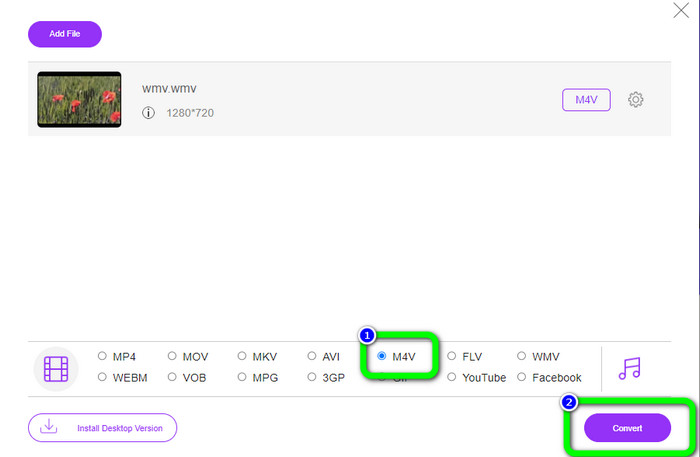
Step 3: Then, on the lower part of the interface, you will see the format options. Select the M4V file as your desired output file format, and click the Convert button to download your video.
Bahagian 5: Soalan Lazim tentang Menukar WMV kepada M4V
1. Bolehkah semua peranti memainkan M4V?
Unfortunately, no. Built-in player of Android devices doesn’t support M4V files. You can download a third-party M4V player that supports the M4V format or convert it to a compatible format.
2. Adakah terdapat penukar terbaik untuk menukar WMV kepada M4V?
If you want the best WMV to M4V converter, you can use the FVC Free Video Converter Online. It can convert your files efficiently and effortlessly.
3. Mana yang lebih baik, M4V atau MOV?
M4V is better. If you want to play your files on a portable device, such as iPhone, iPod, or iPad, M4V is highly recommended. But in some devices, MOV is supported only. In that case, you can convert M4V to MOV.
Kesimpulannya
With all the essential information above, you can already convert WMV to M4V easily and instantly. If you prefer a fast conversion speed converter, you can use the FVC Video Converter Ultimate. Also, you can use the FVC Free Video Converter Online if you want a free online converter.
-
 Cara Memampatkan Fail M4V ke Saiz Yang Lebih Kecil (Percuma & Dalam Talian)
 Jika anda sedang mencari cara mudah untuk mengurangkan saiz fail M4V anda, anda harus datang dan membaca artikel ini. Di sini kami akan berkongsi cara paling mudah untuk memampatkan fail M4V dengan anda
-
 Panduan Konkrit untuk Bergabung dengan Fail M4V di Windows dan Mac secara percuma
 Jika anda sedang mencari penyelesaian untuk menggabungkan fail video M4V menjadi satu, jangan lepaskan petikan ini. Di sini kita akan bercakap tentang dua kaedah terbaik untuk menggabungkan fail video M4V
-
 Petua Pantas dan Mudah untuk Menukar WMV kepada MOV [Terbukti]
 Adakah anda ingin tahu apakah penukar terbaik dan mudah digunakan yang menukar WMV kepada MOV? Teruskan membaca artikel ini kerana ia membincangkan semua kemungkinan pilihan yang perlu anda pertimbangkan untuk digunakan
