


 Video Converter Ultimate
 Perakam Skrin
 Pembaikan Video
 Muat Turun Selamat
Bagaimana untuk Memampatkan Video pada iPhone? Cara Teliti Di Sini
Baru-baru ini, merakam video yang benar-benar menakjubkan menggunakan iPhone telah mengejutkan pengguna dengan ciri-cirinya. Kejelasan dan perincian rakaman itu luar biasa, dan sangat mengagumkan untuk melihat sejauh mana teknologi mudah alih telah dicapai selama ini. Dengan iPhone, anda boleh merakam kenangan dan detik semasa dalam perjalanan, yang sangat berharga.
Jika anda mempunyai rakan yang menggunakan iPhone, anda pasti akan melihat banyak video yang dirakam dan disimpan dalam galeri mereka. Kebanyakan daripada kita juga begitu kerana iPhone menyediakan storan telefon yang cukup besar untuk menyimpan pelbagai fail. Namun, fail video ini boleh memberi kesan sebaliknya kerana ia menggunakan banyak ruang dalaman iPhone. Tambahan pula, semakin baik kualiti video, semakin besar saiz fail yang digunakan. Oleh itu, kami tampil dengan beberapa penyelesaian yang berkesan untuk mengatasi dilema ini. Kami akan membimbing anda tentang cara memampatkan video pada iPhone tanpa menjejaskan kualiti videonya. Lihat senarai di bawah.

Bahagian 1. Bagaimana untuk Memampatkan Video pada iPhone
1. Filemr
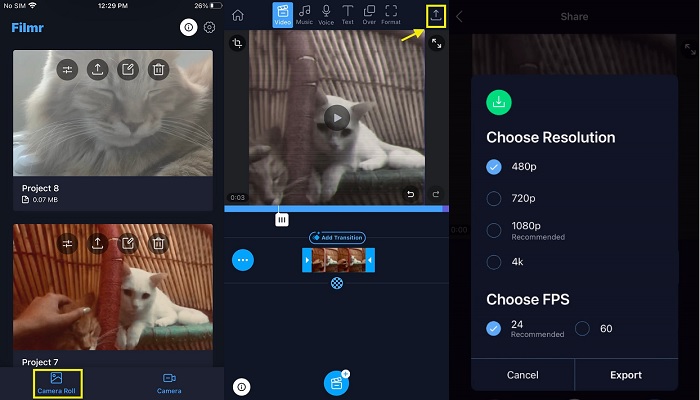
Adakah anda memerlukan alat yang sangat baik yang membolehkan anda menangkap, mengedit dan memampatkan dalam satu apl? Filmr adalah pilihan yang sangat baik untuk dimiliki. Ia adalah aplikasi mudah alih yang sesuai untuk peminat video dan editor video yang menggunakan peranti iPhone untuk mengedit dan berkongsi fail video. Apl ini sesuai untuk berkongsi video di TikTok, YouTube dan platform lain. Ia mempunyai editor terbina dalam, yang sangat baik untuk memampatkan fail video. Anda boleh menggunakan fungsi memangkas, membelah dan memadamnya untuk mengurangkan tempoh fail video, akhirnya mengurangkan saiznya. Pilihan lain yang boleh anda gunakan dengan alat ini ialah tetapan eksportnya, di mana pengguna boleh memilih resolusi dan kelajuan kadar bingkai video yang sesuai untuk mengurangkan saiz failnya. Semak panduan penggunanya di bawah tentang cara menggunakan aplikasi ini.
Langkah 1. Pasang aplikasi dengan pergi ke App Store dan cari Filmr menggunakan bar carian anda. Dapatkan alat tersebut dan muat turunnya dengan mengetik ikon Muat Turun.
Langkah 2. Lancarkan dan buka Filmr pada skrin iPhone anda dan akses antara mukanya. Ketik pilihan Camera Roll untuk melihat senarai fail video anda. Pilih video yang ingin diimport ke dalam aplikasi.
Langkah 3. Akhir sekali, gunakan panel garis masa aplikasi untuk menyunting fail video. Anda boleh mengurangkan durasi, membahagi, dan membuang bahagian yang tidak diingini bagi membantu mengurangkan saiz fail video. Kemudian, pilih pilihan eksport dengan mengetik ikon Anak Panah di bahagian atas sebelah kanan aplikasi mudah alih.
Kelebihan
- Anda boleh berkongsi terus fail yang dimampatkan pada akaun media sosial anda.
- Ia datang dengan pilihan import mudah untuk menambah berbilang fail media.
- Ia boleh memampatkan fail video dengan kualiti 4K dan 60 FPS.
- Pengguna boleh mengendalikan ciri penyuntingannya untuk meningkatkan kualiti penampilan fail.
Keburukan
- Ia tidak disokong dengan siri iPhone 14.
- Percubaan percumanya disertakan dengan tera air semasa mengeksport fail.
2. Mampat Video
Adakah anda memerlukan pemampat video yang boleh dipercayai untuk peranti iPhone? Video Compress ialah aplikasi hebat yang peminat video mesti ada dalam senjata mereka. Daripada nama itu sendiri, aplikasi itu menyediakan pilihan untuk mengurangkan saiz fail video pada peranti mudah alih. Ia sengaja dibuat untuk mengecilkan saiz fail video, membolehkan pengguna menyimpan lebih banyak video pada apl Foto mereka. Apa yang menjadikan alat ini unik daripada rakan sejawatannya ialah keupayaannya untuk memerah fail video tanpa memadam sebarang adegan pada klip video. Alat ini menggunakan algoritma lanjutan untuk membolehkan pengguna mengurangkan saiz fail video mereka secara automatik pada telefon pintar mereka. Semak arahan menggunakan aplikasi ini.
Langkah 1. Dapatkan aplikasi Video Compressor pada iPhone anda dengan mengakses App Store di skrin utama. Lancarkan antara muka aplikasi dan cari video compressor untuk memuat turun serta memasangnya pada peranti mudah alih anda.
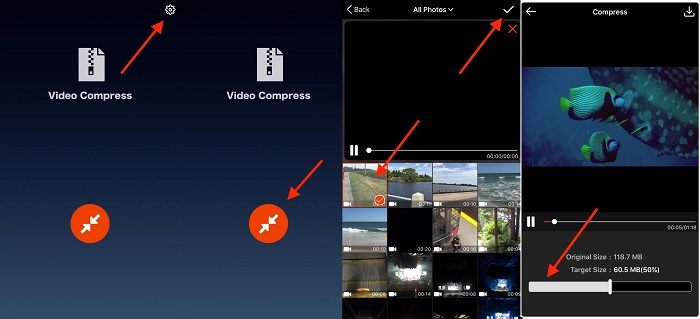
Langkah 2. Lancarkan Video Compressor untuk mengakses antara muka utamanya. Ketik ikon Gear yang terletak di bahagian paling atas sebelah kanan aplikasi mudah alih untuk memilih format keluaran. Setelah memilih bekas fail yang diingini, kembali ke antara muka alat tersebut.
Langkah 3. Ketik butang Orange untuk mengimport fail media anda. Pilih video yang perlu dimampatkan dan gunakan peluncur untuk melaras peratusan proses pemampatan. Ketik simbol Simpan di penjuru kanan atas skrin iPhone anda untuk menyimpan dan memampatkan fail.
Kelebihan
- Alat ini membolehkan pengguna memampatkan satu fail video, berbilang klip video dan keseluruhan album.
- Ia disertakan dengan pilihan pratonton untuk menyemak penampilan kualiti fail video sebelum memampatkannya.
- Ia masih boleh memampatkan fail video yang disimpan dalam folder Dipadam Baru-baru ini.
- Ia boleh pratonton ruang Cakera sebelum melakukan proses pemampatan.
Keburukan
- Apl mungkin ranap apabila memproses terlalu banyak video sekaligus.
- Sesetengah video yang tidak diambil pada apl Kamera mungkin tidak disokong oleh apl ini.
Bahagian 2. Mampatkan Video iPhone pada Komputer
Video Converter Ultimate ialah pemampat video yang pantas dan boleh dipercayai yang boleh anda gunakan pada PC anda. Ia berfungsi pada peranti Windows dan Mac, menjadikannya sesuai untuk komputer riba, komputer peribadi dan sebagainya. Ia boleh memproses video berkualiti tinggi, termasuk 4K, 1080p, 720p dan banyak lagi. Ia boleh memberikan peratusan yang tepat untuk pengguna yang mahu mengurangkan fail kepada bahagian tertentu. Selain itu, alat ini menggunakan teknologi canggih yang memampatkan fail video kepada saiz yang lebih kecil tanpa menjejaskan kualiti paparan video. Alat ini masih relevan sehingga kini kerana ia boleh memampatkan fail video dan menyimpannya mengikut platform perkongsian video tertentu. Ciri ini bermaksud ia mempunyai tetapan eksport siap sedia untuk peranti iPhone dan Android serta platform seperti Facebook, Twitter, Instagram dan lain-lain. Lihat panduan lengkap di bawah.
Langkah 1: Pasang Video Converter Ultimate
Perkara terbaik yang boleh anda lakukan terlebih dahulu ialah memasang Video Converter Ultimate pada PC anda. Anda boleh mendapatkan firmware-nya dengan mudah dengan mengetik ikon Muat Turun Percuma di bawah.
Muat Turun PercumaUntuk Windows 7 atau lebih baharuMuat Turun Selamat
Muat Turun PercumaUntuk MacOS 10.7 atau lebih baharuMuat Turun Selamat
Langkah 2: Import Fail Video
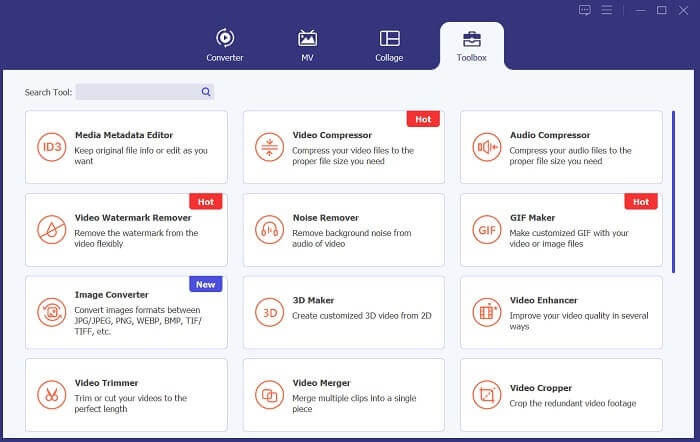
Seterusnya, akses dan lancarkan aplikasi dan pergi ke pilihan Toolbox. Pilih fungsi Video Compressor, iaitu pilihan ke-2 yang ditambah pada antara muka alat. Kemudian, import fail dengan mengklik ikon +.
Langkah 3: Mampat dan Eksport Video
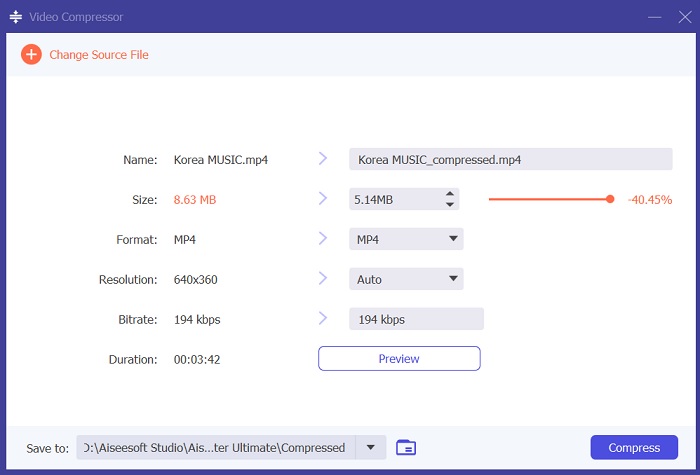
Akhir sekali, halaman baharu akan dipaparkan pada skrin anda, menyediakan pelbagai utiliti video untuk mengurangkan saiz fail video. Anda boleh meluncurkan penunjuk peratus untuk mengurangkan peratusan tertentu pada video anda. Ketik ikon Compress untuk membenarkan alat tersebut berjalan dan menganalisis fail video. Setelah selesai, fail keluaran akan disimpan pada komputer anda.
Bacaan Lanjut:
Cara Memampatkan Video untuk Vimeo Sebelum Memuat Naik (Percuma & Dalam Talian)
Cara Memendekkan Video pada iPhone [Tutorial Terperinci]
Bahagian 3. Soalan Lazim Mengenai Mengurangkan Saiz Video iPhone
Bagaimanakah saya boleh mengurangkan saiz video pada iPhone saya kepada e-mel?
Anda boleh menggunakan alat penyuntingan video terbina dalam untuk mengurangkan saiz video pada iPhone anda untuk menghantar e-mel. Buka apl Foto, pilih video yang ingin anda hantar dan ketik Edit. Anda boleh memangkas video kepada panjang yang lebih pendek atau melaraskan resolusi untuk mengecilkan saiz fail. Setelah anda membuat perubahan, ketik Selesai dan simpan video yang diedit. Saiz fail video akan dikurangkan sebaik sahaja video dimampatkan sepenuhnya. Pilihan lain yang boleh anda gunakan ialah memasang alat pemampatan video pada peranti iPhone anda.
Bagaimanakah saya boleh menghantar video yang terlalu besar pada iPhone saya?
Terdapat beberapa cara untuk menghantar video yang terlalu besar pada iPhone anda. Platform pemacu seperti Dropbox dan Google Drive sesuai untuk berkongsi video berkualiti tinggi. Pilihan lain ialah menggunakan aplikasi pemampatan video seperti Video Compress dan Filmr untuk mengurangkan saiz fail media atau video sebelum menghantarnya melalui e-mel atau mesej teks. Selain itu, anda boleh menggunakan AirDrop jika penerima berada berdekatan dan juga menggunakan peranti Apple.
Adakah memampatkan video mengurangkan kualitinya?
Ya, memampatkan video akan mengurangkan kualitinya. Walau bagaimanapun, anda boleh melaraskan tetapan mampatan untuk meminimumkan kehilangan kualiti dan masih mendapat saiz fail yang lebih kecil.
Kesimpulannya
Peranti iPhone mempunyai ciri hebat untuk merakam video dalam sistemnya dengan kualiti tinggi dan resolusi yang lebih baik. Ciri ini mungkin satu kelebihan ketika merakam video, namun ia boleh menjejaskan pengalaman perkongsian yang lancar. Sesetengah platform hanya mengehadkan saiz fail tertentu apabila berkongsi video. Itulah yang menjadikan pemampat video penting untuk pengguna iPhone. Mujurlah, kaedah cara memampatkan video iPhone yang disebutkan di atas akan membantu anda mengurangkan saiz fail pada peranti mudah alih anda.
-
 Cara Memampatkan Video MP4 ke Saiz Lebih Kecil
 Video MP4 terlalu besar untuk dimuat naik? Ingin mengurangkan saiz video? Berikut adalah 3 kaedah yang cekap untuk memampatkan fail MP4 ke saiz yang lebih kecil tanpa had.
-
 4 Cara Memampatkan Fail MOV QuickTime Besar tanpa Kehilangan Kualiti
 Artikel ini menunjukkan cara memampatkan video QuickTime MOV pada telefon atau komputer anda secara terperinci. Sekiranya video MOV anda terlalu besar untuk dihantar, dikongsi atau disimpan, anda boleh mendapatkan 4 penyelesaian yang boleh dilaksanakan di sini.
-
 3 Cara Memampatkan dan Menukar Fail Video Besar untuk WhatsApp
 Dari artikel ini, anda boleh mendapatkan 3 cara mudah untuk memampatkan video dalam talian untuk WhatsApp. Mengapa anda tidak dapat menghantar video di WhatsApp? Apa yang anda boleh lakukan untuk menetapkan had saiz video WhatsApp? Baca dan periksa sahaja.
