


 Video Converter Ultimate
 Perakam Skrin
 Pembaikan Video
Punca dan Penyelesaian Ralat Codec Video Tidak Disokong
Pernahkah anda berada dalam situasi apabila anda cuba memainkan video pada pemain media atau TV anda tetapi muncul ralat yang menyatakan “codec video tidak disokong”? Jangan terkejut jika ralat ini juga berlaku pada video lain, termasuk yang anda rakam sendiri. Hakikatnya, walaupun anda telah menghidupkan semula peranti atau memainkan semula video tersebut, ia masih tidak akan dimainkan. Jadi, apakah sebenarnya maksud ralat video ini, mengapa ia berlaku, dan adakah penyelesaian yang munasabah untuknya? Secara umum, masalah codec yang tidak disokong pada video sudah pun meluas. Mujurlah, artikel ini bertujuan untuk menerangkan punca di sebalik ralat ini dan penyelesaiannya. Dengan melaksanakan penyelesaian yang diberikan, anda boleh menyelesaikan masalah codec tidak disokong, sekali gus memastikan pengalaman main balik video yang lancar dan menyeronokkan.

Bahagian 1. Apakah dan Mengapa Ralat Codec Video Tidak Disokong Berlaku
Apakah itu Ralat Codec Video Tidak Disokong
Ralat yang menyatakan ralat tentang codec video ialah isu dengan pemampat-penyahmampat video. Codec, yang bermaksud pemampat-penyahmampat, ialah teknologi yang bertanggungjawab untuk pengekodan dan penyahkodan data audio dan video. Oleh itu, isu apabila anda tidak dapat memainkan codec video yang tidak disokong biasanya muncul apabila peranti atau pemain media menemui fail video dengan codec yang tidak serasi dengan pemain atau peranti.
Mengapa Ralat Codec Video Tidak Disokong Berlaku
Untuk penjelasan lanjut tentang sebab ralat ini berlaku, teruskan membaca bahagian ini. Seperti yang dinyatakan sebelum ini, ralat sebegini berlaku apabila pemain video atau platform menemui fail video yang dikodkan dengan codec yang tidak dapat ditafsir oleh peranti. Dalam erti kata lain, peranti atau pemain media anda tidak mempunyai komponen yang diperlukan untuk menyahkod fail video tersebut. Selain itu, perbezaan dalam sokongan codec biasanya timbul akibat perbezaan perisian, had pelesenan, atau firmware. Sebagai contoh, jika fail video dikodkan dengan codec H.265 atau HEVC, ia mungkin tidak serasi dengan pemain media atau aplikasi yang hanya direka untuk mengendalikan H.264 atau codec yang lebih lama.
Selain daripada video codec tidak disokong oleh pemain, codec audio yang hilang juga boleh menjadi salah satu punca ralat.
Bahagian 2. Bagaimana untuk Membetulkan Codec Video Tidak Disokong
Penyelesaian 1. Gunakan Pemain Media Alternatif
Jika anda bergelut untuk memainkan fail video pada pemain video tertentu, penyelesaian terbaik dan terpantas ialah mencuba video tersebut dengan pemain media alternatif. Anda boleh menemui beberapa pemain video yang sangat baik, seperti VLC, Windows Media Player, QuickTime, dan banyak lagi. Setiap pemain media mampu mengendalikan pelbagai format video utama dan codec dengan lancar. Namun, anda perlu sedar bahawa anda masih mungkin menghadapi ralat format video tidak disokong walaupun dengan pemain video yang baharu. Namun begitu, menggunakan pemain media yang berbeza secara bergilir-gilir boleh membantu anda menyelesaikan masalah codec video yang tidak disokong.
Penyelesaian 2. Kemas kini Pemain Media Semasa Anda
Jika anda setia kepada pemain media semasa anda dan tidak mahu menggantikannya, maka sekurang-kurangnya kemas kini kepada versi terkininya. Kemas kini kepada pemain media selalunya termasuk keserasian yang lebih baik dengan pelbagai codec video. Berikut ialah beberapa panduan pengajaran tentang cara mengemas kini pemain media tertentu pada komputer anda.
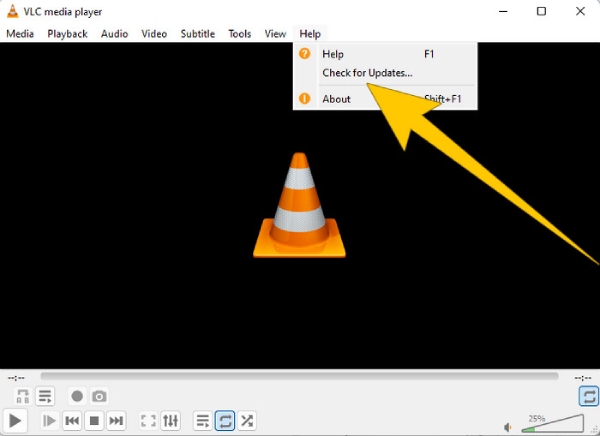
Untuk VLC Media Player
Langkah 1. Buka pemain media anda.
Langkah 2. Pergi ke tab menu Help.
Langkah 3. Pilih pilihan Check for Updates.
Untuk Windows Media Player
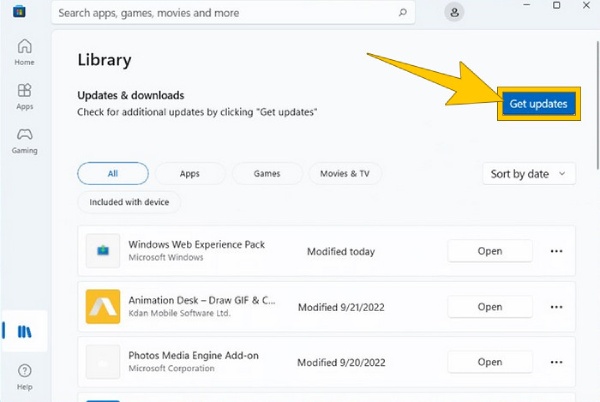
Langkah 1. Pergi ke Microsoft Store anda.
Langkah 2. Akses Library untuk melihat senarai aplikasi anda.
Langkah 3. Kemudian klik butang Get Updates untuk memulakan pemasangan kemas kini bagi aplikasi anda, termasuk Windows Media Player.
Penyelesaian 3. Tukar Video Kepada Format Lain
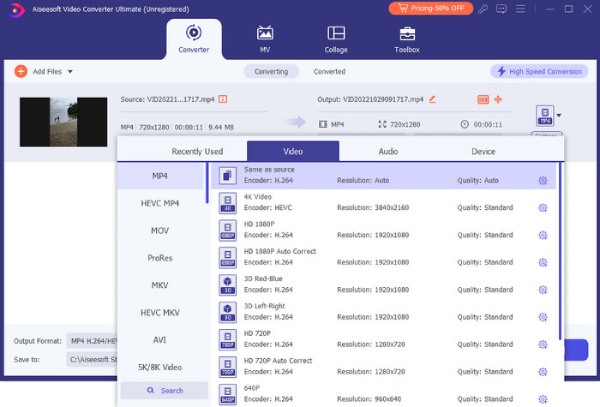
Jika codec video anda tidak disokong pada Samsung, sebagai contoh, maka isu itu mungkin berpunca daripada format fail video yang tidak serasi. Dalam keadaan sebegini, menukar format video kepada format lain yang disokong oleh Samsung atau peranti anda boleh menjadi penyelesaian yang praktikal. Oleh itu, jika anda sedang mencari penukar video terbaik untuk membantu anda, FVC Video Converter Ultimate adalah apa yang kami sangat sarankan. Ini kerana ciri-cirinya yang hebat, daripada penukaran yang sangat pantas walaupun untuk video secara berkumpulan, hinggalah kepada pelbagai pilihan alat penyuntingan dan jenis format.
Muat Turun PercumaUntuk Windows 7 atau lebih baharuMuat Turun Selamat
Muat Turun PercumaUntuk MacOS 10.7 atau lebih baharuMuat Turun Selamat
Penyelesaian 4. Betulkan Fail Video Tidak Disokong
Jika menukar fail bukan pilihan anda, pertimbangkan untuk membaiki video tersebut. Kita tidak boleh mengetepikan hakikat bahawa jika fail video tidak boleh dimainkan, ia mungkin telah rosak. Dalam keadaan sebegini, pertimbangkan untuk menggunakan alat pembaikan video seperti FVC Video Repair untuk menyelesaikan masalah. Alat pembaikan ini boleh membantu anda membaiki fail video dalam beberapa saat selepas proses dimulakan. Ia membolehkan anda memuat naik dan membaiki fail tanpa sebarang kesulitan. Proses yang digunakan oleh alat pembaikan video ini menjadikannya sangat menarik untuk digunakan. Selain itu, ia menawarkan pilihan pratonton, di mana anda boleh meneliti fail video sebelum menyimpannya selepas pembaikan. Bagaimana cara membetulkan isu codec menggunakan FVC Video Repair? Ikuti langkah di bawah.
Langkah 1. Pasang alat ini secara percuma dengan mengklik butang Download di bawah.
Muat Turun PercumaUntuk Windows 7 atau lebih baharuMuat Turun Selamat
Muat Turun PercumaUntuk MacOS 10.7 atau lebih baharuMuat Turun Selamat
Langkah 2. Lancarkan dan mulakan proses dengan mengklik butang Add pada antara muka. Untuk memuat naik video yang rosak, klik butang merah. Kemudian, gunakan butang ungu untuk memuat naik video sampel.
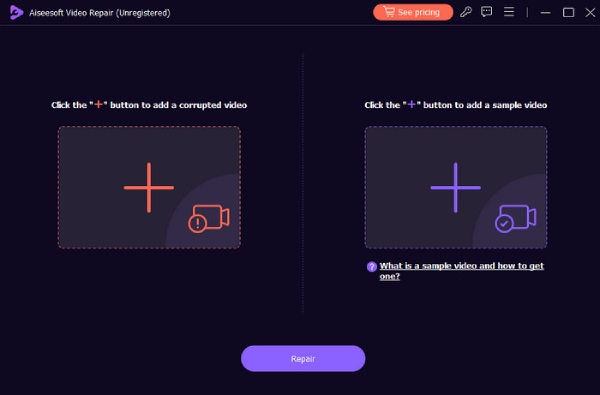
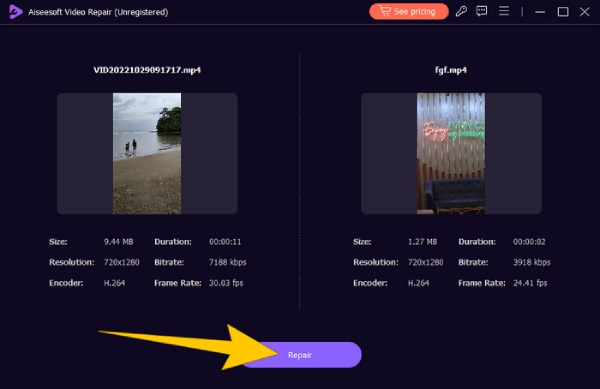
Langkah 3. Apabila video telah dimuatkan, tekan butang Repair.
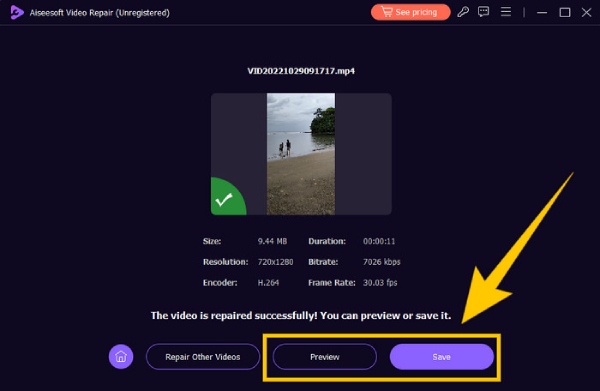
Langkah 4. Selepas itu, anda boleh mengklik butang Preview jika ingin meneliti video yang telah dibaiki. Jika tidak, klik butang Save untuk mengeksport output.
Bahagian 3. Soalan Lazim tentang Ralat Codec Video
Bagaimanakah saya boleh membetulkan fail video yang tidak disokong?
Untuk membetulkan fail video, gunakan alat penukar video untuk menukar format yang tidak disokong kepada yang serasi. Atau, gunakan alat pembetulan video.
Bagaimanakah cara menukar codec video?
Untuk menukar codec video, anda boleh menukar video kepada format yang menggunakan codec yang berbeza dengan bantuan alat penukar.
Bagaimanakah cara saya mencari codec video?
Semak sifat (properties) fail video untuk melihat codec yang digunakan. Anda boleh mendapatkan banyak codec percuma untuk pemain Windows anda, seperti codec MKV untuk Windows Media Player.
Kesimpulannya
Menangani ralat video seperti “Codec video tidak disokong” memang agak mengecewakan. Namun, dengan penyelesaian yang telah disediakan di atas, anda boleh menghadapi masalah ini dengan yakin. Kami telah menyerlahkan empat cara pembaikan yang biasa, khususnya membaiki video yang tidak boleh dimainkan, dengan bantuan FVC Video Repair.
-
 Apakah Ralat 0xc10100bf dalam Video dan Cara Membetulkannya
 Adakah video anda tidak dimainkan kerana Ralat 0xc10100bf, dan anda sedang mencari cara untuk membetulkannya? Dalam artikel ini, anda akan mengetahui apa itu dan cara membetulkannya.
-
 Pembaikan Video EaseUS – Kajian Mendalam pada 2025
 Gali ulasan komprehensif Pembaikan Video EaseUS. Ketahui cara perisian serba boleh ini boleh membantu anda membaiki video yang rosak atau rosak dengan cepat dan mudah.
-
 Semakan Induk Video Pembaikan: Ini Semua Yang Anda Perlu Tahu
 Betulkan video anda sekarang dengan Repair Video Master! Selain itu, ketahui tentang ciri, faedah dan panduan pantas tentang cara menggunakannya dalam ulasan komprehensif ini.
