


 Video Converter Ultimate
 Perakam Skrin
 Pembaikan Video
 Muat Turun Selamat
Potong Fail WMA: Panduan Terbaik untuk Pengguna Windows dan Mac
Menyunting fail audio memang menyeronokkan, sehinggalah anda perlu berdepan dengan trek WMA yang panjang dan seakan mustahil untuk dipotong. Sama ada anda seorang podcaster, pemuzik, atau sekadar seseorang yang gemar mengutak-atik audio, memotong fail WMA boleh menjadi tugas yang menggerunkan tanpa alat dan pengetahuan yang betul. Artikel ini bertujuan memudahkan proses tersebut untuk pengguna Windows dan Mac, dengan menyediakan panduan langkah demi langkah serta alat terbaik yang tersedia untuk menjadikan perjalanan suntingan audio anda lebih lancar dan cekap. Teruskan membaca artikel ini untuk maklumat lanjut.

Bahagian 1: Cara Terbaik untuk Memotong Fail WMA pada Windows/ Mac
Cara terbaik dan paling menyeluruh untuk memotong fail WMA pada Windows dan Mac adalah melalui Video Converter Ultimate pilihan FVC. Alat penukar video dan audio serba guna ini berfungsi dengan sangat baik untuk format WMA, terutamanya dalam kerja-kerja pemotongan. Alat ini mempunyai ciri khas yang boleh memendekkan fail audio dengan mudah. Ini amat berguna khususnya bagi mereka yang perlu memotong fail WMA yang terlalu panjang atau yang mengandungi bahagian atau segmen yang tidak diingini. Selain itu, dengan alat ini, anda boleh memilih sendiri bahagian fail WMA yang ingin dipotong secara manual atau memotongnya secara automatik menggunakan ciri potongan pantasnya (fast slip).
Langkah 1. Mula-mula, pada komputer Mac atau Windows anda, muat turun dan pasang Video Converter Ultimate.
Muat Turun PercumaUntuk Windows 7 atau lebih baharuMuat Turun Selamat
Muat Turun PercumaUntuk MacOS 10.7 atau lebih baharuMuat Turun Selamat
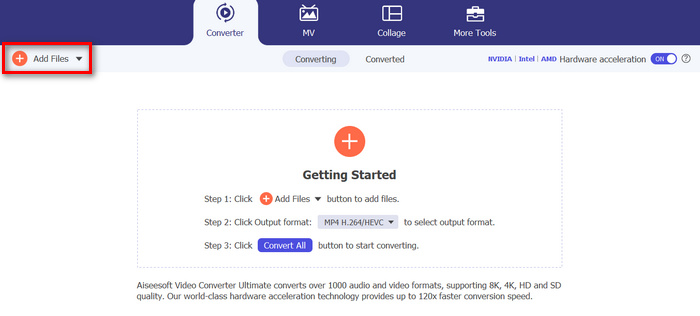
Langkah 2. Untuk mengimport fail WMA yang ingin anda potong, klik butang Add Files.
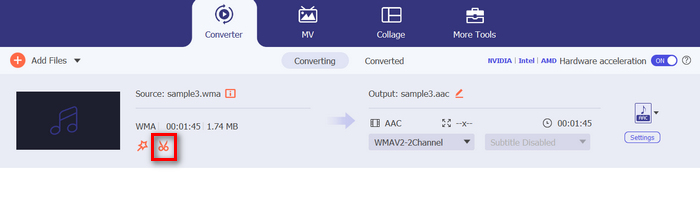
Langkah 3. Selepas itu, klik butang Cut.
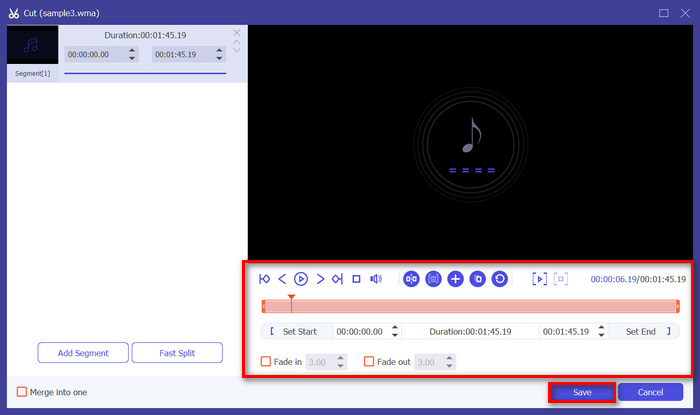
Langkah 4. Untuk memotong fail WMA anda, anda boleh melakukannya secara manual dengan melaraskan atau menggerakkan bar mula dan tamat pada klip dengan mudah, sama ada menyeretnya dari kiri ke kanan, atau menaip masa mula dan tamat bahagian fail WMA yang ingin anda potong.
Proses itu secara automatik memotong bahagian audio berdasarkan masa anda ingin memulakan dan menamatkan pemangkasan.
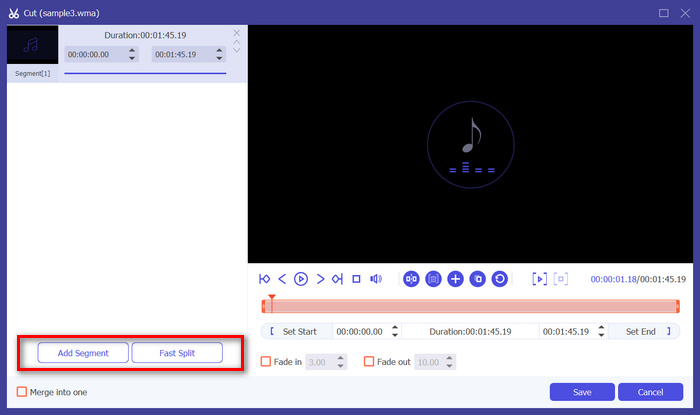
Langkah 5. Sementara itu, jika anda ingin memotong menggunakan ciri pemangkas Fast Slip, anda hanya perlu klik butang Fast Slip di sebelah butang Add Segment. Seterusnya, pilih mod cara anda mahu membahagikan segmen. Jika anda memilih untuk membahagi mengikut purata, hanya nyatakan bilangannya, tetapi jika anda mahu membahagi mengikut masa, nyatakan tempohnya. Selepas itu, klik butang Save.
Langkah 6. Akhir sekali, untuk mengeksport fail WMA yang telah dipotong, klik butang Convert All.
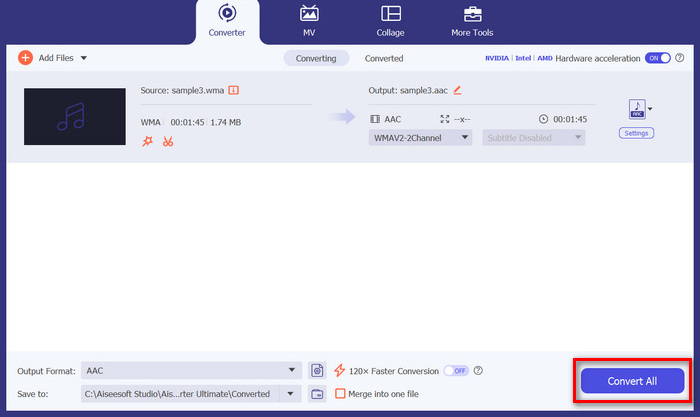
Apabila ia datang untuk memotong fail WMA, Video Converter Ultimate yang dipilih FVC ini sememangnya penyelesaian yang mesti ada. Antara muka yang ringkas dan mesra pengguna memastikan anda boleh memangkas fail WMA anda dengan mudah dan tepat, dan pelbagai pilihan pemangkasannya memberikan anda kefleksibelan tentang cara anda ingin memotong fail audio anda dengan mudah.
Bahagian 2: Potong Fail WMA Dalam Talian secara Percuma
Pemangkas Audio ialah alat percuma yang membolehkan pengguna memangkas fail audio dengan cepat. Ini menyokong pelbagai format audio popular, termasuk WMA, yang menjadikan alat ini salah satu alternatif terbaik jika anda lebih suka memotong fail WMA dalam talian.
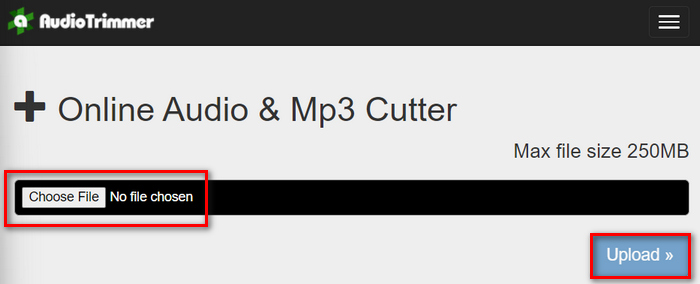
Langkah 1. Untuk mengimport fail WMA yang ingin anda potong, klik butang Choose File dan kemudian klik butang Upload.
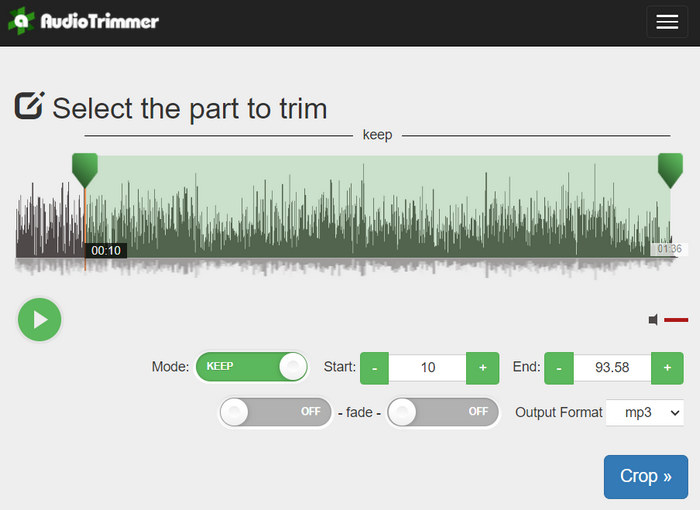
Langkah 2. Kini, hanya seret bar ke bawah dan pilih bahagian trek audio yang ingin anda potong. Setelah selesai, klik butang Crop.
Langkah 3. Akhir sekali, untuk menyimpan fail WMA yang telah dipotong, hanya klik butang Download.
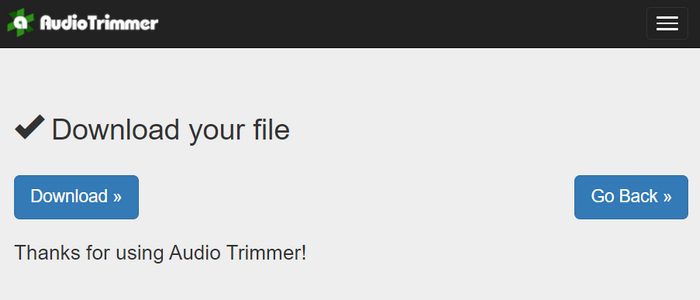
Itulah caranya, dan anda boleh menonton klip anda dengan pemain WMA untuk melihat sama ada anda telah memotongnya dengan betul. Dengan antara muka yang ringkas dan sangat intuitif, memotong fail WMA hanya memerlukan 3 langkah. Walaupun ia memudahkan kerja pemotongan fail audio, tidak semua pengguna dapat menikmati alat dalam talian percuma ini kerana ia terhad kepada pemprosesan fail di bawah 250MB.
Bahagian 3: Potong WMA Dengan Pemain Media VLC
VLC Media Player ialah pemain media sumber terbuka yang digunakan secara meluas kerana serba boleh. Alat ini menyokong pelbagai jenis format audio dan video, termasuk fail WMA. Sebagai tambahan kepada cirinya untuk memainkan, menstrim dan media rakaman, alat ini juga boleh digunakan untuk memotong fail WMA. Dengan ini, pengguna boleh memangkas bahagian dengan mudah dengan merakam dalam masa nyata tanpa perlu mengubah masa main balik secara manual.
Langkah 1. Buka VLC Media Player. Seret dan lepaskan sahaja fail WMA yang ingin anda potong.
Langkah 2. Audio akan mula dimainkan secara automatik. Hentikan seketika, kemudian klik butang View dan tandakan pilihan Advanced Controls. Anda kini akan melihat empat butang baharu muncul di atas ikon main balik.
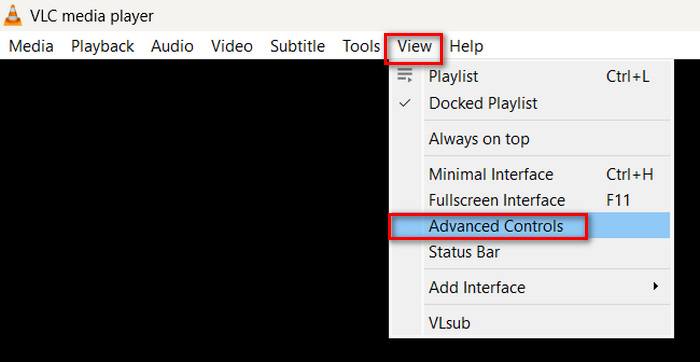
Langkah 3. Seret bar kemajuan ke titik di mana anda mahu klip anda bermula. Sekarang, laraskan bar ke tempat anda mahu mula memotong fail WMA anda. Setelah selesai, mainkan dan klik butang Record.
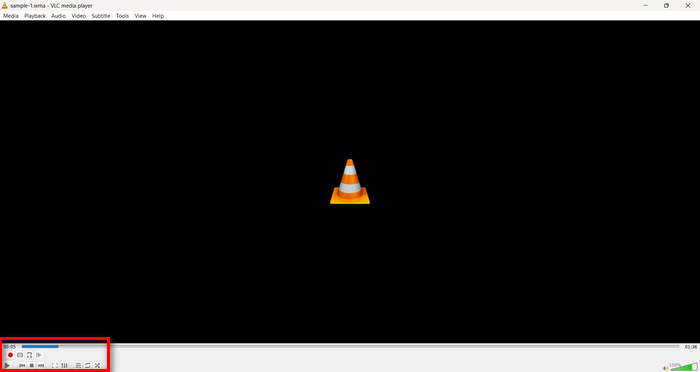
Langkah 4. Apabila anda sampai ke penghujung bahagian yang ingin disimpan, klik butang Record sekali lagi untuk menghentikan rakaman.
Elakkan mengheret bar kemajuan untuk mengubah masa main balik semasa rakaman, kerana VLC perlu merakam segmen tersebut secara masa nyata. Jika anda menyukai alat ini, jangan ketinggalan alternatif VLC di sini.
Bahagian 4: Soalan Lazim tentang Memotong WMA
Bagaimanakah cara saya memotong bahagian daripada fail audio?
Untuk memotong sebahagian daripada fail audio, anda boleh menggunakan alatan seperti Video Converter Ultimate. Untuk berbuat demikian, anda hanya perlu mengimport fail WMA anda, klik butang Potong, dan laraskan masa mula dan tamat.
Adakah WMA lebih baik daripada MP3?
WMA selalunya mempunyai kualiti bunyi yang lebih baik pada kadar bit yang lebih rendah berbanding MP3, menghasilkan saiz fail yang lebih kecil dengan kualiti audio yang baik. Namun begitu, MP3 lebih meluas disokong pada pelbagai peranti dan platform. Pemilihan antara WMA dan MP3 bergantung pada keperluan anda dari segi kualiti dan keserasian. Anda juga boleh menukar WMA kepada MP3 dengan alat penukar WMA ke MP3 untuk melakukannya dengan cepat.
Bagaimana untuk memangkas fail audio dalam Windows Media Player?
Untuk memangkas fail audio dalam Windows Media Player, anda perlu menggunakan pemalam yang dipanggil SolveigMM WMP Trimmer Plugin Home Edition. Pemalam ini membolehkan pengguna memotong fail audio dengan mudah terus dalam antara muka Windows Media Player, menyediakan penyelesaian yang mudah untuk tugas penyuntingan audio.
Kesimpulannya
Memotong fail WMA tidak semestinya memeningkan. Sama ada anda memilih menggunakan perisian seperti Video Converter Ultimate, alat dalam talian seperti Audio Trimmer, atau VLC Media Player yang serba boleh, terdapat pelbagai kaedah yang cekap untuk pengguna Windows dan Mac. Pilih kaedah yang paling sesuai dengan anda dan mula menyunting fail audio anda dengan mudah. Sedia untuk memudahkan kerja suntingan audio anda? Cubalah salah satu kaedah ini hari ini!
-
 2 Kaedah untuk Menukar Audio FLV kepada WMA [Percuma & Dalam Talian]
 Ingin mengekstrak audio WMA dari video FLV? Berikut adalah 2 pengekstrak audio WMA percuma untuk menukar FLV (Flash Video) ke WMA (Windows Media Audio) dengan kelajuan penukaran pantas pada Mac OS X dan Windows 10/8/7.
-
 Editor Metadata WMA Pilihan Teratas yang Anda Jangan Terlepas [2024]
 Mengapa saya tidak boleh mengedit teg WMA? Masalah ini biasa berlaku pada pengguna' pertanyaan. Tetapi hari ini kami akan memberi anda editor meta WMA yang boleh anda gunakan pada tahun 2024.
-
 8 Cara Menukar Audio MP4 ke MP3 (Penukaran Batch & Ukuran Besar)
 Sekiranya anda ingin mengekstrak audio MP3 dari video MP4, anda boleh menyemak artikel ini dan mendapatkan 8 penyelesaian. Terdapat kaedah dalam talian dan luar talian untuk menukar MP4 ke MP3 di telefon atau komputer anda dengan mudah.
