


 Video Converter Ultimate
 Perakam Skrin
 Pembaikan Video
 Muat Turun Selamat
3 Kaedah Teratas untuk Menukar FLV ke MOV
Untuk beberapa format yang tidak disokong atau atas sebab lain, anda perlu menukar FLV kepada MOV, terutamanya apabila anda menggunakan Mac.
Anda perlu tahu bahawa fail FLV tidak disokong secara asli oleh QuickTime Player dan iMovie. Jadi, anda tidak boleh membuka atau menyunting FLV secara terus pada Mac. Apa pun sebabnya, catatan ini akan menunjukkan kepada anda cara menukar FLV kepada MOV.

Mujurlah, terdapat banyak penukar video, termasuk banyak alat dalam talian percuma yang boleh membantu anda menukar fail FLV kepada MOV dengan mudah. Catatan ini akan memperkenalkan 3 penukar FLV ke MOV yang hebat. Apabila anda memuat turun beberapa video FLV daripada laman perkongsian video, anda boleh bergantung pada alat ini untuk membuat penukaran video daripada FLV ke MOV.
Bahagian 1. Tukar FLV ke MOV Secara Percuma
Seperti yang kami nyatakan di atas, terdapat banyak penukar FLV ke MOV dalam talian percuma yang ditawarkan di pasaran. Jika anda tidak tahu yang mana satu patut digunakan, di sini kami dengan ikhlas mengesyorkan FVC Free Online Video Converter yang popular untuk anda menukar FLV kepada QuickTime MOV.
Langkah 1: Buka pelayar anda dan pergi ke laman penukar FLV ke MOV dalam talian ini. Anda boleh menggunakannya pada mana-mana pelayar web termasuk Chrome, IE, Safari dan Firefox.
Muat turun Versi Desktop untuk menukar fail secara kelompok.
Langkah 2: Klik butang Add Files to Convert untuk memasang pelancar bagi penukaran FLV dengan cepat. Selepas itu, akan muncul tetingkap timbul untuk anda menyemak dan memuat naik fail FLV anda.

Langkah 3: Apabila anda memasuki tetingkap utama penukar, anda boleh melihat beberapa format video popular seperti MP4, MOV, AVI, FLV, M4V, MKV, VOB, MPG, WMV dan banyak lagi tersenarai di sana. Di sini anda perlu memilih MOV sebagai format keluaran.
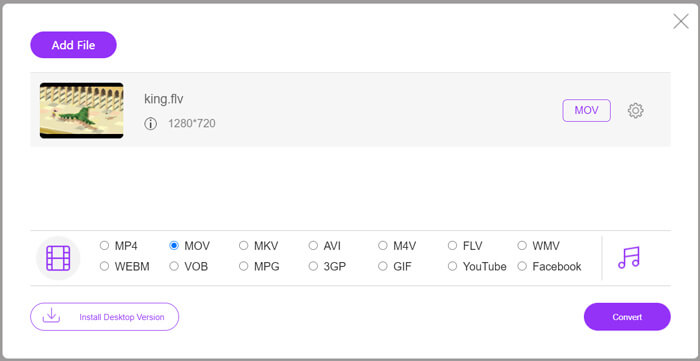
Langkah 4: Sebelum penukaran akhir FLV ke MOV, anda boleh klik ikon Settings untuk menyesuaikan lebih banyak tetapan video dan audio seperti resolusi video, pengekod, bitrate, kadar bingkai, volum audio, saluran audio dan banyak lagi. Selepas itu, anda boleh klik butang Convert untuk mula menukar FLV kepada MOV dalam talian.
Bahagian 2. Tukar FLV kepada MOV dengan VLC
VLC ialah pemain media sumber terbuka yang juga mempunyai beberapa fungsi penukaran asas. Jika anda memasang VLC Media Player pada Mac atau PC Windows anda, anda boleh bergantung padanya untuk menukar fail FLV anda.
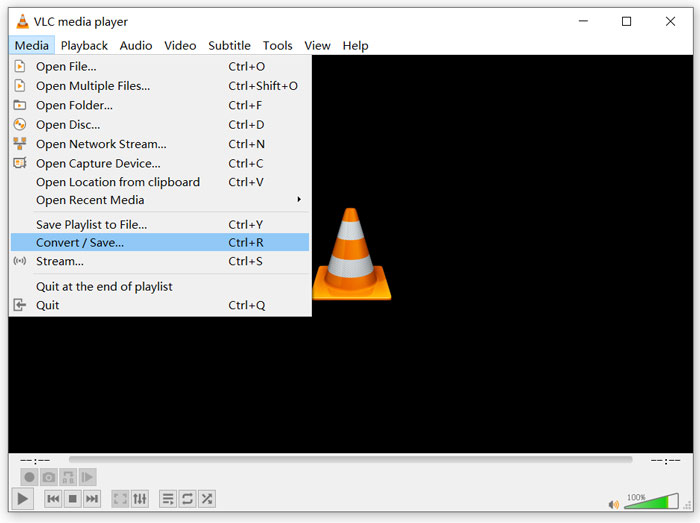
Langkah 1: Buka VLC Media Player pada komputer anda dan klik menu Media. Daripada senarai juntai bawah, pilih pilihan Convert/Save. Jika anda menggunakan VLC pada Mac, di sini anda perlu klik menu File dan kemudian pilih pilihan Convert/Stream.
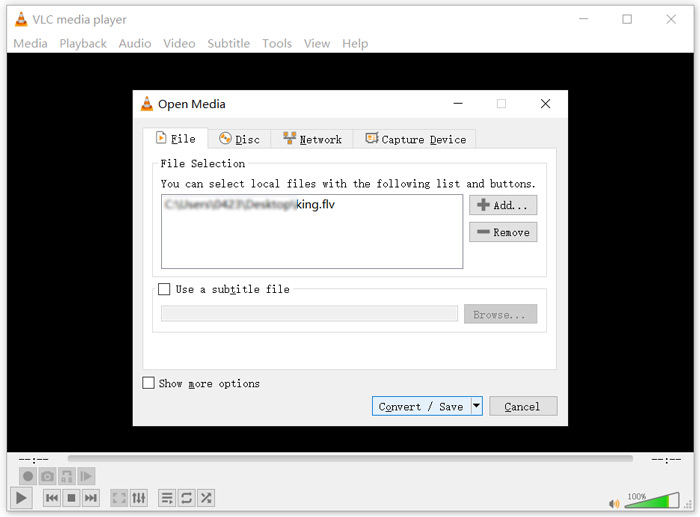
Langkah 2: Sekarang anda berada dalam tetingkap Open Media. Di sini anda boleh klik butang Add untuk mengimport fail FLV yang ingin anda tukar. Kemudian klik butang Convert/Save untuk meneruskan.
Langkah 3: Daripada senarai juntai bawah Profile, pilih format keluaran yang sesuai. Di sini anda boleh menukar FLV kepada MP4, TS, OGG, WebM, YouTube HD, MP3, FLAC dan banyak lagi. Tanda kotak di hadapan pilihan Display the output. Klik butang Browse untuk memilih folder destinasi yang sesuai untuk FLV yang telah ditukar. Dalam langkah ini, anda boleh memberikan sambungan fail .mov pada video keluaran.
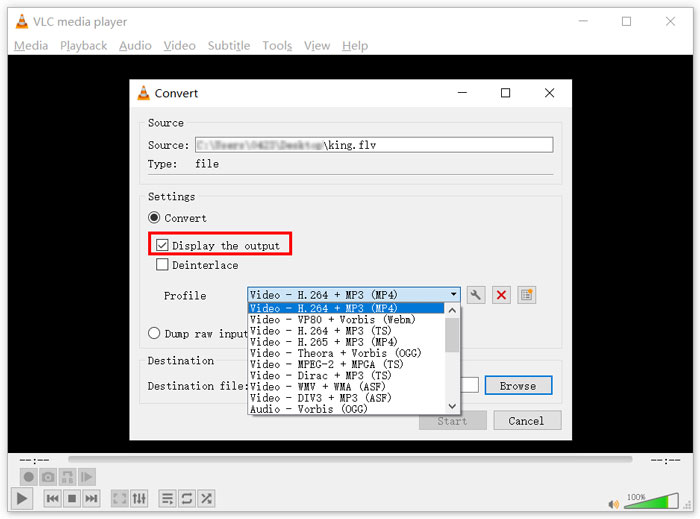
Langkah 4: Selepas semua operasi ini, anda boleh klik butang Start untuk melakukan penukaran FLV.
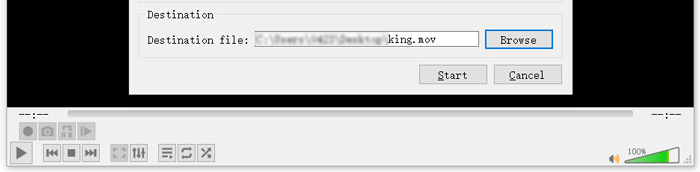
VLC Media Player akan mula memainkan video keluaran secara automatik. Anda boleh melihat prompt Converting file di bahagian atas VLC. Jangan tutup VLC sepenuhnya sehingga proses penukaran selesai.
Bahagian 3. Cara Terbaik Menukar FLV ke MOV Tanpa Kehilangan Kualiti
Apabila anda ingin menukar FLV kepada MOV, anda juga boleh menggunakan penyelesaian profesional. Di sini kami sangat mengesyorkan perisian penukaran FLV ke MOV serba guna, Video Converter Ultimate untuk anda. Berbanding penukar FLV ke MOV dalam talian percuma dan VLC, perisian ini mempunyai lebih banyak fungsi dan menyokong lebih banyak format. Yang lebih penting, ia boleh menukar FLV kepada MOV sambil mengekalkan kualiti asal.
- 1. Tukar mana-mana video seperti MKV, AVI, MP4, WMV, FLV ke MOV tanpa kehilangan kualiti.
- 2. Tukar video HD dan SD 8K / 5K / 4K, 1080p / 720p ke lebih daripada 500 format seperti MOV, MP4, AVI, MP3, dan banyak lagi.
- 3. Edit video seperti potong, putar, potong, gabungkan, dan lain-lain dan tambahkan penapis dan kesan, dan tingkatkan kualiti.
- 4. Kotak alat dapat memampatkan FLV, mengedit maklumat metadata FLV, membuat GIF dari FLV, dan banyak lagi.
Muat Turun PercumaUntuk Windows 7 atau lebih baharuMuat Turun Selamat
Muat Turun PercumaUntuk MacOS 10.7 atau lebih baharuMuat Turun Selamat
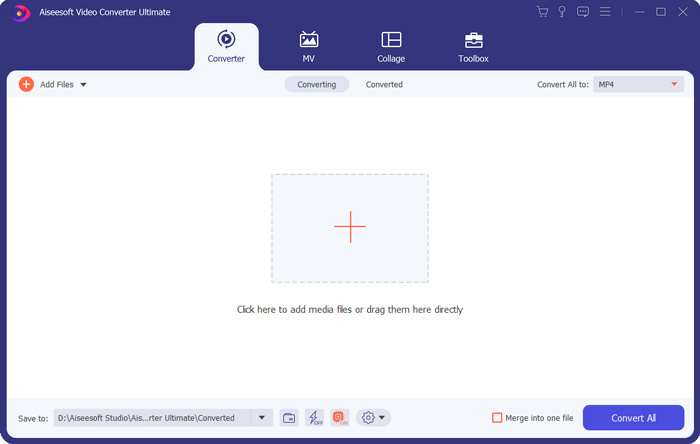
Langkah 1: Pasang secara percuma dan lancarkan penukar FLV ke MOV ini pada Mac atau PC Windows anda. Pastikan anda menggunakan fungsi Converter. Kemudian klik ikon plus yang besar untuk menambah fail FLV anda.
Langkah 2: Klik ikon format di bahagian kanan fail FLV yang diimport. Tetapkan MOV sebagai format keluaran daripada senarai juntai bawah.
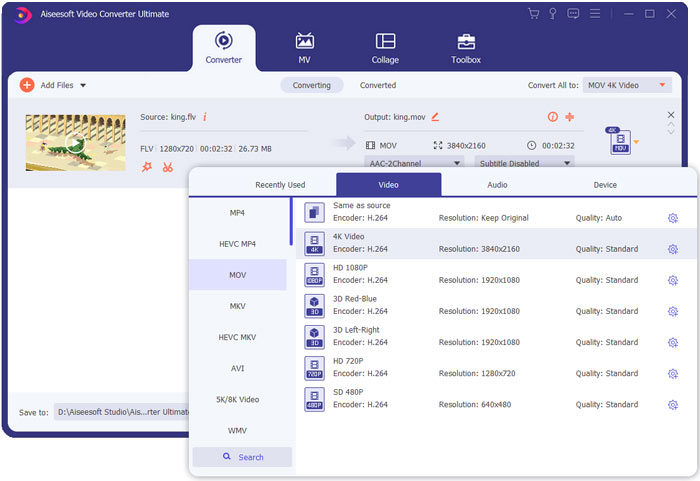
Langkah 3: Seperti yang anda lihat di atas, penukar FLV ini dilengkapi dengan banyak fungsi penyuntingan. Jadi, sebelum penukaran FLV ke MOV, anda boleh menyuntingnya, menambah penapis, kesan atau menyesuaikan tetapan lain mengikut keperluan anda. Selepas itu, anda boleh klik butang Convert All untuk memulakan proses penukaran.
FLV lwn MOV
Adobe Flash Player menggunakan FLV untuk menyampaikan kandungan video seperti filem dan rancangan TV. Pada masa kini, Adobe tidak lagi membangunkan pemain dan mengesyorkan pengguna menyahpasangnya atas sebab keselamatan. Walau bagaimanapun, anda masih boleh menggunakan format FLV pada banyak program bukan Adobe/Macromedia.
Format MOV boleh digunakan untuk menyimpan filem, rancangan TV, klip video pendek atau filem rumah. Ia sebenarnya disimpan dalam Format Fail QuickTime (QTFF), yang telah diperkenalkan oleh Apple pada tahun 1991. Fail MOV sering digunakan apabila orang ingin menyimpan video dengan kualiti yang tinggi.
Bahagian 4. Soalan Lazim Menukar FLV ke MOV
FLV vs MOV, Apa perbezaan antara FLV dan MOV?
FLV, Flash Video File, ialah fail video serasi Flash yang dibangunkan oleh Adobe Systems. Ia mengandungi pengepala pendek, paket video, audio dan metadata yang diselang-seli. FLV pada asalnya direka untuk membenamkan strim video dalam aplikasi Adobe. Fail FLV membawa strim video 640x360 dan strim audio dengan 44,1 KHz, 2 saluran, AAC.
MOV ialah format video lalai untuk peranti Apple dan perisian berkaitan seperti QuickTime Player dan iMovie. Ia adalah asas format fail MPEG-4 oleh International Organization for Standardization. Fail MOV boleh menyimpan video, audio, teks, sari kata, imej dan fail lain.
Format FLV tidak disokong oleh peranti Apple termasuk Mac, iPhone, iPad dan iPod touch. Selain itu, berbanding MOV, FLV menawarkan kualiti video yang lebih rendah.
Bolehkah iMovie mengedit FLV?
Tidak. Seperti yang anda pelajari dari atas, FLV tidak dapat disokong oleh peranti dan perisian Apple. Sebagai penyunting video lalai peranti Mac dan iOS, iMovie juga tidak serasi dengan fail FLV.
Bolehkah Windows Media Player membuka fail MOV?
Sebilangan besar versi Windows Media Player tidak menyokong format MOV. Tetapi Windows Media Player 12.0 terbaru boleh membuka fail MOV.
Kesimpulannya
Catatan ini berkongsi 3 cara mudah untuk menukar FLV kepada MOV. Apabila fail FLV anda tidak dapat dimainkan atau disunting, anda boleh bergantung pada penukar yang disyorkan untuk menukarnya kepada MOV atau MP4.
-
 Cara Menukar Video FLV Anda ke Fail Audio MP3 di Desktop dan Dalam Talian
 Bagaimana cara menukar FLV ke fail MP3? Yang perlu anda lakukan ialah membaca artikel ini dengan teliti, cari kaedah kegemaran anda dan ikuti panduan langkah demi langkah kami untuk mendapatkan apa yang anda mahukan.
-
 10 Pemain Video FLV Terbaik untuk Windows 10/8/7, Mac, iOS dan Android yang Perlu Anda Cuba (2021 Terkini)
 Pemain FLV membantu anda mengakses fail FLV dengan mudah pada peranti Windows, Mac, Android, iOS anda. Lihat pemain fail FLV terbaik yang boleh anda muat turun sekarang.
-
 Cara Percuma Menukar MP4 ke FLV Online / Mac / Windows
 Catatan ini adalah panduan terperinci untuk penukaran MP4 ke FLV. Anda boleh menggunakan 3 penukar percuma untuk menukar MP4 ke FLV dalam talian, pada komputer Windows atau Mac dengan mudah.

