


 Video Converter Ultimate
 Perakam Skrin
 Pembaikan Video
 Muat Turun Selamat
5 Cara Memperbaiki Windows Media Player Tidak Berfungsi pada Windows 7/8/10
Windows Media Player telah berhenti berfungsi. Masalah menyebabkan program berhenti berfungsi dengan betul. Ia juga akan memainkan audio tetapi bukan video. Bagaimana untuk mengatasi masalah ini?
Apabila Windows Media Player berhenti berfungsi, anda mungkin menerima ralat "Window Media Player telah berhenti berfungsi" tanpa maklumat khusus mengenainya, atau anda diberitahu bahawa "Jenis fail tidak disokong". Walaupun tidak ada arahan, dan klik anda tidak berfungsi.
Terdapat banyak sebab yang menyebabkan Windows Media Player tidak berfungsi. Masalah yang paling biasa ialah fail tidak disokong, dan ini akan menyebabkan video dimainkan tanpa imej, tanpa audio, atau tanpa sari kata. Jika tidak, puncanya boleh menjadi sangat pelbagai tanpa sebarang mesej khusus. Dalam keadaan ini, anda perlu menyemak semua masalah yang disenaraikan dalam artikel berikut untuk membetulkan ralat yang rumit ini. Tetapi anda juga boleh memilih cara terbaik dengan menggunakan pemain video alternatif untuk menonton sebarang video tanpa masalah dan had.

Bahagian 1: Pemain Media Alternatif Terbaik yang Anda Tidak Perlu Lupa
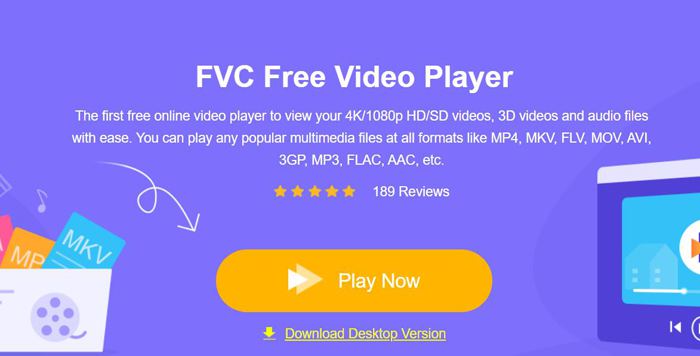
Untuk mengelakkan Windows Media Player tidak berfungsi, sebaiknya anda memilih alternatif profesional. FVC Free Video Player ialah pemain video dalam talian percuma yang dapat menyelesaikan semua masalah yang mungkin anda hadapi ketika menggunakan Windows Media Player. Ia menyokong memainkan video tanpa had format dan resolusi. Tanpa memuat turun sebarang perisian lain, anda boleh memainkan semua format video dengan lancar.
- 1. Sokong memainkan hampir semua format, termasuk fail FLV, MKV, RMVB, dan DVD atau Blu-ray.
- 2. Mainkan video dengan kualiti tinggi yang mencapai resolusi 4K.
- 3. Mampu menyesuaikan trek audio dan sari kata dalam bahasa yang berbeza.
- 4. Ambil tangkapan skrin pada bila-bila masa semasa memainkan video.
Langkah 1: Pergi ke laman web FVC Free Video Player pada mana-mana pelayar. Kemudian klik butang Play Now untuk memasang pelancar. Selepas beberapa minit, klik butang Play Now sekali lagi untuk memulakan FVC Free Video Player.
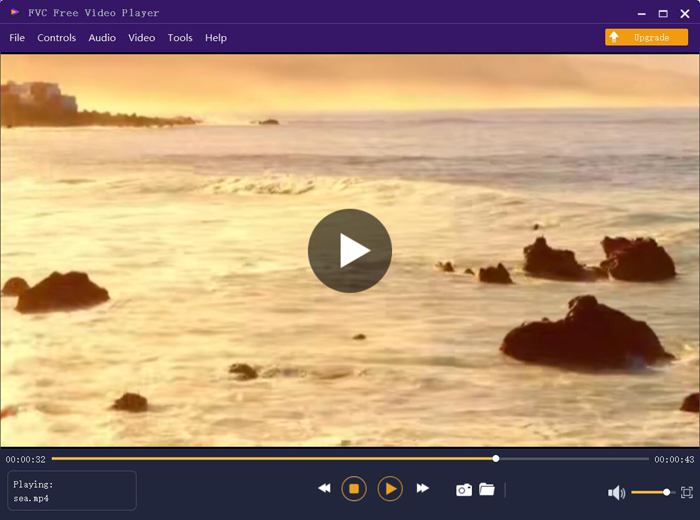
Langkah 2: Klik butang Open Files untuk memilih video yang dikehendaki. Kemudian ia akan mula dimainkan secara automatik. Dalam menu Control, anda boleh melihat kekunci pintas untuk melaraskan kelantangan. Anda juga boleh memilih trek audio atau video mengikut keperluan anda. Selain itu, jika anda mengklik butang Tools dan memilih pilihan Effect, anda juga boleh melaraskan hue, kecerahan, kontras, ketepuan, dan gamma.
Bahagian 2: Cara Memperbaiki Windows Media Player yang Tidak Berfungsi pada Windows 7/8/10
Seperti disebutkan sebelumnya, banyak sebab boleh menyebabkan Windows Media Player tidak berfungsi, dan ada 3 kaedah untuk menyelesaikan masalah ini dalam situasi yang berbeza.
Kaedah 1: Lancarkan penyelesaian masalah Window Media Player
Apabila Windows Media Player anda tidak bertindak balas selepas klik, cara ini akan membantu anda menyelesaikannya.
Langkah 1: Tekan butang Windows dan R pada papan kekunci anda untuk memulakan program Run. Kemudian anda harus salin dan tampal msdt.exe -id WindowsMediaPlayerConfigurationDiagnostic dalam bar carian. Klik butang OK untuk pergi ke penyelesai masalah (troubleshooter) Windows Media Player Settings. Kemudian klik butang Next untuk memulakannya.
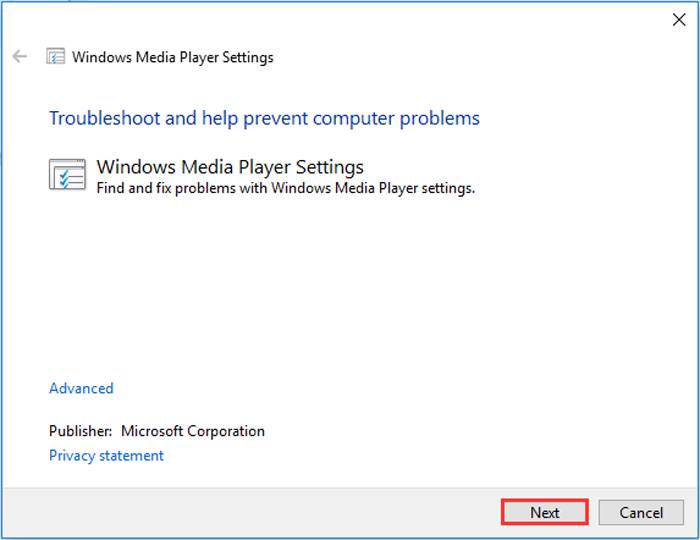
Langkah 2: Setelah tetingkap muncul, klik butang Apply this fix untuk menetapkan semula Windows Media Player kepada tetapan lalai. Selepas itu anda boleh cuba memulakan semula Windows Media Player.
Kaedah 2: Pasang penyahkod lain pada Windows Media Player
Sekiranya Windows Media Player anda tidak berfungsi dengan beberapa video atau audio khas, anda boleh memuat turun penyahkod yang bertindak balas untuk memainkan video ini.
Langkah 1: Buka Microsoft Store pada komputer anda. Klik butang Search, kemudian masukkan Video Extension dalam bar carian. Anda boleh memuat turun pengembangan video yang dikehendaki ke komputer anda.
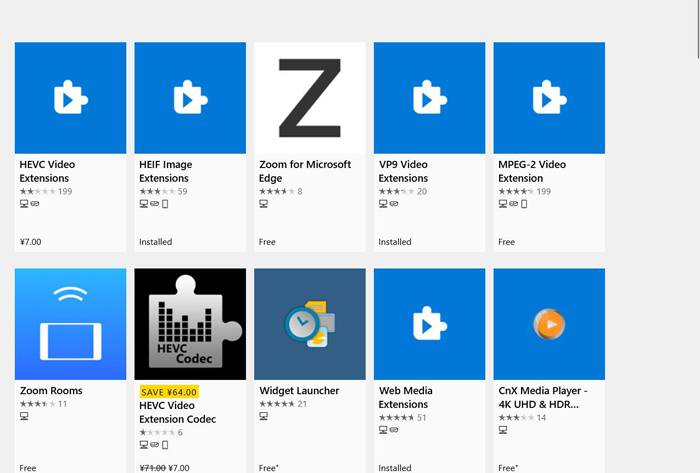
Langkah 2: Selepas pemasangan, buka semula video melalui Windows Media Player. Tetapi anda harus perhatikan bahawa masih terdapat banyak format yang tidak disokong, termasuk FLV, RMVB dan lain-lain.
Kaedah 3: Pasang semula Windows Media Player.
Sekiranya kaedah yang disebutkan tidak berfungsi, anda harus mencuba memasang semula perisian apabila Windows Media Player berhenti berfungsi.
Langkah 1: Tekan butang Windows dan R pada papan kekunci anda untuk membuka program Run. Kemudian taip optionalfeatures.exe dalam bar carian. Klik butang OK untuk membuka atau menutup fungsi. Kemudian anda boleh nyahtanda (buang tanda) Windows Media Player.
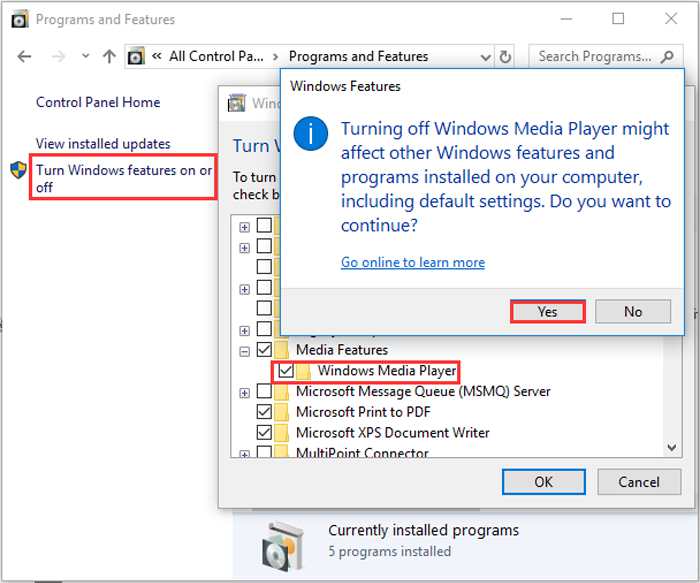
Langkah 2: Mulakan semula komputer anda dan ulangi operasi sebelumnya. Kemudian tandakan semula Windows Media Player. Selepas itu, but semula komputer anda sekali lagi, dan perisian akan dipasang secara automatik pada komputer anda.
Kecuali untuk masalah ini, Windows Media Player juga mempunyai banyak kekurangan. Anda tidak dapat menyesuaikan kelajuan main balik video, dan hotkeys selalu tidak berguna. Jadi mengapa tidak memilih pemain video dalam talian percuma untuk menyelesaikan semua masalah?
Bahagian 3: Soalan Lazim Windows Media Player Tidak Berfungsi
1. Mengapa fail video FLV tidak dapat dimainkan di Windows Media Player?
Walaupun Windows Media Player menyokong pemasangan berbilang pengekod (decoder) untuk memainkan video dalam beberapa format yang tidak biasa, format FLV tidak disokong. Dalam keadaan ini, anda boleh cuba memuat turun alternatif Windows Media Player atau menukar format video.
2. Mengapa Windows Media Player saya tidak berfungsi selepas kemas kini Windows 10?
Mungkin Windows Media Player rosak selepas kemas kini. Anda boleh mencuba kaedah 3 yang disebutkan semula untuk memasang semula Windows Media Player.
3. Bagaimana memilih trek sari kata pada Window Media Player?
Sayangnya, tidak ada pilihan untuk memilih sari kata, video, dan trek audio yang berbeza di Windows Media Player. Anda boleh memilih alternatif lain untuk memainkan video.
Kesimpulannya
Sebab-sebab yang menyebabkan Windows Media Player tidak berfungsi akan menjadi sangat rumit, yang menyukarkan untuk menyelesaikan masalah ini. Oleh itu, anda hanya boleh memuat turun pemain media alternatif terbaik - Pemain Video Percuma FVC untuk memainkan video dengan lancar dengan kualiti yang tinggi. Dengan cara ini, anda dapat mengelakkan Windows Media Player tidak berfungsi selama-lamanya.
-
 Cara Bermain DVD pada Windows Media Player pada tahun 2021
 Mengapa DVD saya tidak dimainkan pada Windows Media Player? Bagaimana cara memainkan DVD pada pemain media Windows 7? Catatan ini berkongsi 3 cara untuk memainkan DVD dengan atau tanpa WMP.
-
 6 Penyelesaian yang Disahkan untuk Memperbaiki Video yang Tidak Dimainkan di Chrome
 Untuk menyelesaikan masalah bahawa video tidak dimainkan di Chrome, yang perlu anda lakukan hanyalah membaca penyelesaian masalah kami dan melakukan penyelesaian yang disahkan satu persatu.
-
 5 100% Penyelesaian Kerja untuk Memperbaiki Video yang Tidak Dimainkan di iPad
 Video anda tidak dimainkan di iPad? Berikut adalah lima penyelesaian untuk membantu anda menghilangkan masalah ini dan kemudian anda dapat menikmati video kegemaran anda di telefon bimbit dengan mudah.
