


 Video Converter Ultimate
 Perakam Skrin
 Pembaikan Video
 Muat Turun Selamat
Cara Menukar Fail FLV ke Video iPhone tanpa Kehilangan Kualiti
Umum diketahui bahawa iPhone dan iPad dilengkapi dengan paparan generasi terkini. Maka tidak hairan menonton filem pada peranti i ialah satu aktiviti yang popular. Namun, pengguna iOS sentiasa berdepan halangan format ketika memainkan filem. Contohnya, fail FLV yang agak biasa digunakan tidak disokong oleh perisian asli Apple. Itulah sebabnya kami berkongsi panduan ini untuk membantu anda menukar FLV kepada video iPhone pada komputer desktop atau secara atas talian dengan mudah.

Bahagian 1: Perisian Percuma Terbaik untuk Menukar FLV ke Video iPhone
Secara natif, iPhone menyokong M4V, sebahagian daripada MP4, MOV dan sebahagian AVI. Ini menjadikan penukaran FLV kepada format iPhone agak sukar. FVC Free FLV Converter ialah alat yang berkuasa. Ia menyediakan tetapan pratetap untuk menukar fail multimedia terus kepada format iPhone. Lebih penting lagi, ia adalah sepenuhnya percuma digunakan.
Ciri Utama Penukar FLV ke Video iPhone Percuma Terbaik
- 1. Tukar fail FLV ke format video iPhone dengan mudah.
- 2. Sertakan banyak pratetap untuk iPhone, iPad dan banyak lagi.
- 3. Menawarkan ciri bonus yang luas, seperti peningkatan video.
Muat Turun PercumaUntuk Windows 7 atau lebih baharuMuat Turun Selamat
Muat Turun PercumaUntuk MacOS 10.7 atau lebih baharuMuat Turun Selamat
Cara Menukar FLV ke Video iPhone dalam Kumpulan
Langkah 1: Tambahkan fail FLV
Jalankan penukar FLV ke video iPhone percuma terbaik sebaik sahaja anda memasangnya pada komputer. Kemudian klik butang Add File(s) untuk memaparkan dialog buka fail. Cari dan pilih semua fail FLV yang anda mahu tonton pada iPhone dan klik Open. Penukar ini menyokong penukaran kelompok.

Langkah 2: Tetapkan format output
Selepas FLV dimuatkan, anda akan melihat semuanya di kawasan pustaka. Pergi ke bahagian bawah, klik dan kembangkan pilihan Output format. Pilih Apple iPhone dalam senarai dan pilih model peranti anda. Kemudian perisian akan mengoptimumkan parameter yang berkaitan. Ia akan menetapkan format output untuk semua fail FLV. Jika anda ingin menukar parameter tertentu, klik ikon Gear untuk membuka dialog profil.

Langkah 3: Tukar video FLV ke iPhone
Seterusnya, klik butang Open Folder, pilih folder destinasi dan sahkan. Secara lalai, perisian akan menyimpan video iPhone ke pustaka video anda, tetapi anda boleh mengubahnya mengikut keutamaan. Akhir sekali, klik butang Convert untuk mula menukar FLV kepada video iPhone.

Selain itu, program ini juga menyokong menukar video FLV kepada Xbox, PS4, Samsung, Apple TV atau peranti popular yang lain.
Bahagian 2: Cara Menukar FLV ke iPhone Format Dalam Talian
Sesetengah orang tidak suka memasang perisian pada cakera keras mereka. Ada kalanya, anda hanya perlu menukar FLV kepada video iPhone sekali-sekala. Dalam situasi sebegini, aplikasi penukar video web seperti FVC Free Online Video Converter ialah pilihan mudah alih. Ia boleh memenuhi keperluan anda tanpa perlu memasang sebarang perisian. Selain itu, ia tidak memerlukan sebarang bayaran atau pendaftaran. Berbeza dengan aplikasi web lain, ia juga tidak mempunyai had saiz fail, jadi anda boleh memuat naik fail FLV tanpa had untuk ditukar.
Langkah 1: Buka https://www.free-videoconverter.net/free-online-video-converter/ dalam pelayar web untuk membuka halaman utama. Tekan butang Add Files to Convert dan muat turun pelancar (launcher).

Langkah 2: Apabila muat turun selesai, pelancar akan muncul secara automatik. Kemudian klik butang Add File di penjuru kiri atas dan muat naik fail FLV yang anda ingin tonton pada iPhone.
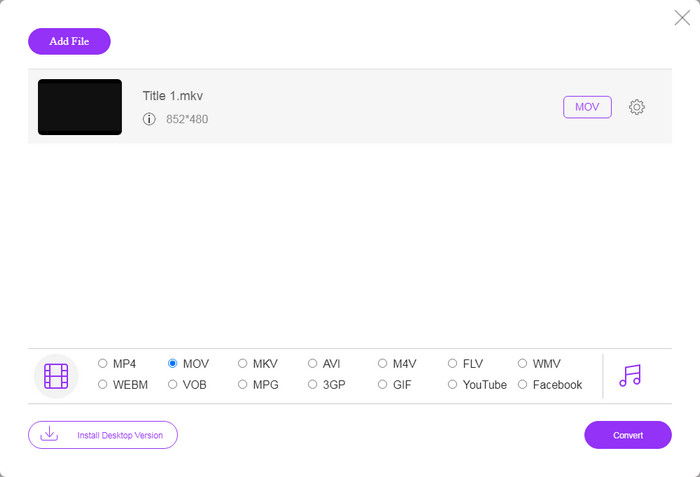
Langkah 3: Pergi ke kawasan format di bahagian bawah dan pilih MOV, iaitu format video yang paling boleh diterima untuk peranti iOS. Klik butang Convert dan aplikasi web akan melakukan penukaran FLV kepada format iPhone secara dalam talian. Tunggu proses selesai dan muat turun hasilnya ke cakera keras anda.
Sekiranya anda ingin menetapkan semula pilihan, klik ikon Tetapan dan anda akan menjumpainya pada dialog Tetapan, seperti resolusi, codec, dll.
Bahagian 3: Soalan Lazim mengenai Menukar FLV ke Video iPhone
Bolehkah anda memainkan fail FLV di iPhone tanpa menukar?
Satu-satunya cara untuk memainkan fail FLV pada iPhone tanpa menukarnya ialah memasang pemain FLV pihak ketiga, seperti VLC untuk iOS. Selepas itu anda boleh menonton filem kegemaran dengan mudah.
Di manakah video disimpan di iPhone?
Video yang anda rakam dan pindahkan di iPhone akan disimpan di aplikasi Foto. Sekiranya anda memuat turun video menggunakan aplikasi, video akan disimpan ke dalam aplikasi. Bagaimanapun, anda tidak dapat mengakses sistem fail di iPhone atau iPad.
Jenis fail apa yang digunakan iPhone untuk video?
Pada iPhone, H.264 adalah satu-satunya codec video yang disokong. Dalam format video, MOV dan MP4 berkait rapat. Untuk rakaman video di iOS, Apple menggunakan codec video H.265 atau HEVC yang lebih baru.
Kesimpulannya
Sekarang, anda harus memahami cara membuka dan memainkan fail FLV di iPhone. Nampaknya, anda tidak boleh membuka video FLV di iPhone secara langsung. Cara terbaik adalah menukar fail anda ke format yang disokong iPhone, seperti MOV. Kemudian anda boleh memainkan video dengan lancar. FVC Free FLV Converter adalah salah satu penukar video FLV ke iPhone percuma terbaik. Ia tidak hanya mudah digunakan, tetapi juga dapat menghasilkan kualiti output yang sangat baik. Lebih banyak soalan? Sila tulis di bawah.
-
 3 Kaedah Mudah Menukar FLV ke AVI di Desktop dan Dalam Talian
 1. Tukar video FLV ke format multimedia lain dengan mudah. 2. Menyokong hampir semua format video, seperti AVI, MP4, MKV, dan lain-lain. 3. Proses kumpulan beratus-ratus fail FLV setiap penukaran.
-
 3 Kaedah Teratas untuk Menukar FLV ke WMV pada Windows dan Mac
 Mencari kaedah terbaik untuk menukar FLV ke WMV tanpa kehilangan kualiti di PC atau Mac? Anda bernasib baik kerana di sini kami berkongsi tiga kaedah untuk melakukan tugas dengan mudah.
-
 Panduan Konkrit untuk Memuat Naik Video FLV Anda ke YouTube
 Muat naik FLV ke YouTube tetapi gagal? Anda boleh menyelesaikan masalah ini dengan sendiri dan menukar FLV ke codec yang disokong oleh YouTube mengikut panduan langkah demi langkah kami.
